Setting Up the Books
Turn on proper double-entry books for the school, then shape the chart of accounts, funds, periods and posting mappings to fit how you work.
1. What Accounting does for the school
Accounting keeps the school's books the way an auditor expects them: in double entry. Every time money moves anywhere in the school, an entry lands in the books by itself. A fee bill raised in Finance, a payment at the bursary, a refund, the school's subscription bill, SMS units, staff expense claims and staff loans all post on their own, so the bursar does not type the same figure twice. Each entry is never edited afterwards; a mistake is put right with a second entry that cancels it, so the history is always there to read. Accounting is part of the Enterprise plan. On that plan, the school's menu shows an "Accounting" group with the overview, the chart of accounts, funds, journals, the ledger and the reports.
2. Debits and credits in plain words
Every entry has two sides that must add up to the same amount. The left side is called the debit and the right side the credit. For things the school owns or is owed (cash in the till, money in the bank, fees a pupil still owes) a debit makes the balance bigger and a credit makes it smaller. For income (tuition, levies, donations) it is the other way round: a credit records income earned. So when a parent pays ₦100,000 in cash, the books debit Cash on hand (the till now holds ₦100,000 more) and credit School fees receivable (the family now owes ₦100,000 less). Both sides are ₦100,000, and that is why the books always balance.
3. Set up the books once
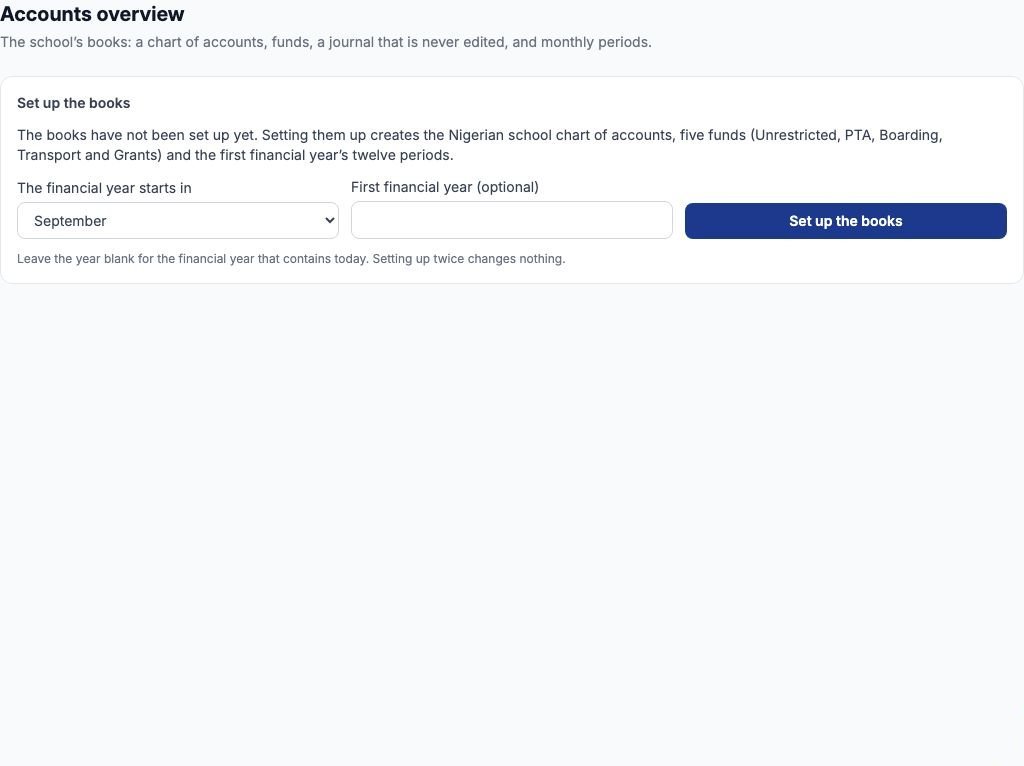
Open Accounting → Accounts overview. Until the books exist, the page shows a "Set up the books" card. Choose the month your financial year begins under "The financial year starts in". Most Nigerian schools pick September, so the year runs with the academic session. Leave "First financial year (optional)" blank to use the financial year that contains today, then press "Set up the books". In one step this creates the Nigerian school chart of accounts, five funds (Unrestricted, PTA, Boarding, Transport and Grants) and twelve monthly periods. Pressing it a second time changes nothing, so a double click does no harm. Only someone with the "Manage accounting settings" permission sees the button; by default that is the School Administrator.
4. Read the overview
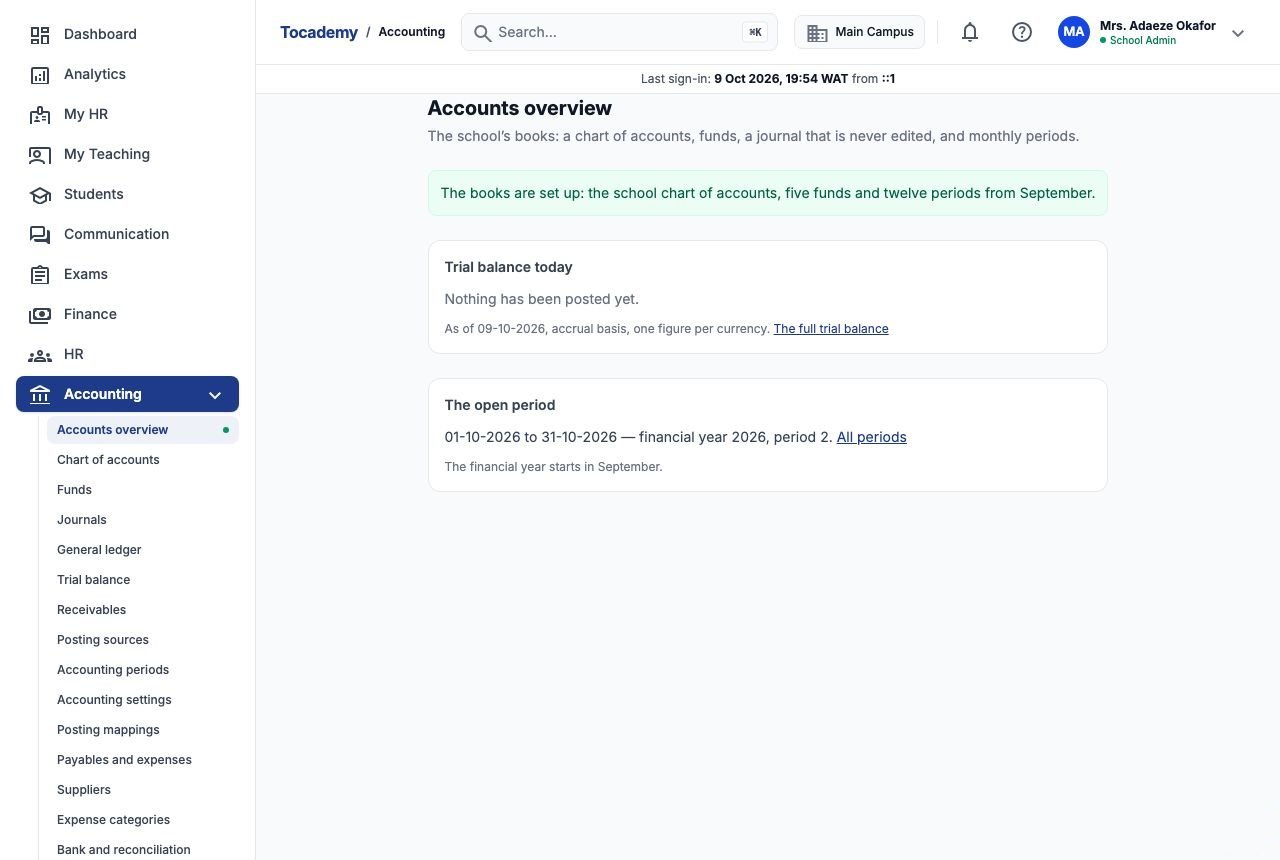
Once the books exist, the overview shows two cards. "Trial balance today" gives the total debits and total credits for each currency and says "Balanced" when they agree. Until the first transaction posts, it says nothing has been posted yet. "The open period" names the month you are posting into. Greenfield Model College set up on 9 October 2026 with a September start, so the card reads 01-10-2026 to 31-10-2026, financial year 2026, period 2. A financial year is named after the calendar year it starts in, so September 2026 to August 2027 is financial year 2026, and September is period 1.
5. Find your way round the chart of accounts
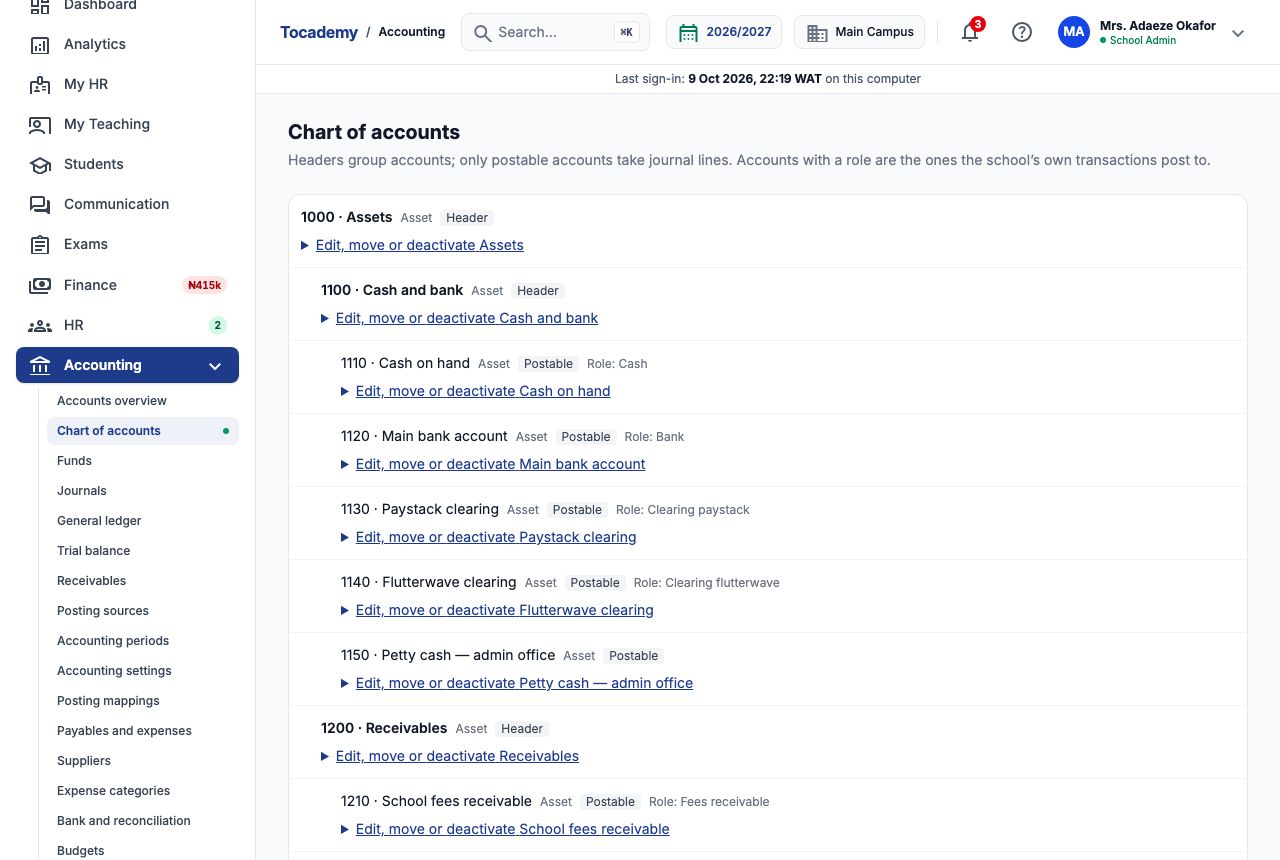
Accounting → Chart of accounts lists every account as a tree: 1000 Assets, 2000 Liabilities, 3000 Funds and equity, 4000 Income and 5000 Expenses. A "Header" only groups the accounts under it. A "Postable" account is one that entries can go to, such as 1110 Cash on hand or 4101 Tuition fees. Some accounts carry a role, for example 1210 School fees receivable (Role: Fees receivable) or 1120 Main bank account (Role: Bank). A role tells the school's own transactions where to post, so a counter payment in cash always lands in the account holding the Cash role. The template already has the accounts a Nigerian school needs, from 4117 Examination fees (WAEC, NECO and others) to 2320 PAYE payable and 2340 NHF payable.
6. Rename, move or switch off an account
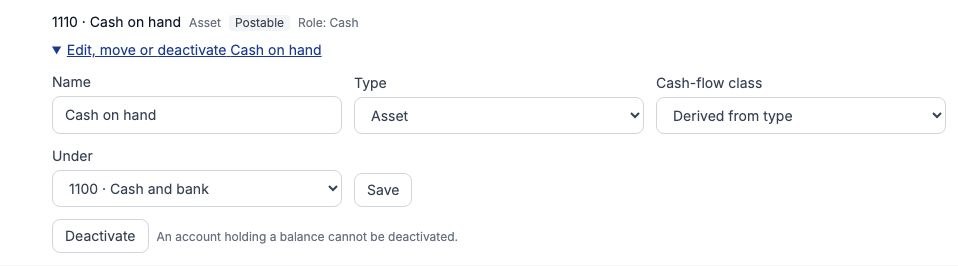
Under each account is a link that begins Edit, move or deactivate, followed by the account's name. Open it to change the "Name", the "Type", the "Cash-flow class" (for asset, liability and equity accounts only; leave it on "Derived from type" unless your accountant says otherwise) and "Under", which is the header it sits beneath. Then press "Save". Press "Deactivate" to stop an account taking new entries; it can be switched back on with "Activate". An account that still holds a balance cannot be deactivated. Move the balance out with a journal first. A deactivated account also stops automatic postings: an invoice whose fee posts to it waits in the failure register until the account is active again (see the Journals and Ledger guide).
7. Example: add a petty-cash account for the admin office
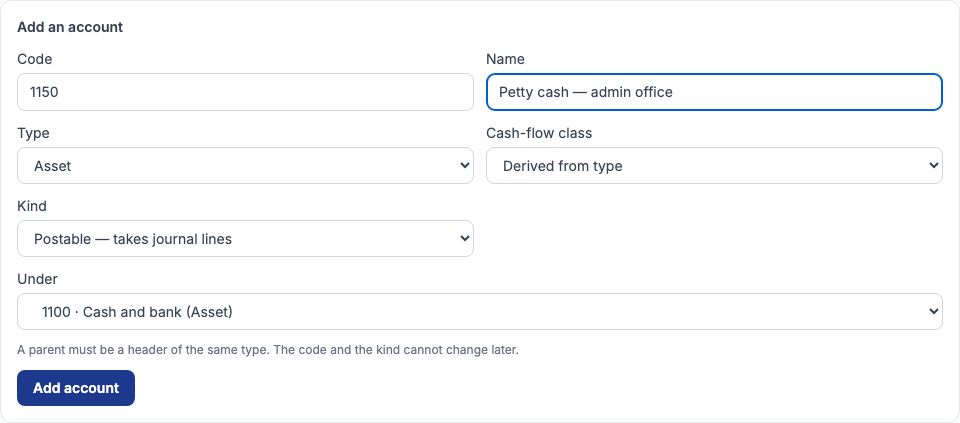
Greenfield keeps a separate float in the admin office, and the bursar wants it apart from the main till. At the foot of the chart, under "Add an account", she typed "Code" 1150 and "Name" Petty cash — admin office, chose "Type" Asset, left "Cash-flow class" on "Derived from type", chose "Kind" "Postable — takes journal lines", and under "Under" picked 1100 · Cash and bank. Then she pressed "Add account", and 1150 · Petty cash — admin office added appeared at the top of the page. Two things cannot be changed later: the code, and whether the account is a header or postable. A parent must be a header of the same type, so an expense account cannot sit under Cash and bank.
8. Funds: keep the PTA's money apart from the school's
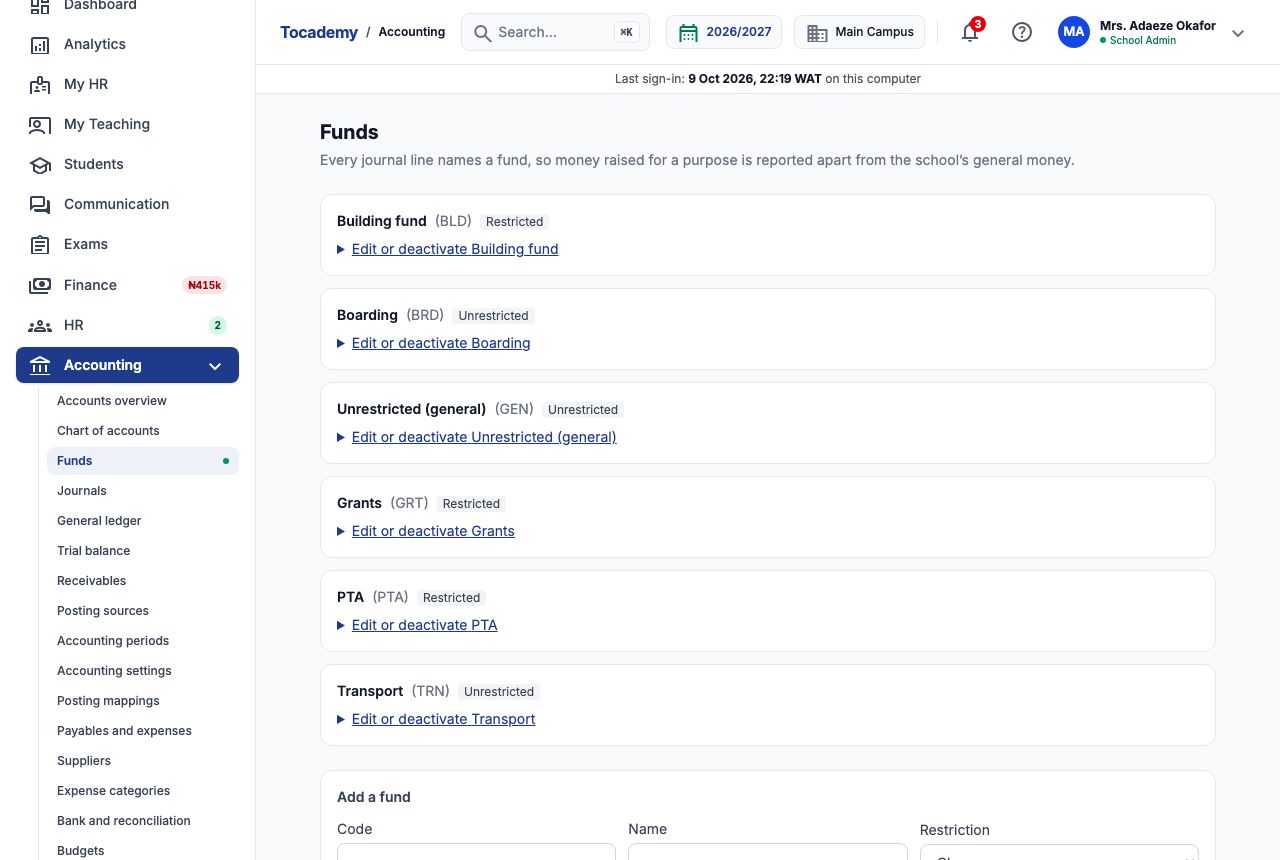
Every line in the books names a fund, so money raised for a purpose can be reported apart from the school's general money. Accounting → Funds lists them. A fund marked Restricted holds money given for a stated purpose, such as the PTA levy or a grant, and should only be spent on that purpose. An Unrestricted fund can be spent on anything. Note that the template sets up Boarding and Transport as Unrestricted; PTA and Grants are Restricted. To add one, fill in "Add a fund". Greenfield typed "Code" BLD and "Name" Building fund, chose "Restriction" "Restricted — for a stated purpose", and pressed "Add fund". Each fund can be renamed or switched off from the edit link under its name. A fund that still holds a balance cannot be deactivated, and its restriction is fixed once any entry names it.
9. Periods: close a month when it is finished
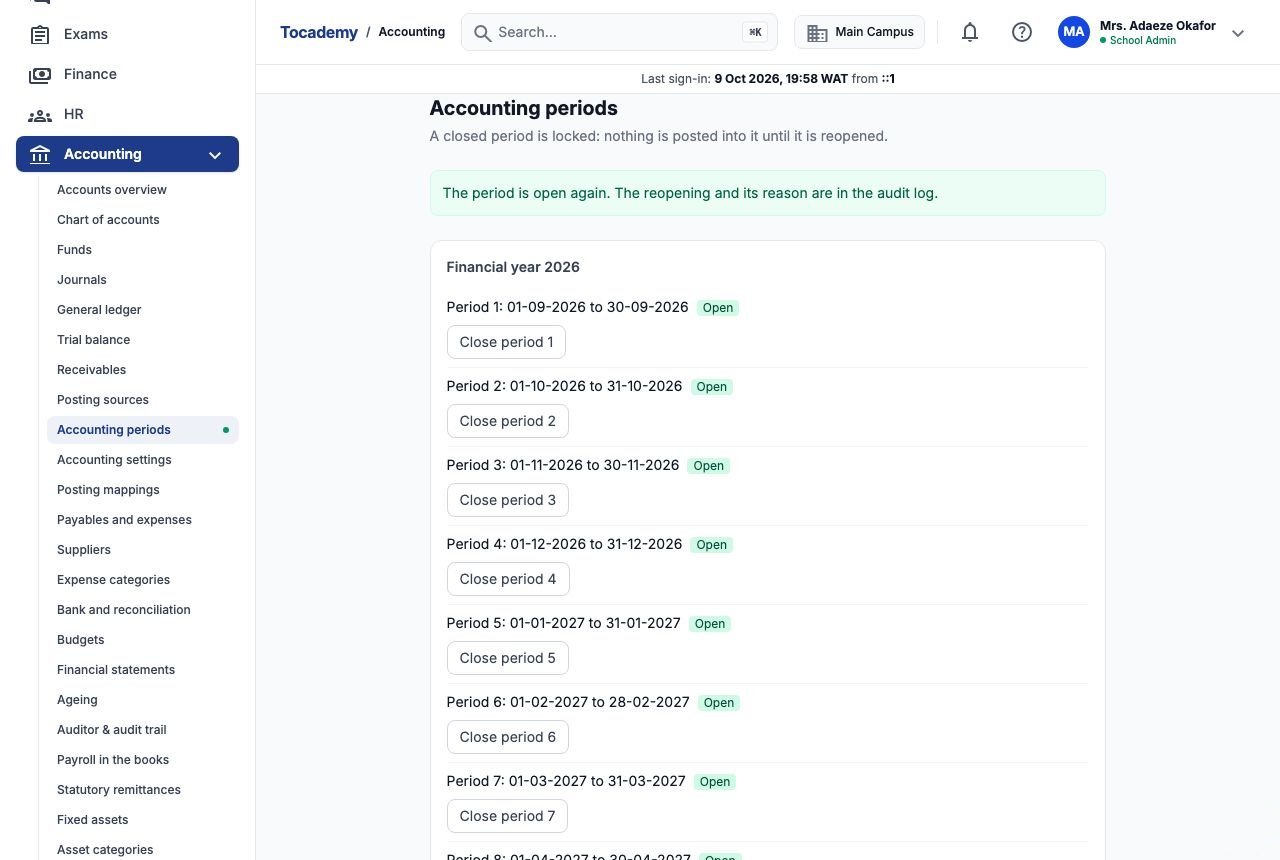
Accounting → Accounting periods lists the twelve months of each financial year, each marked Open or Closed. When a month's books are checked, press the "Close period" button under it. Nothing more can post into a closed month, so the figures you reported cannot change behind your back. A month cannot be closed while any transaction dated inside it has not reached the books yet. When the last period of the year approaches, press "Open the next financial year" to add the following twelve months. Closing and reopening needs the "Close and reopen accounting periods" permission, which by default only the School Administrator holds.
10. Example: reopen September to put in a late receipt
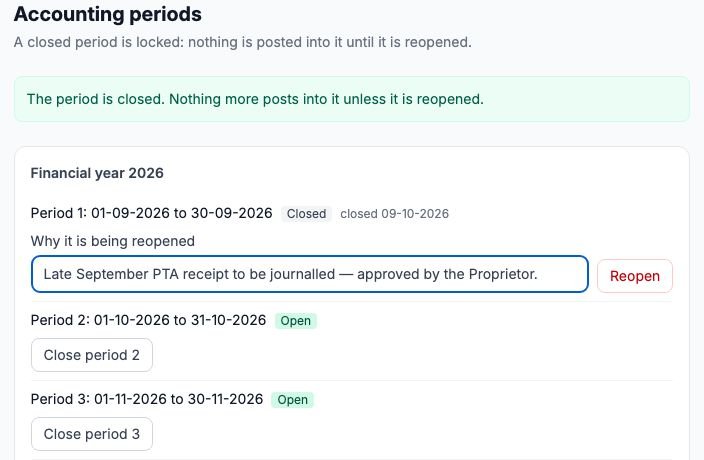
Greenfield closed September (period 1) on 9 October. That afternoon the PTA treasurer brought a receipt dated in September that had not been entered. A closed period shows a box called "Why it is being reopened" instead of the close button. The bursar typed Late September PTA receipt to be journalled — approved by the Proprietor, and pressed "Reopen". The page confirmed the period was open again and said the reopening and its reason are in the audit log, where an auditor can read who reopened it, when, and why. A reason is required; the page will not reopen without one. When the late receipt is in, close the month again.
11. Settings: the financial year and its start month
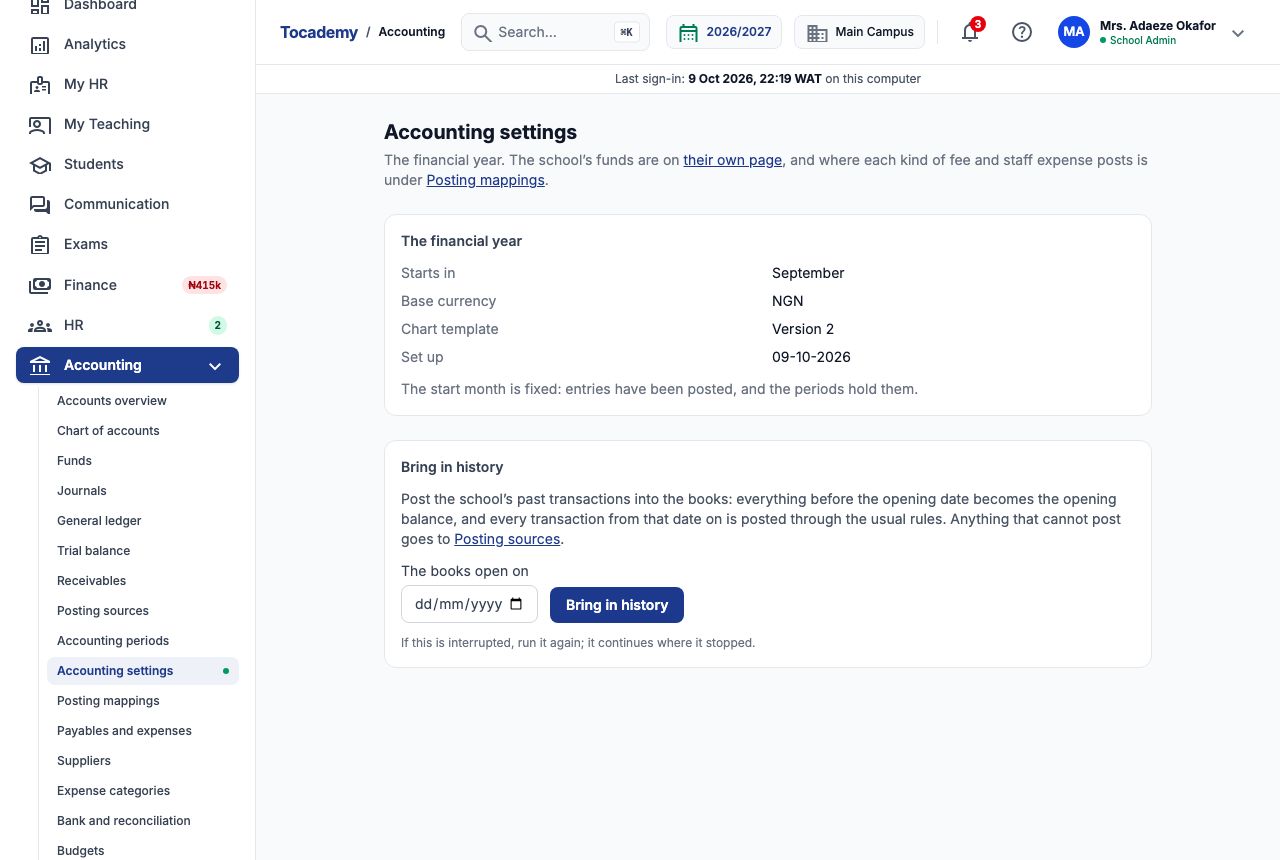
Accounting → Accounting settings shows the month the financial year starts, the base currency (NGN), the chart template version and the date the books were set up. Until anything has been posted, someone with the "Manage accounting settings" permission can change "Start the financial year in" and press "Save", and the periods follow. Once the first entry posts, the page says the start month is fixed, because the periods now hold real entries. Choose the start month carefully at set-up. The same page has "Bring in history" for posting transactions from before the books existed; the Journals and Ledger guide walks through it.
12. Posting mappings: where each kind of fee goes
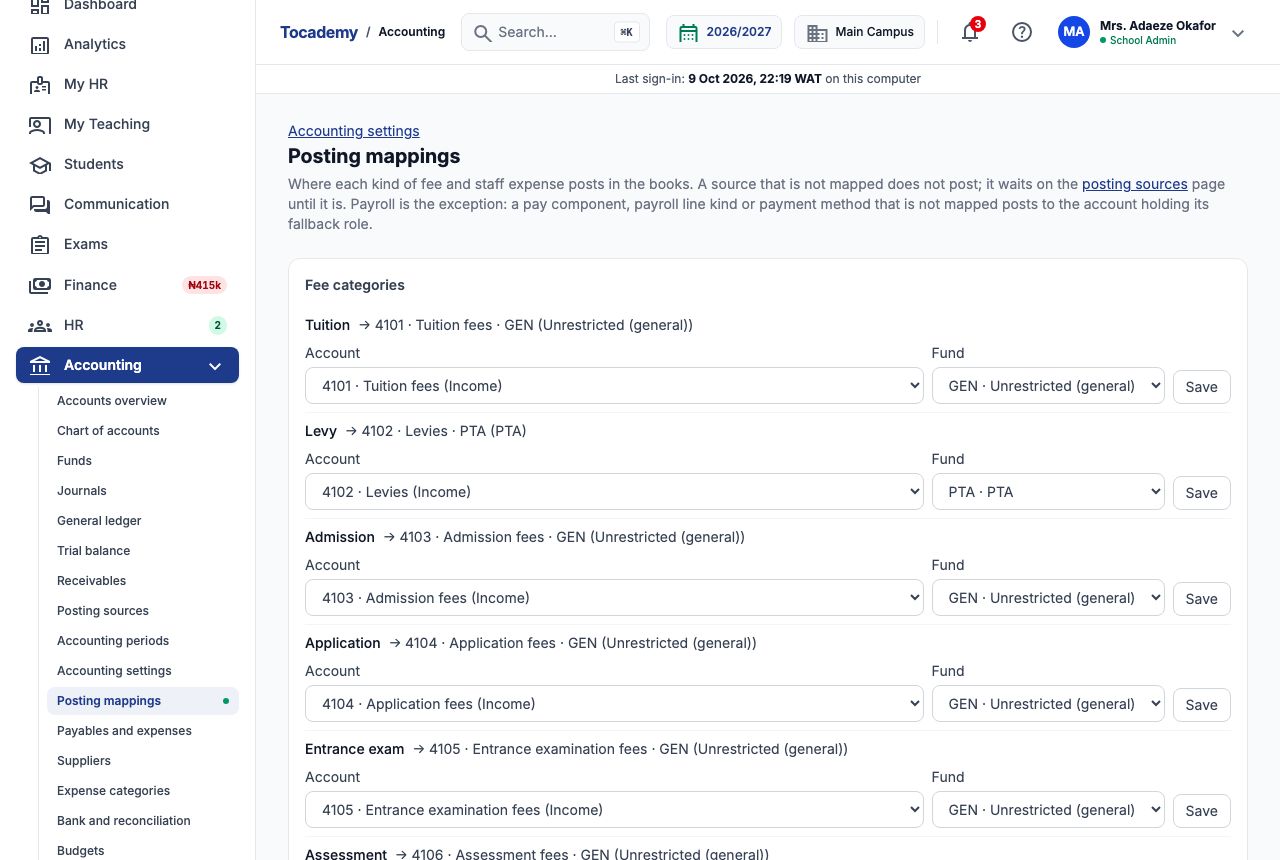
Accounting → Posting mappings decides which income account and which fund each fee category posts to. Set-up maps every category for you. Tuition goes to 4101 Tuition fees, Levy to 4102 Levies, Books to 4113 Books, Accommodation to 4110 Boarding and accommodation fees in the Boarding fund, and Transport to 4111 Transport fees in the Transport fund. The rest go to the general fund. A source that is not mapped does not post: its transactions wait on the Posting sources page until it is. Payroll is the exception. A pay item that is not mapped posts to the account holding its fallback role (salaries to the Salaries expense role, bank transfers to the Bank role), so the page shows those rows as "Not mapped" without anything being stuck. Changing a mapping needs the "Manage the chart of accounts and funds" permission.
13. Example: send the PTA levy to the PTA fund
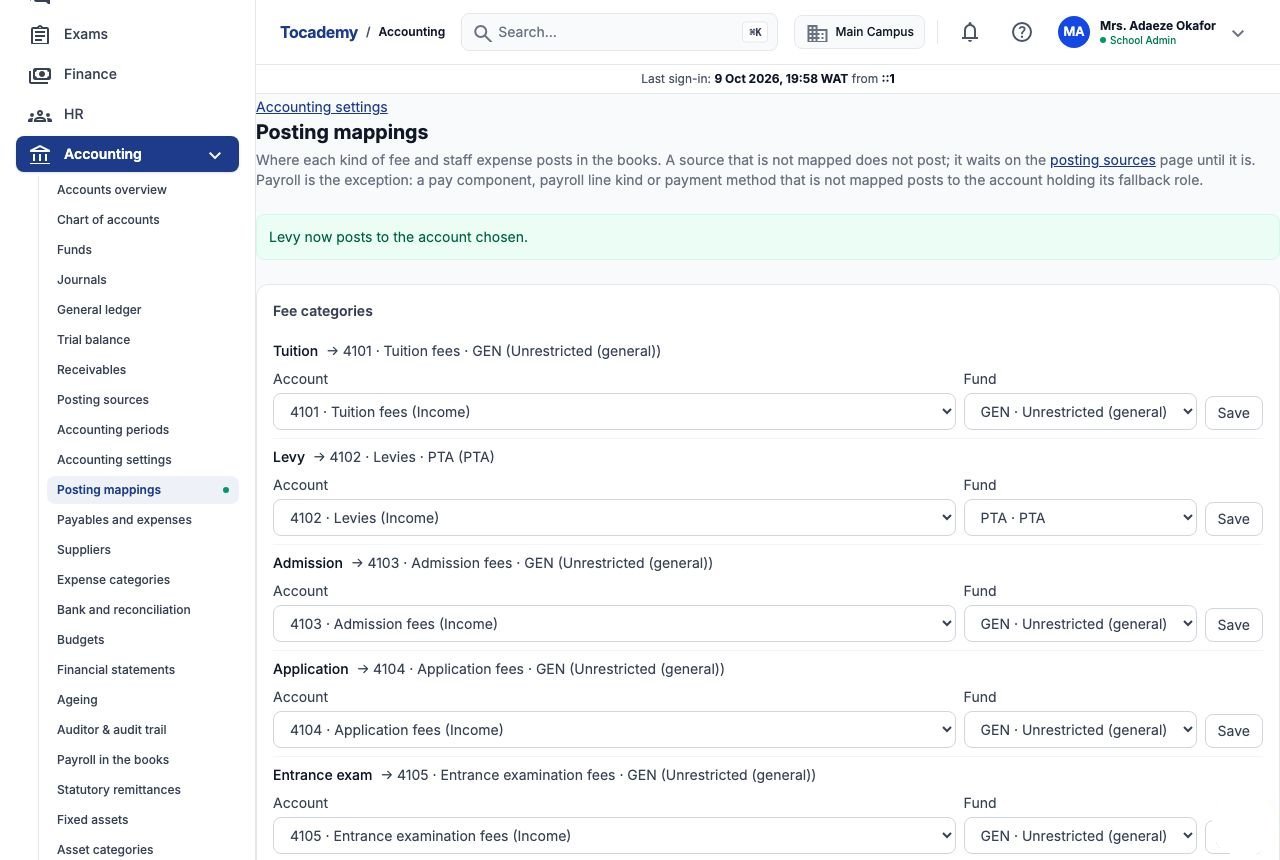
Greenfield charges every pupil a ₦10,000 PTA levy each term, and the PTA wants to see that money apart from the school's. On the Levy row the bursar left "Account" on 4102 · Levies (Income), changed "Fund" from GEN · Unrestricted (general) to PTA · PTA, and pressed "Save". The row now reads Levy → 4102 · Levies · PTA (PTA). From then on, when Chiamaka Obi's ₦185,000 first-term bill (₦150,000 tuition, ₦10,000 PTA levy and ₦25,000 books) posted, its ₦10,000 levy line was credited to Levies in the PTA fund, and the trial balance by fund shows Levies on its own PTA row: ₦40,000 once all four of Greenfield's pupils had been billed. A mapping change only affects transactions posted after it; entries already in the books stay as they are. Choose "The default (Unrestricted)" to send a category back to the general fund.
Who can do what
Reading the books ("View the school's accounts") is given by default to the School Administrator, the Principal and the Bursar. Posting manual journals and changing the chart, funds and mappings belong to the School Administrator and the Bursar. Setting up the books, changing the start month, bringing in history, and closing or reopening periods are the School Administrator's alone by default, so the person who keeps the books day to day is not the person who locks a month. None of these are given to a campus administrator, because a school keeps one set of books for all its campuses. A school administrator can adjust any of this in the school's roles.
Still stuck?
Email info@tocel.ng and tell us which guide you were following.