Question Sourcing Defaults
Choosing which classes' and terms' bank questions a new online exam may use, for tests and examinations alike.
What a sourcing rule does
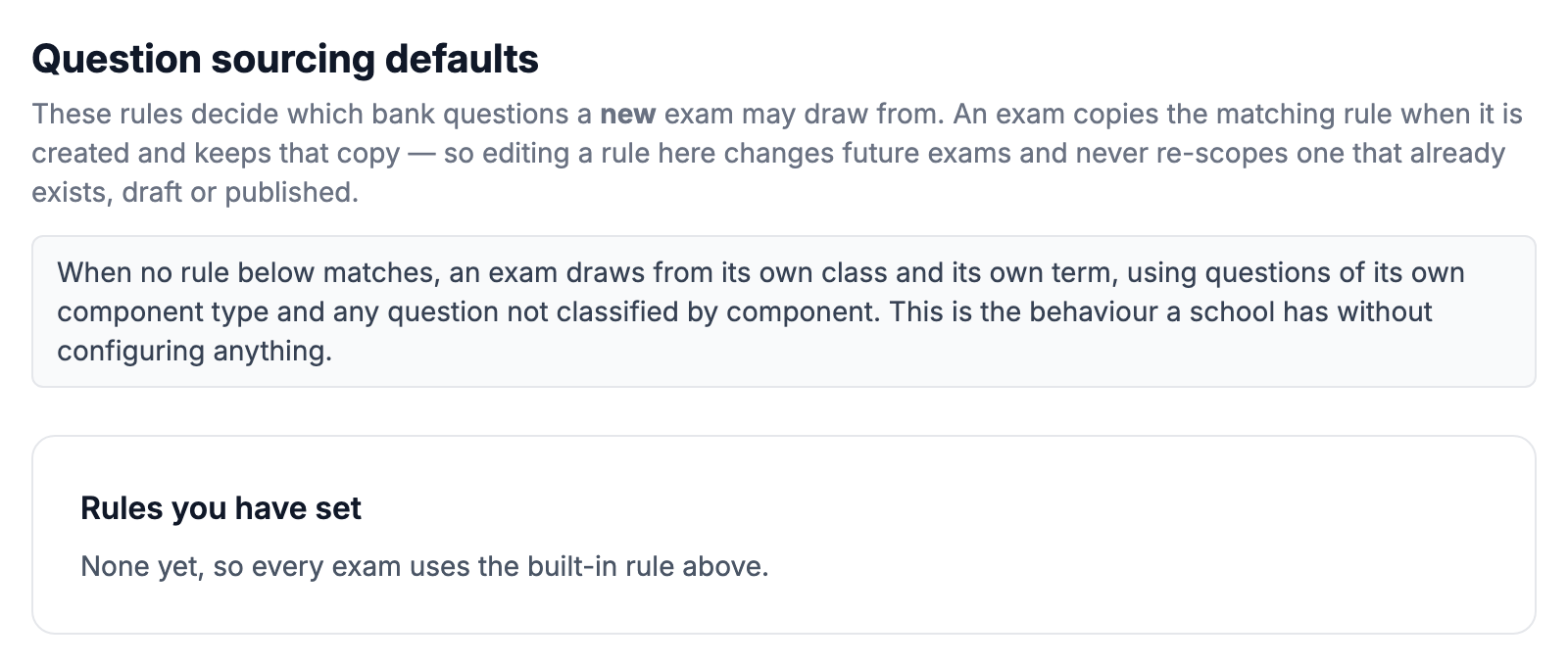
When you create an online exam, it may only use questions from part of your question bank. Without any rule of your own, an exam uses questions from its own class and its own term whose "Assessment" matches the exam (a test or the examination) or is "No specific component" — the page shows this built-in rule at the top. A sourcing rule widens or changes that, for example letting a JSS 2 examination also use JSS 1 questions so it can test earlier work. An exam copies the matching rule at the moment it is created and keeps that copy, so changing a rule later affects only exams created afterwards — never one that already exists, draft or published.
Opening the page
Go to Exams → Online Exams (CBT) and choose "Sourcing defaults". Anyone who manages exams can read the rules; adding, switching off or removing one is for the School Administrator, Principal or Campus Administrator, and the page says so if you can only look.
1. Say which exams the rule is for
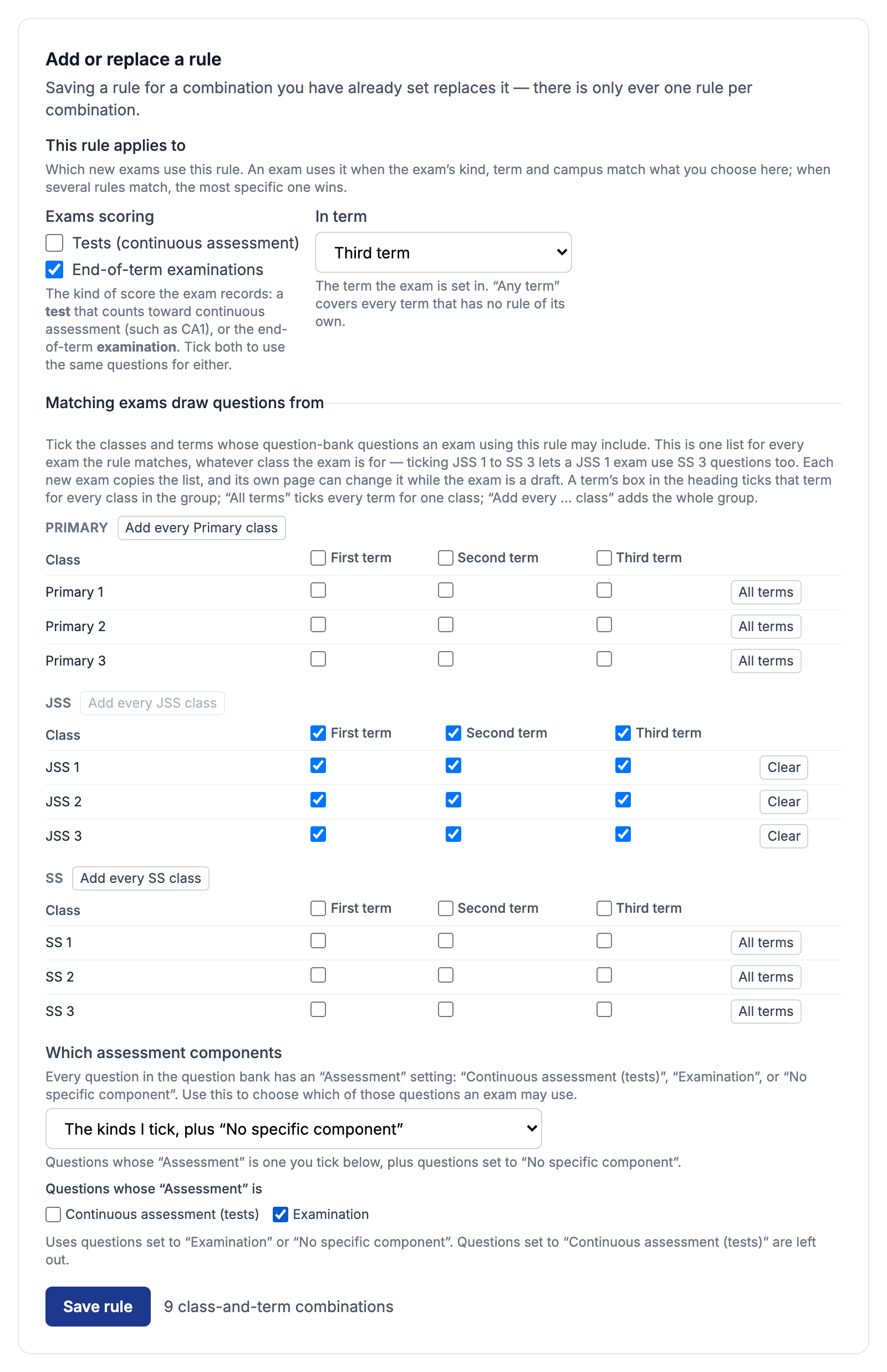
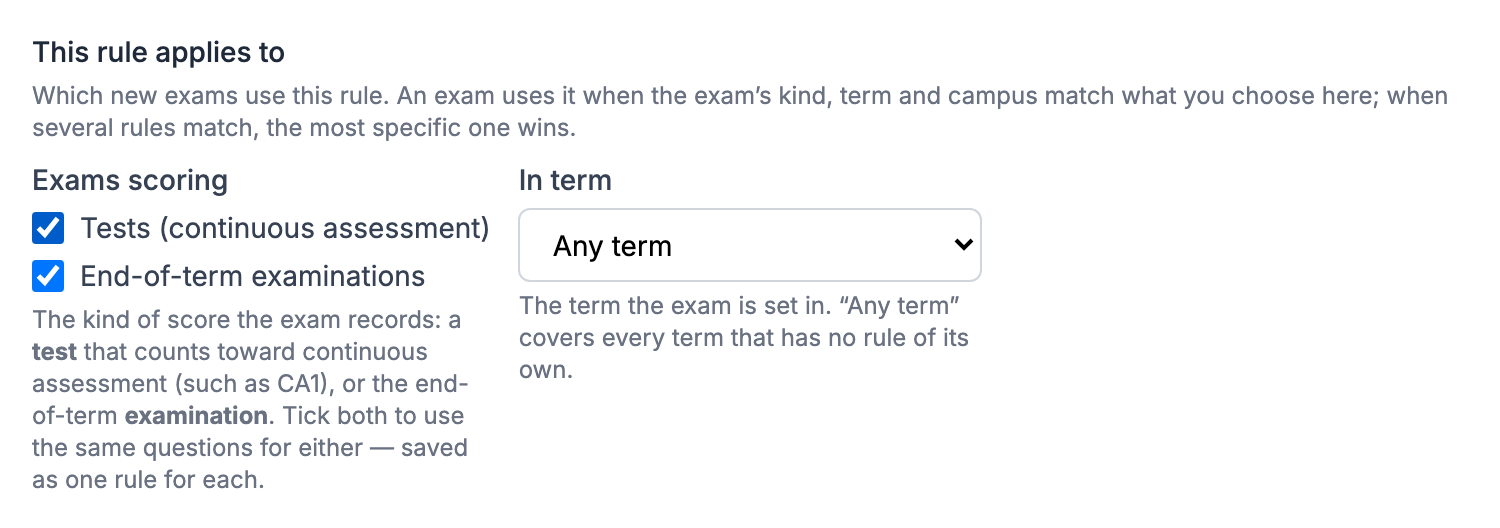
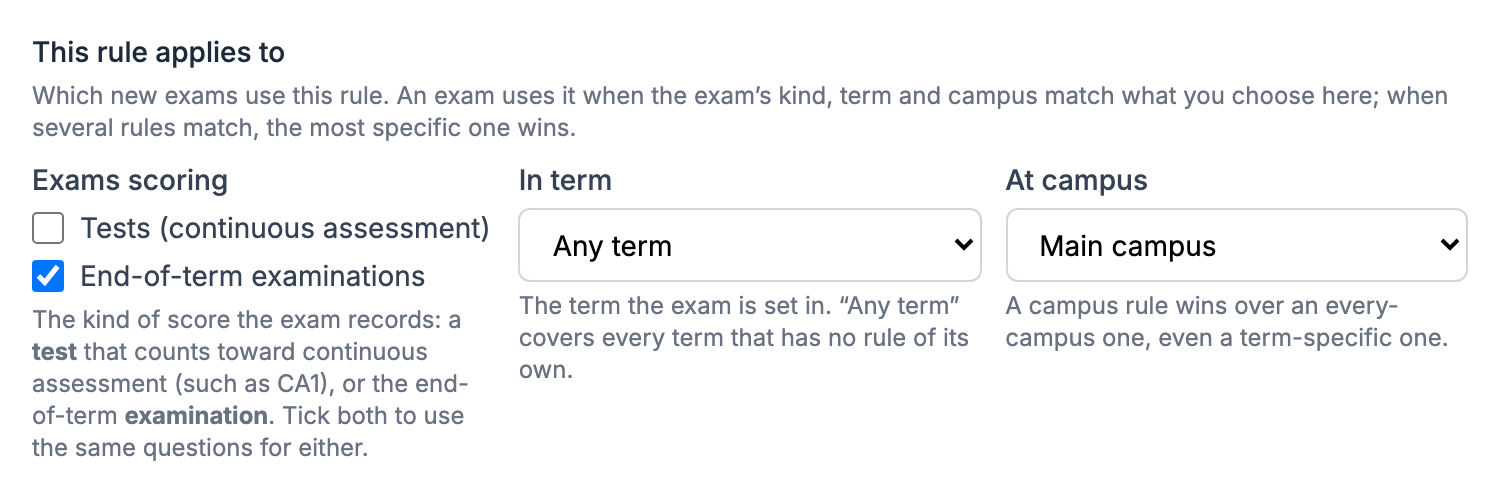
Under "This rule applies to", tick the kinds of exam under "Exams scoring": "Tests (continuous assessment)" is for an exam that scores a test such as CA1, and "End-of-term examinations" is for the examination. Tick both to use the same questions for either — the page saves one rule for each. Then choose "In term": a particular term, or "Any term" to cover every term that has no rule of its own. A school with more than one campus also chooses "At campus", or leaves it on "Every campus".
2. Choose the classes and terms to draw from
Under "Matching exams draw questions from", the classes are grouped as Nursery, Primary, JSS and SS. Tick a box to let matching exams use that class's questions from that term. These ticks are one fixed list: every exam the rule matches gets the same list, whatever class the exam itself is for — so a rule ticking JSS 1 to SS 3 lets a JSS 1 examination draw SS 3 questions too. Each new exam copies the list, and while the exam is a draft its own page can change it under "Which classes and terms this exam may draw from". Three shortcuts save clicking: the box beside a term's name in a group's heading ticks that term for every class in the group — it shows a dash while only some of them have it — and pressing it once every class is ticked clears them; "All terms" ticks every term for one class; and the "Add every …" button beside a group's name adds each of its classes for all three terms. The count beside "Save rule" tells you how many class-and-term combinations you have chosen.
3. Choose which questions count
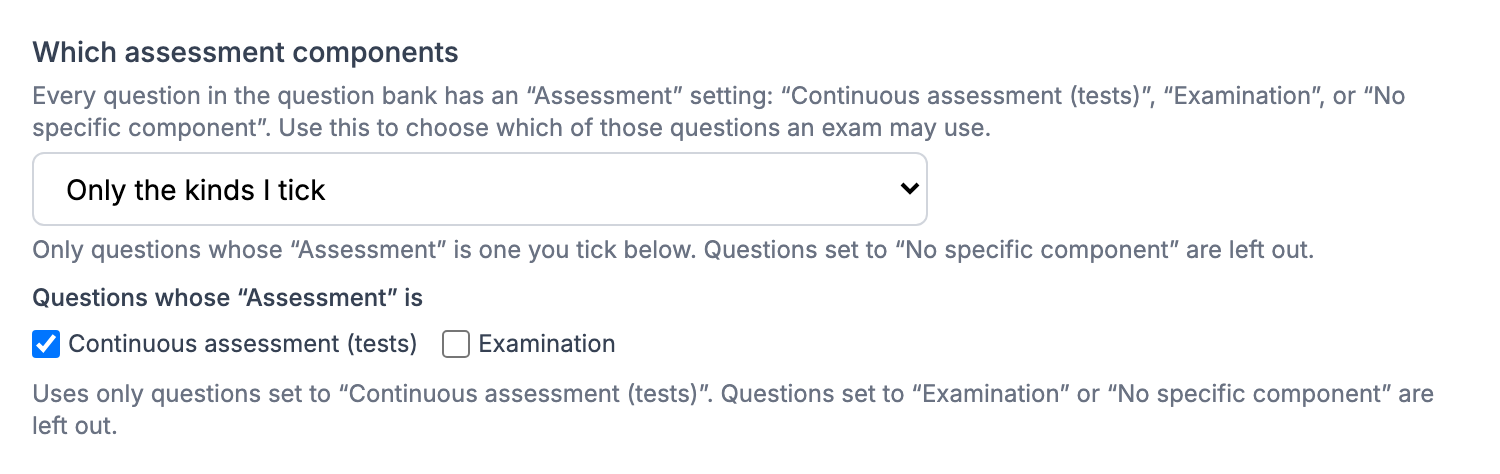
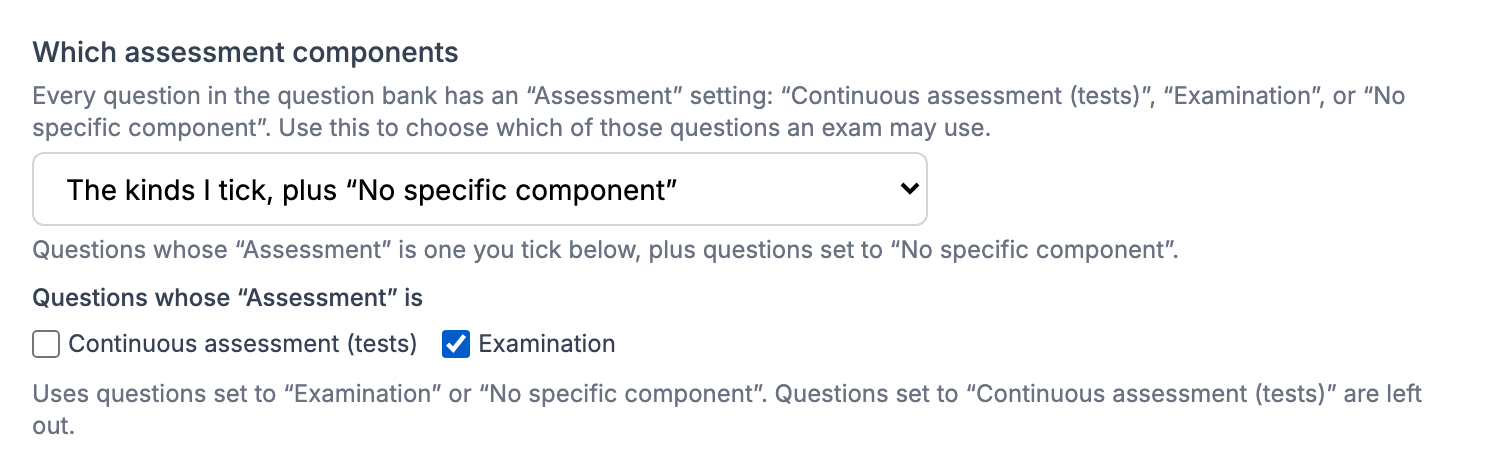
Every question in the question bank has an "Assessment" setting, chosen when the question is written: "Continuous assessment (tests)", "Examination", or "No specific component" for a question that suits either. "Which assessment components" decides which of those an exam may use. "All questions, whatever their Assessment" ignores the setting. "Only the kinds I tick" uses only questions set to the kinds you tick beneath it. The middle choice — the usual one — uses the kinds you tick plus every question set to "No specific component". Beneath the boxes the page says, for what you have ticked, exactly which questions are used and which are left out: for example, ticking only "Examination" with the middle choice uses examination questions and "No specific component" questions, and leaves out test questions.
4. Save it
Press "Save rule". There is only ever one rule for each combination of exam kind, term and campus, so saving one you have already set replaces it. If you ticked both kinds of exam and only one could be saved, the message says which, and pressing "Save rule" again finishes the other.
Which rule an exam uses
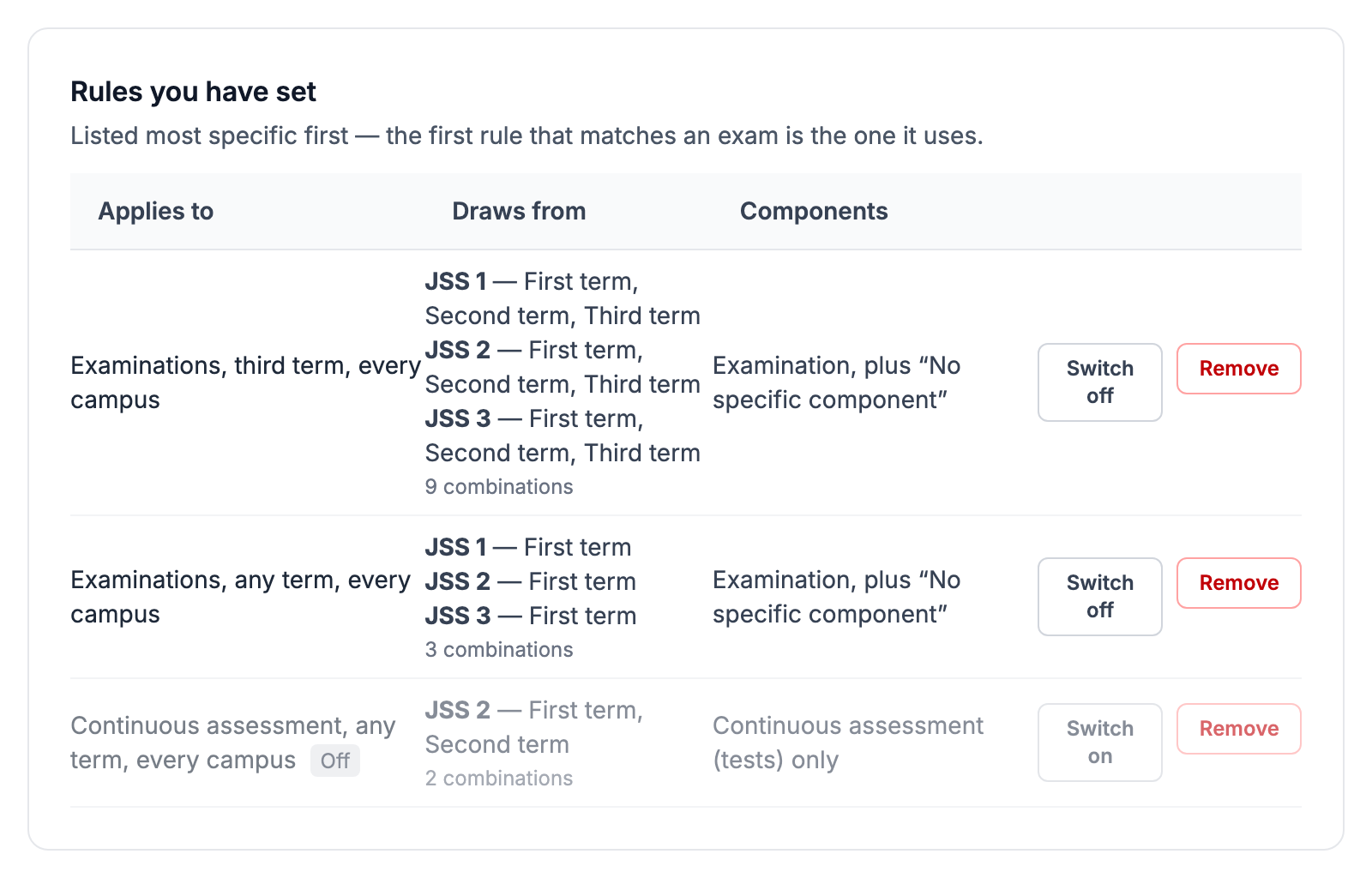
Your rules are listed under "Rules you have set", most specific first, and a new exam uses the first one that matches it. A rule for a particular campus wins over an every-campus rule, even one naming a term; among rules for the same campus, one naming a term wins over "Any term". If nothing matches, the built-in rule applies.
Switching a rule off, or removing it
"Switch off" sets a rule aside without losing it: new exams fall through to the next rule that matches, and "Switch on" brings it back — a safe way to try a narrower rule. "Remove" deletes the rule. Neither changes an exam that already exists.
Example 1: no rule at all
You have set no rules. A JSS 2 first-term examination takes JSS 2 first-term questions whose "Assessment" is "Examination" or "No specific component". A JSS 2 first-term CA1 test takes JSS 2 first-term questions set to "Continuous assessment (tests)" or "No specific component". Neither sees another class's questions or another term's. This is the built-in rule shown at the top of the page.
Example 2: a third-term examination that covers the whole session
A small school with one JSS class per level wants every third-term examination to cover the whole year. Under "Exams scoring" tick only "End-of-term examinations" and set "In term" to Third term. Under "Matching exams draw questions from", tick the First, Second and Third term boxes in the JSS heading. Leave "Which assessment components" on "The kinds I tick, plus “No specific component”" with "Examination" ticked, and press "Save rule". Result: every third-term examination starts with JSS 1, JSS 2 and JSS 3 questions from all three terms — whatever class it is for. The JSS 2 teacher then opens their exam and, under "Which classes and terms this exam may draw from", keeps JSS 2 and unticks the rest. First- and second-term examinations, and every test, are not affected.
Example 3: revision across earlier classes — one exam, not a rule
Your SS 3 mock examinations should also revise SS 1 and SS 2 work. Do this on the exam, not with a rule: a rule's classes reach every matching exam, so a school-wide rule ticking SS 1 to SS 3 would hand those questions to JSS examinations as well. Create the SS 3 exam, and while it is a draft, tick SS 1 and SS 2 under "Which classes and terms this exam may draw from" on its own page. Use a rule when the same list suits every exam it matches — for example, a school whose examinations all draw from the same set of classes.
Example 4: one rule for tests and examinations alike
You want tests and examinations to draw from the same place. Tick both "Tests (continuous assessment)" and "End-of-term examinations", choose the classes and terms, and press "Save rule". The page saves two rules — one for each kind — with the same classes and terms, and says so in its message. If one of the two could not be saved, the message says which, and pressing "Save rule" again finishes the other without making duplicates.
Example 5: tests use only test questions
Some questions in your bank were written only for tests. To keep them, and only them, in CA tests: tick "Tests (continuous assessment)" under "Exams scoring", choose "Only the kinds I tick" under "Which assessment components", and tick only "Continuous assessment (tests)" beneath it. Result: tests use questions set to "Continuous assessment (tests)". Questions set to "Examination" or "No specific component" are left out.
Example 6: the usual choice — one kind plus general questions
Most schools leave "Which assessment components" on "The kinds I tick, plus “No specific component”" and tick the kind that matches the exam. With "Examination" ticked, an examination uses questions set to "Examination" or "No specific component", and leaves out questions set to "Continuous assessment (tests)". The line under the boxes always says which questions your ticks use and which they leave out.
Example 7: an examination that may also use test questions
To let an examination pick from everything, choose "All questions, whatever their Assessment". Ticking both "Continuous assessment (tests)" and "Examination" with "The kinds I tick, plus “No specific component”" does the same. To use test and examination questions but not "No specific component" ones, choose "Only the kinds I tick" and tick both boxes.

Example 8: a general rule with a term that differs
You save two rules for examinations: one with "In term" on "Any term", and one with "In term" on Third term that adds the earlier terms, as in Example 2. First- and second-term examinations use the "Any term" rule; third-term examinations use the Third term rule, because a rule naming a term wins over "Any term". Tests are not affected by either, because both rules are for examinations.
Example 9: one campus works differently
In a school with more than one campus, the main campus wants wider sourcing. Save the school-wide rules with "At campus" on "Every campus", then save another rule with "At campus" set to that campus. Exams at that campus use its own rule — even where a school-wide rule names the exam's term, because a campus rule wins over every school-wide one. Exams at the other campuses keep the school-wide rules.
Example 10: changing, pausing and undoing
To change a rule, set the same "Exams scoring", "In term" and "At campus" again with the new classes and press "Save rule": it replaces the old rule rather than adding a second. To try a different rule for a while, press "Switch off" on the old one — exams created meanwhile use the next rule that matches, or the built-in rule — and "Switch on" brings it back. None of this changes exams already created: each keeps the sourcing it was created with.
Still stuck?
Email info@tocel.ng and tell us which guide you were following.