Staff Loans, Expense Claims and Benefits
One-off pay adjustments and arrears, staff loans and salary advances recovered through payroll, staff expense claims reimbursed through payroll or directly, and staff benefit plans with their enrolments.
1. Payroll adjustments: one-off earnings and deductions
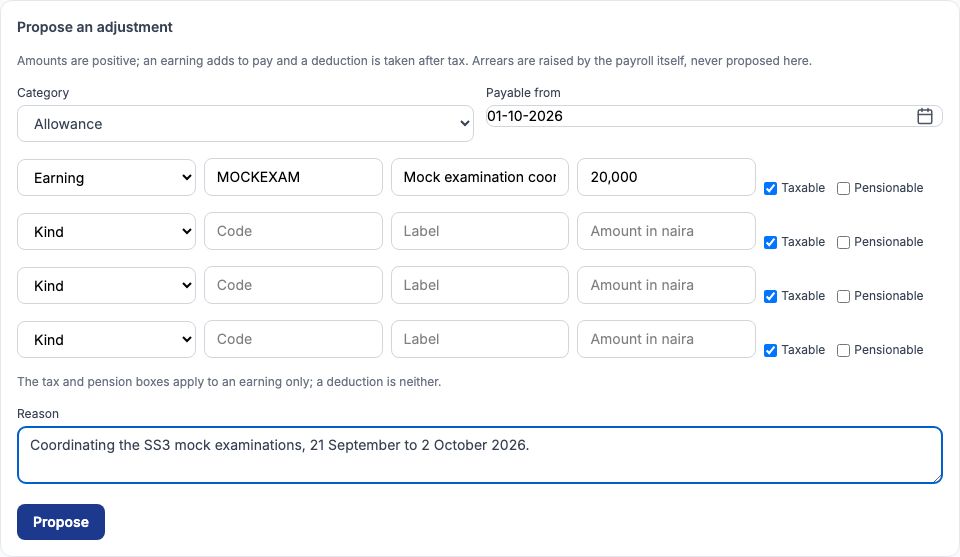
An adjustment is a one-off amount added to or taken from one employee's pay: an allowance for extra duties, a commission, a correction. Open the employee's Salary tab and choose "Adjustments and arrears" (or "Payroll adjustments" in the HR menu). Under "Propose an adjustment" choose a "Category", set "Payable from" (it is paid by the first payroll run whose period reaches that date), and fill in one line per amount: its kind (earning or deduction), a short code, the label the payslip will show and the amount. For an earning, tick "Taxable" and "Pensionable" as they apply. Example: Emeka Nwosu, Vice Principal and Examinations Officer, coordinated the SS3 mock examinations, so Greenfield proposed an Allowance payable from 01-10-2026 with one earning, MOCKEXAM Mock examination coordination allowance, ₦20,000, taxable but not pensionable, and pressed "Propose".
2. Approval, and the register
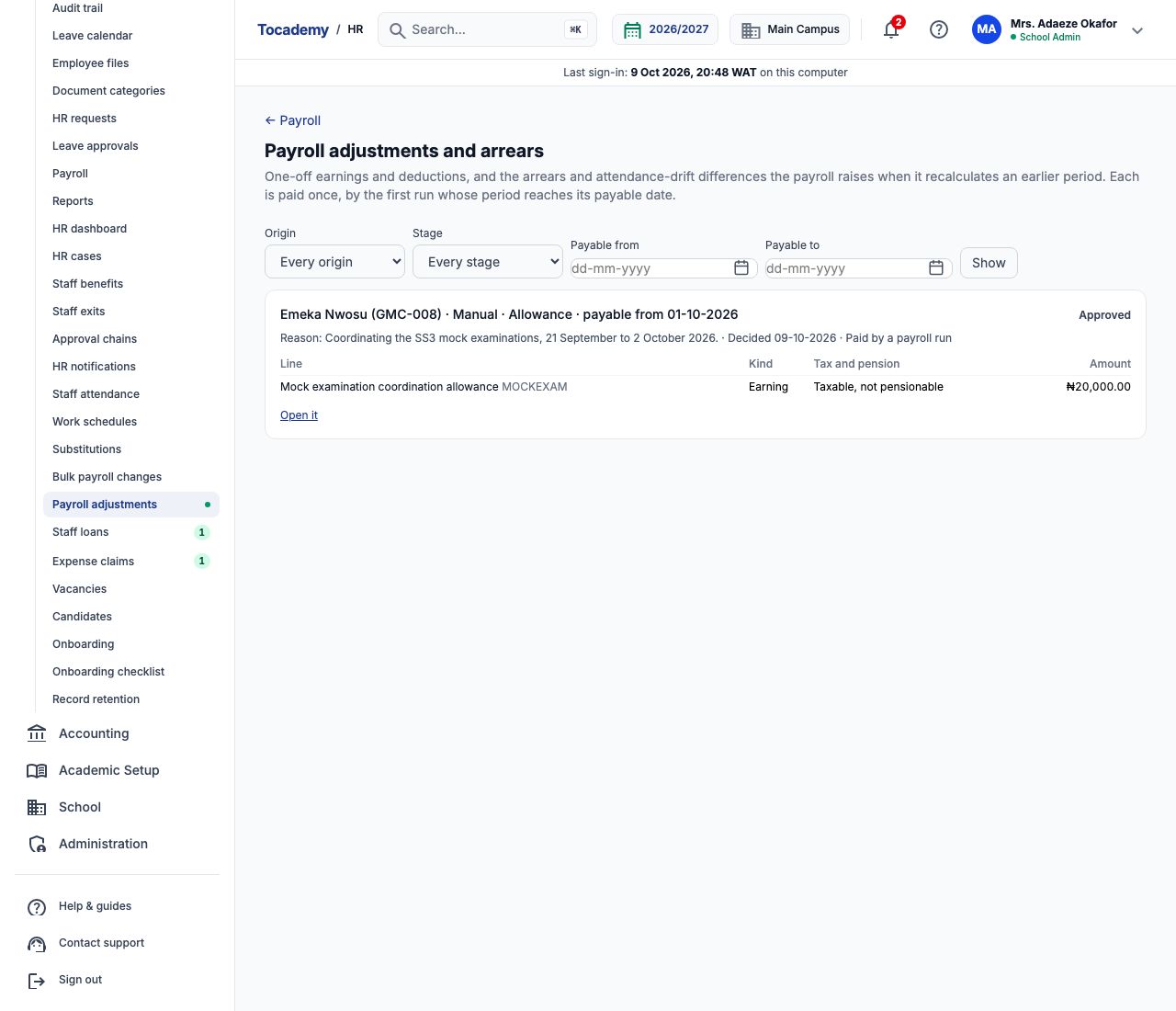
Adjustments are approved like salary changes: someone other than the proposer with the Approve payroll decisions permission chooses "Approve" and presses "Record the decision" — Mrs. Ngozi Eze approved Emeka's. "Payroll adjustments" in the HR menu is the register of every adjustment in the school, filtered by "Origin", "Stage" and the payable dates. An approved adjustment nobody has paid yet can be voided with a reason ("Void this adjustment"); once a run has paid it, it stays. Emeka's ₦20,000 appeared on his October payslip as an adjustment earning.
3. Arrears are worked out for you
You never propose arrears yourself. If a salary change is approved with an effective date in a month that a finalised run has already paid — a backdated promotion, say — the next payroll calculation works out the difference for each month it reaches back into and adds it as an adjustment with the origin "Arrears", paid in that run. The same happens with "Attendance drift" when attendance for a period already paid is corrected afterwards. Both appear in the register with the evidence they were raised from (choose "Open it"), and an approver can waive one by voiding it before it is paid. If arrears cannot be worked out, the run shows a Backdated salary change warning instead.
4. Staff loans: apply on an employee's behalf
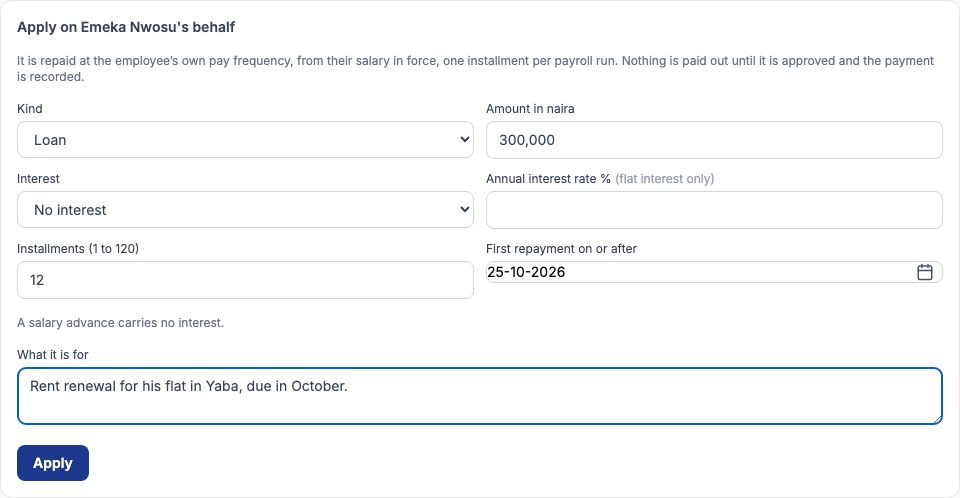
Choose "Staff loans" in the HR menu for the school's loan register, or "Loans and salary advances" on an employee's Salary tab for theirs. Under the application form choose the "Kind" — "Loan" or "Salary advance" (an advance never carries interest) — type the "Amount in naira", choose the "Interest" ("No interest" or "Flat interest" with its yearly rate), the number of installments, the "First repayment on or after" date (today or later) and "What it is for". Example: Emeka Nwosu needed ₦300,000 for his rent. Greenfield applied on his behalf for a Loan of 300,000 with no interest, 12 installments, first repayment on or after 25-10-2026, and pressed "Apply". It is repaid from his salary, one ₦25,000 installment per monthly payroll run.
5. Approve the loan
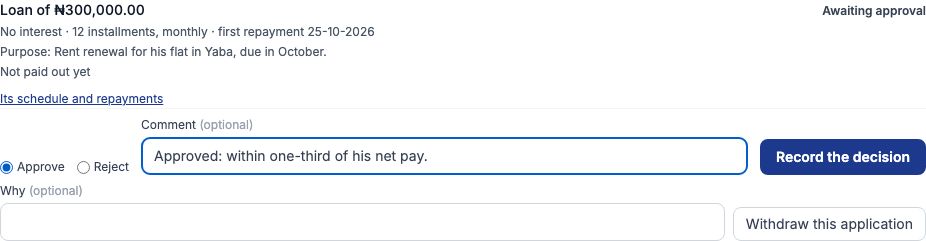
A loan waits as "Awaiting approval" until someone with the Approve payroll decisions permission decides it — never the person who applied. Mrs. Ngozi Eze chose "Approve", wrote that the repayment is within a third of his net pay, and pressed "Record the decision". Until it is paid out, the applicant can still use "Withdraw this application", and an approver can cancel an approved loan with "Cancel this loan".
6. Record the payout
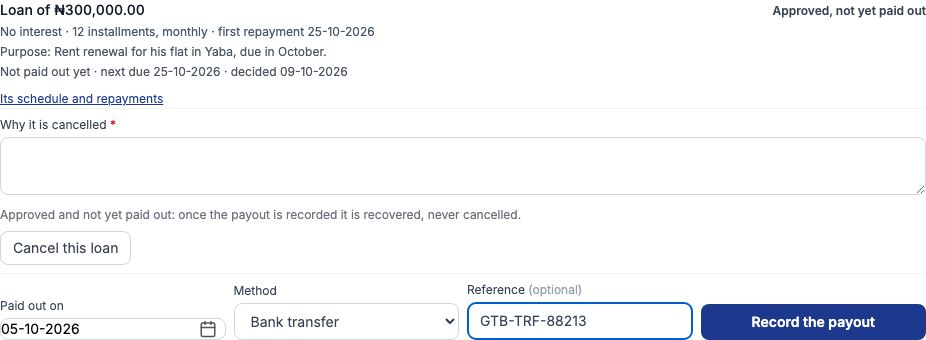
Tocademy moves no money: the bursar pays the loan through the bank as usual and then records it. On the approved loan, set "Paid out on", choose the "Method" and type the bank's "Reference (optional)", then press "Record the payout". Greenfield transferred Emeka's ₦300,000 on 05-10-2026, reference GTB-TRF-88213. Recording the payout is what starts recovery: from now on each payroll run takes the next installment due.
7. The schedule, early repayment and deferral
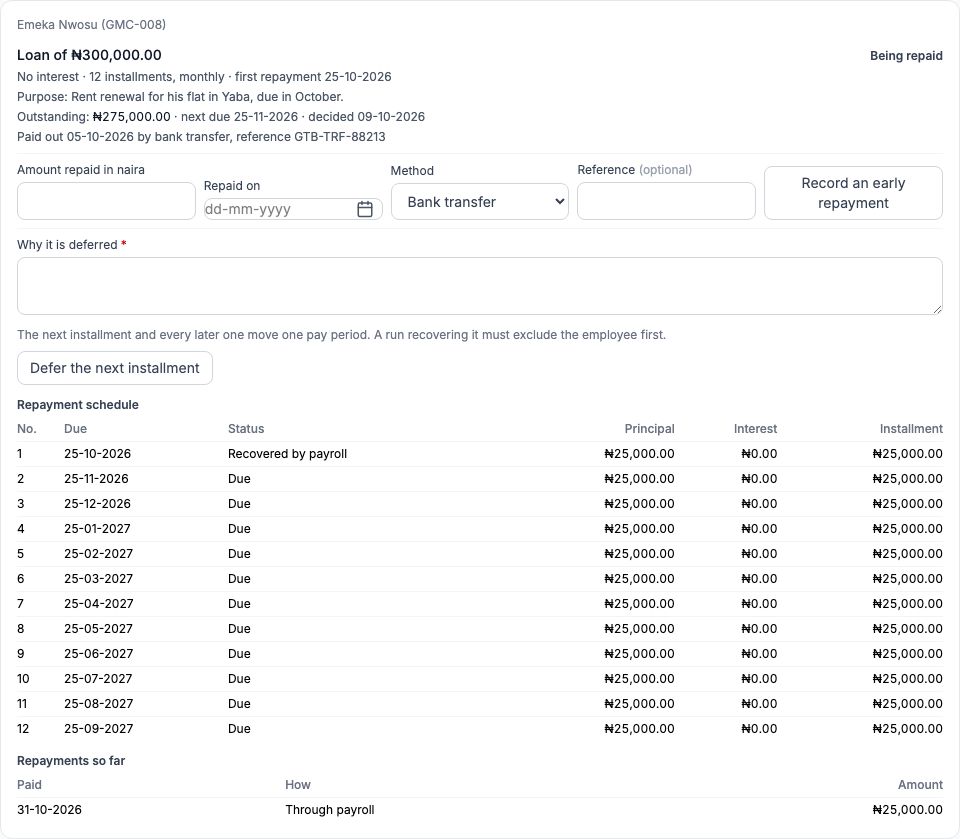
"Its schedule and repayments" opens the loan: now "Being repaid", with the amount outstanding, the next due date and the full schedule — twelve installments of ₦25,000 from 25-10-2026 to 25-09-2027. If Emeka pays some back in cash, type the "Amount repaid in naira", the date and the method and press "Record an early repayment"; the outstanding balance falls by that amount. If he needs a break one month, type why and press "Defer the next installment": that installment and every later one move one pay period (a run already recovering it must exclude him first).
8. Recovery through payroll
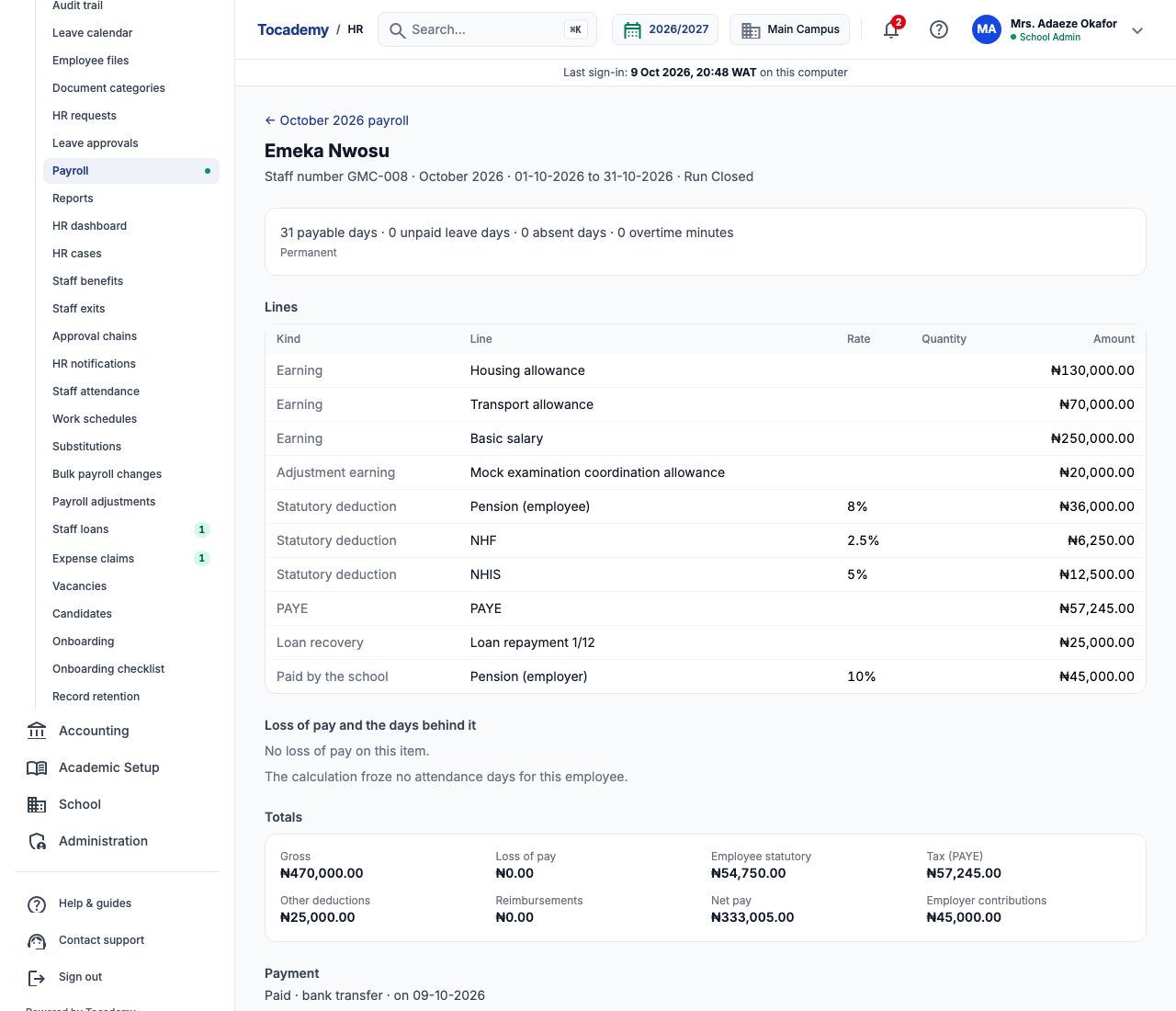
When October's run was calculated, Emeka's item gained a loan recovery line, Loan repayment 1/12, for ₦25,000, counted under other deductions and taken after tax. With his ₦450,000 salary and the ₦20,000 allowance his gross was ₦470,000; pension ₦36,000, NHF ₦6,250, NHIS ₦12,500, PAYE ₦57,245 and the ₦25,000 repayment left a net of ₦333,005. Finalising the run marks installment 1 as recovered, and the outstanding balance drops to ₦275,000.
9. Staff apply for themselves: My loans
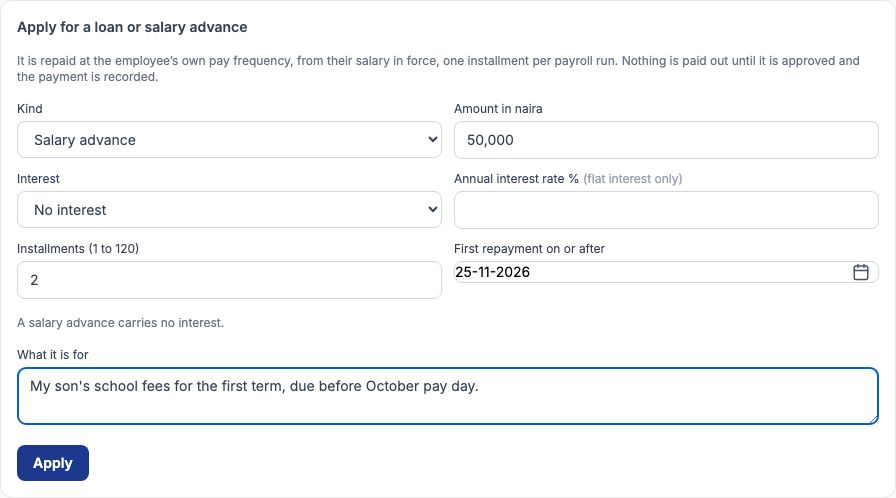
Staff can apply from My HR → "My loans" with the same form, and see their own loans, schedules and repayments there. Funmilayo Adeyemi applied for a "Salary advance" of ₦50,000 in 2 installments from 25-11-2026 for her son's school fees. Her application shows "Awaiting approval" and "Applied for by the employee", and she can withdraw it with "Withdraw my application" until it is decided. It reaches the approvers exactly like one made by HR.
10. Expense claim categories
Expense claims are how staff get back money they spent for the school. Choose "Expense claims" in the HR menu, then "Categories". For each category give a "Code", a "Name" and a "Sort order", tick "A receipt is needed" if a claim cannot be submitted without one, and leave "May be reimbursed through payroll" ticked unless it must always be paid directly. Press "Add the category". Greenfield added TRAVEL Transport and travel and SUPPLIES Classroom supplies (both needing a receipt), and MEALS Meals on school trips (no receipt).
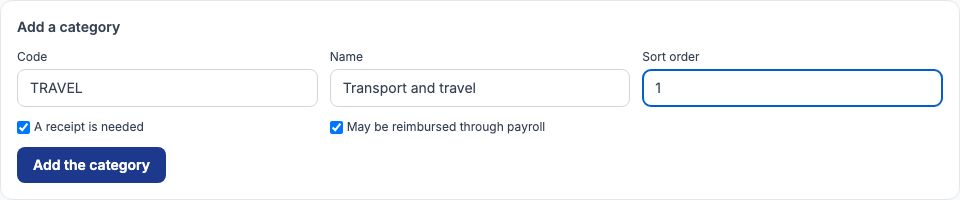
11. Example: Aisha Bello's quiz-competition fares
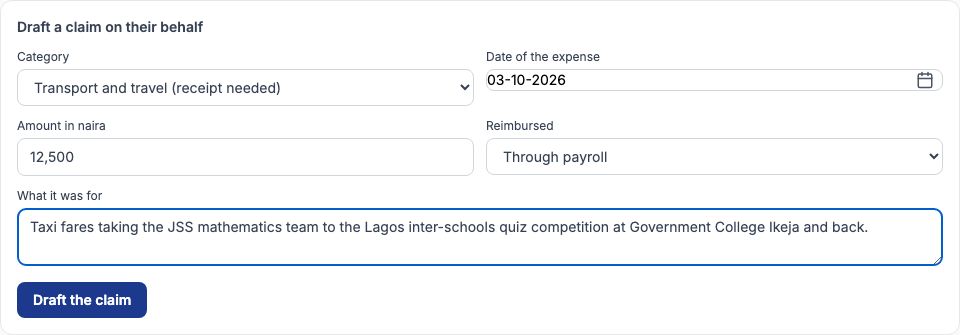
Aisha Bello took Greenfield's mathematics team to the Lagos inter-schools quiz competition at Government College Ikeja on 3 October and paid ₦12,500 in taxi fares. From her Salary tab, "Expense claims" opens her claims with "Draft a claim on their behalf". Choose the "Category" (Transport and travel), set "Date of the expense" to 03-10-2026, type 12,500 in "Amount in naira", choose "Through payroll" in "Reimbursed" (or "Paid directly" to pay her outside payroll), describe "What it was for", and press "Draft the claim".
12. Attach the receipt and submit
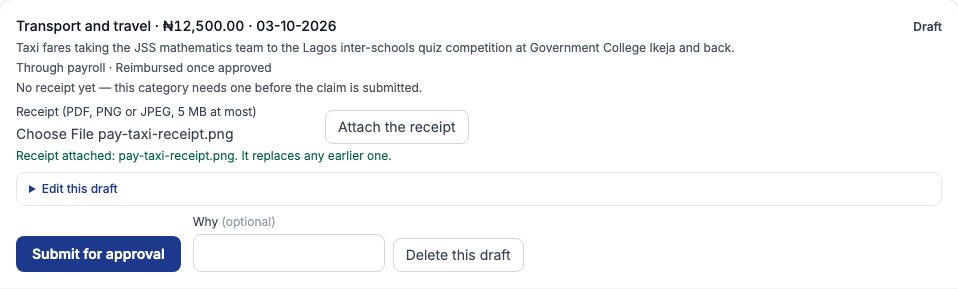
The draft appears in her list. Choose the receipt file (a PDF, PNG or JPEG photo of the taxi receipt) and press "Attach the receipt"; a green line confirms the receipt is attached, and the approver later sees the file's name and when it was uploaded, with "Get the receipt" to open it. Until it is approved the claim reads "Reimbursed once approved". Press "Submit for approval". A draft can still be edited or deleted; a submitted claim can only be withdrawn by the employee it is for, until it is decided — HR asks an approver to reject it instead.
13. Approve the claim
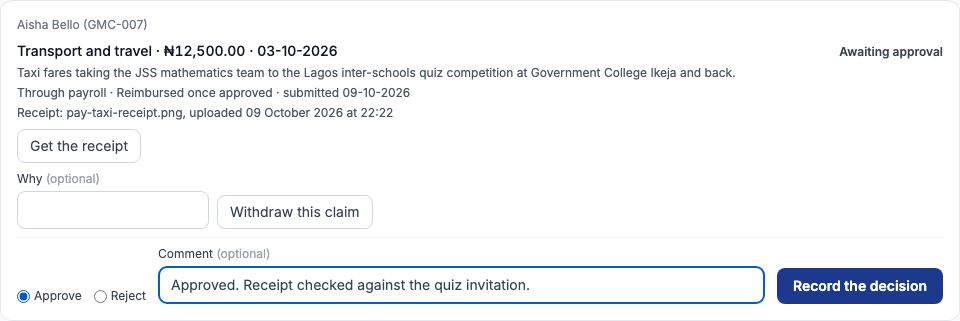
Expense claims have their own approval chain and their own permission, Approve expense claims, so the person who approves claims need not be the one who approves payroll. Approvers find submitted claims on "Expense claims"; someone who approves claims but does not manage them sees a "Waiting for your decision" list, each claim with "Read and decide". Mrs. Ngozi Eze checked the receipt, chose "Approve", noted that she had checked it against the quiz invitation, and pressed "Record the decision". The claim is now Approved, "Waiting for the next payroll run". An approved claim that has not been paid can be voided with a reason ("Void this claim").
14. Reimbursed in October's payroll
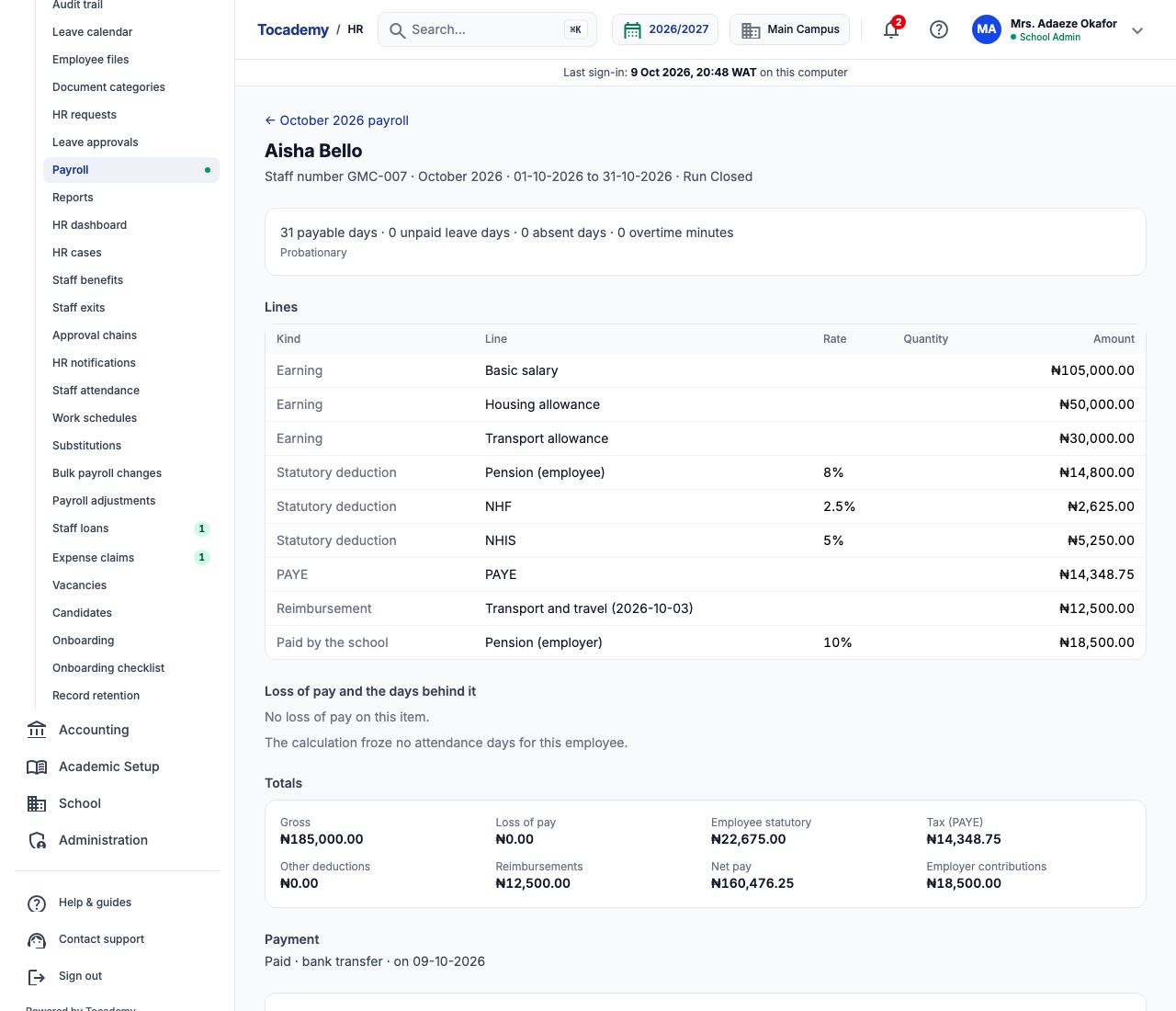
October's run picked the claim up automatically: Aisha's item shows a "Reimbursement" line, Transport and travel (2026-10-03), ₦12,500. A reimbursement is not pay — it is not taxed or pensioned and is not part of her ₦185,000 gross — but it is added to what she receives: ₦147,976.25 net pay from salary plus ₦12,500 makes ₦160,476.25. When the run was finalised the claim became Reimbursed. A claim marked "Paid directly" instead waits as "Waiting to be paid directly" until someone presses "Record the reimbursement" with the date and method.
15. What staff see: My expense claims
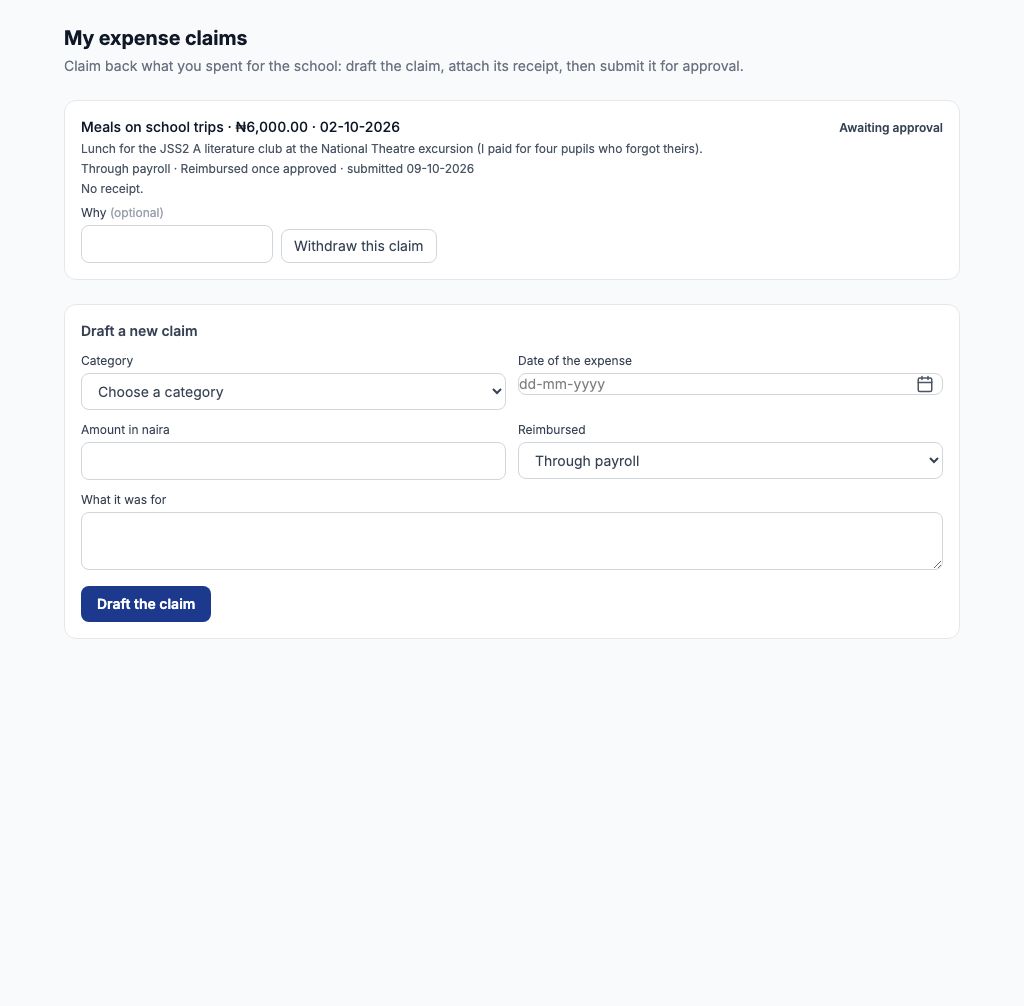
Staff draft, receipt and submit their own claims from My HR → "My expense claims" and follow each one through approval and reimbursement there. Funmilayo Adeyemi claimed ₦6,000 for lunch for four pupils on the JSS2 literature club's National Theatre excursion, in Meals on school trips (no receipt needed), to be repaid through payroll, and submitted it; the form empties again, ready for the next claim. It now waits for an approver, and will be paid in the November run once approved.
16. Staff benefit plans
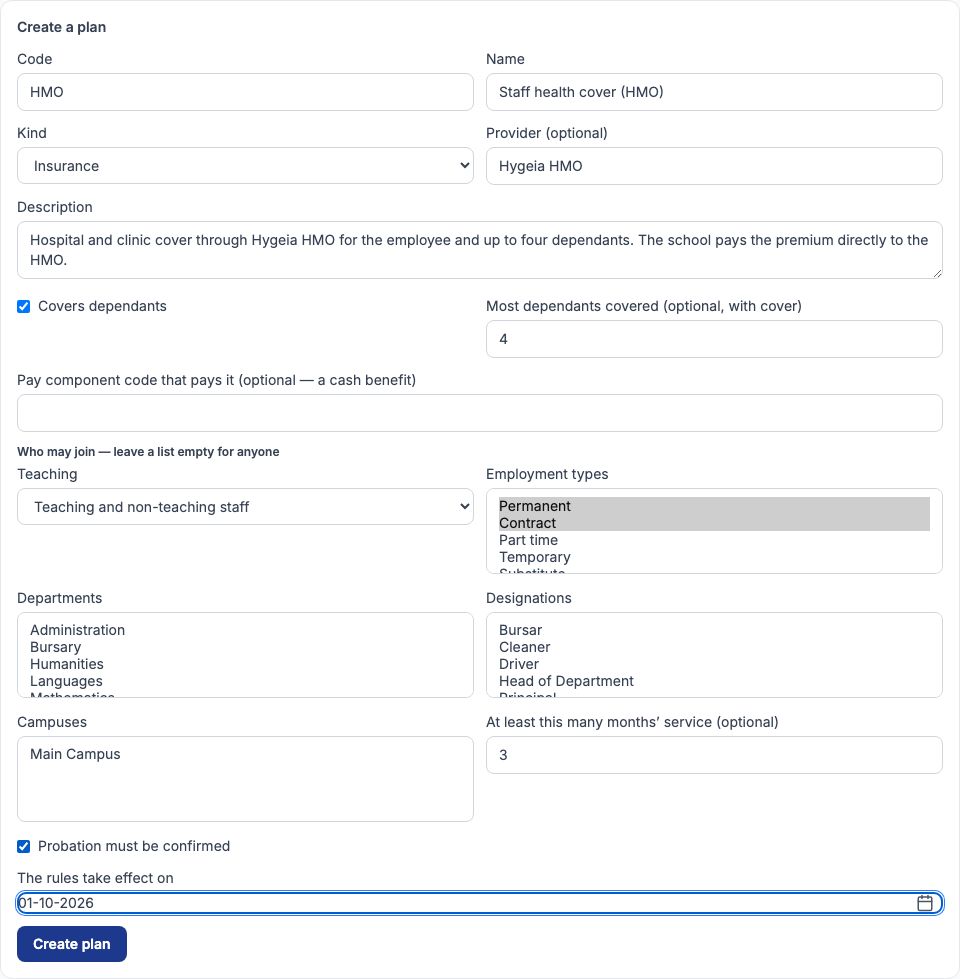
Choose "Staff benefits" in the HR menu to keep the school's benefit plans — health cover, welfare schemes and the like — and who is enrolled. A plan records what the benefit is, not its cost. Under "Create a plan" give a "Code", "Name", "Kind", an optional provider and a "Description"; tick "Covers dependants" and set the most dependants if it does; and say who may join — teaching or non-teaching, employment types, departments, designations, campuses, a minimum length of service, and whether "Probation must be confirmed". Set "The rules take effect on" and press "Create plan". Greenfield created HMO Staff health cover (HMO), Insurance, with Hygeia HMO, for permanent and contract staff with at least three months' service and probation confirmed, covering up to four dependants. Changing who may join later writes new rules from a date; nobody already enrolled is removed.
17. Example: enrolling Chinedu Eze
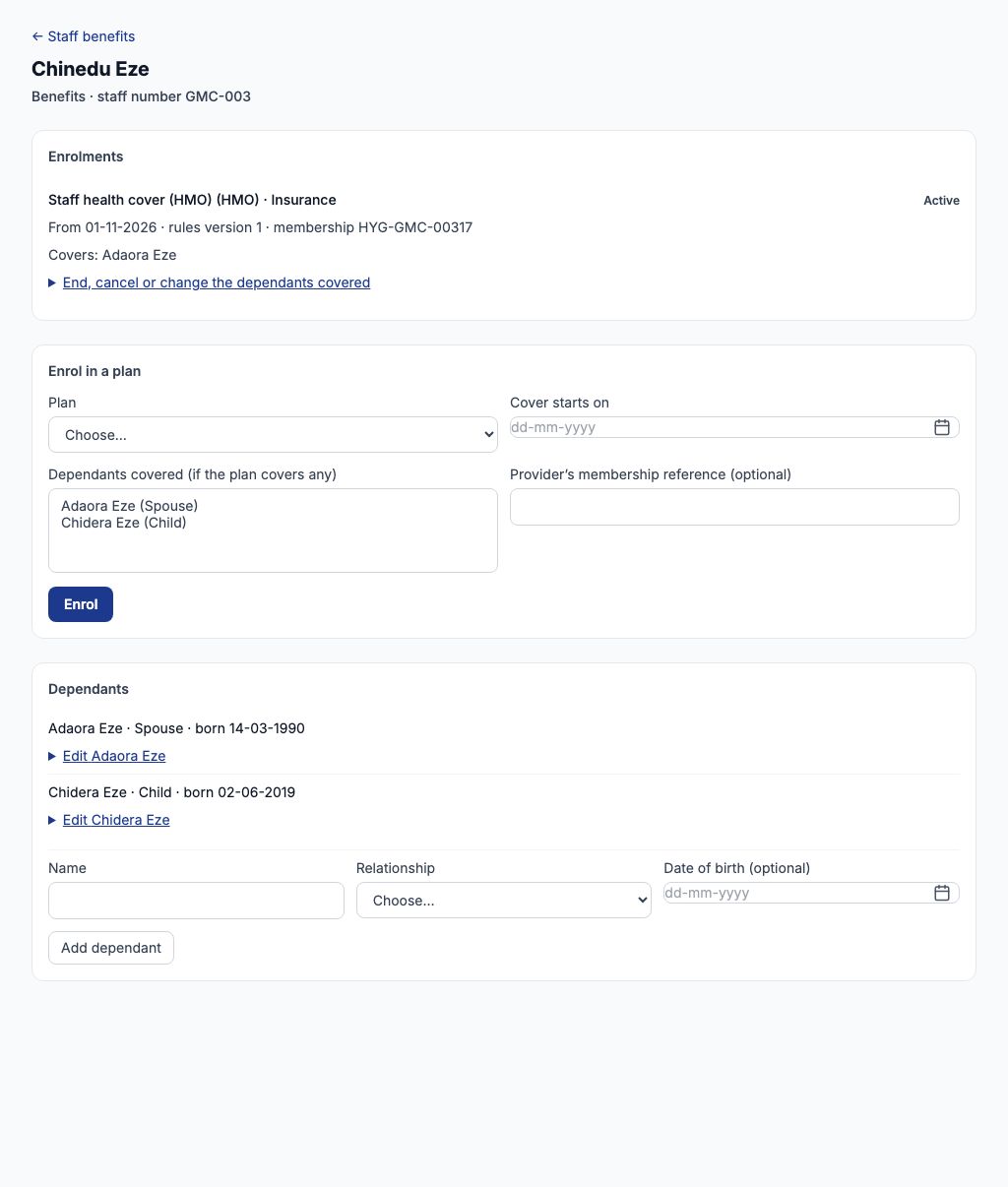
Search for the employee under "An employee's benefits" on the same page and open their name. On Chinedu Eze's page, Greenfield first added his dependants under "Dependants" — Adaora Eze (Spouse) and Chidera Eze (Child), each with a date of birth — pressing "Add dependant" for each. Then under "Enrol in a plan" it chose the plan, set "Cover starts on" to 01-11-2026, chose Adaora under "Dependants covered (if the plan covers any)", typed the HMO's membership reference HYG-GMC-00317 and pressed "Enrol". Each enrolment is checked against the plan's rules. The enrolment can later be ended, cancelled before cover starts, or have its dependants changed from its own panel.
Still stuck?
Email info@tocel.ng and tell us which guide you were following.