Turning On AI Features
Switch on the AI features your school wants, confirm the data notice for the sensitive ones, give credits to staff, and see what each person has left.
What the AI assistant is, and who decides
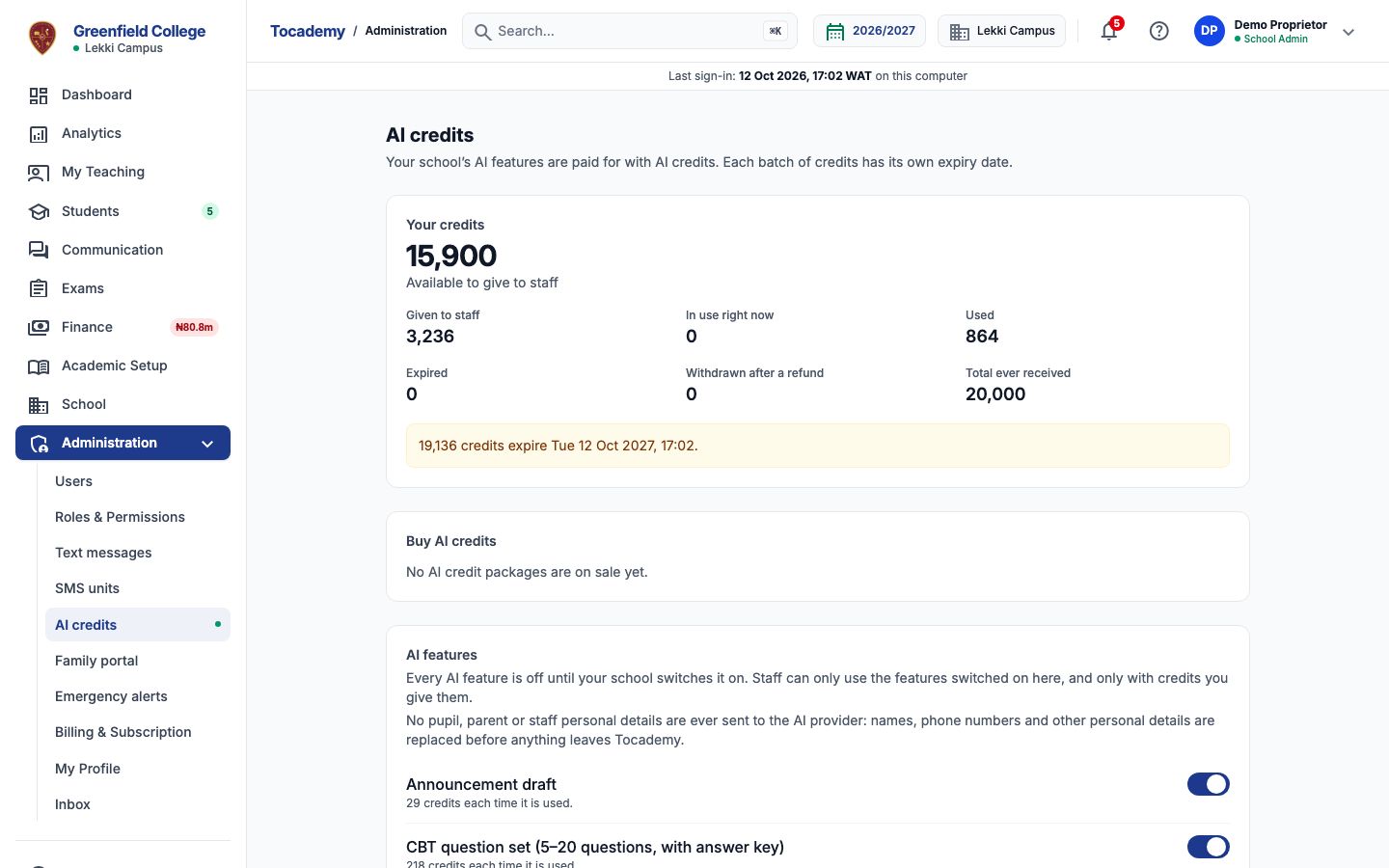
Tocademy can draft some routine writing for your staff: a lesson note, a class teacher's report card remark, a set of CBT questions, a notice for the board, a letter to families. Every draft is only a suggestion. A member of staff reads it, changes what they want, and decides whether to use it; nothing the AI writes reaches a report card, a lesson note or the question bank until a person presses the button that puts it there. Your school decides everything else: every AI feature is off until you switch it on, staff can only use the features you switch on, and only with credits you give them. All of it lives on one page: open Administration in the sidebar and click AI credits. You need the permission to manage AI credits, which the School Admin has.
Before you start: credits for the school
AI features are paid for in AI credits. The school buys a package under "Buy AI credits" on the same page, or Tocademy gives the school promotional credits; either way they arrive as a batch with its own expiry date, listed under "Batches of credits". The History table shows every batch received, every credit given to staff and every request that used them. At Greenfield College the example starts with a batch of promotional credits from Tocademy.
1. Switch on a feature
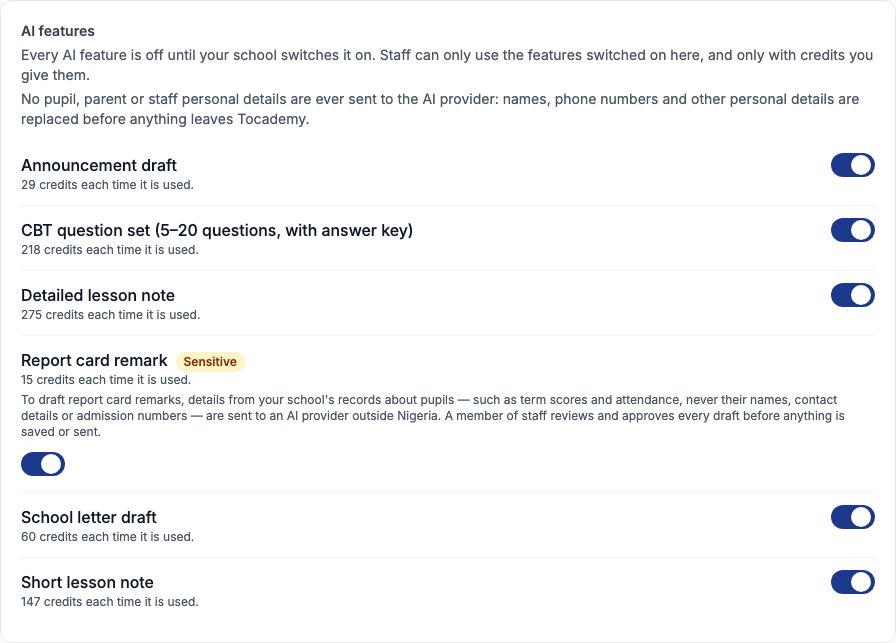
Under AI features each feature has a switch, the number of credits it costs each time it is used, and a short description. Press the switch to turn a feature on; press it again to turn it off. Greenfield switches on all six: Announcement draft, CBT question set (5–20 questions, with answer key), Detailed lesson note, Report card remark, School letter draft and Short lesson note. A feature Tocademy has not priced yet cannot be switched on, and says "No price yet." Switching a feature off stops new requests at once; drafts already made can still be used or discarded.
2. The data notice for sensitive features
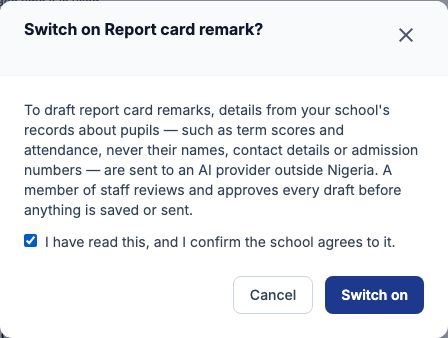
A feature marked Sensitive uses facts about pupils. The report card remark is one: it sends the pupil's term scores and attendance, never their name. Switching it on opens a notice that says exactly what is sent and that a member of staff approves every draft. Read it, tick "I have read this, and I confirm the school agrees to it." and press "Switch on". Without the tick the feature stays off. If Tocademy ever changes the notice, the feature pauses and shows "Review the notice" until someone confirms the new wording.
3. Give credits to staff
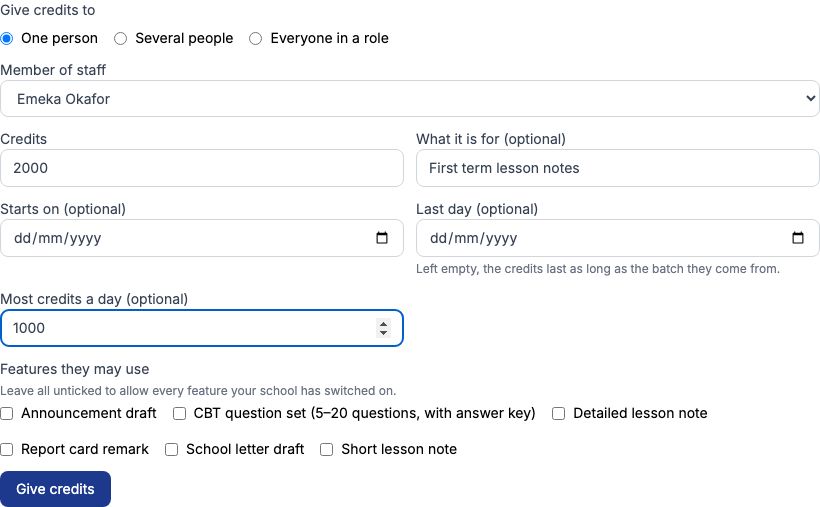
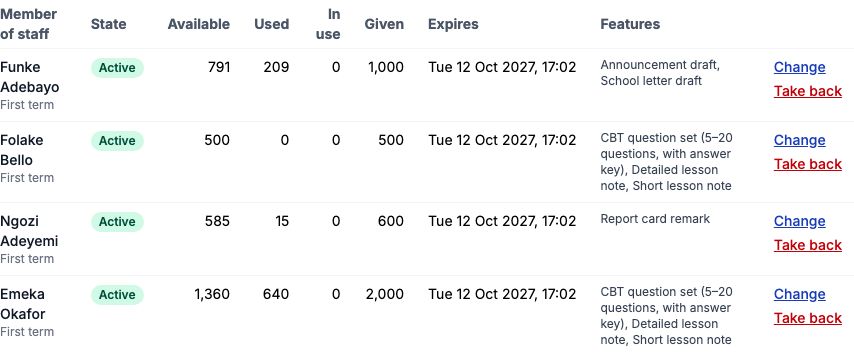
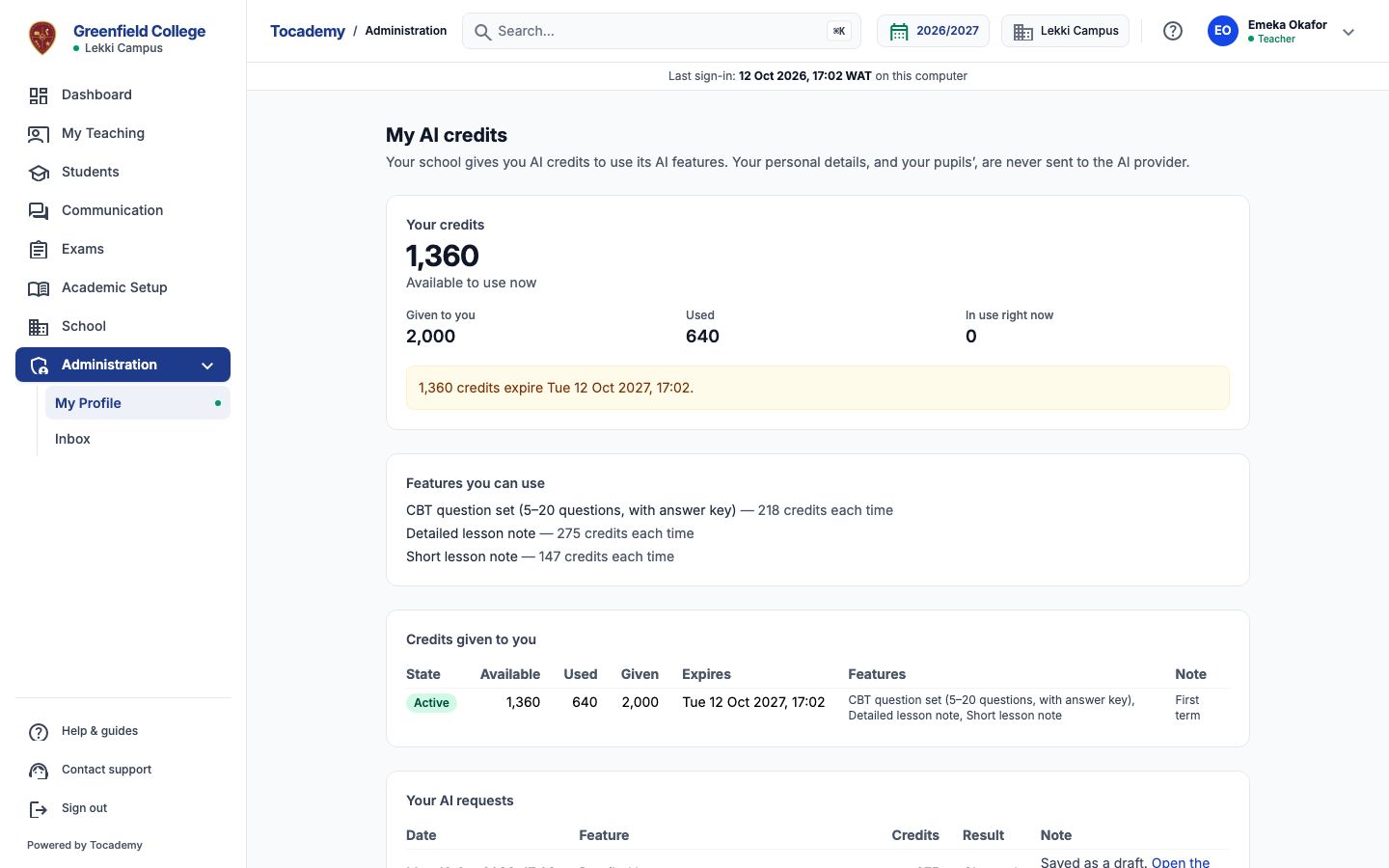
Under Staff allocations, "Give AI credits" gives credits from the school's batches to staff. First say who gets them: "One person", "Several people" or "Everyone in a role" (a school that keeps its staff records in Tocademy HR also sees "A department" and "A designation"). Then enter the credits, and if you want, what they are for, a start and last day, "Most credits a day" and the features they may use (leave every feature unticked to allow all the ones switched on). Press "Give credits". Example: Greenfield gives Mr Emeka Okafor, who teaches JSS 2 Basic Science, 2,000 credits for the term, at most 1,000 a day. Only people whose role may use AI can be given credits; anyone else is listed as not given.
4. Watch and change what you gave
The Staff allocations table lists each person's credits: available, used, in use, given, when they expire and which features they cover. Use the "Change" button on a row to "Add credits", "Take some back" or "Move to someone else". Credits taken back return to the school's batch at once. When a batch expires, the credits given from it expire with it.
5. What never leaves Tocademy
No pupil, parent or staff personal details are sent to the AI provider. Names, phone numbers, email addresses, admission numbers and dates of birth are never sent; where the AI needs to refer to a pupil, it gets a stand-in such as [STUDENT_1], and Tocademy puts the real name back only on your screen. A note a teacher types is checked before it goes, and a note containing a name or a phone number is refused with nothing charged. The "Download the AI processing record" link at the bottom of the page lists every request your school made, for your own records.
6. My AI credits, for each member of staff
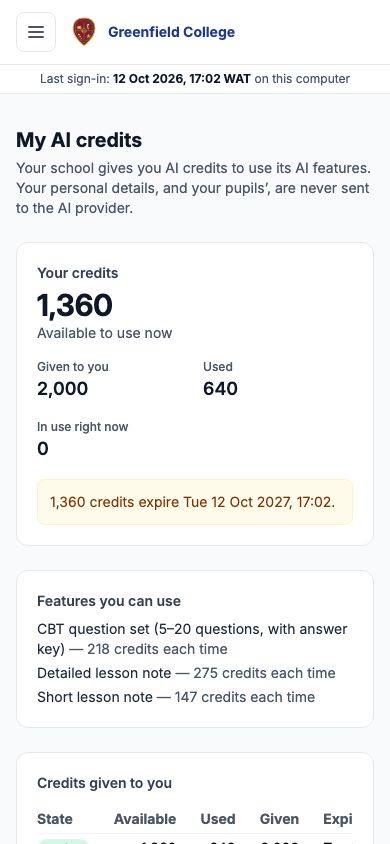
Every member of staff with credits sees their own under My Profile: click My AI credits. It shows what is "Available to use now", the credits given to them, and the features they can use with the cost of each. The button on each AI feature also shows its cost before anyone presses it. Most teachers open the page on a phone: it fits the screen, and each table scrolls sideways in its own box.
7. Every request, and whether it was charged
Further down the same page, "Credits given to you" lists each allocation, and "Your AI requests" lists every request: when, which feature, what it cost, and whether it was charged. A request that was refused or did not finish says "Not charged — credits returned" or "Not charged — it did not finish". A draft still waiting has an "Open the draft" link.
Still stuck?
Email info@tocel.ng and tell us which guide you were following.