AI Class Performance Summaries
Let the AI write a short summary of a term's results by class arm, subject, girls and boys, from the figures on Analytics › Academics; you accept it to keep it.
What it does, and for whom
Analytics › Academics already shows every class arm's average and pass rate, each subject, and girls against boys. A principal who has to report on the term still has to turn those figures into a few sentences for a staff meeting or the board. The AI can write that first draft: at most 150 words on how the school did, which arms and subjects did best, which need attention, and any clear gap between girls and boys. Every number in it is one of the figures on the page, written as the page writes it. The AI changes no figure and writes nothing anywhere: the summary is kept only when you accept it.
Before you start
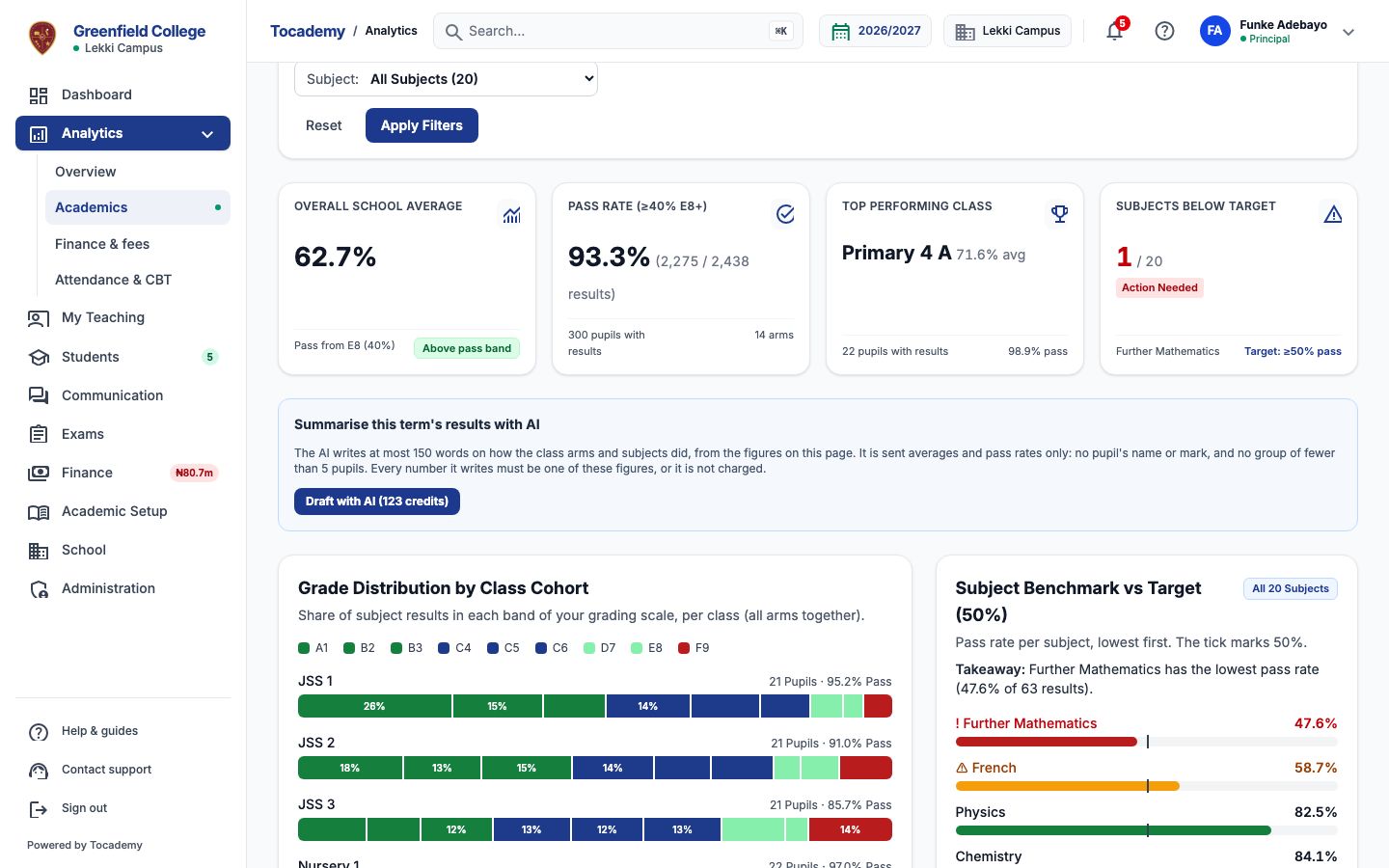
Your school has switched on Class performance summary (Turning On AI Features), you hold credits that cover it, and your role may see the broadsheet, as a principal, school administrator or campus administrator may. Open Analytics in the sidebar and click Academics, then choose the term. Under the four headline tiles is the box "Summarise this term's results with AI", and its button carries the price, 123 credits at Greenfield. The term needs at least 5 pupils with results: below that, there is nothing the AI could say without describing individual pupils, and the request is refused before anything is charged.
Worked example: First Term at Greenfield's Lekki campus
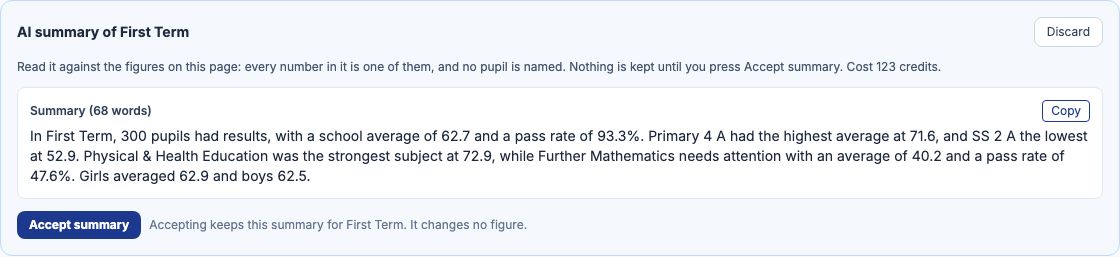
Mrs Funke Adebayo, Greenfield's principal, runs the Lekki campus. On Analytics › Academics for First Term she presses "Draft with AI". The draft appears under the box as AI summary of First Term: In First Term, 300 pupils had results, with a school average of 62.7 and a pass rate of 93.3%. Primary 4 A had the highest average at 71.6, and SS 2 A the lowest at 52.9. Physical & Health Education was the strongest subject at 72.9, while Further Mathematics needs attention with an average of 40.2 and a pass rate of 47.6%. Girls averaged 62.9 and boys 62.5. Every figure in it is on the page above it, written as the page writes it; the panel shows how many words it runs to and what it cost.
Accept it, or try again
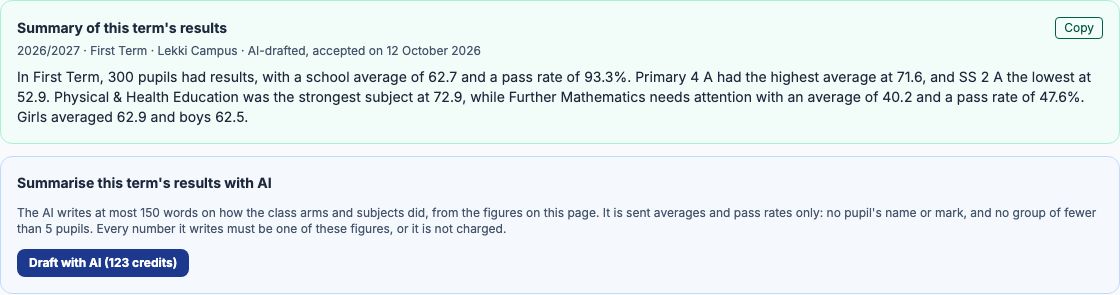
Read the summary against the figures above it. Press "Accept summary" to keep it exactly as it is: it then sits under the headline tiles as "Summary of this term's results", with the term, the campus and the day you accepted it, and "Copy" puts it on your clipboard for your report. To change a word, copy it and edit your own copy; the kept summary is the AI's text as you accepted it. Press "Regenerate with AI" for a fresh draft, which replaces the one waiting and is charged again, or "Discard" to close it without keeping anything. A draft waiting for another term or campus is not accepted here: open the page for its own term and campus to accept it, or discard it.
On a phone
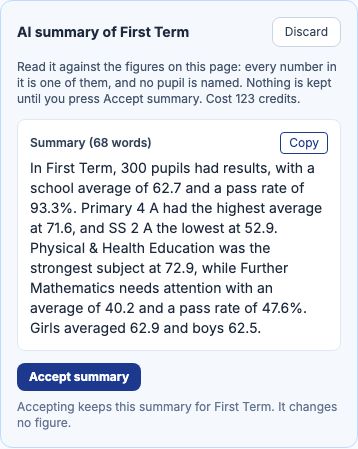
The box and the draft stack under the tiles on a phone, with the same "Accept summary" and "Discard" buttons.
What is sent to the AI, and what never is
Only the term's name and figures Tocademy works out from your results: each class arm's number of pupils with results, average and pass rate, each subject's, girls' and boys' averages, and each subject's average in each arm. No pupil's name, admission number or mark is ever sent, not even the top scorer's, and no group of fewer than 5 pupils: such an arm, subject or group of girls or boys is named with "fewer than 5" and no figure, and the draft says how many were left out. So that a small arm or subject cannot be worked out from the school's totals and the others, the next-smallest one is held back with it, its figures withheld: with two arms and one of them small, neither arm's figures are sent. An answer with a number that is not one of these figures, a rounded average or a sum the AI worked out itself, is refused and not charged.
When the AI says no, and what it costs
A refusal always says why and ends "Nothing was charged.", for example "Your school has not switched this AI feature on." or "The AI did not produce a usable answer. Try again." Each draft costs the credits on the button, whether you accept it or not; a refused or unfinished request is never charged. My AI credits, under My Profile, lists every request with its cost, and "Open the draft" goes back to Analytics › Academics.

Still stuck?
Email info@tocel.ng and tell us which guide you were following.