AI Appraisal Summaries
Draft your overall comment on an appraisal review from the scores and comments you saved; the person you review reaches the AI only as a placeholder, and the scores are never changed.
What it does, and for whom
When HR assigns you to review a colleague's appraisal, you score each criterion and write an overall comment. Once your scores are saved, you can ask the AI for a balanced first draft of that comment: the strengths your scores and comments show, the areas to develop, and a practical next step. It never changes a score and never recommends pay, promotion or discipline. It is a Sensitive feature, because it reads what you wrote about a person, so your school switches it on only after acknowledging what it sends.
Before you start
Your school has switched on Appraisal summary, with its notice acknowledged (Turning On AI Features), you hold credits that cover it, and you are the review's assigned reviewer: open My HR › My appraisal reviews. Score every criterion, add a comment where it helps, and press "Save scores". The box headed "Draft your overall comment with AI" appears under a review that is still open and fully scored. A self-review takes no AI summary: it is in your own words.
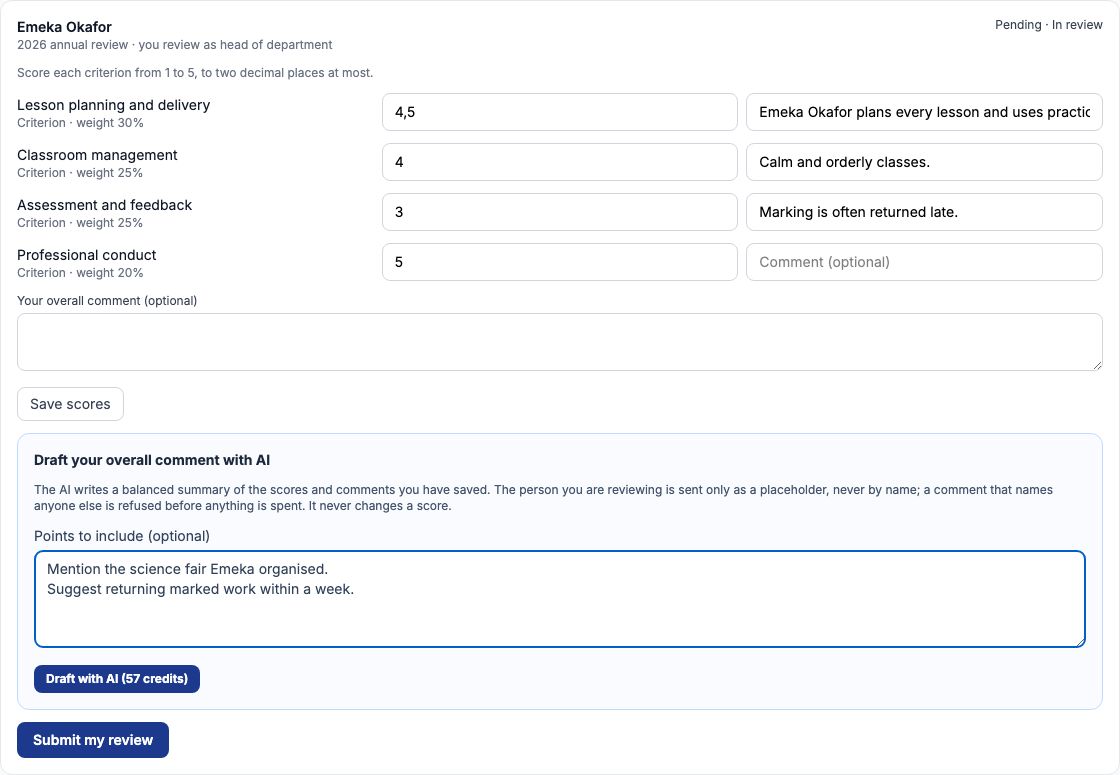
Worked example: Mr Okafor's annual review
Mr Eze reviews Mr Emeka Okafor as head of department in the 2026 annual review. He has saved 4.5 for Lesson planning and delivery, 4 for Classroom management, 3 for Assessment and feedback, with the comment that marking is often returned late, and 5 for Professional conduct. He types two points, Mention the science fair Emeka organised and Suggest returning marked work within a week, and presses "Draft with AI". The draft names Emeka Okafor, quotes each score exactly as saved, and closes on the weighted score of 4.1.
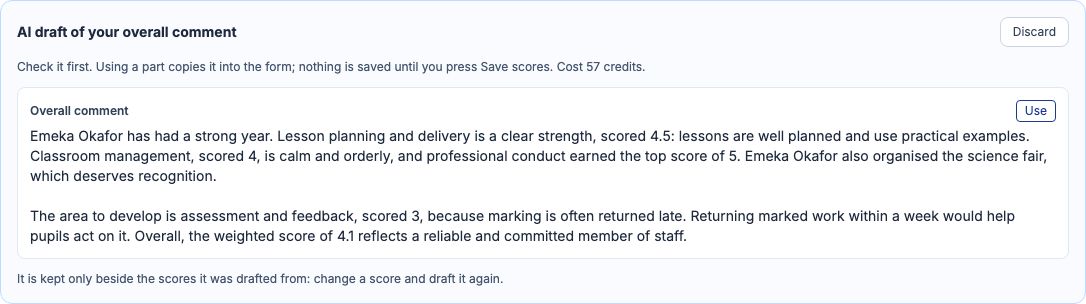
Use it, edit it, and save it beside your scores
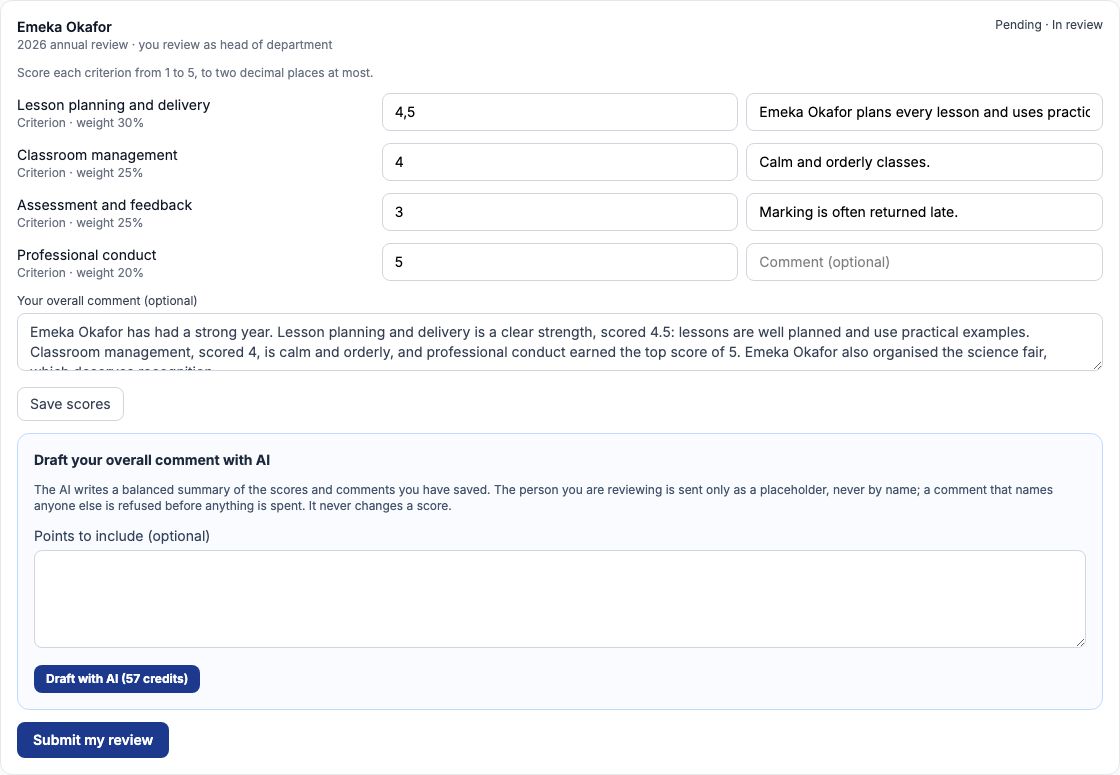
Press "Use" to put the draft into Your overall comment. Change anything, then press "Save scores". The summary is kept only beside the very scores it was drafted from: if you change a score in the form before saving, Save refuses it and your scores stay as they were; save the new scores and draft again. Submit the review with "Submit my review" when you are ready, as before.
What is sent to the AI, and what never is
Each criterion's name and weight, the score you saved and your comment on it, the scale's range, your review's weighted score, who you review as, and your points. The person you review is sent only as [STAFF_1]: every word of their name in your comments and points is replaced before anything leaves, and their name is put back only on Tocademy's own server. Never an id, an employee number, an e-mail or a phone number. If a comment names anyone else, a colleague, a pupil or a parent, nothing is sent: "Remove the personal details and try again. They are never sent to an AI provider.", and nothing is charged.
When the AI says no
A refusal says why and ends "Nothing was charged." The most likely are that a criterion is not yet scored and saved, that the review is already submitted, or that it is a self-review. A summary that writes a score your review does not hold is refused as an unusable answer. If you save other scores while the AI is drafting, the draft is refused because the review changed under it; draft it again.
Cost, and My AI credits
Each draft costs the credits on the button, 57 at Greenfield, whether you save it, change it or discard it; a refused or unfinished request is never charged. My AI credits lists every request: a summary you saved says Draft used, one still waiting says Saved as a draft with an Open the draft link back to your review.
Still stuck?
Email info@tocel.ng and tell us which guide you were following.