Staff Records
Keep one complete HR record for every employee: complete the records your staff sign-ins created, add staff who never sign in, and look after contracts, documents and the audit trail.
1. Open the staff list
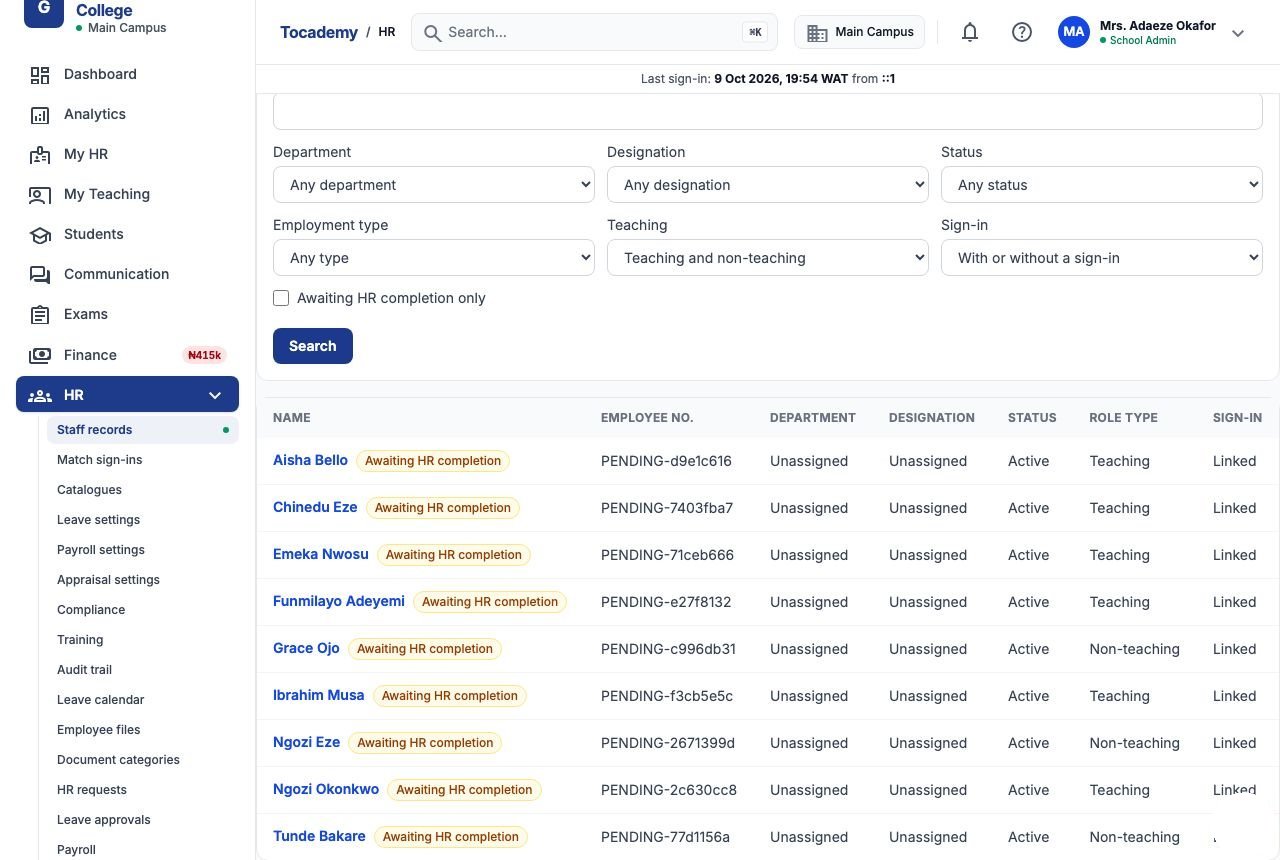
Choose "Staff records" in the HR menu. The table lists every employee with their "Employee no.", department, designation, status, whether they teach, and their "Sign-in": Linked (they have a working login), Not linked (no login), Sign-in disabled (the login was switched off on Settings → Users) or Paused (suspended). The first time Greenfield Model College opened this page, all eight members of staff who had been invited to sign in were already listed — each with an orange "Awaiting HR completion" badge, an employee number starting PENDING- and Unassigned as their department and designation.
2. One person, one record
Tocademy keeps HR and sign-ins together: every member of staff who can sign in has exactly one HR record, and the record is what payroll, leave and appraisals read. When you add a staff user on Settings → Users, Tocademy creates their HR record straight away so nobody falls through the gap. That record is provisional — it carries the "Awaiting HR completion" badge and is left out of payroll runs — until someone in HR confirms the employee's real details. The reverse is not required: a driver, cleaner or gateman who never uses Tocademy can have an HR record with no sign-in at all.
3. Example: completing Chinedu Eze's record
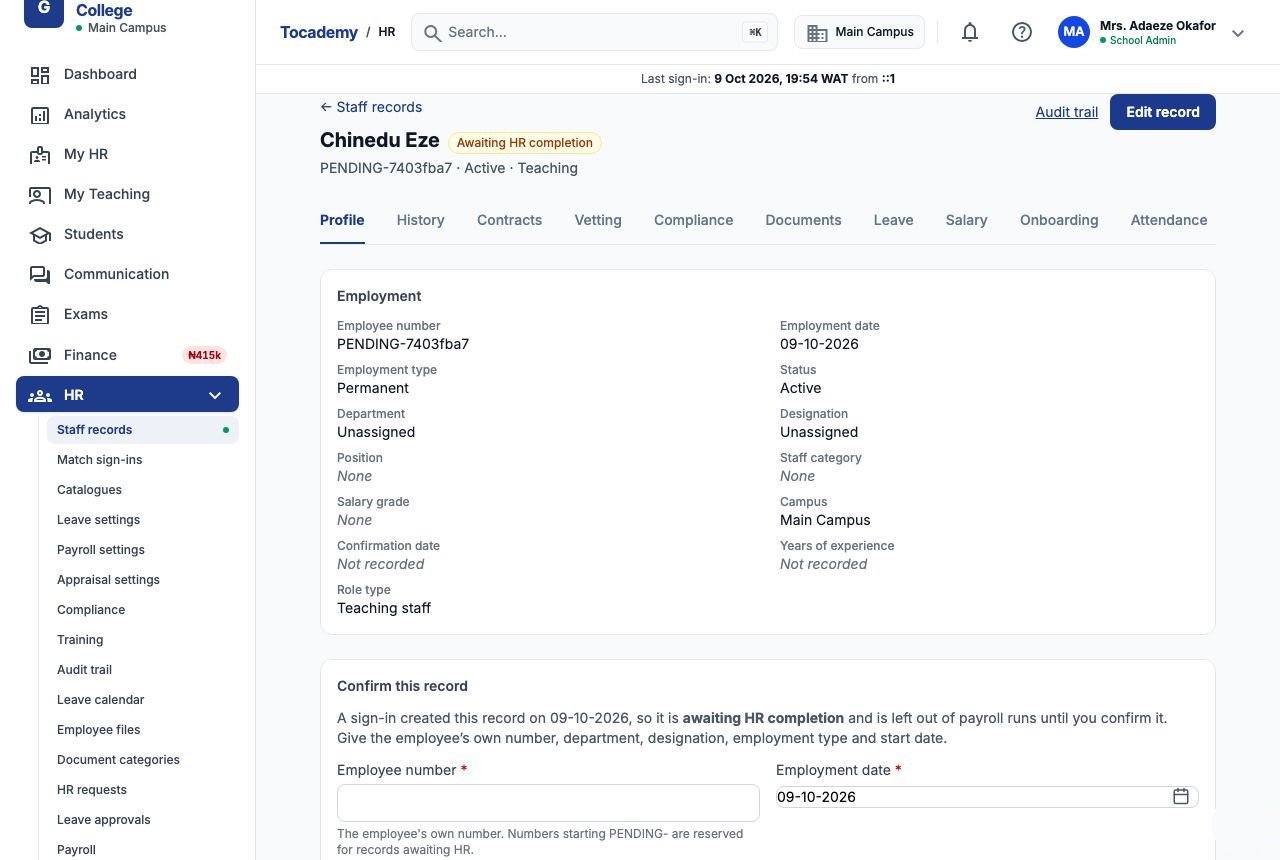
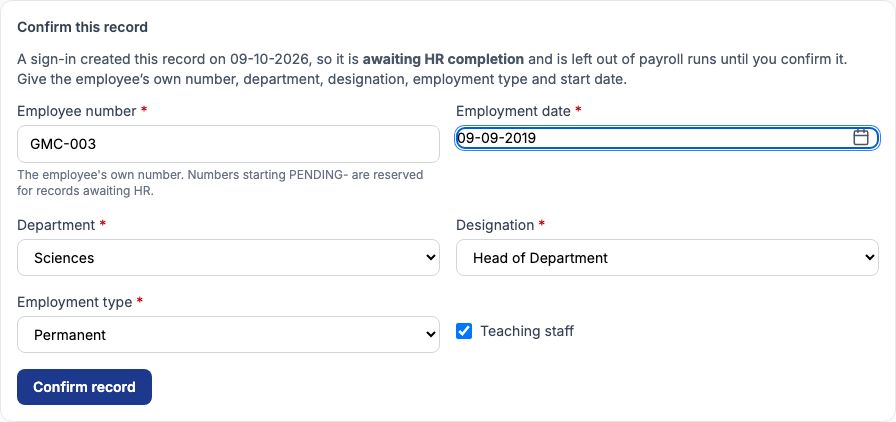
Chinedu Eze is Greenfield's Head of Sciences and has taught there since September 2019. Open his name in the list. Under the "Employment" panel is "Confirm this record". Type his real employee number, GMC-003, in "Employee number" (numbers starting PENDING- are reserved). Set "Employment date" to 09-09-2019. Choose "Sciences" in "Department" and "Head of Department" in "Designation", and "Permanent" in "Employment type". Leave "Teaching staff" ticked. Press "Confirm record". The badge disappears, his record now shows GMC-003, Sciences and Head of Department, and from now on he is included in payroll. Greenfield completed the other seven the same way: Grace Ojo GMC-001 (Principal), Tunde Bakare GMC-002 (Bursar), Funmilayo Adeyemi GMC-004, Ibrahim Musa GMC-005, Ngozi Okonkwo GMC-006, Aisha Bello GMC-007 and Emeka Nwosu GMC-008.
4. Match sign-ins
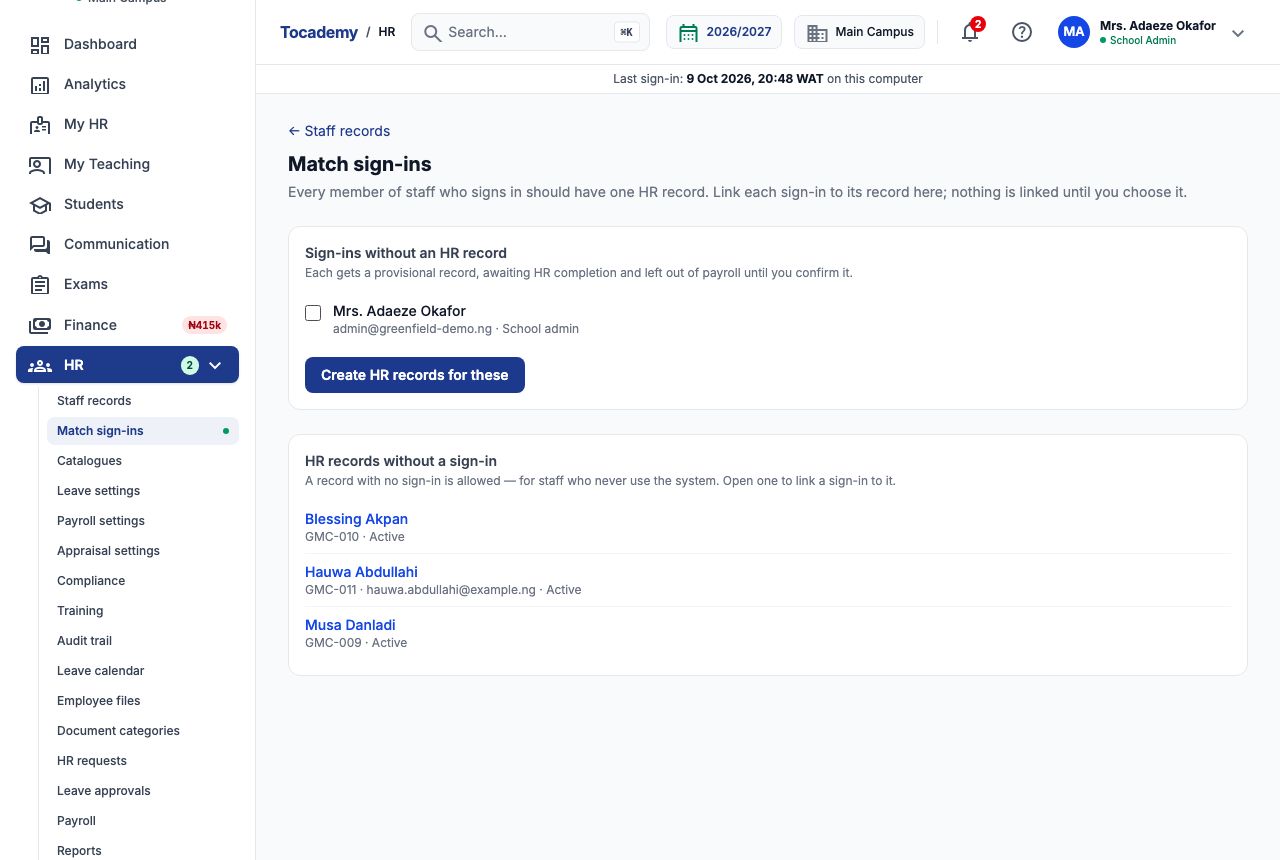
"Match sign-ins" (on the staff list, or in the HR menu) checks that every staff sign-in has its HR record. "Proposed matches" pairs a sign-in with an existing record when both carry the same email; untick any that are not the same person and press "Link selected". Nothing is linked until you press it. "Shared emails" lists cases where two people share an email — choose the right sign-in and record and press "Link these two". "Sign-ins without an HR record" lists logins with no record at all; press "Create HR records for these" to give each one a provisional record to complete. At Greenfield the only sign-in left was the school administrator, Mrs. Adaeze Okafor, who is the proprietor rather than an employee, so we unticked her and left it. "HR records without a sign-in" is for information only: those records are allowed.
5. Finding people: the filters
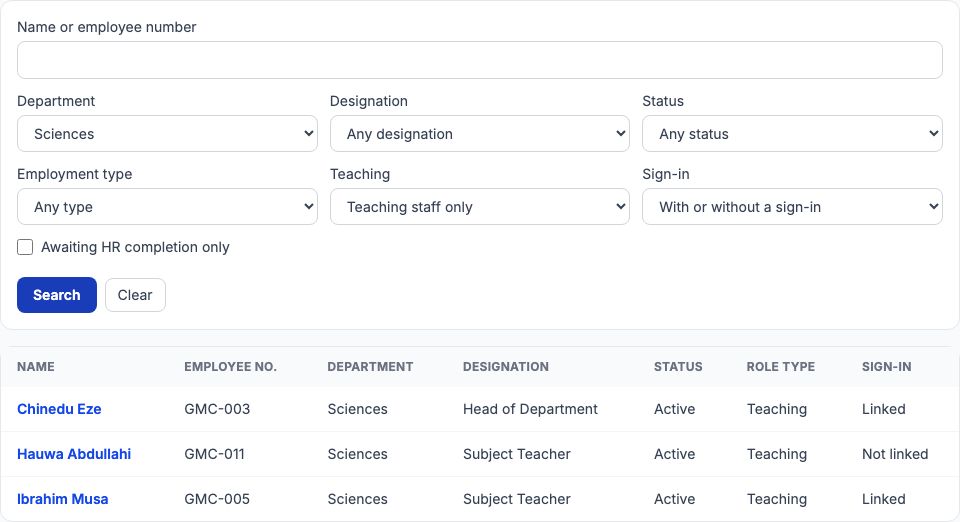
Above the table you can search by "Name or employee number" and narrow the list by "Department", "Designation", "Status", "Employment type", "Teaching" and "Sign-in". Tick "Awaiting HR completion only" to see just the records still to be confirmed — a quick check before each payroll run. Press "Search" to apply the filters and choose "Clear" to remove them. For example, Department Sciences with Teaching set to "Teaching staff only" shows Chinedu Eze, Hauwa Abdullahi and Ibrahim Musa.
6. A staff record and its tabs
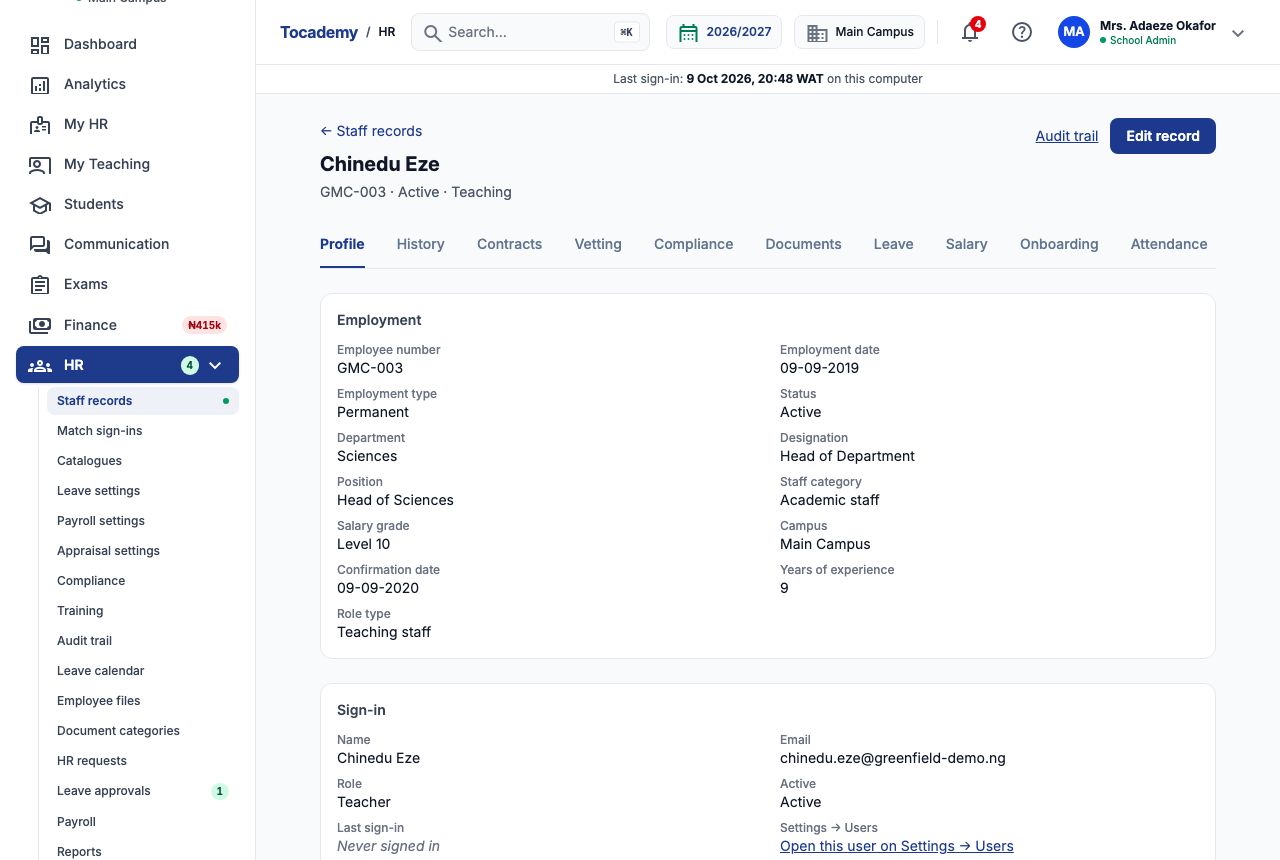
Opening a name shows the record's "Profile": the "Employment" panel (employee number, dates, type, status, department, designation, position, category, grade, campus), then "Sign-in", "Teaching now", "Photograph", "Transfers", "Employment status", "Reporting manager", "Subjects taught", personal and contact details, bank and tax details, emergency contacts, qualifications, certifications and professional registrations. The tabs across the top open the rest of the person's HR life: "History", "Contracts", "Vetting", "Compliance", "Documents", "Leave", "Salary", "Onboarding", "Attendance", "Workload", "Training", "Appraisals" and, for teachers, "Analytics". You only see the tabs your role allows. Vetting and Compliance are covered in the Vetting and Compliance guide; leave, attendance, salary and appraisals have their own guides.
7. Editing a record, including bank details
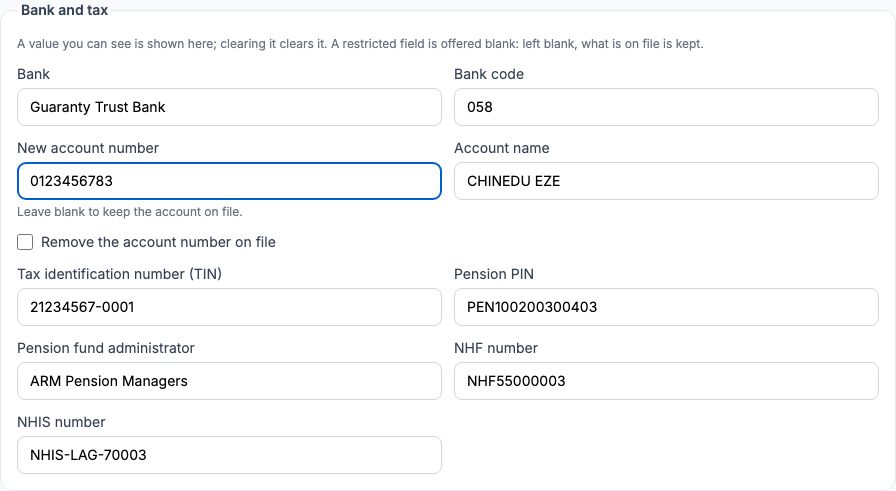
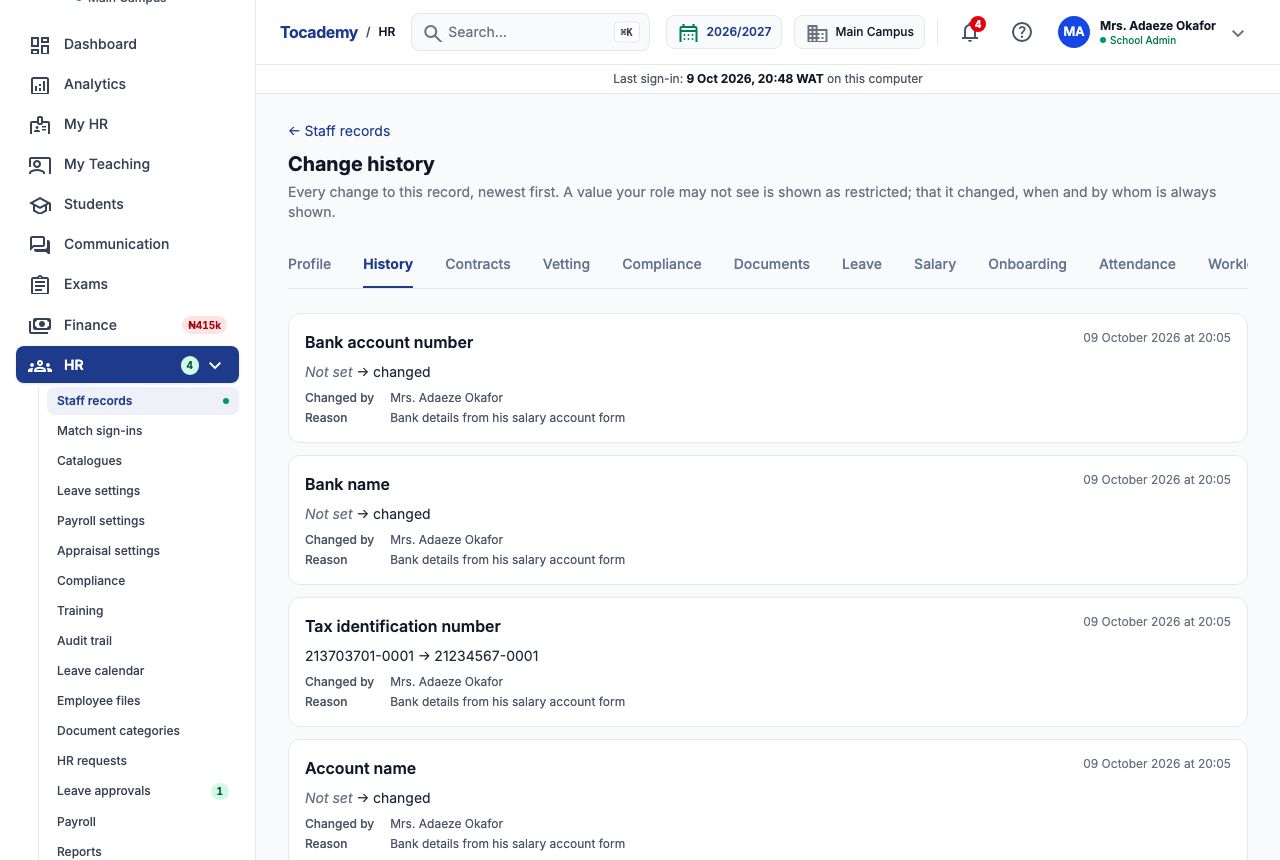
Choose "Edit record" at the top right. Every field of the record is offered in sections: "Identity", "Employment", "Contact", "Bank and tax", emergency contacts, qualifications, certifications and professional registrations, and "Why (optional)". For Chinedu we typed Guaranty Trust Bank in "Bank", 058 in "Bank code", his ten-digit NUBAN 0123456783 in "New account number", CHINEDU EZE in "Account name", and his TIN, pension PIN, pension fund administrator, NHF and NHIS numbers. Write the reason in "Reason" — Bank details from his salary account form — so it is kept in the history, then press "Save changes". New contacts, qualifications and certificates you add are added to the ones already on the record; remove an old one with its own "Remove" button on the profile.
8. How bank details are protected
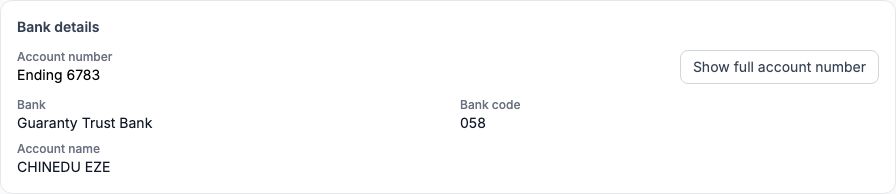
After saving, the "Bank details" panel shows the account number only as "Ending 6783". A person allowed to view bank details can press "Show full account number"; each time they do, it is written to the HR audit trail. People without that permission see Restricted instead of the bank name, bank code and account name (the number itself is only ever shown as its last four digits), but they can still type new details into the edit form — useful for an HR clerk who collects the forms but should not read them back. To remove an account number entirely, tick "Remove the account number on file" in the edit form.
9. The change history
The "History" tab lists every change to the record, newest first: which field changed, the old and new value (Not set when it was empty), when, and the reason typed in the edit form. A value your role may not see is shown as restricted, but the fact that it changed is always shown — so for Chinedu the bank account appears as Not set → changed, while his new TIN is shown in full.
10. Example: issuing Aisha Bello's probationary contract
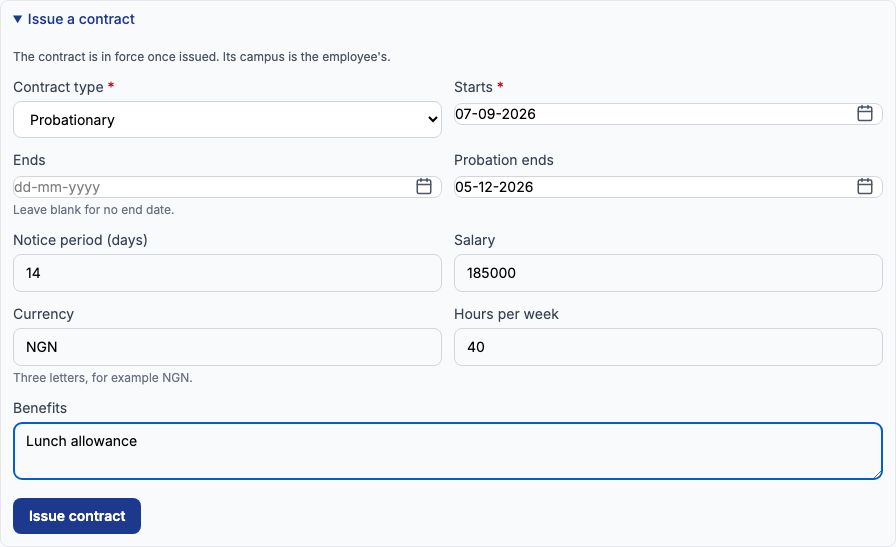
Aisha Bello joined the Mathematics department on 7 September 2026 on probation. Open her record, then the "Contracts" tab, and open "Issue a contract". Choose "Probationary" in "Contract type", set "Starts" to 07-09-2026 and leave "Ends" blank (no end date). Set "Probation ends" to 05-12-2026, "Notice period (days)" to 14, "Salary" to 185000 with "Currency" NGN, "Hours per week" to 40 and "Benefits" to Lunch allowance. Press "Issue contract". The contract is in force at once and shows ₦185,000.00, Probation Until 05-12-2026 · Undecided. While it is in force you can open "Record an amendment", "Renew", "Decide probation", "Extend probation" or "Terminate" on it; a person has only one contract in force at a time, so to issue a new one you renew or terminate the current one. People without permission to see salaries see Salary restricted instead of the figure.
11. The contract once issued
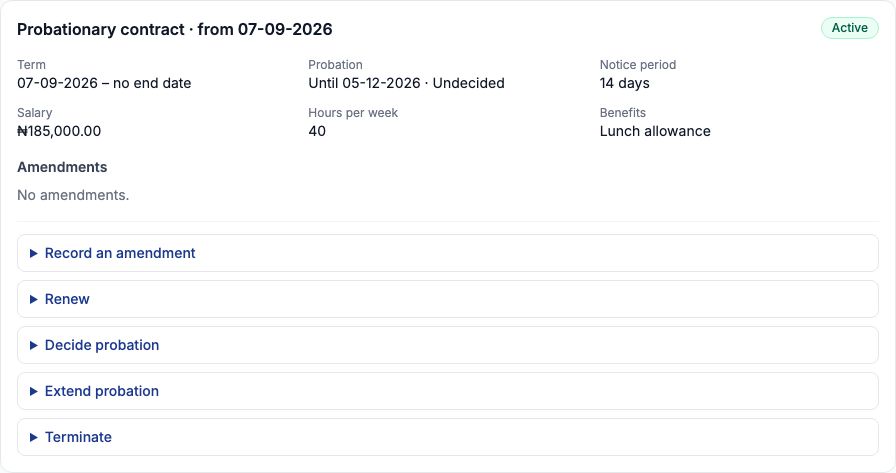
The contract card shows its type and start date, an Active badge, the term, probation, notice period, salary, hours, benefits and any amendments. When Aisha's probation ends, open "Decide probation" and press "Confirm probation" or "Fail probation" with a reason. The probation end date also appears on the HR compliance page as it approaches, so it is not forgotten. Every other teacher at Greenfield has a contract on file too: permanent contracts for most, and a fixed-term contract for Ibrahim Musa ending 18-12-2026.
12. Example: adding Musa Danladi, the school driver
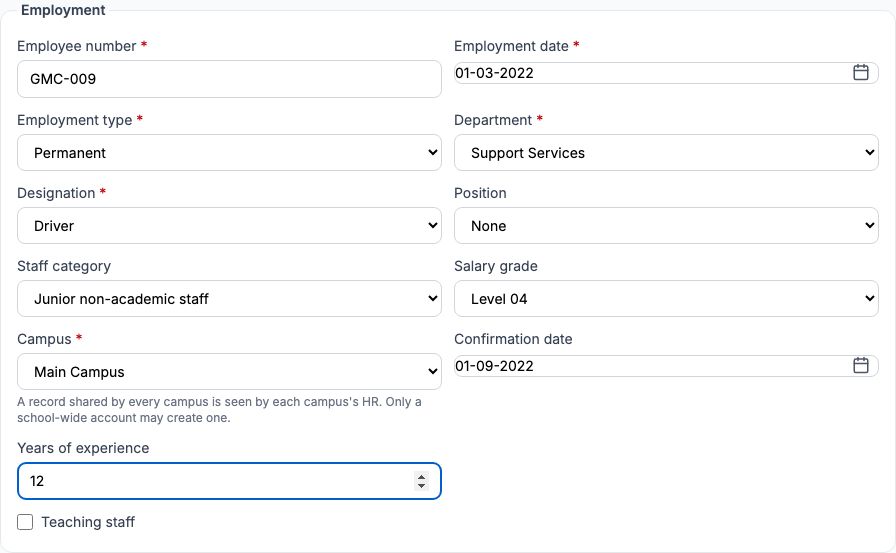
Musa Danladi drives the school bus. He has never needed to sign in, so he had no record yet. On the staff list choose "New staff record". Under "Identity" type his "Full name", date of birth 18-06-1985, gender, nationality, state of origin (Kaduna) and LGA (Zaria). Under "Employment" type GMC-009 in "Employee number", 01-03-2022 in "Employment date", and choose "Permanent", "Support Services" (department), "Driver" (designation), "Junior non-academic staff" (staff category) and "Level 04" (salary grade). Leave "Campus" on Main Campus. Leave "Teaching staff" unticked — for a teacher, ticking it opens a list of subjects to choose from.
13. Musa's manager, bank details and driving licence
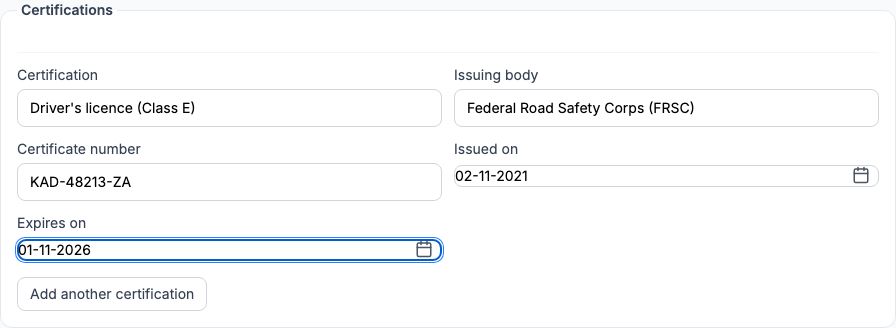
Under "Reporting manager", type Tunde in "Find a manager", press "Search", and choose Tunde Bakare · GMC-002 — the Bursar looks after the support staff. Fill in his phone and address, then "Bank and tax": First Bank of Nigeria, bank code 011, account number 0123456789, account name MUSA DANLADI, his pension PIN and fund administrator. Add his wife as an emergency contact. Under "Certifications" record his licence: Driver's licence (Class E) in "Certification", Federal Road Safety Corps (FRSC) in "Issuing body", the licence number, "Issued on" 02-11-2021 and "Expires on" 01-11-2026. Recording the expiry date is what makes the licence appear on the compliance page before it runs out.
14. Leaving the sign-in blank
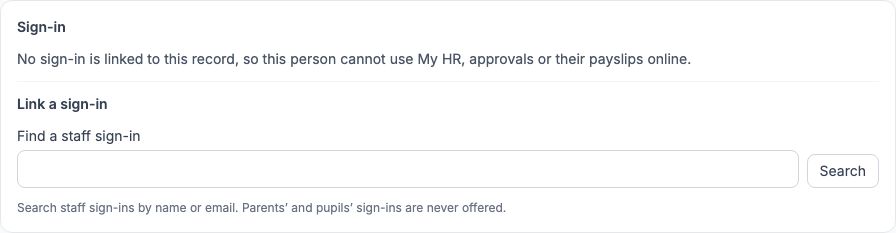
The last section, "Sign-in (optional)", can create a login for the new employee at the same time. Musa does not need one, so leave it blank; a sign-in uses one of your plan's staff seats, and you can add one later. Press "Create staff record". The record opens with "Staff record created." and no badge — a record created by HR is complete from the start. Its "Sign-in" panel says no sign-in is linked, so he cannot use My HR, approvals or payslips online. If he is given a login later, use "Find a staff sign-in" in that panel and press "Link". Greenfield added Blessing Akpan, a part-time cleaner (GMC-010), the same way.
15. Document categories
Scanned documents live in each employee's file, sorted into categories. Choose "Document categories" in the HR menu. The built-in categories include Identity documents, Employment contracts, Qualification certificates, Professional licences, Background checks, References and Medical documents. For each, tick or untick "Takes new documents", "Employees see their own" (whether the employee can see it in My HR) and "Documents expire" (whether a document's expiry date is tracked on the compliance page), then press "Save". Restricted categories, such as Employment contracts, are seen only by people with the matching permission and cannot send expiry reminders. Greenfield ticked "Documents expire" on Professional licences so licence scans are tracked. Use "Add a category of your own" and press "Add category" for anything else; who may see it cannot be changed later.

16. Filing a document in the employee file
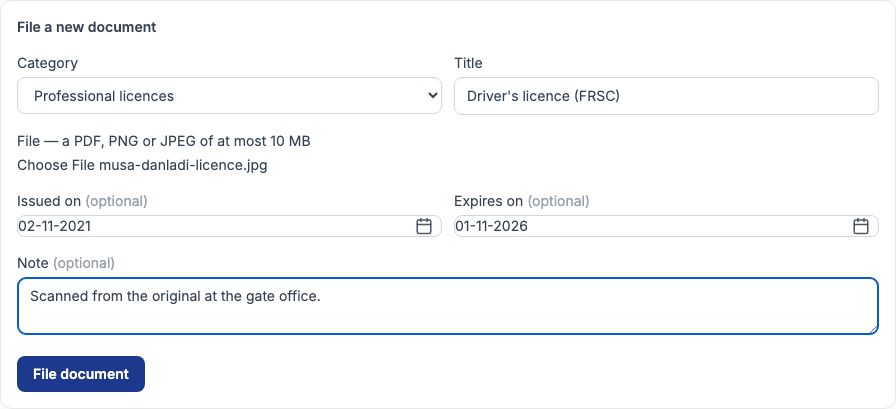
Open "Employee files" in the HR menu and choose the person, or open the "Documents" tab on their record. Under "File a new document", choose a "Category" (Professional licences for Musa's licence), give it a "Title" such as Driver's licence (FRSC), choose the file (a PDF, PNG or JPEG of at most 10 MB), add "Issued on" and "Expires on" dates and an optional note, and press "File document". Nothing in the file is ever deleted: a new scan is added with "Upload version" and becomes the current version, earlier versions stay, and a document filed by mistake is archived with a reason (press "Archive") and can be restored. Press "Get download link" on a version to open it; the link works for a few minutes.
17. The HR audit trail
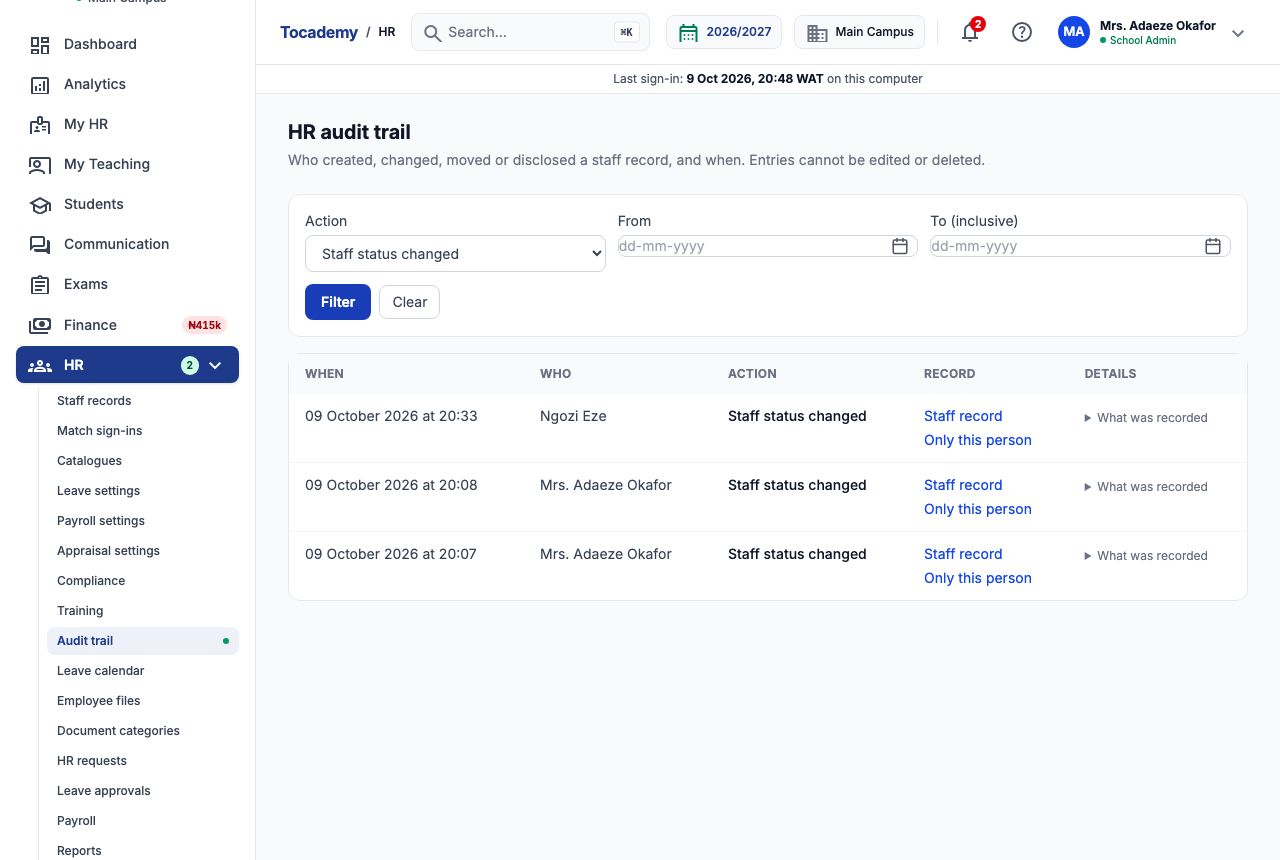
"Audit trail" in the HR menu (or the "Audit trail" link at the top of any record) lists who created, changed, moved or disclosed a staff record, and when — including every time someone pressed "Show full account number". Narrow it with "Action", "From" and "To (inclusive)" and press "Filter". Choose "Only this person" on a row to see one employee's trail, and open "What was recorded" to see the values before and after. Entries cannot be edited or deleted, so this is the page to show an auditor or the board.
18. Suspension, leave and exit — what happens to the sign-in
The "Employment status" panel on a record offers Active, Suspended and On leave; add a reason and press "Change status". Suspending someone pauses their sign-in at once: when Ibrahim Musa was suspended pending an HR case, the staff list showed Paused (suspended) and Settings → Users showed Sign-in paused by HR. Setting him back to Active restored his login. Someone who is leaving does not go through this panel: record their exit in Staff exits (see the exits guide). Once the exit takes effect their sign-in is ended — Settings → Users shows Sign-in ended (left the school) — while Tocademy keeps the HR record and its history for as long as the retention period requires.

Still stuck?
Email info@tocel.ng and tell us which guide you were following.