AI Announcement Drafts
Type the points a notice must make and let the AI draft its title, the notice and a one-page text message; copy what you want into the form, save, publish, and text it to families if your school allows.
What it does, and for whom
Whoever writes the school's notices, usually the principal or the school office, can ask the AI for a first draft from a few typed points: a title, the notice itself, and a text message short enough for one SMS page. The draft sits beside the form and changes nothing by itself. You copy the parts you want into the form, change any word, and the notice is saved and published only when you press the form's own buttons, exactly as a notice you typed yourself.
Before you start
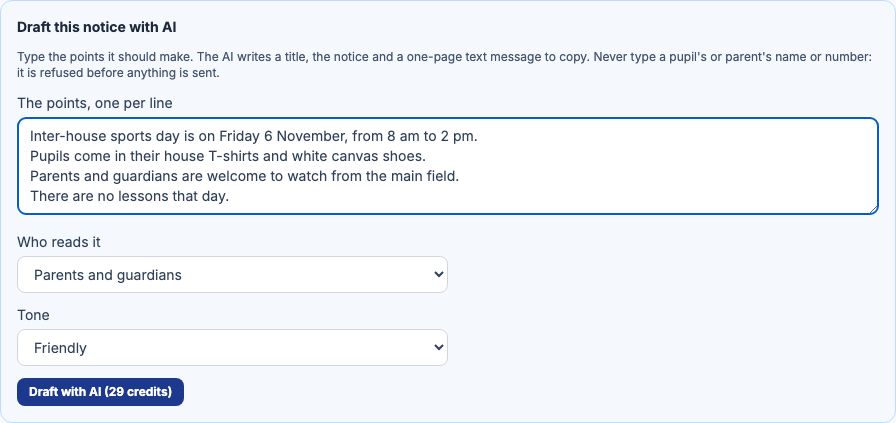
Your school has switched on Announcement draft (Turning On AI Features), you hold credits that cover it, and your role may manage announcements; at Greenfield that is the principal, Mrs Funke Adebayo. Open Communication in the sidebar and click Announcements. Above the form is a box headed "Draft this notice with AI", and its button carries the price, 29 credits at Greenfield.
Worked example: the inter-house sports day
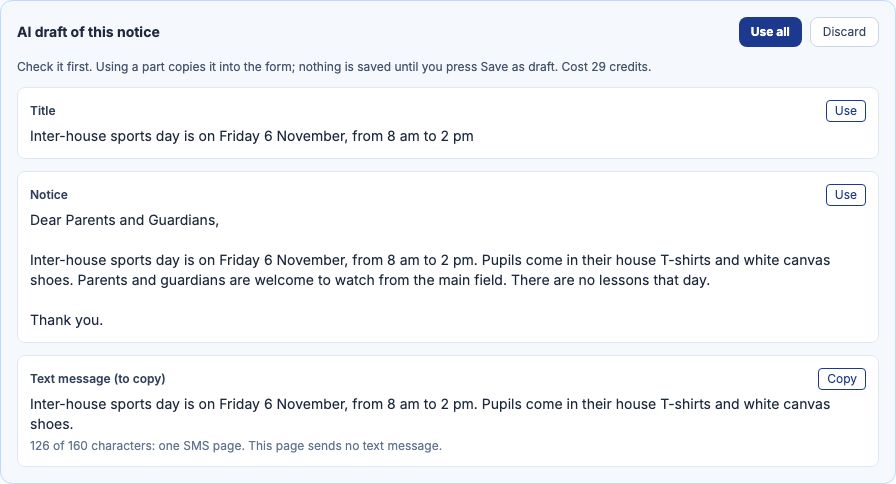
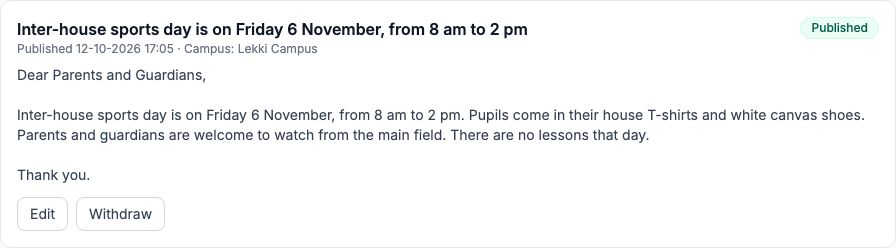
Mrs Adebayo types the points under "The points, one per line": Inter-house sports day is on Friday 6 November, from 8 am to 2 pm. Pupils come in their house T-shirts and white canvas shoes. Parents and guardians are welcome to watch from the main field. There are no lessons that day. She sets "Who reads it" to "Parents and guardians" and "Tone" to "Friendly", then presses "Draft with AI". The draft appears as "AI draft of this notice": the title, the notice beginning Dear Parents and Guardians, and a text message of 126 of 160 characters, one SMS page. Every date and time in it is one she typed: an answer with a figure of its own is refused, and not charged.
Copy it into the form, save and publish
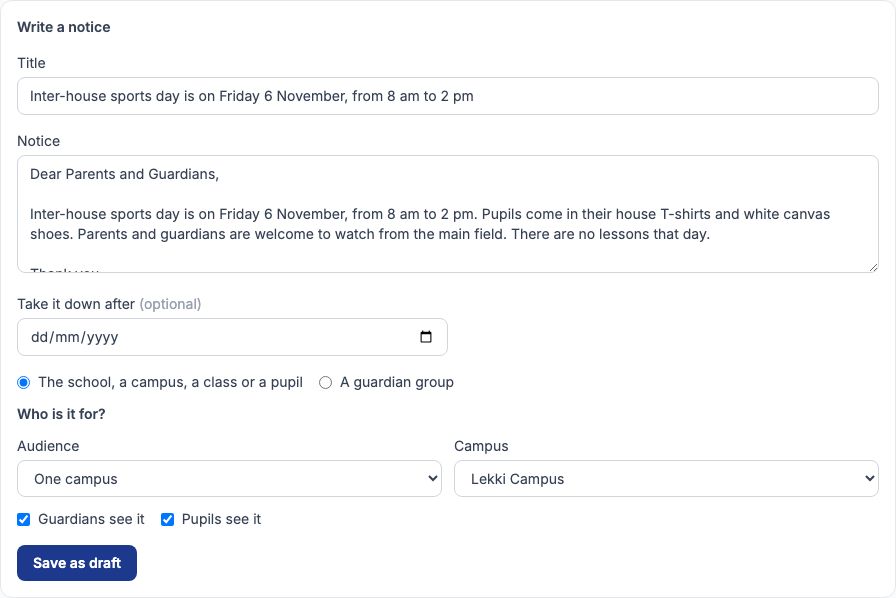
Press "Use all" to copy the title and the notice into the form below, or "Use" on one part. Copying is not saving: change anything you like, choose who the notice is for under Who is it for? (a principal who runs one campus posts to her own campus), and press "Save as draft". The notice joins the list as a Draft; press "Publish" on it when you are ready, and families see it on the portal. "Use" on the text message puts it in the form's Text message box, and it is saved with the notice: it is never shown on the board, and publishing does not send it. "Copy" still puts it on your clipboard if you would rather use your own SMS service.
Editing and drafting again
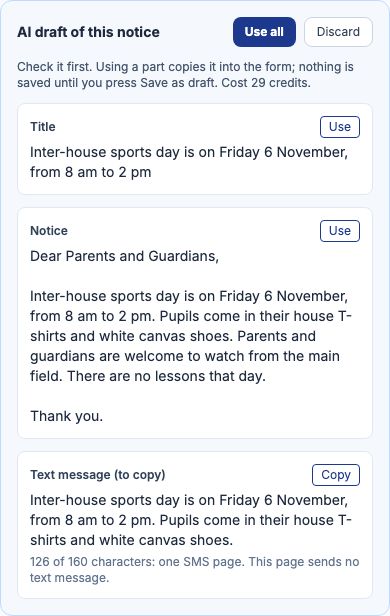
Not happy with the draft? Change the points and press the button again, which now reads "Regenerate with AI": the new draft replaces the one waiting, and is charged like any other. "Discard" throws a draft away and costs nothing more. Each member of staff has one draft waiting at a time. On a phone the draft sits above the form in the same order, with the same buttons.
What is sent to the AI, and what never is
Only what you type in the box, who reads it and the tone. Nothing from the school's records goes with it: no pupil, parent or staff names, phone numbers or class lists. Your points are checked before they leave, and a point with a name or a phone number in it is refused with "Remove the personal details and try again. They are never sent to an AI provider." and nothing is charged. Write pupils in JSS 2, or the class teacher, instead of a name.
When the AI says no
A refusal always says why, and ends "Nothing was charged." The most likely are "Your school has not switched this AI feature on.", "You have no AI credits for this feature. Ask your school's administrator for some.", "You have reached today's AI credit limit. Try again tomorrow." and "The AI did not produce a usable answer. Try again." A point that asks the AI to name a person is left out of the draft, which says the school cannot share personal details in a notice.
Texting the notice to families
Where Tocademy has switched texting on, a member of staff who may spend the school's SMS units and manage announcements for the whole school (at Greenfield, the school administrator) sees a "Text families" link on every published notice guardians can read. Follow it: the page shows the notice's text message, how many guardians it goes to, what it costs in SMS units and how many units the school has. It counts guardians and never shows a phone number. Only guardians the school may notify, who have not turned texts off and have a number on file, are texted, one text per number, whether or not they use the portal. The button names the guardians and the units; press it to send. Nothing is sent unless every text is paid for, pressing it twice never texts anyone twice, and a notice already texted is sent again only if you tick the box that says so, and is paid for again. A principal who runs one campus does not see the link: the units belong to the whole school.
Cost, and My AI credits
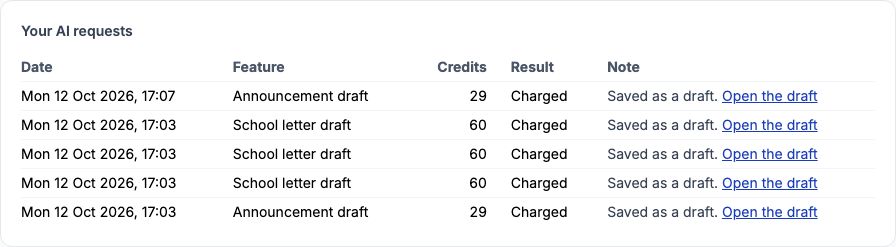
Each draft costs the credits on the button, whether you use it, change it or discard it, because the AI did the work; a refused or unfinished request is never charged. My AI credits, under My Profile, lists every request with its cost, and "Open the draft" goes back to the announcements page.
Still stuck?
Email info@tocel.ng and tell us which guide you were following.