Staff Attendance and Schedules
Set each employee's working week, record when staff arrive and leave, read the days Tocademy works out from them (late, half day, overtime, approved leave), and arrange cover when a teacher is away.
1. How staff attendance works
Tocademy judges each employee's day by comparing two things: the check-ins and check-outs recorded for them, and the work schedule that says when they were expected. From those it works out a status for the day (present, half day, absent, on approved leave, rest day, holiday or not recorded), how long they worked, how many minutes late they were, and any overtime. Everything lives in the HR menu: open "Staff attendance" for the whole school, "Work schedules" for the working weeks, and "Substitutions" for cover. On a staff record, the "Attendance" and "Workload" tabs show one person. Staff see their own days under My HR, "My attendance". Until a schedule applies to someone, every day of theirs is Not recorded and counts against nobody, so set up a schedule first.
2. Set up a work schedule
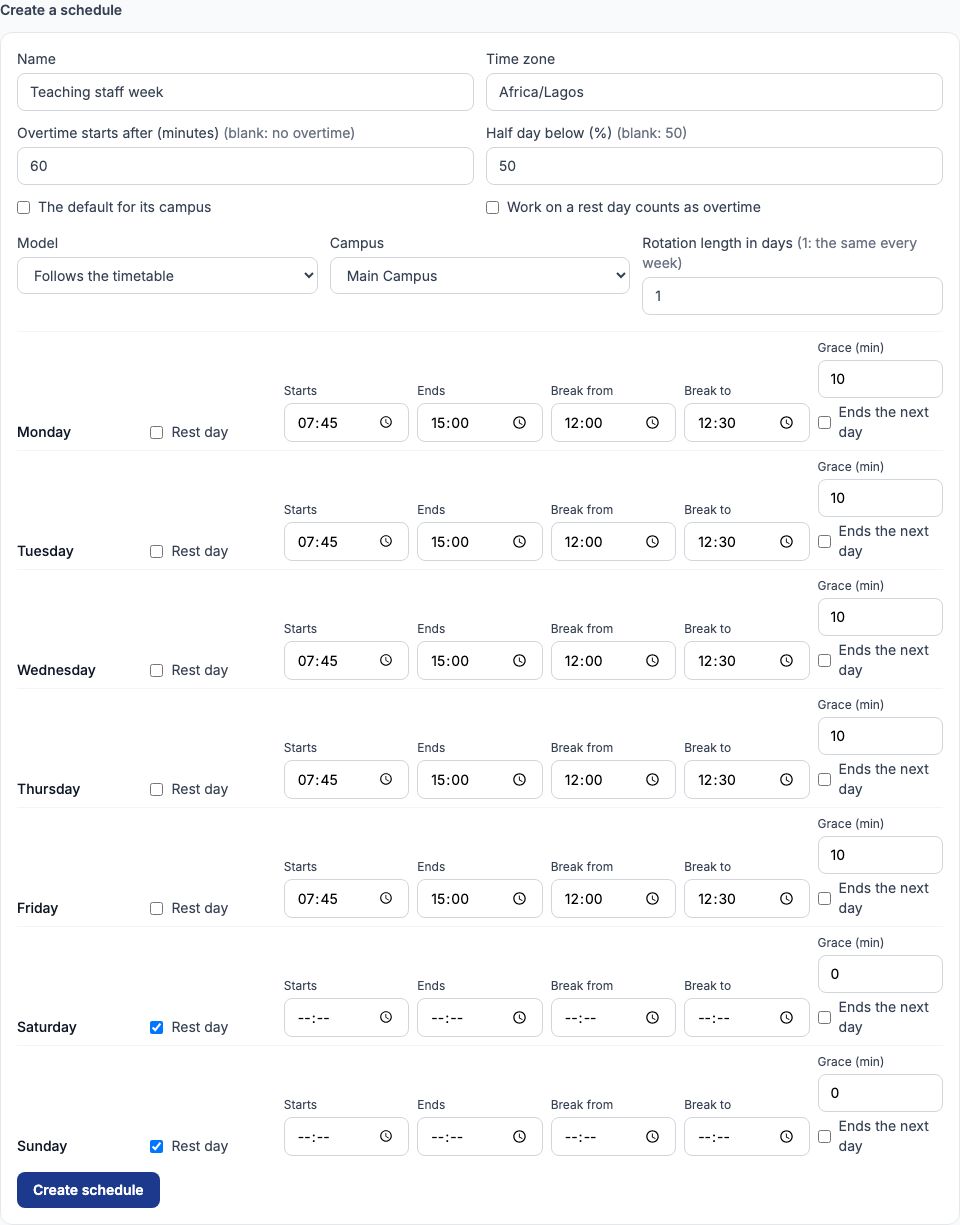
Open "Work schedules" and scroll to "Create a schedule". Give it a "Name" and keep the "Time zone" as Africa/Lagos. "Overtime starts after (minutes)" is how long after the end of the day overtime begins (leave it blank for no overtime at all). "Half day below (%)" is the cut-off: a day worked for less than that share of the scheduled time is a half day (blank means 50). Set "Model" to "Follows the timetable" for teachers or "Shift" for staff who work shifts, such as drivers, cleaners and security, and choose the "Campus". "Rotation length in days" stays at 1 for the same week every week; a longer rotation is for shift patterns. Then fill each day: "Starts", "Ends", "Break from", "Break to" and "Grace (min)", the minutes after the start before someone counts as late. Days off are marked with the "Rest day" box (Saturday and Sunday come marked), and a night shift with "Ends the next day". Press "Create schedule". Greenfield Model College created Teaching staff week: Monday to Friday 07:45 to 15:00, a 12:00 to 12:30 break, 10 minutes' grace, overtime after 60 minutes, half day below 50%.
3. Reading and changing a schedule
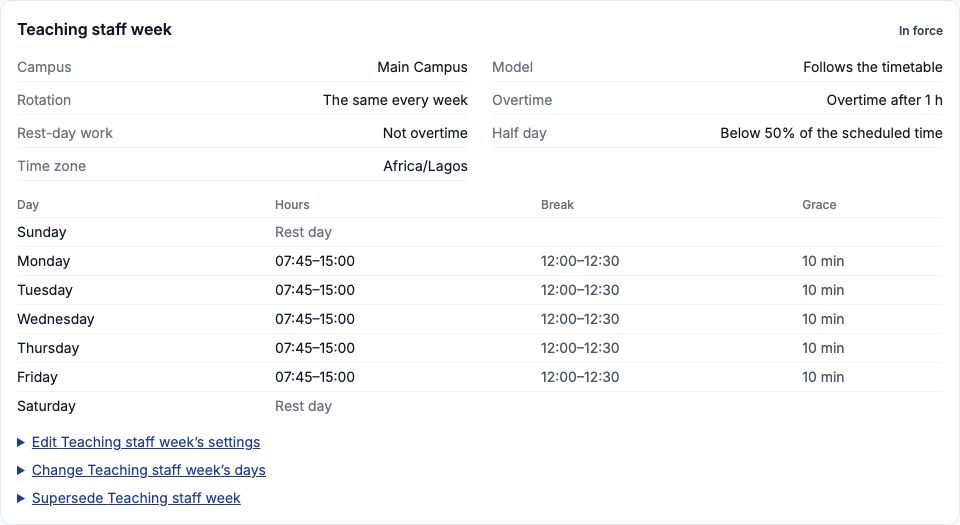
Each schedule is listed as a card: its campus, model, rotation, overtime rule, whether work on a rest day counts as overtime, the half-day cut-off and every day with its hours, break and grace. Under the card are three links. The settings link changes the name, overtime, half-day cut-off and the two ticks, then press "Save settings". The days link changes the hours, then press "Save the days"; days already settled keep the hours they were judged against. The supersede link retires the schedule: fill "Stops applying from", optionally choose what it is "Replaced by", and press "Supersede". A schedule is never deleted, because pay may already have been worked out under it; "Show superseded schedules" brings old ones back into view. Marking "The default for its campus" makes a schedule apply to everyone at that campus who has no schedule of their own.
4. Give each employee a schedule
Tocademy looks for an employee's schedule in this order: one assigned to them, then their campus's default, then a school-wide default. Open the staff record, then the "Attendance" tab. The "Work schedule today" panel says which one applies and why, for example "No schedule applies", and names an assignment that starts later, for example "Starting 12-10-2026". To assign one, choose it in "Assign a schedule", set "From" (the first day it applies; it can be in the past) and, for a rotating shift only, "Rotation starts". Press "Assign". Any earlier assignment ends the day before. Greenfield assigned Teaching staff week to Funmilayo Adeyemi from 05-10-2026, and to Ngozi Okonkwo from 12-10-2026. A warning appears if the schedule's model does not match the role, for example a teacher on a shift; that is allowed, but check it is what you meant.

5. Recording check-ins and check-outs
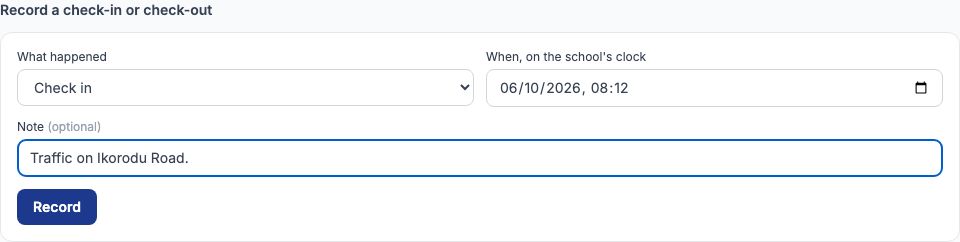
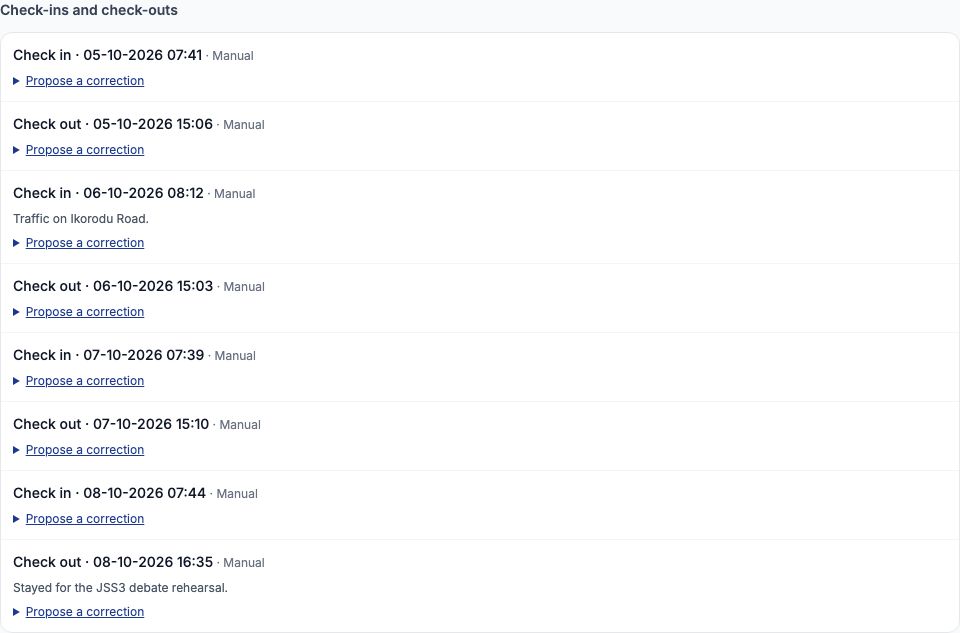
On the "Attendance" tab, under "Record a check-in or check-out", choose what happened in "What happened" (a check-in, a check-out, or other for a sighting with no direction), enter the date and time on the school's clock (Lagos time), add a "Note" if it helps, and press "Record". The day is worked out again at once. Only the first arrival and the last departure of a day count, so a second check-in at lunchtime changes nothing. Every entry is listed under "Check-ins and check-outs" with how it was captured (Manual for one typed in here). Entries are never edited or deleted; a wrong one is corrected (section 11). Greenfield's bursary officer typed in Funmilayo's week from the gate register: Monday in at 07:41 and out at 15:06, Tuesday in at 08:12 with the note Traffic on Ikorodu Road, and out at 15:03, Wednesday 07:39 to 15:10, and Thursday 07:44 to 16:35, when she stayed for the debate rehearsal.
6. How a day is judged
Worked time runs from the first arrival to the last departure, minus the scheduled break. Late is the minutes after the start time plus the grace: with a 07:45 start and 10 minutes' grace, 07:55 is on time and 08:12 is 17 minutes late. Overtime starts once the person leaves later than the end time plus the overtime threshold. Short is the time a worked day fell below the scheduled hours. A day is Present if they worked, a half day if they worked less than the half-day cut-off, Absent if a scheduled working day ended with nothing recorded, and Authorised absence if approved leave covers it. Rest days and school holidays (set on "Leave settings") are neither. A day that has not finished yet, or for which no schedule applies, is Not recorded, never Absent, so nobody is marked absent at 9 o'clock in the morning. A day flagged "May change" has had something recorded since it was worked out.
7. Example: Funmilayo Adeyemi's week
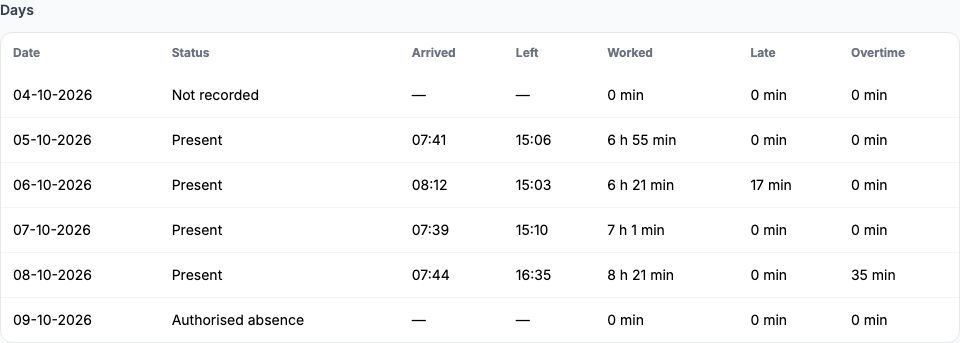
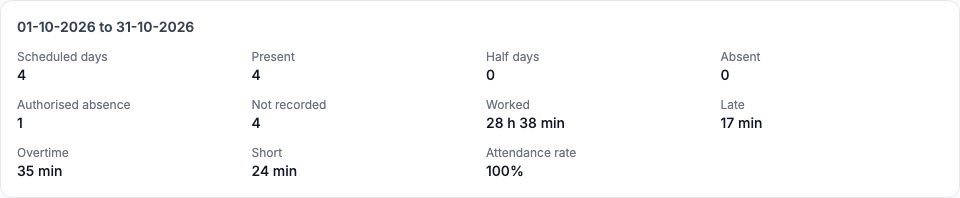
Funmilayo teaches English at Greenfield on Teaching staff week (07:45 to 15:00, 30 minutes' break, so 6 h 45 min a day). Monday 5 October: in 07:41, out 15:06, worked 6 h 55 min, not late. Tuesday: in 08:12, which is 17 minutes after 07:55, so 17 minutes late; out 15:03, worked 6 h 21 min, 24 minutes short. She is still Present: late is counted in minutes, it does not turn a day into an absence. Wednesday: 07:39 to 15:10, worked 7 h 1 min. Thursday: 07:44 to 16:35, worked 8 h 21 min; overtime starts at 16:00 (15:00 plus 60 minutes), so 35 minutes of overtime. Friday 9 October she woke with a fever, asked for a day's sick leave on "My leave" that morning, and it was approved the same day, so Friday reads Authorised absence. The month's summary at the top of her tab adds it up: 4 scheduled days, 4 present, 1 authorised absence, worked 28 h 38 min, late 17 min, overtime 35 min, short 24 min.
8. The attendance percentage and the excused-day rule
The attendance rate is days attended divided by scheduled working days, where a half day counts as half. Scheduled working days are only the days that were Present, Half day or Absent. Approved leave (Authorised absence) is left out of the count, and so are Not recorded days, rest days and holidays: an excused day counts against nobody. Funmilayo's week: 4 days attended out of 4 scheduled = 100%. Her sick Friday does not lower it, and neither does Tuesday's late arrival. Had she simply stayed away on Friday without approved leave, Friday would be Absent and her rate would be 4 out of 5 = 80%. Had Thursday been a half day instead, the rate would be 3.5 out of 4 = 87.5%. Where a person had no scheduled working day at all in the period, Tocademy shows "No scheduled days" rather than 0%, because nothing was expected of them.

9. When a schedule is assigned after the day: work it out again
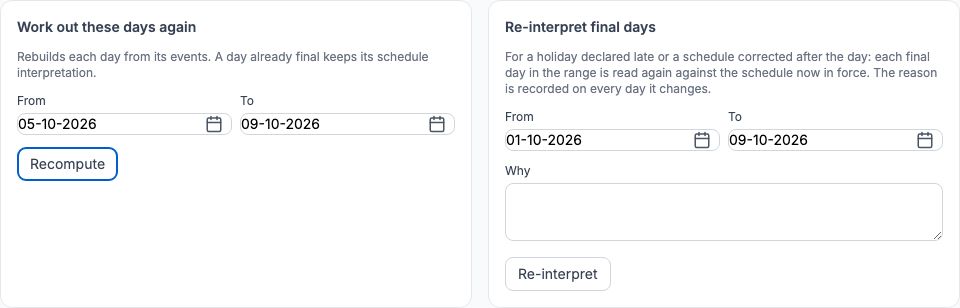
A day is worked out again the moment a check-in or check-out is recorded for it, and approving leave works out again every day the leave covers. Assigning or changing someone's work schedule does not: days already worked out keep the answer they had, which for a day worked out before the person had a schedule is "Not recorded". If a summary says that some days "may change", or a schedule was assigned after the days it covers, use "Work out these days again" on the "Attendance" tab: set "From" and "To" (at most about nine weeks, and not past today) and press "Recompute". A day already final keeps the schedule it was judged against. If the schedule itself was wrong, for example a holiday declared late, a user who manages the attendance settings can use "Re-interpret final days": set the range, say "Why" and press "Re-interpret"; the reason is recorded on every day it changes. Greenfield pressed "Recompute" for 05-10-2026 to 09-10-2026 after Funmilayo's sick leave was approved, and Friday changed from Not recorded to Authorised absence.
10. The whole school: the Staff attendance page
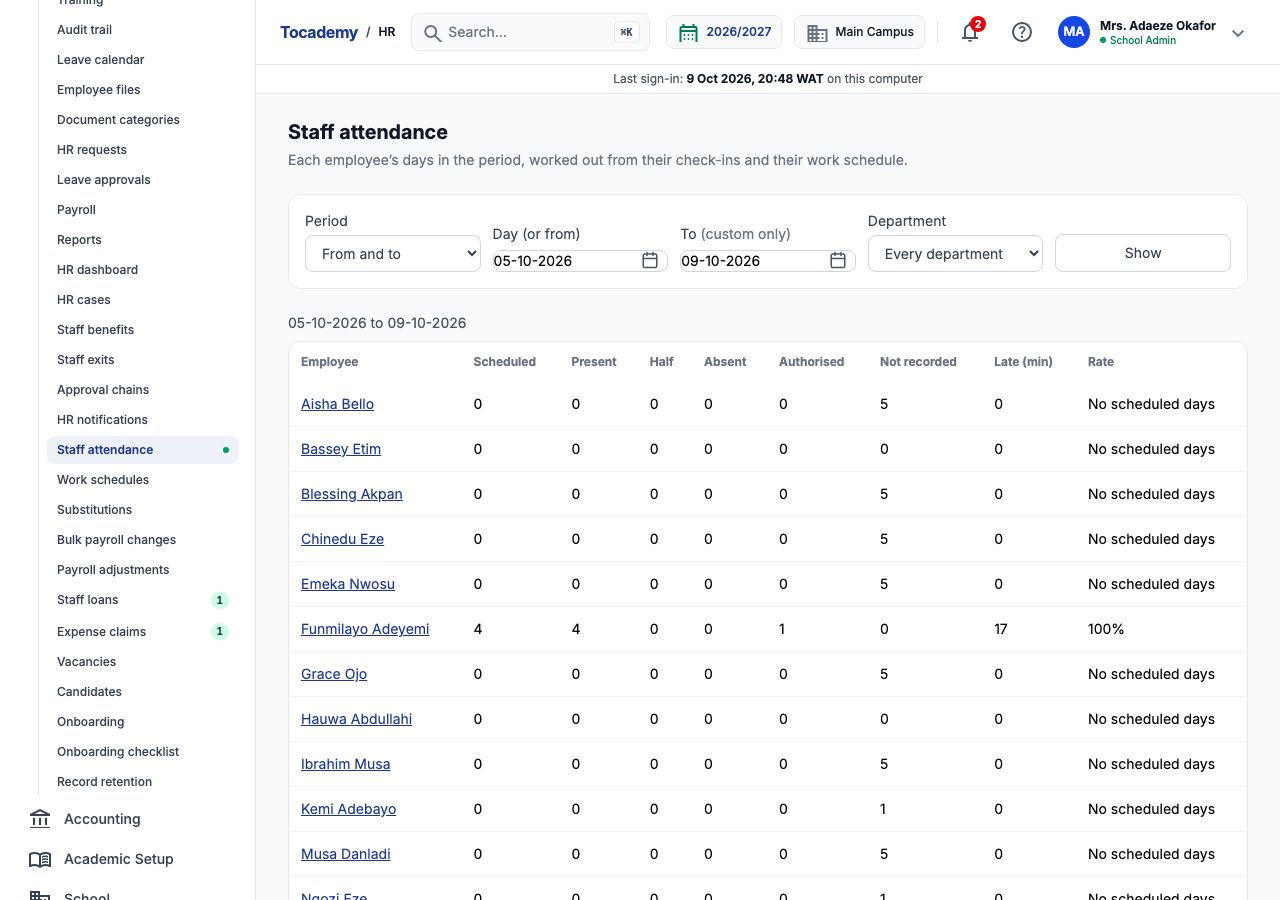
Open "Staff attendance". Choose the "Period": "One day", "The month of" (the month containing the date in "Day (or from)"), "This term", "This year to date", or "From and to" with both days filled in (at most 400 days apart). Narrow it to one "Department" if you like, and press "Show". Each row gives the scheduled, present, half, absent, authorised and not recorded days, the minutes late and the rate. A row that says "may change" under the name has days still to be worked out again. Each name opens that person's "Attendance" tab. For the week of 5 to 9 October, Funmilayo Adeyemi shows 4, 4, 0, 0, 1, 0, 17 minutes and 100%; everyone else shows "No scheduled days" because no schedule applied to them that week.
11. Correcting a wrong time
Recorded times are never overwritten; a correction is proposed and approved, and both stay on the record. Under any entry in "Check-ins and check-outs", open "Propose a correction", fill "It should have been at" and/or "It should have been a" (to turn a check-in into a check-out), say "Why", and press "Propose correction". The proposal appears under "Correction proposals" as Awaiting approval and takes effect once it is approved; an approver chooses "Approve" or "Reject", adds a "Comment" if they wish, and presses "Record the decision". Staff can propose a correction to their own times the same way from "My attendance". If Funmilayo had actually signed in at 07:52 on Tuesday, she would propose 07:52 with the reason, and once approved Tuesday would no longer be late, because 07:52 is inside the grace.
12. Teacher workload
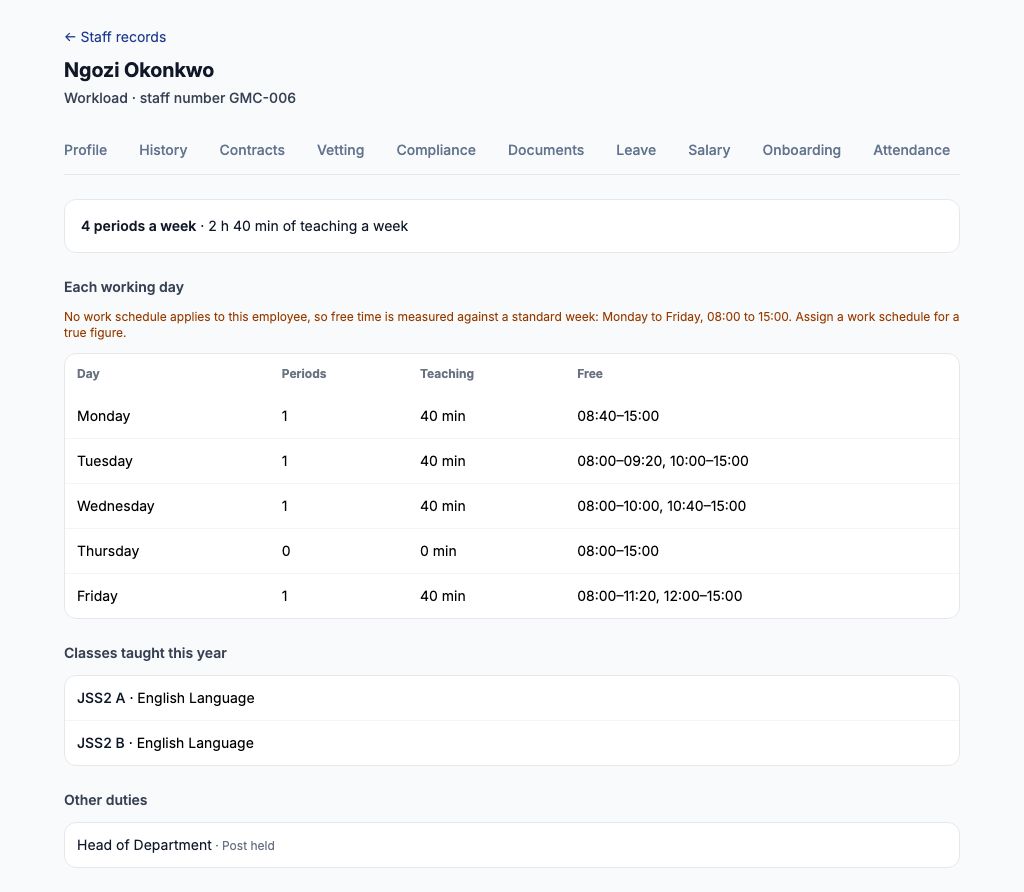
The "Workload" tab on a teacher's record shows how many periods a week they teach and for how long, each working day with its periods and free time, the classes they teach this year, and other duties such as being a head of department or a form teacher. Choose another "Academic year" and press "Show" to look back. Ngozi Okonkwo teaches English Language to JSS2 A and JSS2 B: 4 periods and 2 h 40 min a week, with Thursday wholly free. Free time is measured against her work schedule; where none applies yet the page says it is using a standard Monday to Friday, 08:00 to 15:00 week and asks you to assign a schedule for a true figure. A teacher with no sign-in shows no periods at all, because their timetable cannot be matched to them: that is a gap in the record, not a free week. Staff who do not teach have no periods; their hours are their schedule's.
13. Cover when a teacher is away
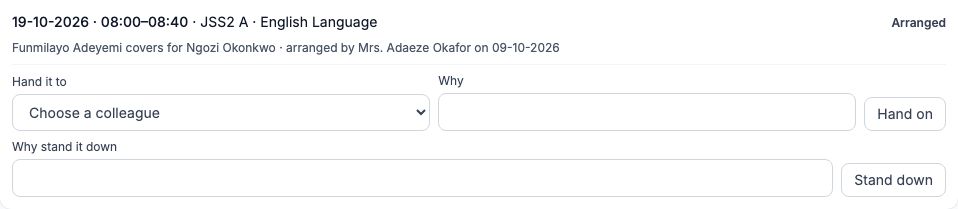
Open "Substitutions", choose the "Absent teacher", set "From" and "To", and press "Show the periods". Tocademy lists every timetabled lesson that the teacher's approved leave takes them out of; leave still awaiting approval takes nobody out. For each lesson, "Covered by" offers colleagues in a sensible order: those who teach the subject and are free first, then those who are free but do not teach it (marked "does not teach this subject"), then everyone else. Someone teaching or covering at that time, or on approved leave that day, is listed but cannot be chosen. Pick a colleague and press "Arrange cover"; both teachers are notified. Arranged cover is listed under "Cover arranged in these days", where it can be handed to someone else ("Hand it to", "Why", then "Hand on") or cancelled ("Why stand it down", then "Stand down"); the record and its reason are kept. The Leave guide follows Ngozi Okonkwo's week of annual leave and Funmilayo Adeyemi covering her four JSS2 English lessons.
14. Who can do what
Seeing the Staff attendance page and the "Attendance" tab needs the permission to view attendance. Recording check-ins and check-outs and recomputing days needs the permission to record attendance. Creating schedules, assigning them and re-interpreting final days needs the permission to manage the attendance settings, which the Principal and School Admin roles hold and a Campus Admin does not. Deciding corrections needs the permission to correct attendance, and the approver must be on the correction's approval chain. The "Workload" tab and "Substitutions" need the permission to view workload, and arranging cover needs the permission to manage substitutions. Staff see their own days under My HR when their role allows it. Role permissions are set on Settings, Roles.
Still stuck?
Email info@tocel.ng and tell us which guide you were following.