Approvals and HR Reminders
Decide who signs off leave, expense claims, payroll and exits, find what is waiting for your decision, and choose which HR reminders the school sends, to whom and how early.
1. What an approval chain is
Many HR actions in Tocademy are not final until somebody approves them: a leave request, an expense claim, a payroll run, a salary change, a bonus, a staff loan, a staff exit, a vacancy. For each of these processes the school keeps an approval chain — one or more levels, each naming who may approve at that level. A request starts at level 1; when level 1 approves it moves to level 2, and so on; when the last level approves, the request is approved. A rejection at any level ends it. Every school starts with a one-level chain for each process, so nothing has to be set up before staff can apply for leave.
2. Open Approval chains
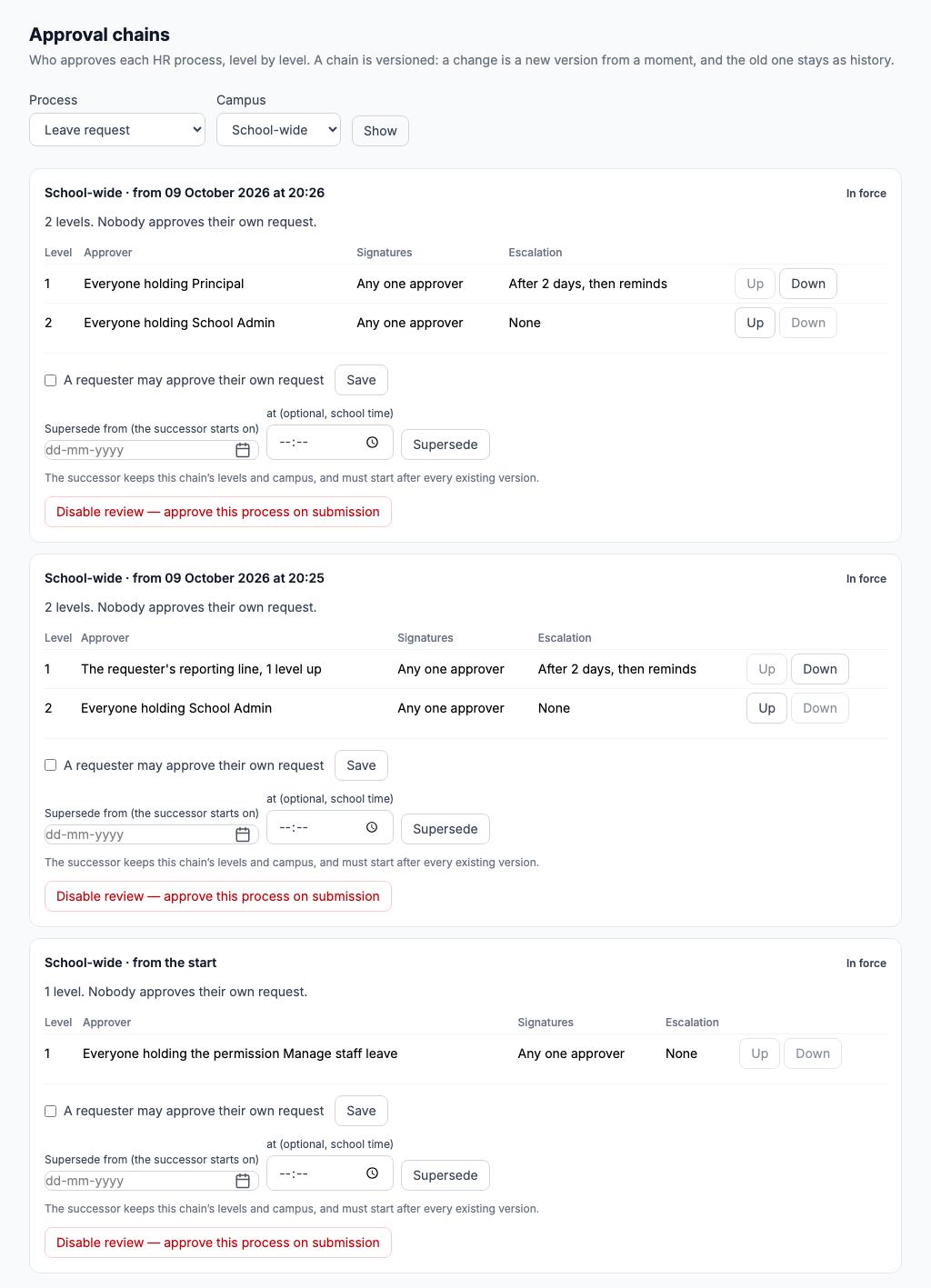
Choose "Approval chains" in the HR menu. Pick a "Process" (for example Leave request, Expense claim, Payroll run, Staff exit or Salary change) and a "Campus" — "School-wide", or one campus if a campus needs its own chain — and press "Show". The card shows the chain in force: its levels, who approves at each one, whether one approver's signature is enough ("Any one approver") or all of them must sign ("Every approver"), and any escalation. Every version of the chain is listed, newest first. At the bottom is the chain every school starts with, marked from the start: one level, whose approver column names the permission as the roles screen does — Everyone holding the permission Manage staff leave, which at Greenfield Model College means the school administrator and the Principal, Mrs. Grace Ojo. Above it are the versions the school added on 9 October 2026 while setting up leave (see the Leave guide); the newest sends leave to the Principal first and then to the school administrator.
3. The chains every school starts with
Leave requests go to whoever may manage staff leave. Expense claims go to whoever may approve expense claims. Payroll runs, payroll adjustments, salary changes, bonuses, staff loans, salary advances and overtime claims go to whoever may approve payroll decisions. Staff exits go to whoever may approve staff exits; vacancies and recruitment to whoever may approve recruitment; attendance corrections to whoever may correct attendance. If a process shows "No chain is configured", nothing in it is routed for approval yet. School expenses paid from the school's own accounts are approved under Accounting, not here — see the Expenses and Suppliers guide.
4. Self-approval
Each chain says either "Nobody approves their own request." or "A requester may approve their own request." Leave it at the first for anything involving money or time off: it stops the Principal approving her own leave, or the bursar his own expense claim, even though their roles would otherwise let them approve. To change it, tick or untick "A requester may approve their own request" on the chain and press "Save". The "Up" and "Down" buttons beside each level change the order of the levels.
5. Who can be an approver
Each level names its approvers in one of five ways: "Everyone holding a role" (for example every Principal), "Everyone holding a permission", "The requester's reporting line" (the person the requester reports to on their staff record, or that person's manager if you set "Levels up" to 2), "One named person", or "A role, on the requester's campus" for schools with several campuses. One thing to check first: an approver must also be allowed to act on approvals. The built-in Teacher role is not, so a head of department who signs in as a teacher would never be able to approve. Give heads of department a role that can: on Settings → Roles & Permissions press "+ New role", call it Head of Department, tick Act on approvals and View staff records (without the second they see Name not available to you instead of the employee's name), then add it to each head of department on Settings → Users with "Extra roles".
6. Example: leave approved by the head of department, then the Principal
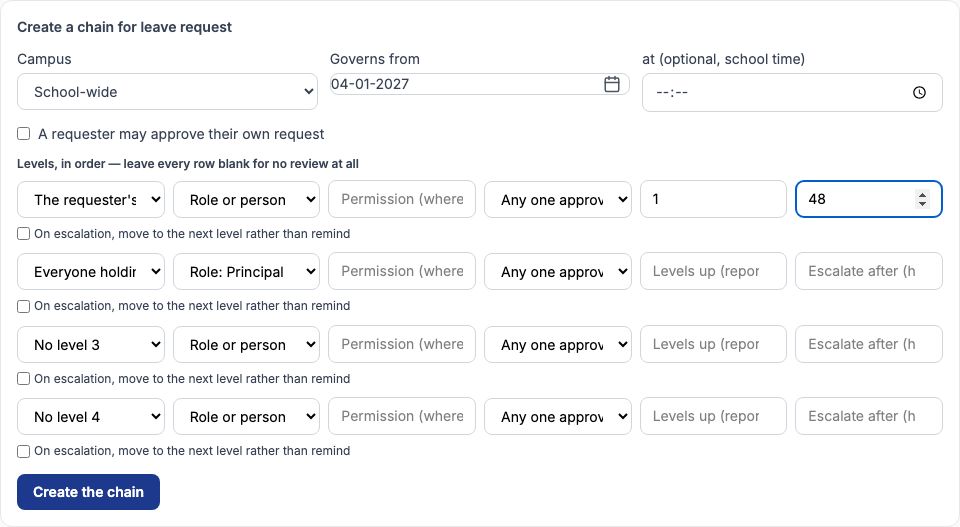
Greenfield wants every leave request from the second term to be agreed first by the teacher's head of department and then by the Principal. Choose Leave request under "Process" and press "Show". In "Create a chain for leave request" leave "Campus" at "School-wide" and set "Governs from" to 04-01-2027, the first day of term. In the first level row choose "The requester's reporting line", type 1 in "Levels up (reporting line)" and 48 in "Escalate after (hours)", so the approver is reminded if a request sits for two days. In the second row choose "Everyone holding a role" and "Role: Principal". Leave both at "Any one approver" and press "Create the chain". Because Ibrahim Musa reports to Chinedu Eze, Head of Sciences, Ibrahim's requests would go first to Chinedu and then to Mrs. Ojo; Chinedu's own requests go to the person he reports to and then the Principal.
7. Versions, not edits
A chain is never edited in place. A change is a new version that governs from the moment you choose, and the old version stays on the page as history marked Superseded, so you can always see who was entitled to approve a request on the day it was made. A request keeps the approvers it was given when it was submitted, even if the chain changes while it waits. "Supersede" starts a new version with the same levels from a later date; "Disable review — approve this process on submission" removes every level so requests are approved the moment they are sent — use it with care.
8. Where approvers find what is waiting
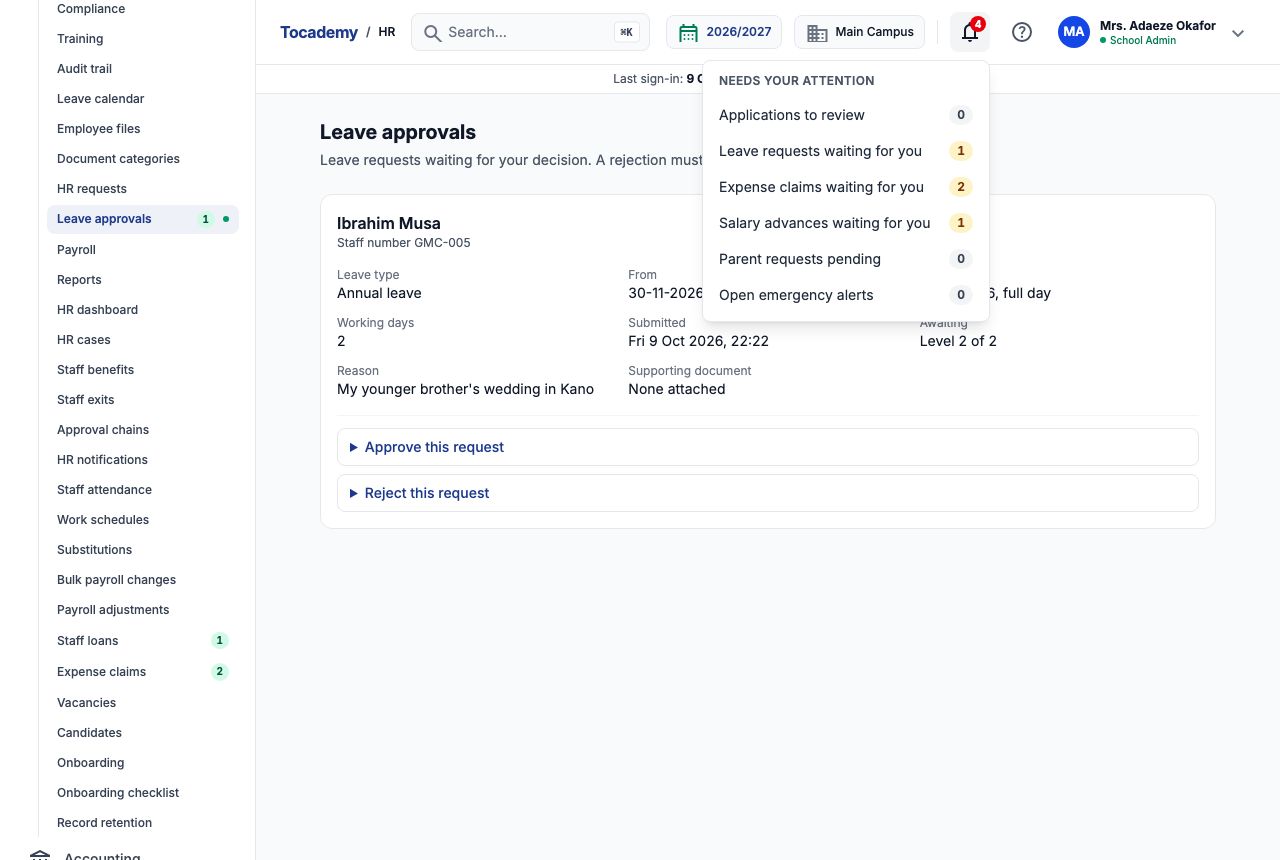
Anyone who can act on approvals sees the bell at the top of every page. Open it: every request waiting for your decision is listed, one row per kind, each with its count and a link to where it is decided. "Leave requests waiting for you" opens "Leave approvals" and is the same number the sidebar shows beside "Leave approvals" in the HR menu. "Salary changes waiting for you", "Bonuses waiting for you" and "Payroll adjustments waiting for you" open the "Decisions" section of "Bulk payroll changes"; "Expense claims waiting for you" opens "Expense claims", where they are under "Waiting for your decision"; a staff exit, an appraisal or a school expense opens its own page when only one is waiting. The leave row is always there; any other row appears only while something of its kind is waiting. The number on the bell is the total.
9. Example: Ibrahim Musa's request for two days off
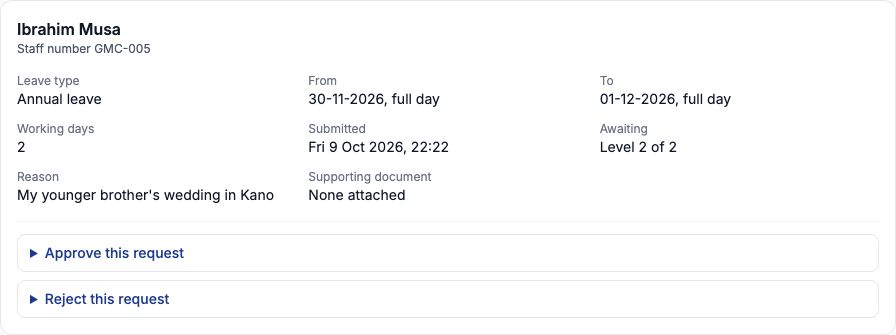
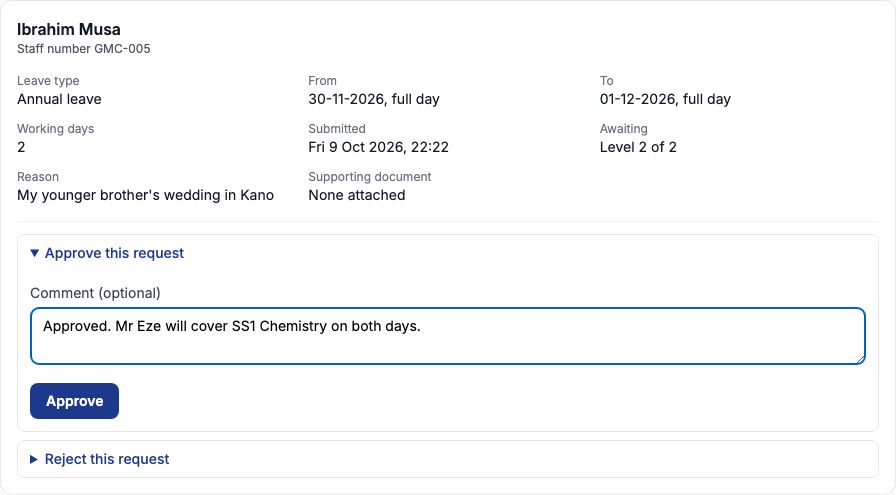
Ibrahim Musa (GMC-005, Chemistry and Biology) asked for annual leave on Monday 30 November and Tuesday 1 December 2026 for his younger brother's wedding in Kano. Under the chain in force the Principal decides first, so Mrs. Ojo saw it at Level 1 of 2 and agreed it; it then moved to the school administrator. On "Leave approvals" his card shows the leave type, the dates and whether each is a full or half day, the number of working days (2), when he submitted it (on the school's clock), the reason, any supporting document, and "Awaiting" — which level of the chain it is at: Level 2 of 2 here, the last.
10. Approving
Open "Approve this request", add a note in "Comment (optional)" if it helps — Greenfield wrote Approved. Mr Eze will cover SS1 Chemistry on both days — and press "Approve". When Mrs. Ojo approved at level 1 the page told her instead that the request is still waiting for a later level, and it moved to the school administrator's list.
11. After the decision, and rejecting
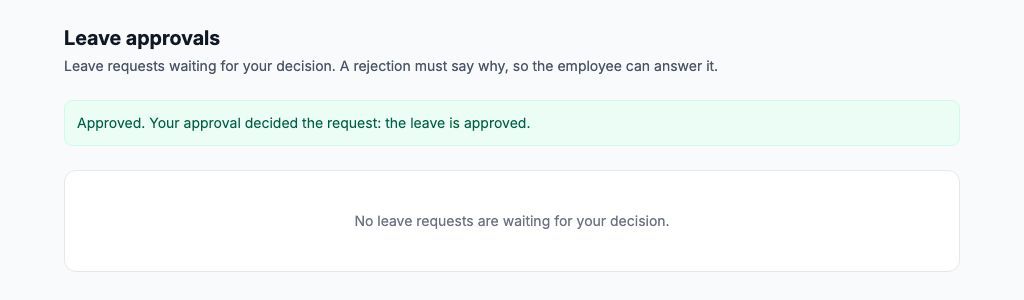
Because Ibrahim's request was at the last level, the page answers that your approval decided the request and the leave is approved, and the card leaves your list. To refuse a request open "Reject this request", write in "Why it is rejected" — it is required, so the employee knows what to fix — and press "Reject". A rejection ends the request at once, whatever level it was at. There is no button to send a request back for changes: if you only need different dates, reject it with a reason such as Please move this to the half-term break, and the employee files a new request.
12. HR notifications: what the school is reminded about
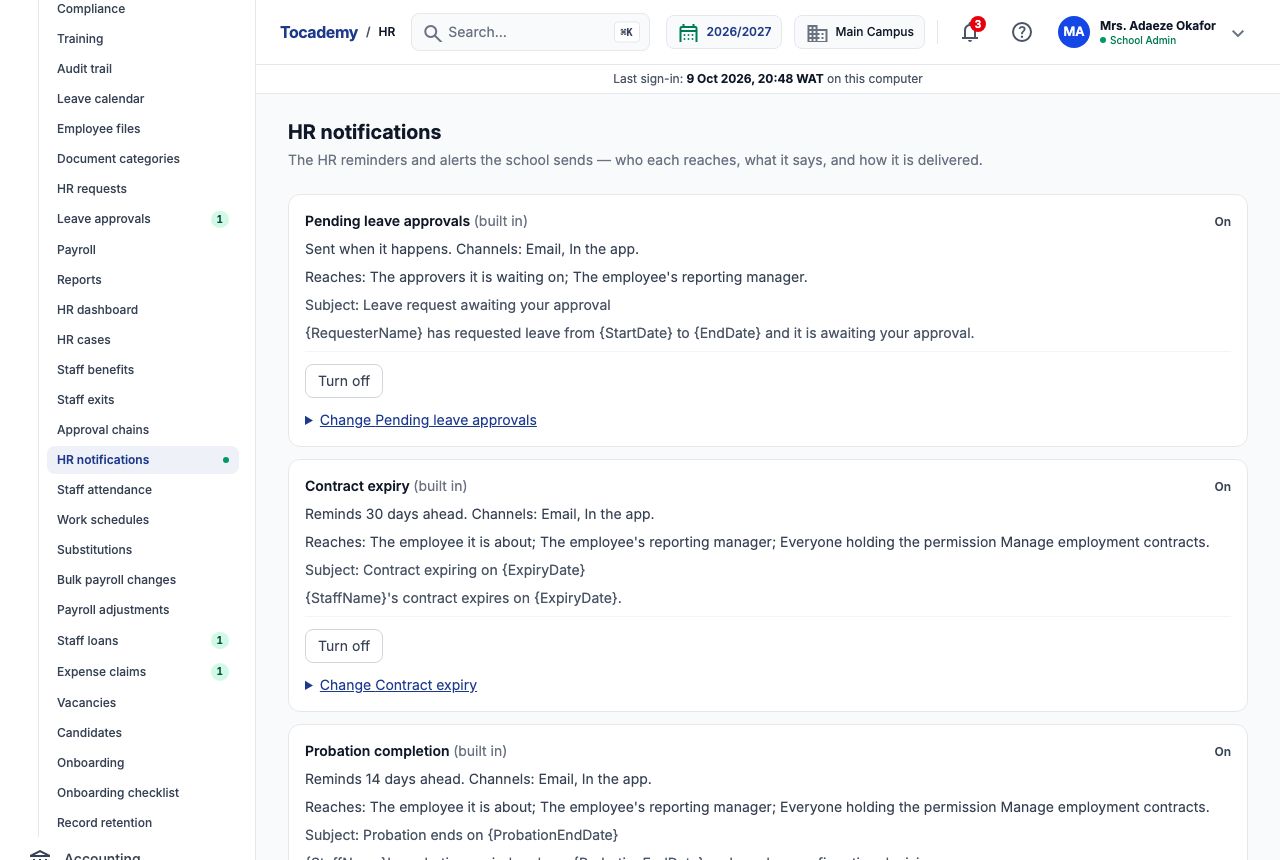
Choose "HR notifications" in the HR menu. Each card is one reminder or alert, marked built in or the school's own, On or Off. Some are sent when something happens — "Pending leave approvals" goes to the approvers a request is waiting on and the employee's reporting manager; "Pending appraisals" and "Payroll exceptions" work the same way. Others remind a number of days ahead: "Contract expiry" 30 days, "Probation completion" 14 days, "Certification expiry" 30 days, "Mandatory training due" 14 days, "Salary review dates" 30 days and "Staff exit deadlines" 7 days. "Employee birthdays" is off when a school starts and reaches nobody; turn it on and add who should hear about birthdays if you want it. Reminders go by email and in the app; text messages are not offered for HR reminders.
13. Changing a reminder
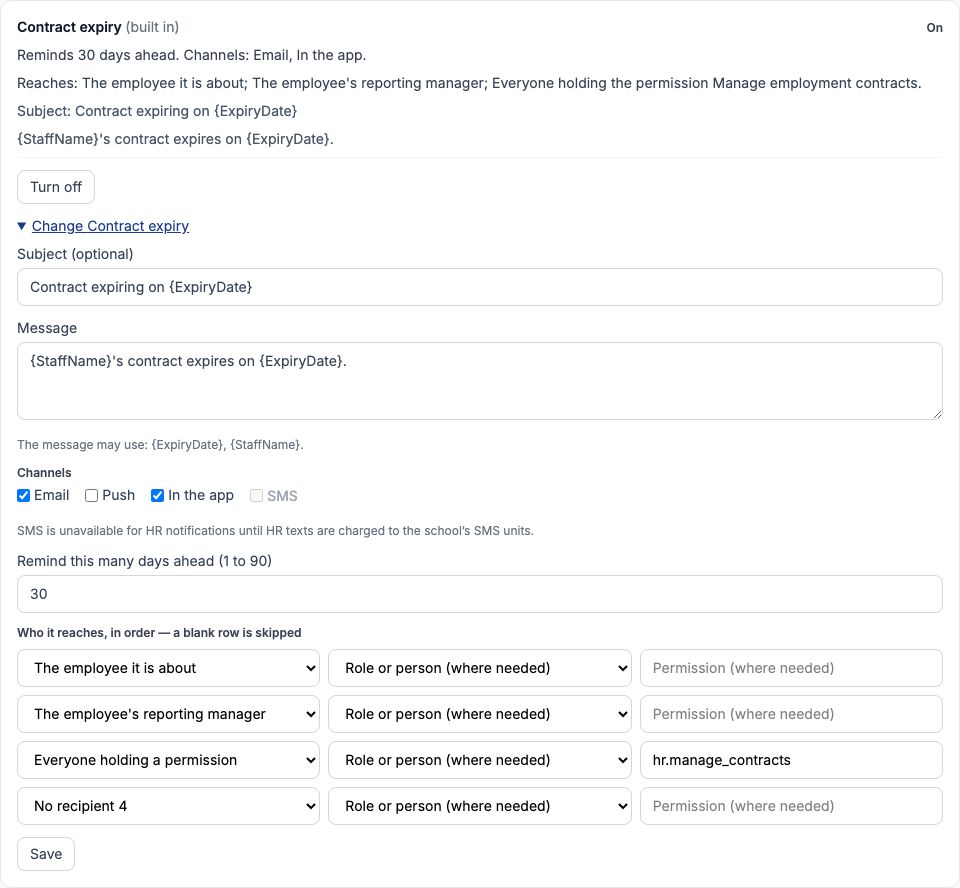
Press "Turn off" or "Turn on" to stop or start a reminder. To change it, open "Change" followed by its name. You can rewrite the "Subject (optional)" and "Message" — the line below the message lists the names in curly brackets you may use, such as the staff member's name and the expiry date — tick the "Channels" ("Email", "Push", "In the app"), set "Remind this many days ahead (1 to 90)", and choose up to four rows under "Who it reaches": "The employee it is about", "The employee's reporting manager", "Everyone holding a role", "One named person" and so on. Press "Save". Greenfield moved nothing here, but a school that renews fixed-term contracts at the end of each term might set "Contract expiry" to 60 days — Ibrahim Musa's contract ends on 18-12-2026.
14. Example: the school's own TRCN renewal reminder
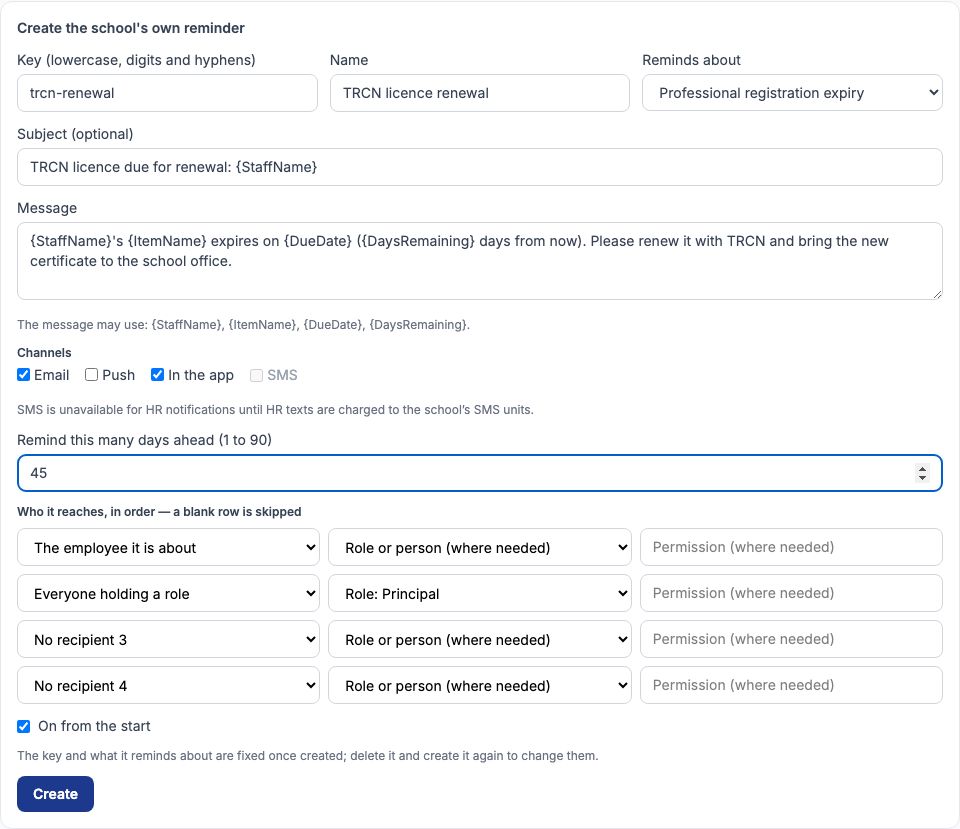
Greenfield wants teachers warned well before their Teachers Registration Council licence runs out — Ibrahim Musa's expires on 19-10-2026. Under "Create the school's own reminder" we typed trcn-renewal in "Key (lowercase, digits and hyphens)", TRCN licence renewal in "Name", and chose "Professional registration expiry" in "Reminds about". The subject reads TRCN licence due for renewal: {StaffName}; the message tells the teacher to renew with TRCN and bring the new certificate to the school office. We set "Remind this many days ahead (1 to 90)" to 45, chose "The employee it is about" as the first recipient and "Everyone holding a role" with "Role: Principal" as the second, left "On from the start" ticked and pressed "Create". A school's own reminder can remind about contract ends, probation ends, certification, professional registration or vetting expiry, and compliance deadlines.
15. After creating it
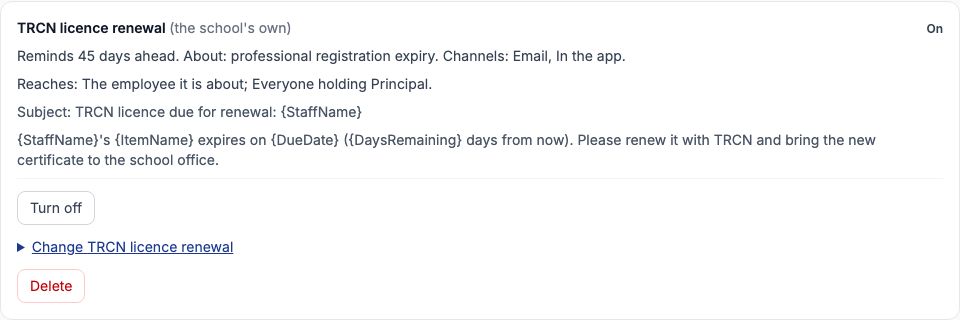
The new card says it is the school's own, reminds 45 days ahead about professional registration expiry, and reaches the employee and everyone holding the Principal role. The key and what it reminds about cannot be changed later — to change those, press "Delete" and create it again; everything else can be changed with "Change" like a built-in reminder.
Still stuck?
Email info@tocel.ng and tell us which guide you were following.