AI Report-Card Remarks
Let the AI draft a class teacher's remark from a pupil's term results, edit it, and use it on the report card — one pupil or the whole class.
What it does, and for whom
A class teacher writing end-of-term remarks can ask the AI for a first draft: two short sentences naming a real strength from the pupil's scores and one thing to work on, in plain, encouraging English for the pupil and their parents. The draft never goes on the report card by itself. The teacher reads it, edits it, and presses "Use this remark"; only then is it saved as the class teacher's remark. Because it uses facts about pupils, this feature is Sensitive: your school must confirm the data notice before it can be switched on.
Before you start
Your school has switched on Report card remark and confirmed its notice, you hold credits that cover it, and the results are not yet approved (once results are approved the page says "These results are approved. Reopen the results to draft a remark with AI."). Open My Teaching, click Gradebook, pick the Section and Term, and open the Report Cards tab. Press "Edit Remarks" beside a pupil: under the Class Teacher's Comment is a Note to the AI box and a "Draft with AI" button showing its cost, 15 credits at Greenfield.
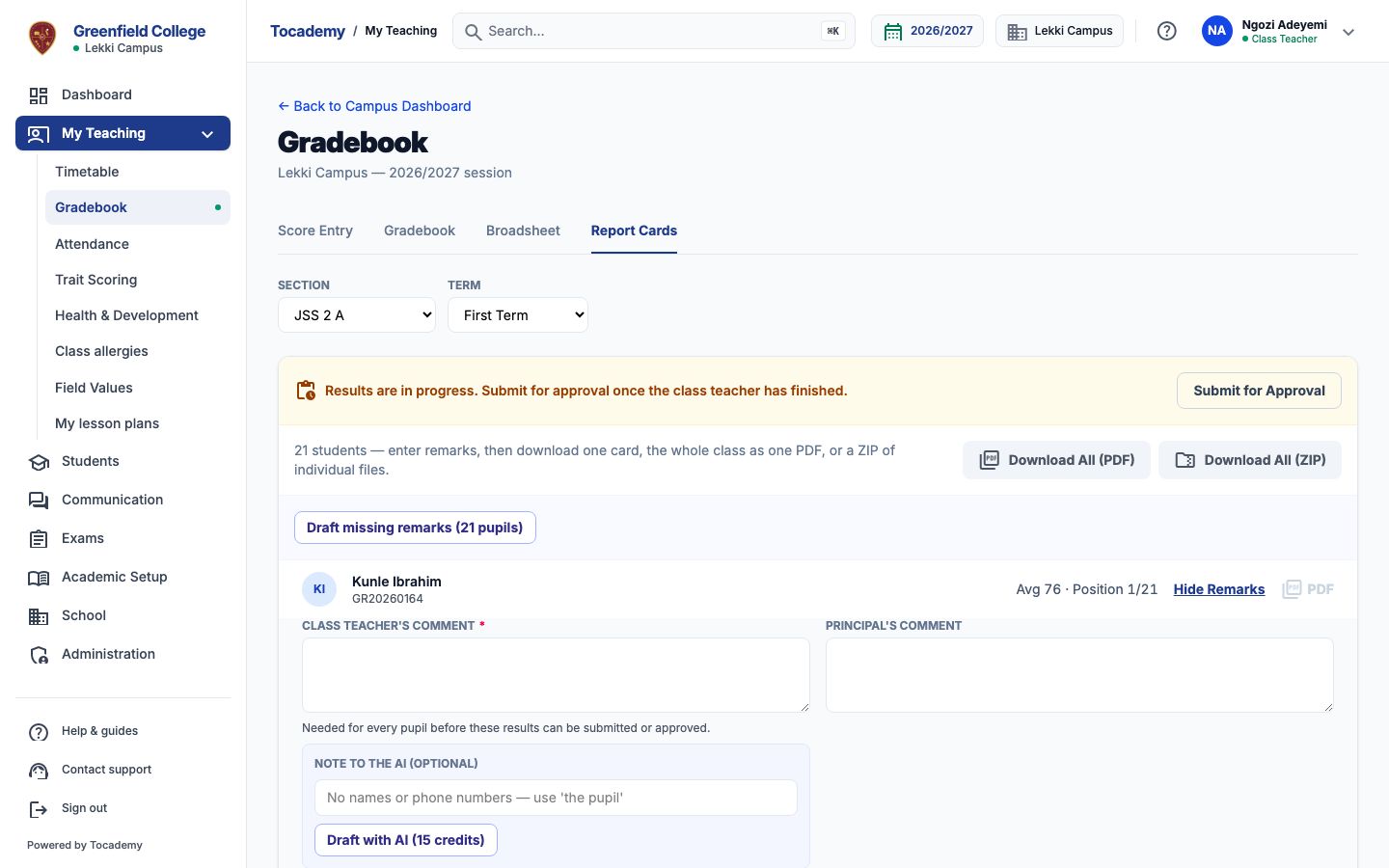
Worked example: one pupil in JSS 2 A
Mrs Ngozi Adeyemi is the class teacher of JSS 2 A. She opens the first pupil, Kunle Ibrahim, and types a note to the AI: Has improved since mid-term; encourage more reading. She presses the "Draft with AI" button. A few seconds later the draft appears in a box headed "AI draft — edit before using": Kunle did best in Business Studies this term, and that steady effort deserves praise. To lift French, practise a few exercises every evening, and next term will show the reward. The pupil's name is put in on your screen; the AI only ever saw a stand-in.
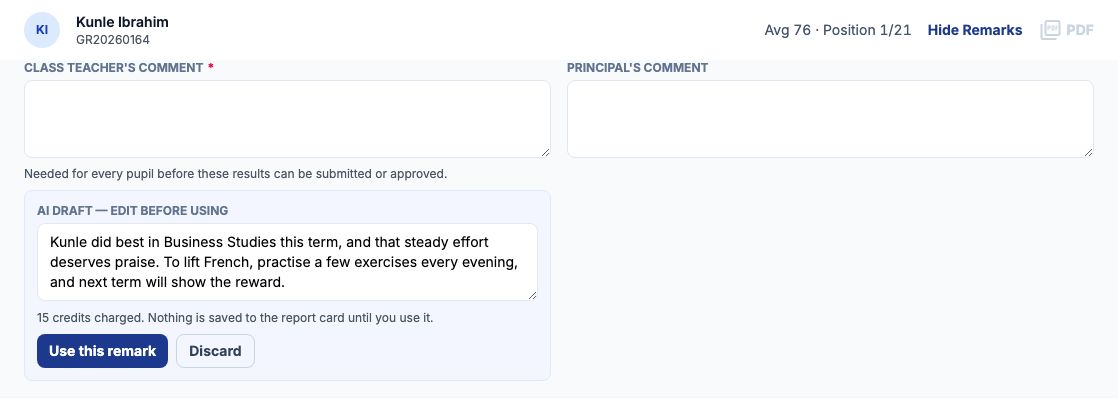
Edit, use or discard
Change any word in the box: the remark is yours. Press "Use this remark" to save it as the class teacher's remark on the report card, or "Discard" to throw the draft away. Discarding costs nothing more; the credits for the draft were already used when it was written. To try again, discard it and press "Draft with AI" once more with a different note.
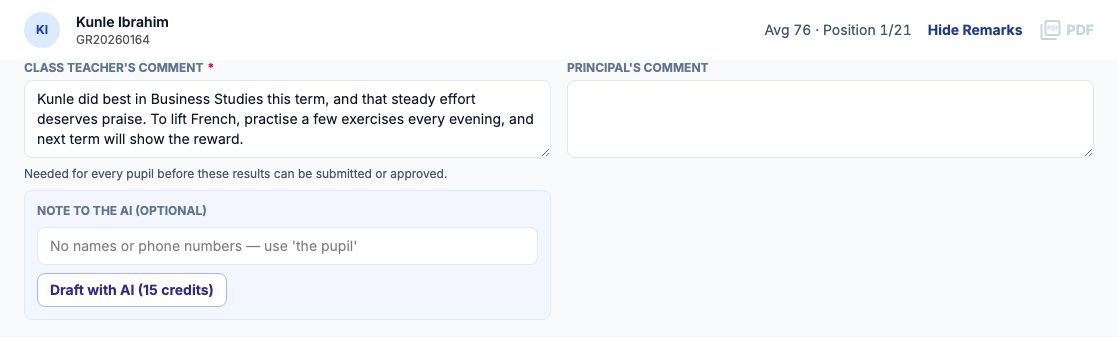
The whole class at once
"Draft missing remarks" drafts a remark for every pupil who has none yet. It first tells you how many pupils and the most it will cost: at Greenfield, 20 pupils still without a remark, up to 300 credits at 15 each. The Draft button names the number, here Draft 20 remarks; press it to go ahead, or "Cancel". A progress bar counts them off. Nothing is used automatically: each draft waits under its pupil for you to use or discard. If something stops every draft, such as running out of credits, the run stops and says why.

What is sent to the AI, and what never is
Only the pupil's class level, each subject's score this term, last term's average and attendance when known, and your note. The pupil is called [STUDENT_1]; the AI never sees a name, an admission number, a photo, a date of birth or anything about the family. Your note is checked before it goes: a note with a name or a phone number is refused with "Remove the personal details from your note." and nothing is charged. The AI is also told never to mention class position, compare pupils, promise promotion, or comment on family, health, religion or behaviour.
When the AI says no
Every refusal says why and costs nothing. You may see "Your school has not switched on AI remarks.", "You have no AI credits for remarks.", "You have reached today's AI limit.", "Choose the pupil's class level to draft a remark." (pick it from the Class level list that appears) or "The AI did not produce a usable remark." The detail under it adds anything specific, and ends with "Nothing was charged."
Cost, and My AI credits
Each draft costs the credits shown on its button; the whole-class run costs that much per pupil drafted, and never more than it said. My AI credits, under My Profile, lists every remark drafted with its cost and whether it was charged.

Still stuck?
Email info@tocel.ng and tell us which guide you were following.