AI Lesson Notes
Draft a lesson note with AI from your topic and duration, check it, copy the parts you want into your note, and save it as your own.
What it does, and for whom
A teacher writing a lesson note can ask the AI for a first draft of the whole note: topic, behavioural objectives, instructional materials, entry behaviour, introduction, lesson development, evaluation, summary and assignment, written for a Nigerian classroom and the NERDC curriculum. It is a draft for the teacher, never the note itself: nothing changes in the lesson note until the teacher copies parts of the draft in and presses Save, and the note is then marked AI-assisted so the head of department reviewing it knows. There are two kinds of note. The short note is one lesson, 300 to 500 words, for JSS 1 to JSS 3. The detailed note covers a whole topic over one to three sessions, from Primary 1 to SS 3; see the last two sections.
Before you start
Three things must be in place, and the button will not appear without them: your school has switched the feature on (Turning On AI Features), the school has given you credits that cover it, and the lesson note is one you can still edit (a draft, or one returned to you). Each button carries its price, so you see the cost before pressing it. Where your school has switched on both notes, as Greenfield has, there are two buttons: "Detailed note (full topic)" (275 credits), the main one, and "Short note" (147 credits) beside it. With only the short note on, its button reads "Draft note with AI" (147 credits). If you have too few credits left the button in the dialog stays greyed out.
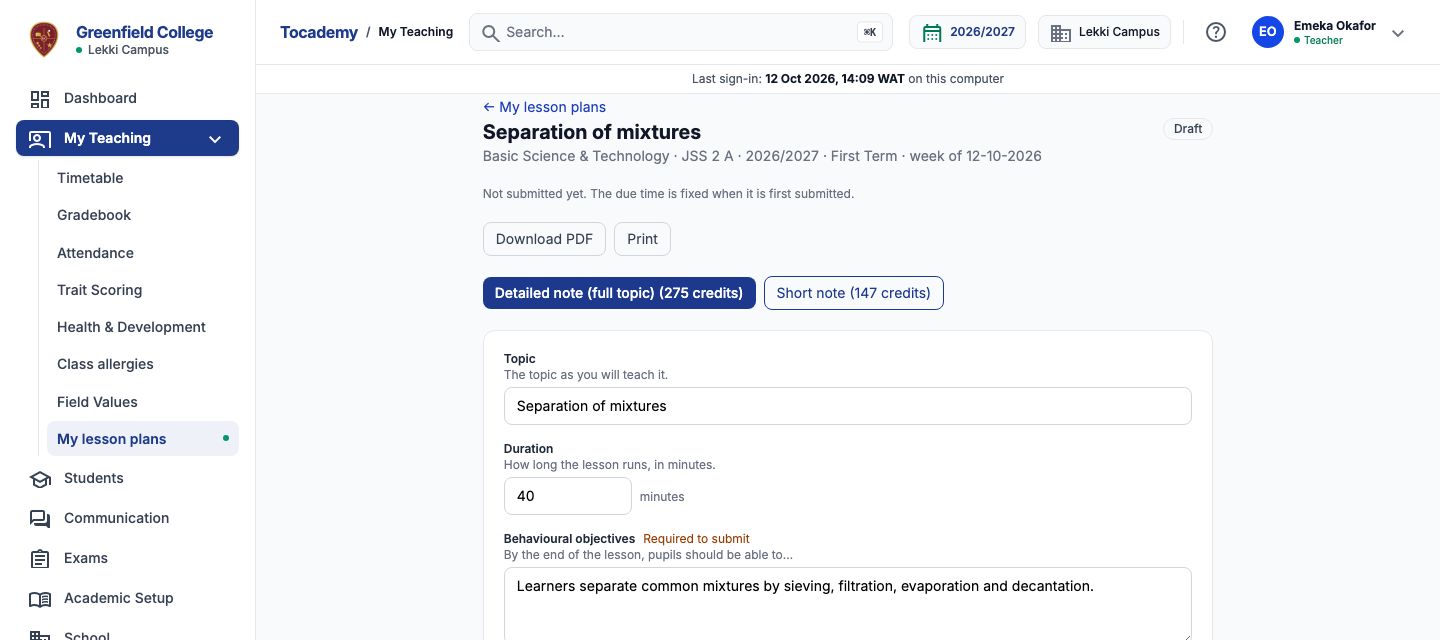
Worked example: JSS 2 Basic Science, Separation of mixtures
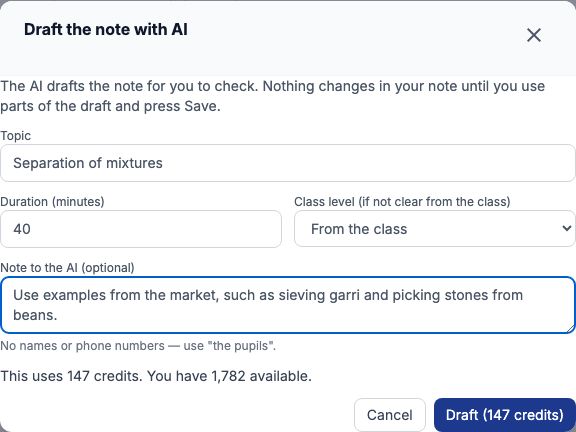
Mr Emeka Okafor teaches Basic Science & Technology to JSS 2 A at Greenfield College. He opens My Teaching, clicks My lesson plans, opens his plan for the week and presses "Short note". In the dialog he keeps the topic Separation of mixtures, sets Duration (minutes) to 40, leaves the class level as "From the class", and writes in the note to the AI: Use examples from the market, such as sieving garri and picking stones from beans. He presses "Draft". The dialog closes and the page says the note is being drafted; it can take a minute.
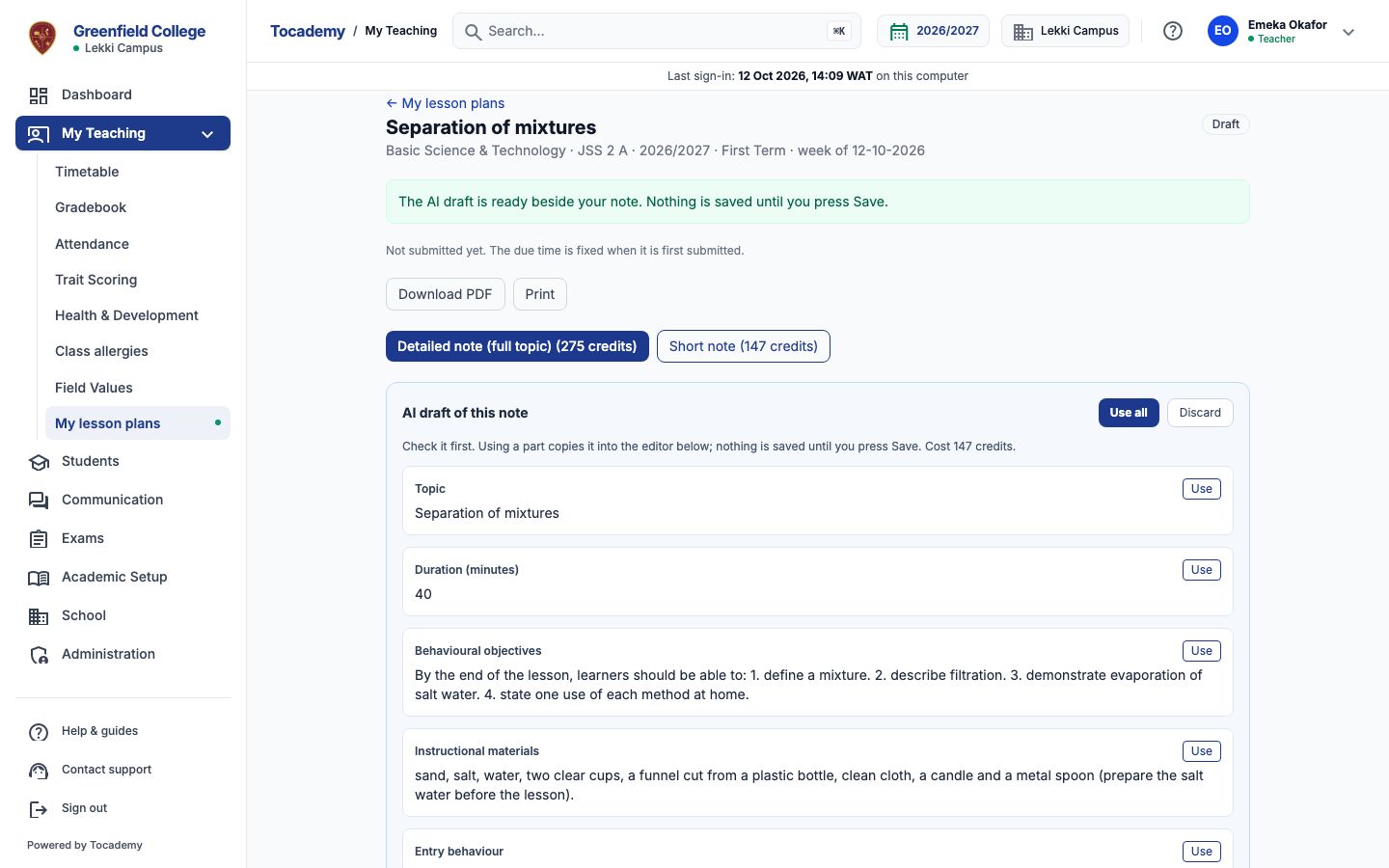
Check the draft and use what you want
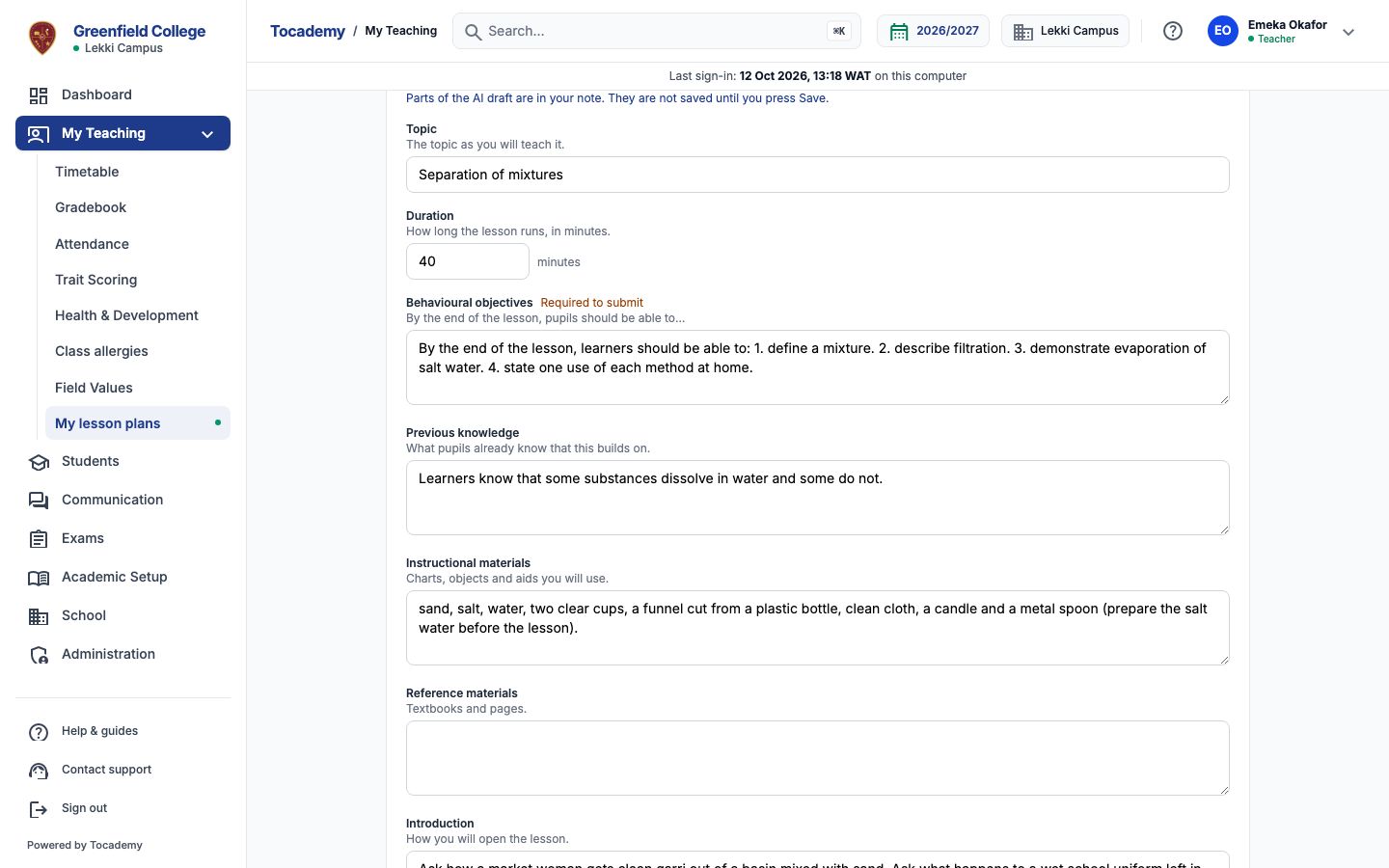
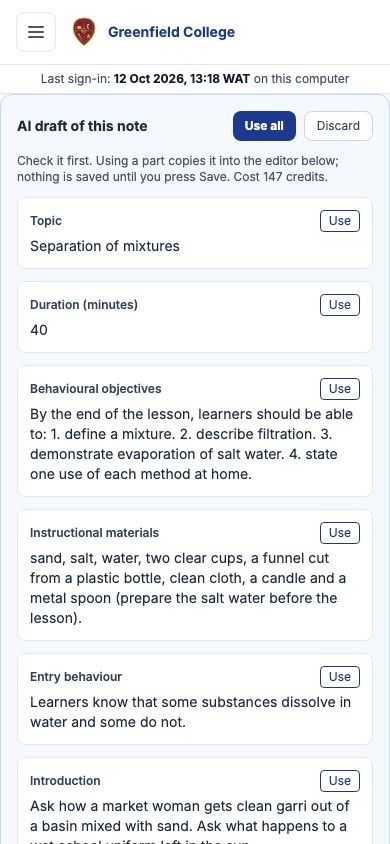
The draft appears beside the note as "AI draft of this note", one block per heading, with what it cost. Read it first. Press "Use" on a block to copy that part into the editor below, or "Use all" to copy every part. Copying is not saving: the editor says the AI parts are not saved until you press Save. Change anything you like in the editor, add your references, then press "Save" (or "Save and submit" to send it for review). From then on the note is yours, marked AI-assisted.
Editing and drafting again
Not happy with a draft? Press "Discard" to throw it away; discarding costs nothing. To try again, press "Short note" once more, perhaps with a clearer note to the AI; the new draft replaces the old one and is charged like any other. If you had already copied parts of the old draft into the editor, they are taken back out and the page tells you so, because they belonged to a draft you no longer have.
What is sent to the AI, and what never is
Only what a lesson note needs: the subject, the class level, the duration, the topic and your note to the AI. Nothing about your pupils is sent: no names, no scores, no photos, and not your own name either. Your note is checked before it goes; if it contains a name or a phone number the request is refused, telling you to remove the personal details, and nothing is charged. Write "the pupils" instead of a name.
When the AI says no
A refused request always says why, and never costs anything: every message ends "Nothing was charged." The ones you are most likely to see are "Your school has not switched this AI feature on.", "You have no AI credits for this feature. Ask your school's administrator for some.", "You have reached today's AI credit limit. Try again tomorrow.", "AI lesson notes do not cover this subject yet." and "The AI did not produce a usable answer. Try again." If the connection drops before the answer arrives, the page says so; pressing the button again repeats the same request and is never charged twice. Check My AI credits to see what happened.
Cost, and My AI credits
Each draft costs the credits shown on the button, and the dialog says it again with what you have left before you press "Draft": the detailed note's says it uses 275 credits. A discarded draft is not refunded, because the AI did the work, but a refused or unfinished request is never charged. My AI credits, under My Profile, lists every request with its cost and result, and "Open the draft" takes you back to a draft still waiting.
The detailed note: a whole topic
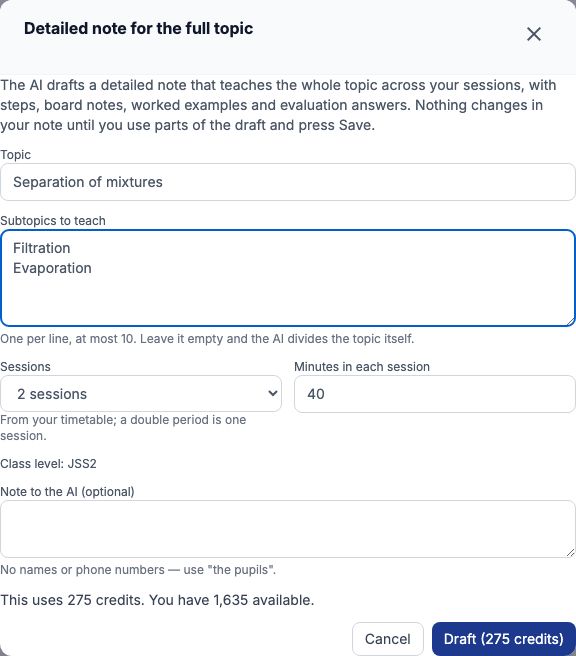
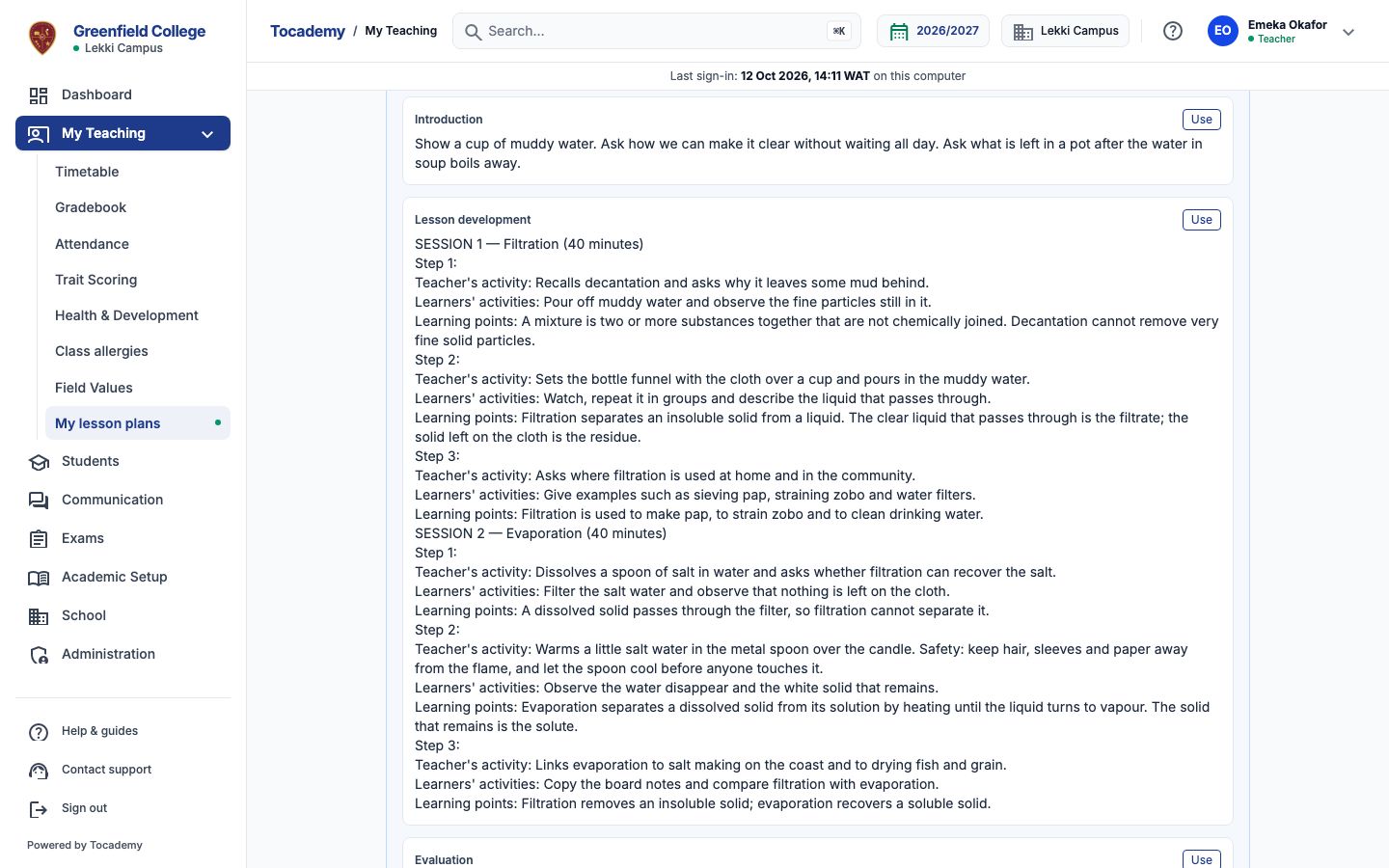
The detailed note drafts a complete topic rather than one lesson, for any class from Primary 1 to SS 3; your school switches it on separately from the short note. Press "Detailed note (full topic)" and the dialog "Detailed note for the full topic" (pictured under Cost, and My AI credits) opens, filled in from your plan: the topic from your note, "Sessions" from your timetable (a double period counts as one session) and "Minutes in each session". Under "Subtopics to teach" put one subtopic per line, at most 10, or leave it empty and the AI divides the topic itself; subtopics already taught to this class, in earlier plans you marked delivered, are listed under the box and are continued, not repeated. When your school keeps more than 10 subtopics still to teach, the box starts with the first 10 and says so; the rest are for your next note. Mr Okafor types Filtration and Evaporation, chooses 2 sessions of 40 minutes and presses "Draft". The draft appears beside the note like the short one, headed with its number of sessions. "Subtopics this note teaches" is for checking only, because your note has no heading for it, and the duration is the whole topic, here 80 minutes. The lesson development goes session by session, each with its subtopic and minutes, then numbered steps with the teacher's activity, the learners' activities and the learning points for the board, including worked examples and safety notes; the evaluation gives questions with their answers for every session. "Use", "Use all" and "Discard" work as for the short note, and a plan has one draft waiting at a time, whichever kind. References stay yours to write: the AI never fills them in.
Still stuck?
Email info@tocel.ng and tell us which guide you were following.