Finding Your Way Around
The sidebar, the top bar, search, the attention bell and the phone menu — where everything lives in Tocademy.
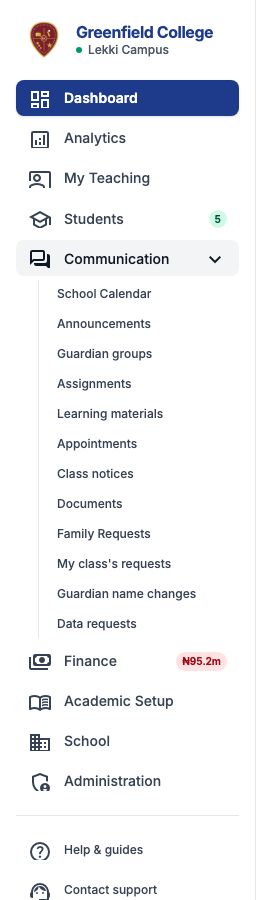
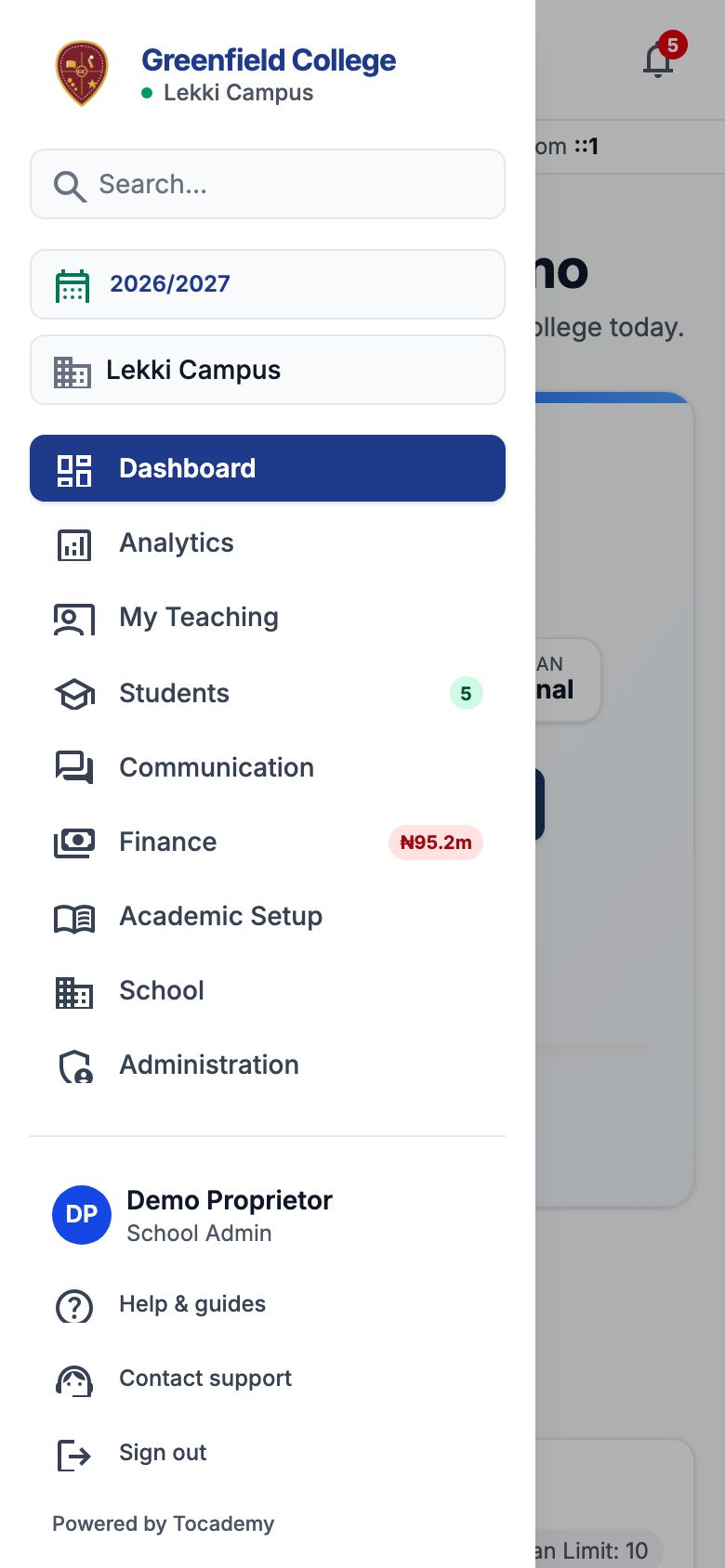
On a computer the sidebar runs down the left of every page: Dashboard, Analytics, My Teaching, Students, Communication, Finance, Academic Setup, School and Administration. Click a section's name to open its pages underneath — for example Communication holds "School Calendar", Announcements, Assignments and the family requests. You only see the sections and pages your role is allowed to use, so a teacher's sidebar is shorter than the School Admin's. A small badge beside a section is something to look at: at Greenfield College the green 5 beside Students is five admission applications waiting, and ₦95.2m beside Finance is the fees still owed. At the bottom: Help & guides (these guides), "Contact support" and "Sign out".
2. The top bar
Across the top, from left to right: where you are (Tocademy / Dashboard), the search box, the current session (2026/2027 — a School Admin can press it to change the session on Academic Years), the campus you are working in (Lekki Campus — press it to switch when your school has more than one), the bell, the ? button that opens these guides in a new tab, and your name and role. Open your name for "My Profile" and "Sign out". The line under the bar shows when you last signed in, so you can spot a sign-in that was not you. It never shows a network address: when it can tell, it adds "on this computer" or "from a local network", and otherwise it shows the time alone.

3. Search for a page
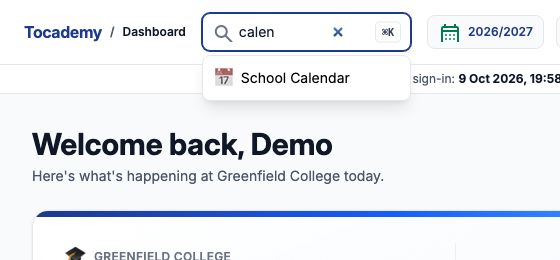
If you know what a page is called but not where it lives, type part of its name in the search box. Press Ctrl and K together (⌘ and K on a Mac) to jump straight to it from anywhere. Example: typing "calen" offers School Calendar; click it, or press Enter to open the first match. The search finds pages by their names in the menu — it does not search for pupils, staff or invoices.
4. The bell
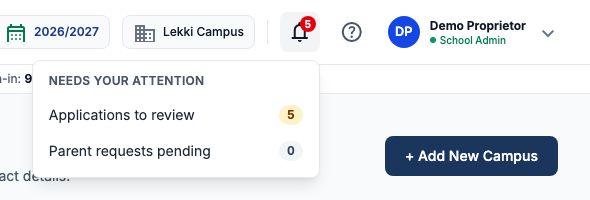
The number on the bell is how many things are waiting for someone with your role. Click it to see the list, then click a line to go to that work. At Greenfield the bell shows 5: "Applications to review" has 5 and parent requests pending has 0.
5. On a phone
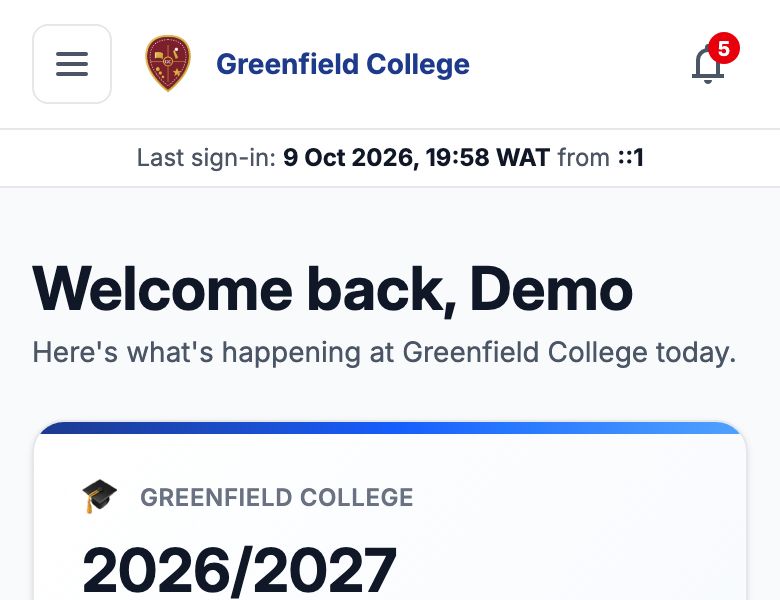
On a phone the top bar keeps only three things: the menu button on the left (☰), your school's name and crest, and the bell.
Tap the menu button to slide the whole sidebar in from the left: search, the session and campus, every section, your name and role, Help & guides, "Contact support" and "Sign out". Tap a page to go there — the menu closes behind you — or tap the dimmed page beside it to close it. The website builder (School › Website) has its own top bar; see Your School Website: Getting Started.
Still stuck?
Email info@tocel.ng and tell us which guide you were following.