My HR (Staff Self-Service)
What every member of staff sees under My HR: your own record and contact details, requests to HR, leave, payslips, documents, loans, expense claims, training, appraisals and attendance.
1. Your first sign-in
When the school adds you as a member of staff, you receive an email invitation with a link to set your own password. Open the link, choose a password, and sign in with your email address and that password. Yetunde Balogun joined Greenfield Model College's Languages department on 9 October 2026; the school administrator invited her that morning and she signed in the same day. Every member of staff with a sign-in has a "My HR" group in the menu on the left. Choose "My record" to start.
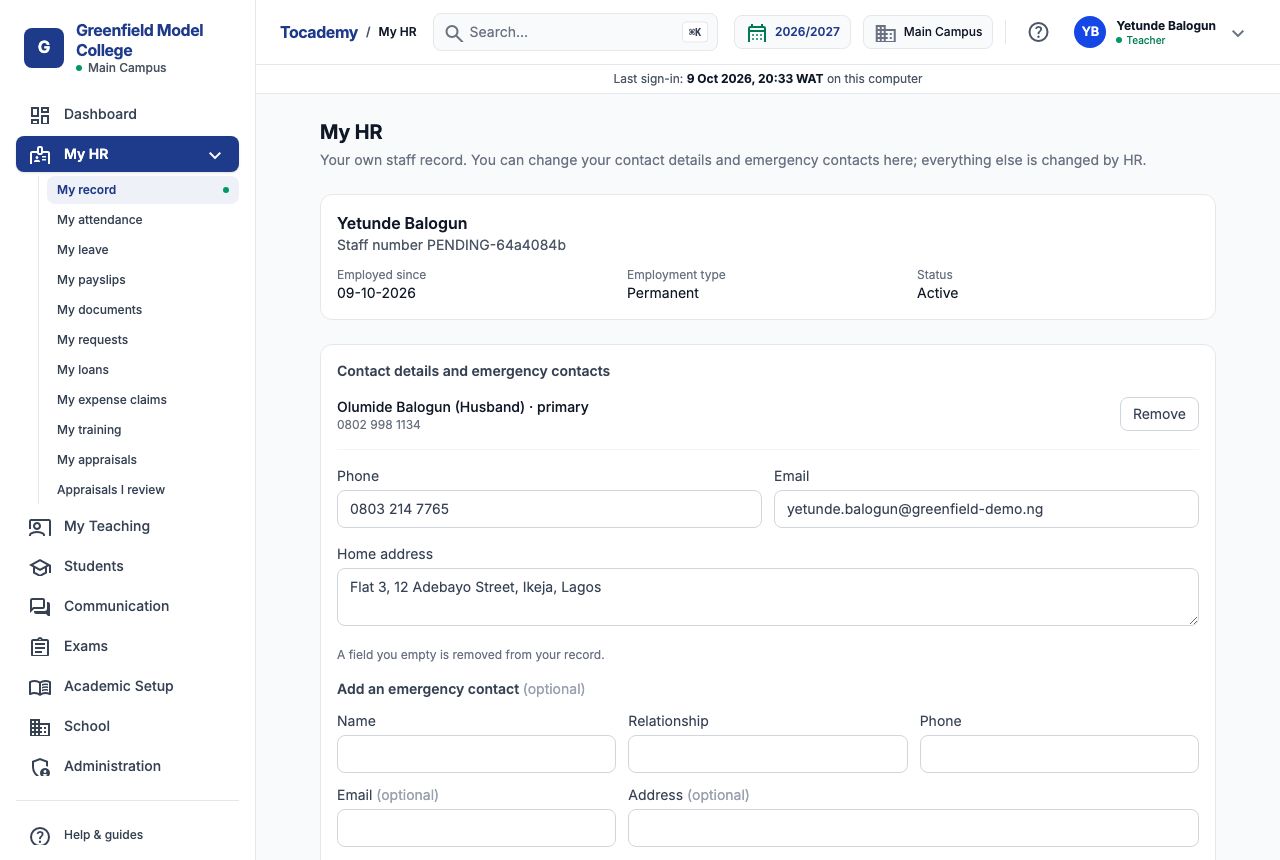
"My record" is your own staff record. "My attendance" shows your check-ins and check-outs. "My leave" shows your leave balances and lets you ask for leave. "My payslips" holds a payslip for every payroll that paid you. "My documents" is the part of your employee file the school shares with you. "My requests" is where you ask HR for letters, copies and changes. "My loans" and "My expense claims" let you apply for a loan or salary advance and claim back money you spent for the school. "My training", "My appraisals" and "Appraisals I review" cover your professional development. You only see the pages your role allows.
3. A new record is awaiting HR
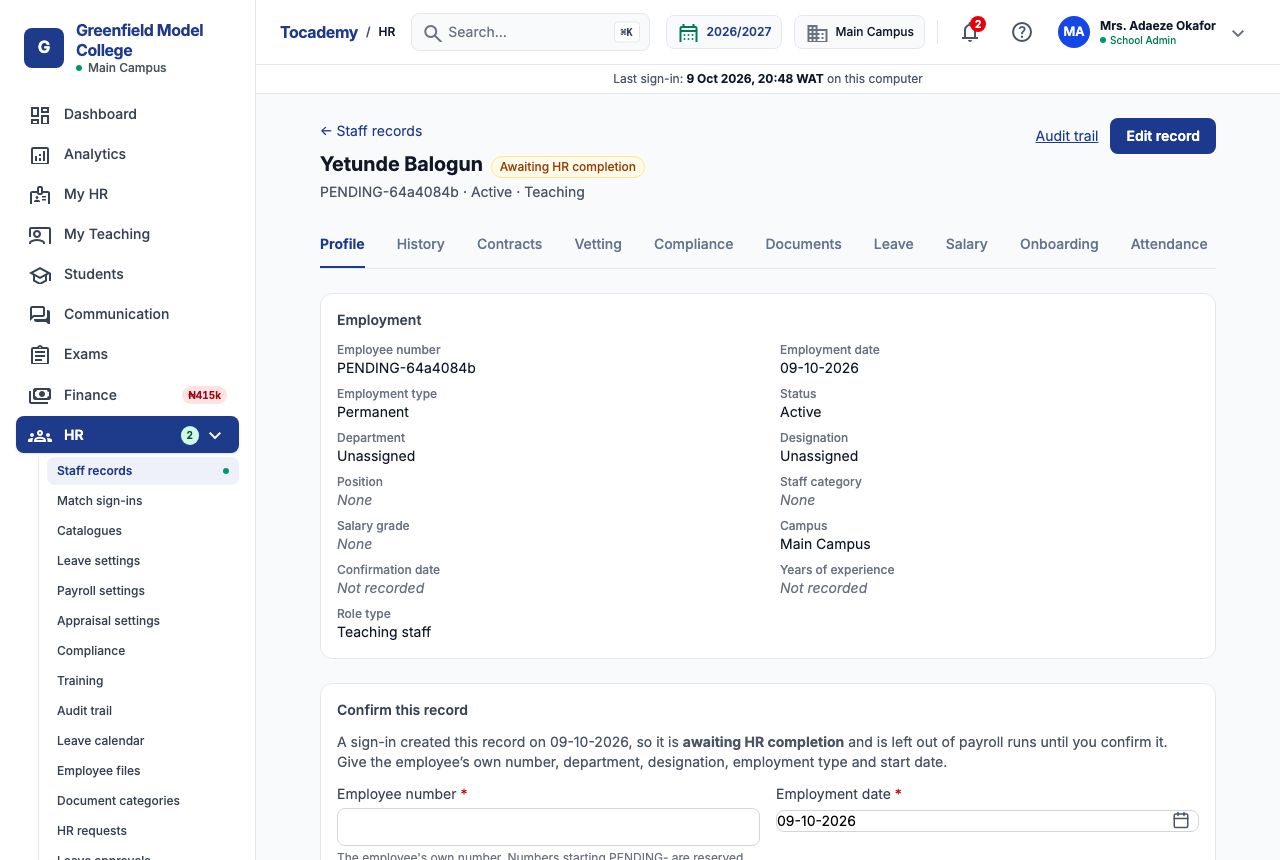
At the top of My record are your name, your staff number, the date you were employed from, your employment type and your status. A brand-new member of staff's number starts with PENDING- until HR completes the record: on the school's side Yetunde's record carries an "Awaiting HR completion" badge, with Unassigned as her department and designation, and it is left out of payroll runs until HR confirms it. There is nothing for you to do about this yourself — but if you have been teaching for a few weeks and your number still starts with PENDING-, mention it to HR so you are not missed on payday.
4. What you can change yourself
Under "Contact details and emergency contacts" you can change your "Phone", "Email" and "Home address", and add or remove emergency contacts. Everything else on your record — your name, date of birth, department, bank details, tax and pension numbers — is changed by HR. The page says so: "Pay and statutory details" lists your bank, account name, the last four digits of your account number, your tax identification number, pension fund administrator and pension PIN, NHF and NHIS numbers, with the reminder "Changed by HR, not here. Tell HR if anything is wrong." If HR has not entered them yet it says "None recorded yet."
5. Example: Yetunde corrects her contact details
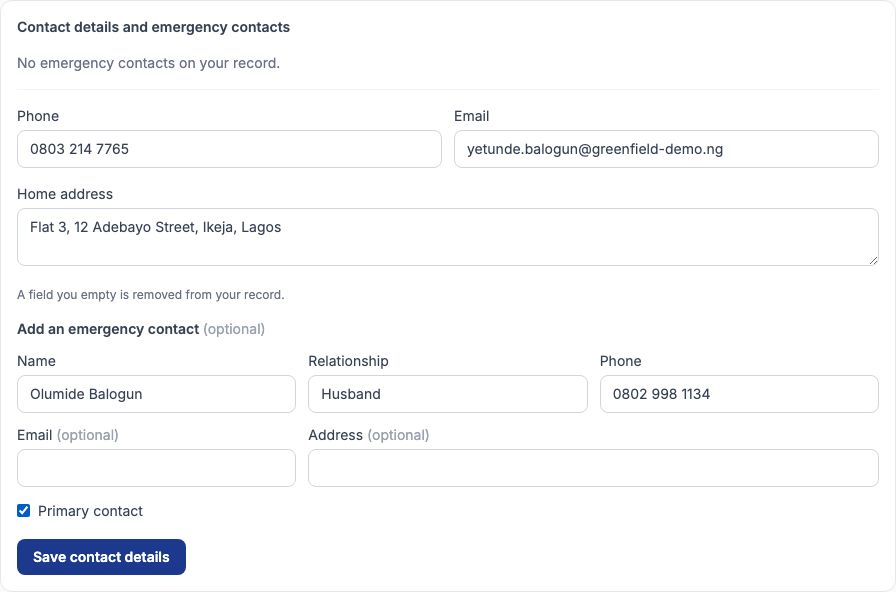
The school had typed Yetunde's old phone number and no home address. She replaced the number in "Phone" with 0803 214 7765, typed Flat 3, 12 Adebayo Street, Ikeja, Lagos in "Home address", and under "Add an emergency contact" filled in Olumide Balogun in "Name", Husband in "Relationship" and 0802 998 1134 in "Phone", and ticked "Primary contact". Then she pressed "Save contact details". Be careful with the fields: a field you empty is removed from your record.
6. After saving
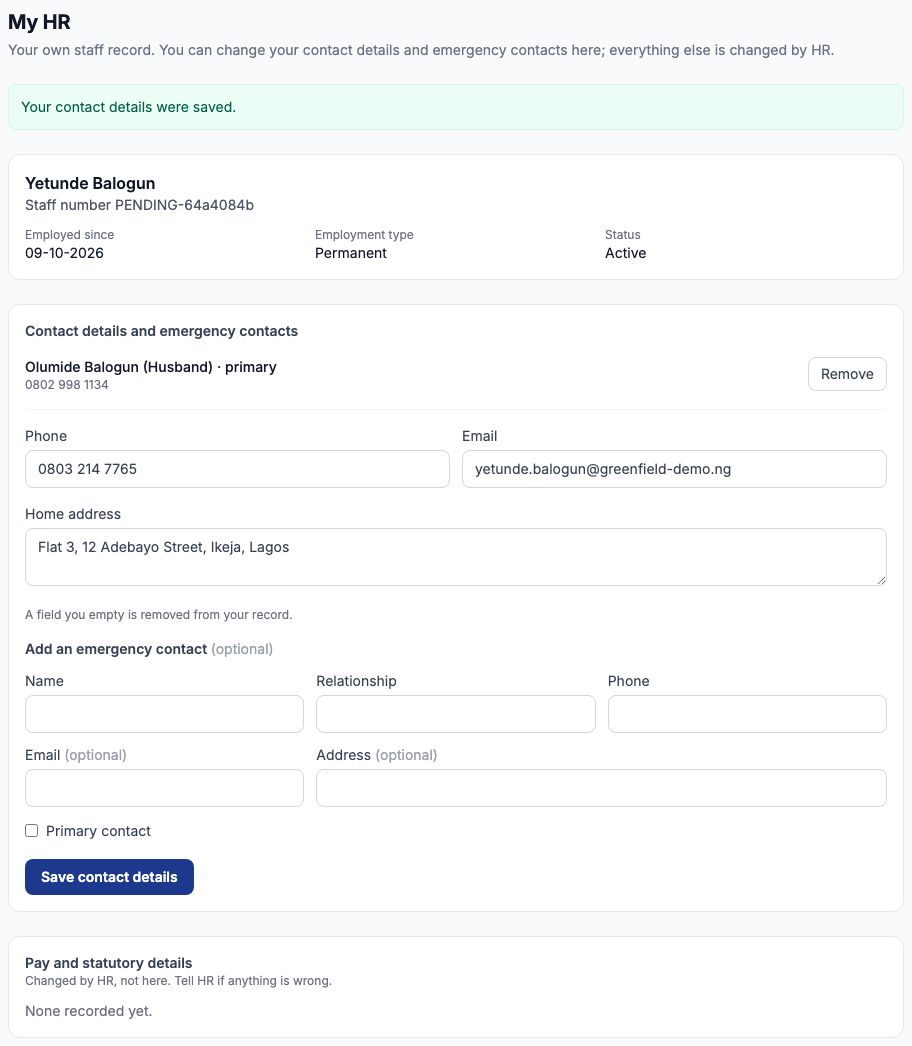
The page answers "Your contact details were saved." and the new emergency contact appears at the top of the panel as Olumide Balogun (Husband) · primary, with a "Remove" button beside it. HR sees the new phone number and address on her staff record straight away; there is no form to fill in and nobody to wait for. To add a second emergency contact, fill in the empty contact fields again and save.
7. Asking HR for something
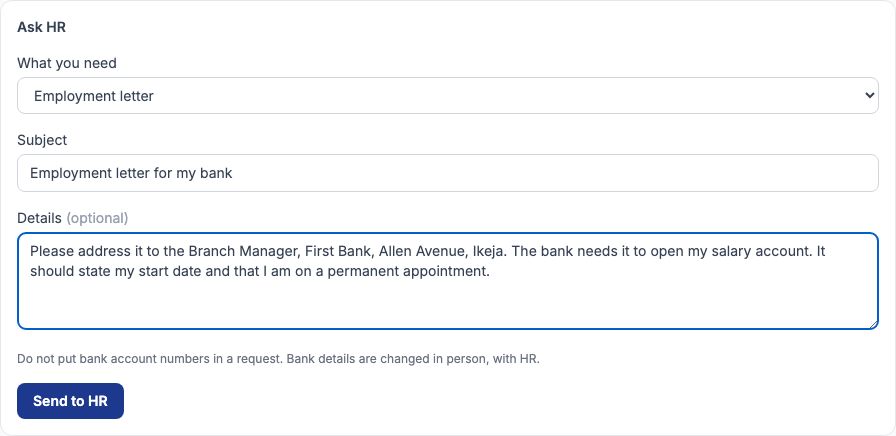
For anything you cannot change yourself, choose "My requests". Under "Ask HR", choose what you need in "What you need": an employment letter, a reference letter, a personal details change (for example your name after marriage, or a wrong date of birth), a copy of a document, a pay query, a leave query or a general query. Give it a short "Subject", explain in "Details (optional)" and press "Send to HR". Never put a bank account number in a request — the page will refuse it. Bank details are changed in person, with HR, because a changed account number decides where your salary goes.
8. Example: an employment letter for the bank
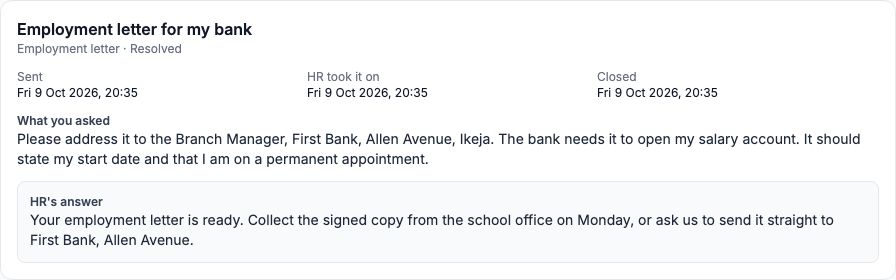
Yetunde needed a letter to open a salary account. She chose "Employment letter", typed Employment letter for my bank in "Subject", and in "Details (optional)" asked for it to be addressed to the Branch Manager, First Bank, Allen Avenue, Ikeja, stating her start date and that she is on a permanent appointment. She pressed "Send to HR" and the page answered "Sent to HR. You can follow it in your requests."
9. Following your request
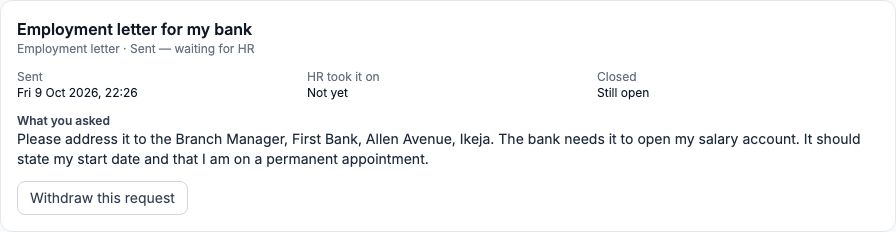
"Your requests" lists everything you have asked, newest first, with where each stands: Sent — waiting for HR, In progress with HR, Resolved, Declined or Withdrawn. Open one to see when you sent it, when HR took it on and when it was closed, and what you asked. While it is still open you can press "Withdraw this request" if you no longer need it.
10. On HR's side: HR requests
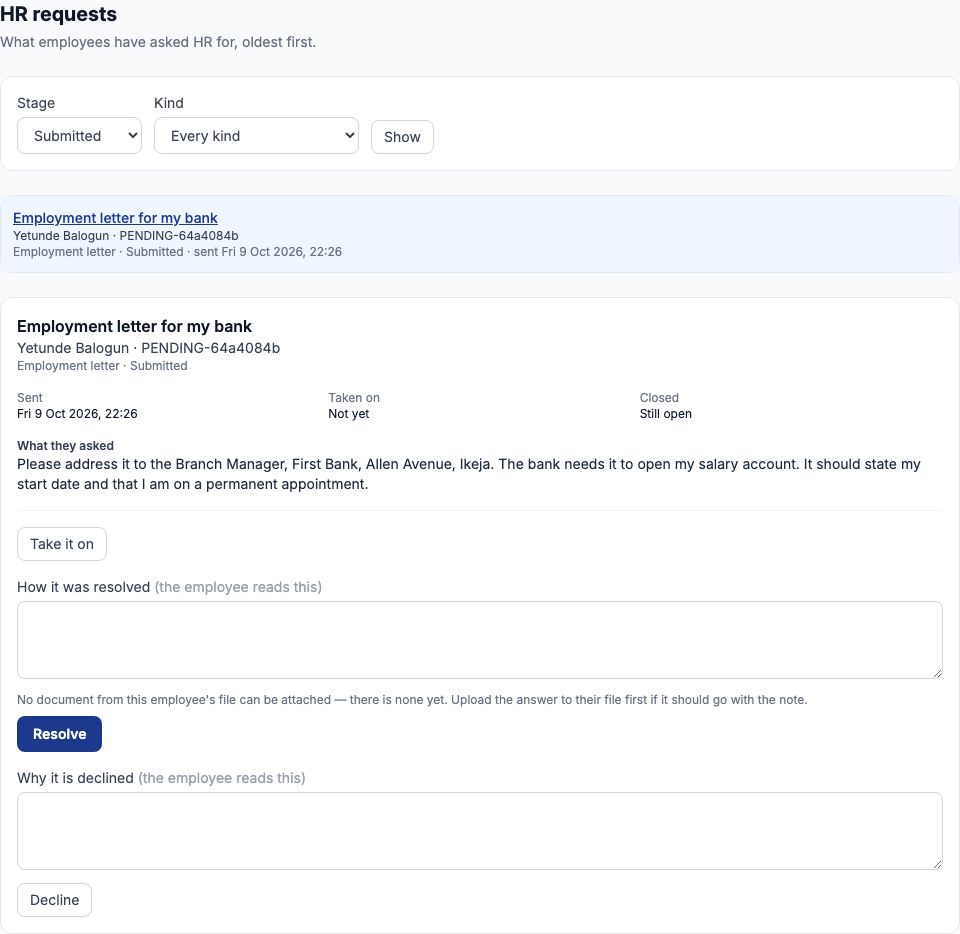
Whoever handles HR at the school chooses "HR requests" in the HR menu. It lists what employees have asked for, oldest first, and can be narrowed by "Stage" and "Kind". Opening Yetunde's request shows her name and staff number, what she asked and when. HR presses "Take it on" so she can see it is being dealt with.
11. HR resolves or declines it
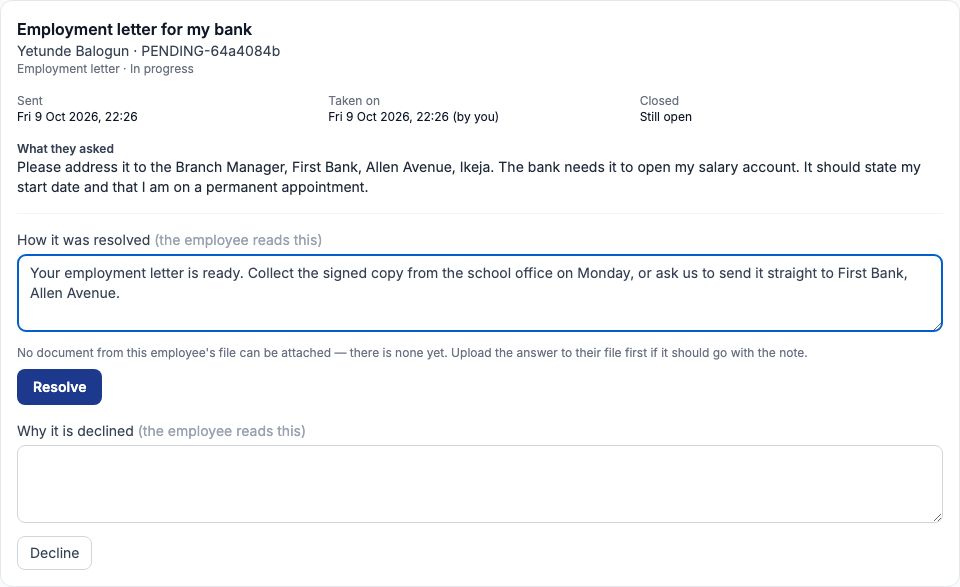
When the letter was ready, HR wrote in "How it was resolved" — Your employment letter is ready. Collect the signed copy from the school office on Monday, or ask us to send it straight to First Bank, Allen Avenue — and pressed "Resolve". The employee reads this note, so write it to them. If the school cannot do what was asked, HR writes the reason in "Why it is declined" and presses "Decline" instead. HR can also choose a document already filed in the employee's file from the "Document that answers it" list, which then appears in their My documents; while the file holds no documents — as with Yetunde — the page says so in place of the list.
12. Reading HR's answer
Back on My requests, Yetunde's request now says Resolved, with the date HR took it on and closed it, and HR's answer underneath. You see when your request was handled and what HR said; the request does not show which member of staff handled it.
13. My documents
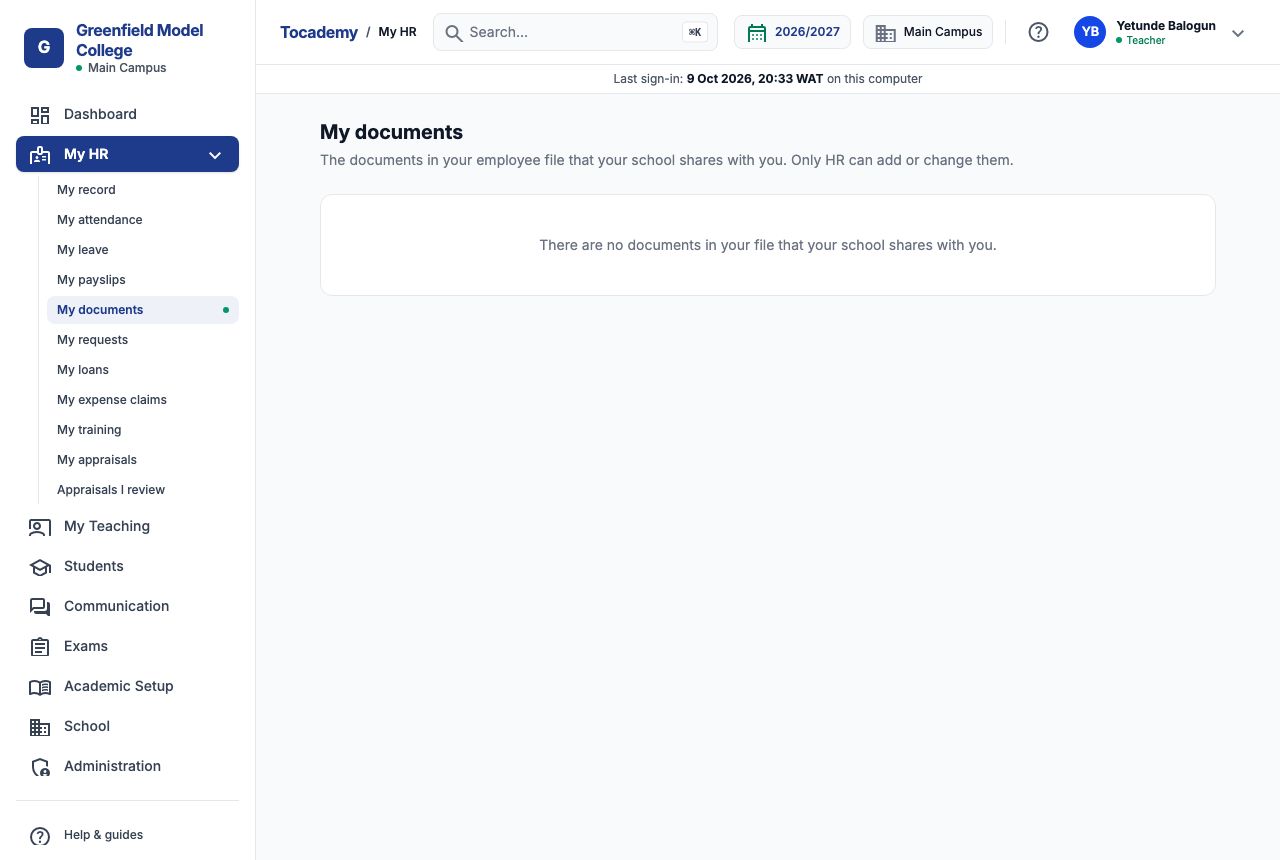
"My documents" shows the documents in your employee file that the school shares with you — your appointment letter, contract, certificates HR has filed — each with its versions, which you can open or download. Only HR can add or change them: you cannot upload a document here. To get your degree certificate or teaching licence into your file, take or send a copy to HR, who files it. A new member of staff like Yetunde sees "There are no documents in your file that your school shares with you."
14. My payslips
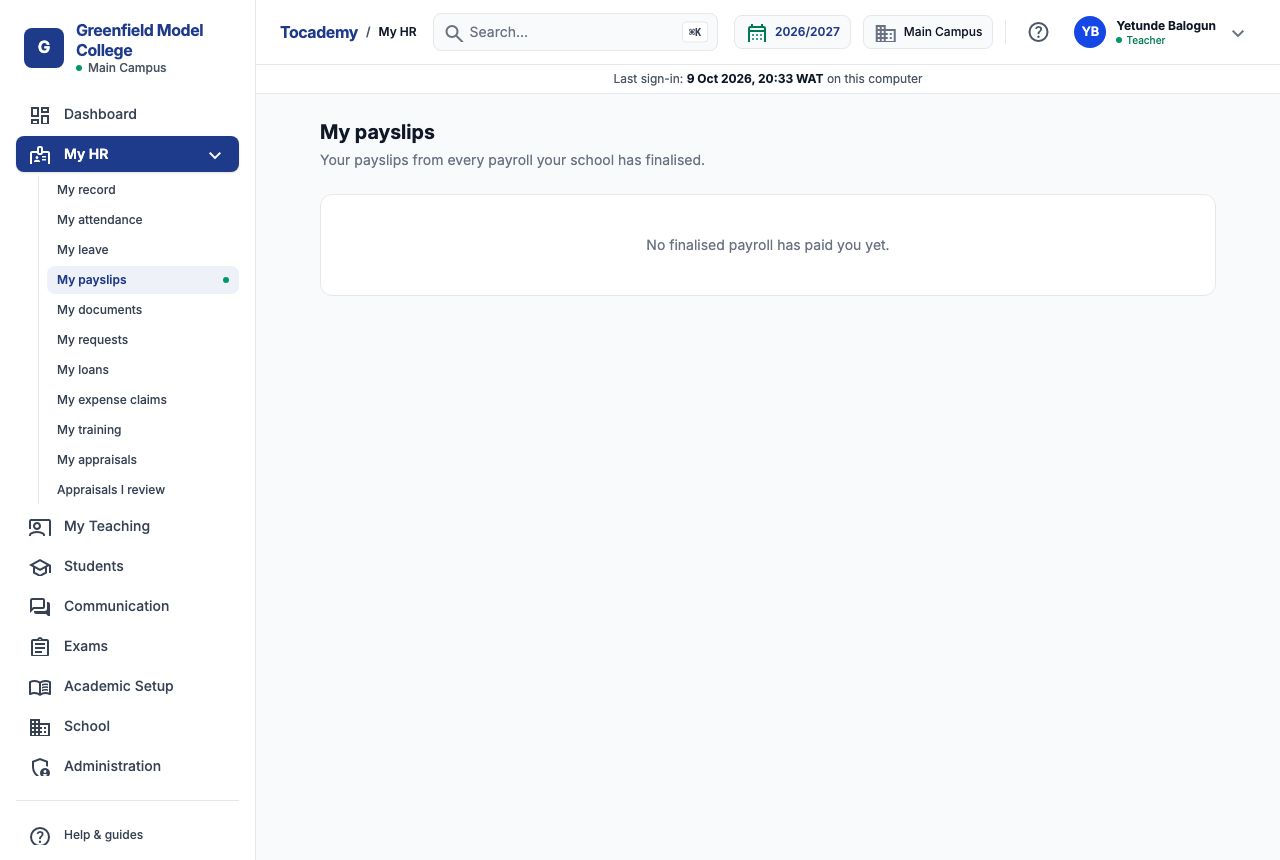
"My payslips" holds a payslip for every payroll the school has finalised that paid you, showing what you earned, what was deducted and what was paid to you, and each can be downloaded as a PDF. Until the first payroll that includes you is finalised the page says "No finalised payroll has paid you yet." For Yetunde that is expected: she joined in October, and her record must be completed by HR before payroll includes her.
15. My leave
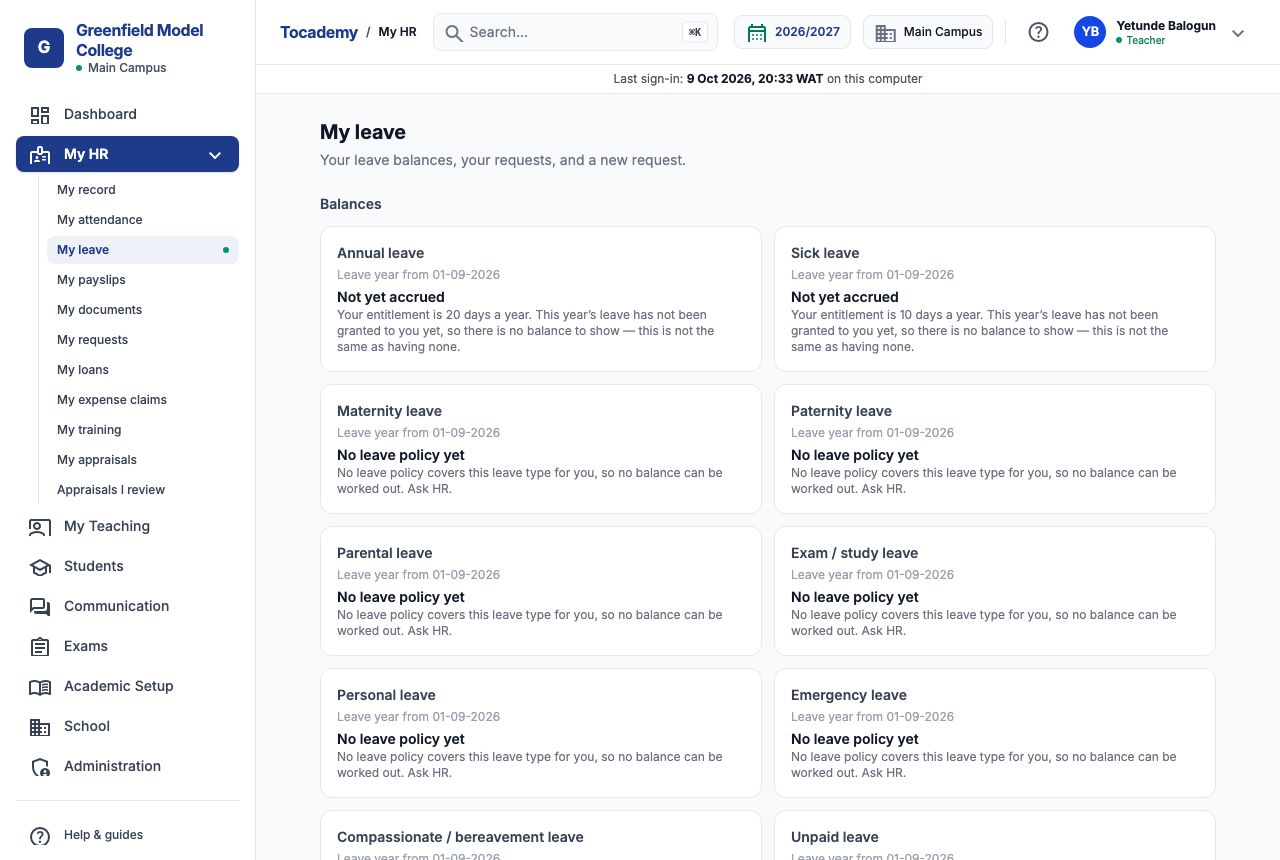
"My leave" shows a card for each leave type with your balance for the leave year, then "Your requests" and a form to "Request leave": choose the "Leave type", the "First day" and "Last day" (a full day, or the first or second half only), add a reason, and press "Submit" — or "Save as draft" to finish later. A draft can carry a supporting document, such as a doctor's note: choose the file under the draft and press "Attach document" before you submit it. A card that says Not yet accrued means this year's leave has not been granted to you yet, which is not the same as having none; No leave policy yet means HR has not set a policy for you for that kind of leave. Requests go to whoever approves leave at your school; see the Leave guide and the Approvals and HR Reminders guide.
16. Loans, expense claims, training, appraisals and attendance
"My loans" lists your loans and salary advances and lets you "Apply" for a new one: the kind, the "Amount in naira", interest, the number of installments and what it is for — for example a salary advance of ₦50,000 repaid in two installments; nothing is paid until it is approved. "My expense claims" is for money you spent for the school, such as ₦4,500 transport to a WAEC meeting: choose a category, the date, the amount and what it was for, press "Draft the claim", attach the receipt and submit it. "My training" lists training assigned to you and your CPD credits. "My appraisals" shows your appraisals once the school has approved them, to read and acknowledge with "Acknowledge this appraisal". "My attendance" shows your check-ins and check-outs month by month, and lets you "Propose a correction" if a time is wrong.
Still stuck?
Email info@tocel.ng and tell us which guide you were following.