Watching an Online Exam: the Monitor
Step by step through the exam monitor — who has started, who left the screen, and how to pause, add time, end, withhold and reinstate, with extra time and exemptions set beforehand.
What the monitor is for
The monitor is the invigilator's screen for one online exam. It lists every candidate expected to sit it, shows live who has started, who has finished and who has left the exam screen, and gives you the staff actions for each sitting: pause a pupil whose computer fails, add time after a power cut, end a sitting, withhold a result, and set extra time or exemptions before the exam. Everything you do asks for a reason and is recorded; a pupil is never shown your reasons. It updates as candidates sit and refreshes every 15 seconds while the tab is open, so leave it open on the invigilator's computer during the exam.
1. Opening the monitor
Go to Exams → Online Exams (CBT). Every exam in the list has two buttons on its row: "Monitor" opens this page, and "Edit" opens the exam itself (questions, sections, times and rules). You need the invigilation permission, which the School Administrator, Principal and Campus Administrator have; a teacher can be given it. On a phone the same page works, with each candidate shown as a card.

2. Read the top of the page
Under the exam's title you see where it is sat ("Venue"), the screen rules pupils sit under — for example, a pupil who leaves the exam screen 5 times is submitted with the answers they have, and the paper is hidden until the pupil is in full screen — and a reminder that the page refreshes itself. These rules are set on the exam's own page; the monitor shows them so you know what pupils were told.

3. Watch the alerts
The "Alerts" box tells you the moment something needs your eyes: a pupil leaves full screen, or a pupil has one exit left before the exam's limit submits them. It is quiet otherwise. An alert is a prompt to look at that pupil, not an accusation — a notification popping up or a screen reader opening a window also takes a pupil out of the exam screen.

4. Check the counts
Four numbers sum up the room: "Expected" (everyone the exam is assigned to), "In progress", "Submitted" and "Not started". Before the start, Expected should match the pupils in front of you; near the end, Not started tells you who never began.

5. Sort out pupils who cannot sign in
A red box lists how many candidates have no portal login. They cannot sit until they can sign in to the Student Portal: open each pupil's record and press "Issue sign-in code" with the pupil in front of you, before the exam opens. Their row shows "No portal login" until then.

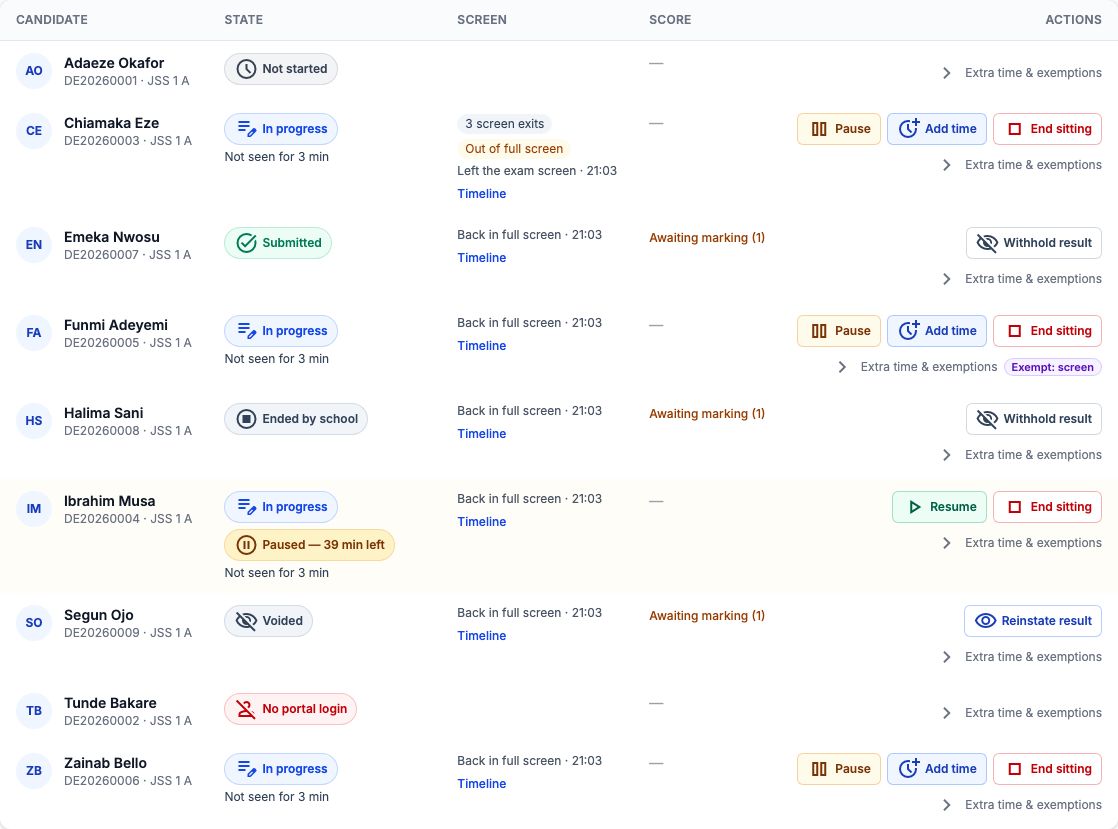
6. Read each candidate's row
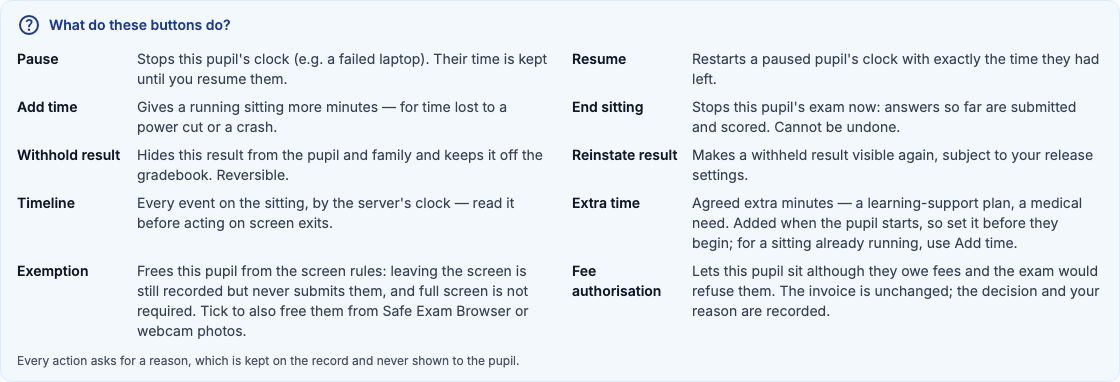
Each row shows the candidate's initials, name, admission number and section. "State" is one of "Not started", "In progress", "Submitted", "Ended by school", "Voided" (result withheld) or "No portal login"; a paused pupil also shows an amber "Paused" badge with the minutes they will get back. Under a running sitting, "Seen just now" means the pupil's exam page checked in within the last 90 seconds; "Not seen for" a few minutes usually means a closed laptop or a lost connection — a reason to walk over, nothing more. "Score" shows the result once marked, or "Awaiting marking" while a theory answer waits for a teacher. Not sure what a button does? Hover over it — or tap it on a phone — for a one-line explanation, and open "What do these buttons do?" above the list to see them all.

Help on the page itself
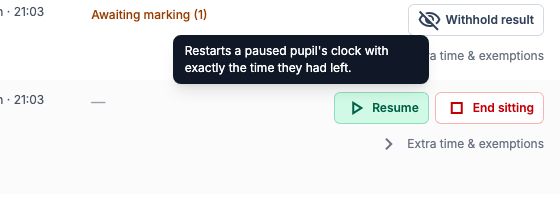
Every button explains itself: hover over it — or tap it on a phone — and a short note says what it does, for example that "Resume" restarts a paused pupil's clock with exactly the time they had left. Inside "Extra time & exemptions", the ⓘ beside each heading does the same. Above the list, "What do these buttons do?" opens a summary of every action in one place.
The note appears beside the button as soon as you point at it, and a screen reader reads it with the button's name.
7. Read the screen column and the timeline
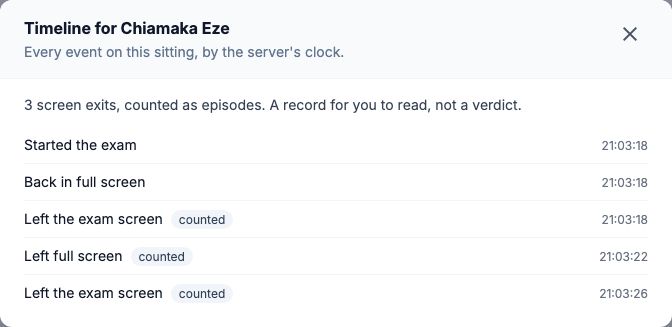
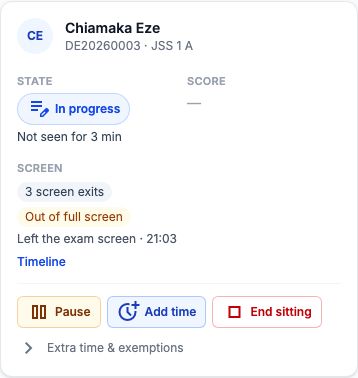
"Screen" reports what the exam page saw: how many times the pupil left the exam screen — switching tab or app, leaving full screen, clicking into another window beside the exam, or closing the exam page and coming back more than 30 seconds later (reloading the page does not count); one exit reported several ways at once is counted once — "Out of full screen" while they are out of it now, the last screen event and its time, and any blocked copy or paste. These are facts for you to read, never a score. Press "Timeline" to see the whole sitting event by event, by the server's clock, with the counted exits marked "counted". Use it before ending a sitting, so you decide on what happened rather than on a number.
8. Pause a pupil whose computer fails
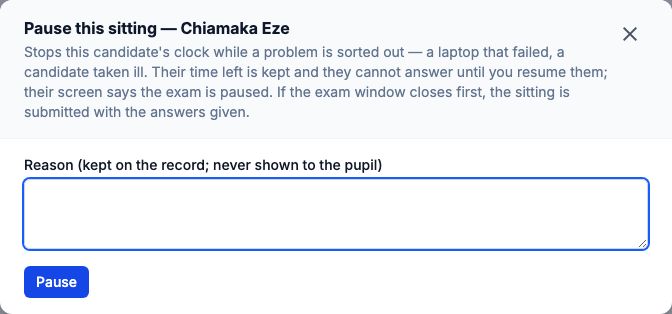
Use "Pause" on the pupil's row. Write the reason — Laptop battery died; moving to a spare laptop — and select "Pause" in the box. Their clock stops at once, their screen says the exam is paused, and they cannot answer until you resume them; the answers they gave are kept. Move them to another computer if you need to: they sign in as themselves and open the exam again, and it is still paused there. Leaving the screen while paused is not counted against the exit limit. If nobody resumes them, the sitting is submitted when the exam window closes.
9. Resume the pupil
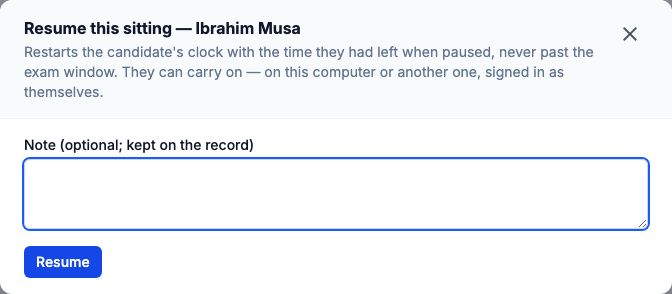
When they are ready, use "Resume" on the row (a note is optional) and select "Resume" in the box. They get back exactly the minutes they had left — the row's "Paused" badge said how many — and their screen carries on within about ten seconds. Their time never runs past the exam window's close; if it would, the box says so, and you can extend the window on the exam's own page to give them all of it.
10. Add time after lost time
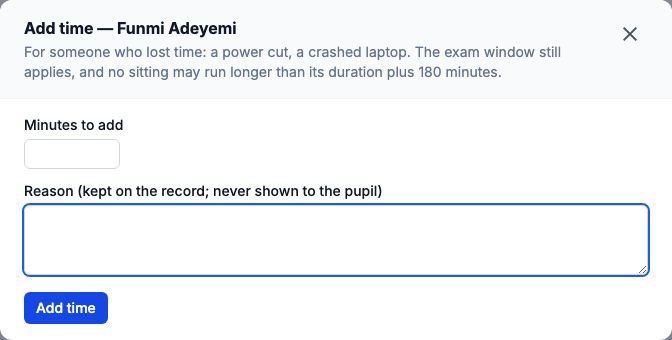
Use "Add time" on a running sitting, enter the "Minutes to add" (1 to 180) and a reason. Use it when time was lost before you could pause — a power cut across the lab, a crash nobody noticed for ten minutes. The pupil's timer moves out within seconds. The exam window still applies, and no sitting runs longer than its duration plus 180 minutes; the box tells you if either cut your request short. Add time is not offered while a pupil is paused: resume them first.
11. End a sitting
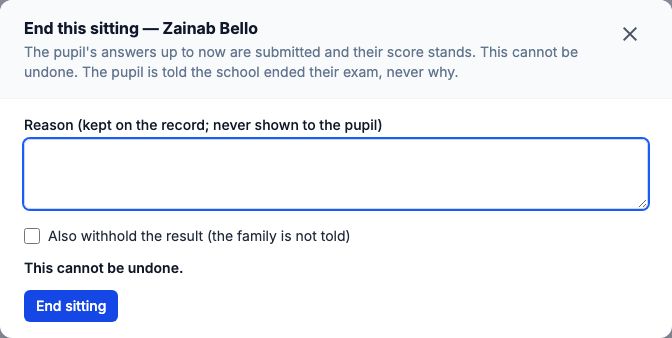
Use "End sitting" when a pupil must stop now — for example, a second phone found under the desk. Write the reason; tick "Also withhold the result (the family is not told)" if the result should not stand until you have looked into it. The pupil's answers so far are submitted and scored, and this cannot be undone. The pupil is told only that the school ended their exam, never why.
12. Withhold a result, and reinstate it
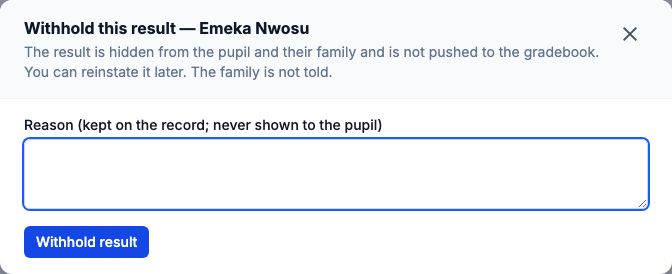
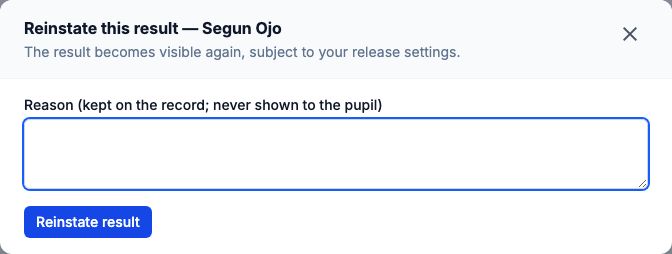
On a finished sitting, use "Withhold result" with a reason to hide the result from the pupil and their family and keep it off the gradebook while you look into something; the row then shows "Voided". The score is not changed and the family is not told. Use "Reinstate result" with a reason to bring it back; if results have been released, the family then sees it as normal.
13. Set extra time and exemptions before the exam
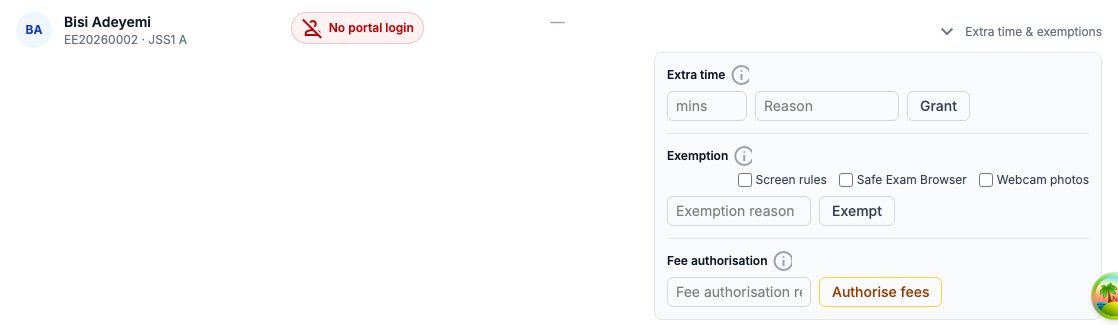
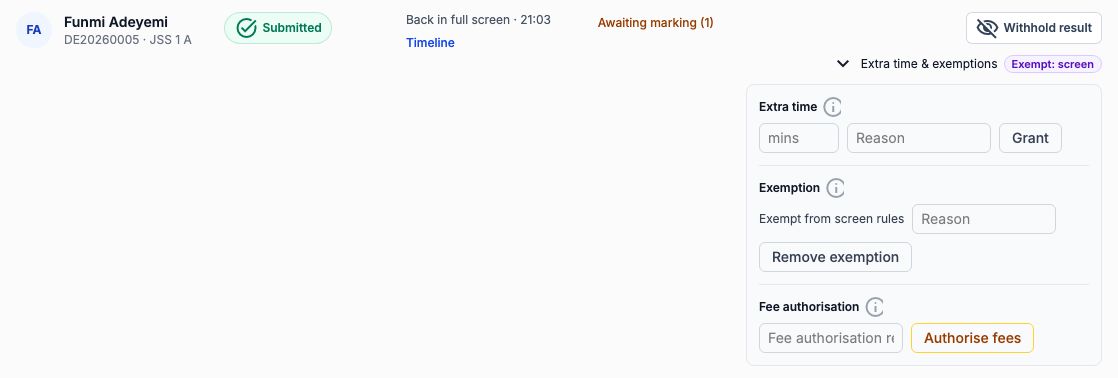
Open "Extra time & exemptions" under a pupil's actions. For agreed extra time — a pupil with a learning-support plan — enter the minutes in "mins" with a reason and press "Grant"; it applies when they start, so set it before they begin, and "Remove extra time" takes it away. To exempt a pupil, tick only what they are freed from — "Screen rules" (the exit limit and the full-screen requirement), "Safe Exam Browser" or "Webcam photos" — write an "Exemption reason" and press "Exempt". Nothing is exempted unless its box is ticked. A pupil refused for uncleared fees can be allowed to sit with a reason and "Authorise fees"; the page then lists them under "Authorised to sit despite a refusal". Anything already granted shows on the fold itself, such as "Exempt: screen".
14. On a phone
On a phone or small tablet, each candidate is a card: name and section at the top, State and Score side by side, the screen activity below, and the action buttons at the bottom. Everything on the desktop table is there.
When time runs out
A pupil does not need to press Submit. When their time is up, their exam page submits it with the answers they have, and it is scored at once — theory answers go to the marking queue as usual — and the pupil's page says it is finishing, then shows the result. If the page was closed or the computer was off, the school's server submits it within a minute of the deadline. Either way the row shows "Submitted", and the score, or "Awaiting marking".
Example 1: a laptop dies ten minutes in
Chiamaka's laptop shuts down at 8:20 with 30 minutes left. Use "Pause" on her row with the reason Laptop battery died; moving to a spare laptop. Her row shows "Paused" with 30 minutes. She signs in on the spare laptop and opens the exam; it says it is paused, and her answers are there. At 8:32 use "Resume": she has her 30 minutes, finishing at 9:02 if the window is still open then — otherwise at the window's close, and you can extend the window on the exam's page.
Example 2: a power cut across the lab
The lights go out for six minutes and everyone's computer restarts. Nobody could pause in time, so once the room is back use "Add time" on each running row with 6 minutes and the reason Power cut in Lab 2. Every pupil's timer moves out by six minutes.

Example 3: a pupil keeps leaving the screen
Chiamaka's row shows 3 screen exits and "Out of full screen" — on a limit of 5, the "Alerts" box will warn you at 4. Press "Timeline": the exits are a few seconds apart. Walk over first — it may be a pop-up she cannot close. If it is a fault on the computer, pause her and move her; if she needs to be free of the rule for a genuine reason, exempt her under "Extra time & exemptions". The fold then shows "Exempt: screen", and "Remove exemption" takes it away. Only end the sitting if you are sure.
Example 4: a phone found under the desk
Use "End sitting" with the reason Second phone found under the desk, and tick "Also withhold the result (the family is not told)". The pupil's answers so far are scored, the result is held back, and the row shows "Voided". After the head's review, use "Reinstate result" with the decision if the result is to stand.
Example 5: extra time agreed in advance
Funmi has 15 minutes' extra time in her support plan. Before the exam opens, open "Extra time & exemptions" on her row, enter 15 in "mins" with the reason Learning-support plan, and press "Grant". When she starts, her 40-minute exam runs for 55 minutes. Grant it before she starts — extra time is applied at the start, and a pupil already sitting needs "Add time" instead. Extra time agreed in advance is switched on for each school by Tocademy; if "Grant" says it is not enabled, ask Tocademy.
Still stuck?
Email info@tocel.ng and tell us which guide you were following.