Recruitment and Onboarding
Fill a post from start to finish: draft and approve the vacancy, receive applications, screen, interview, make an approved offer, turn the successful candidate into a staff record and work through their onboarding checklist.
1. Draft the vacancy
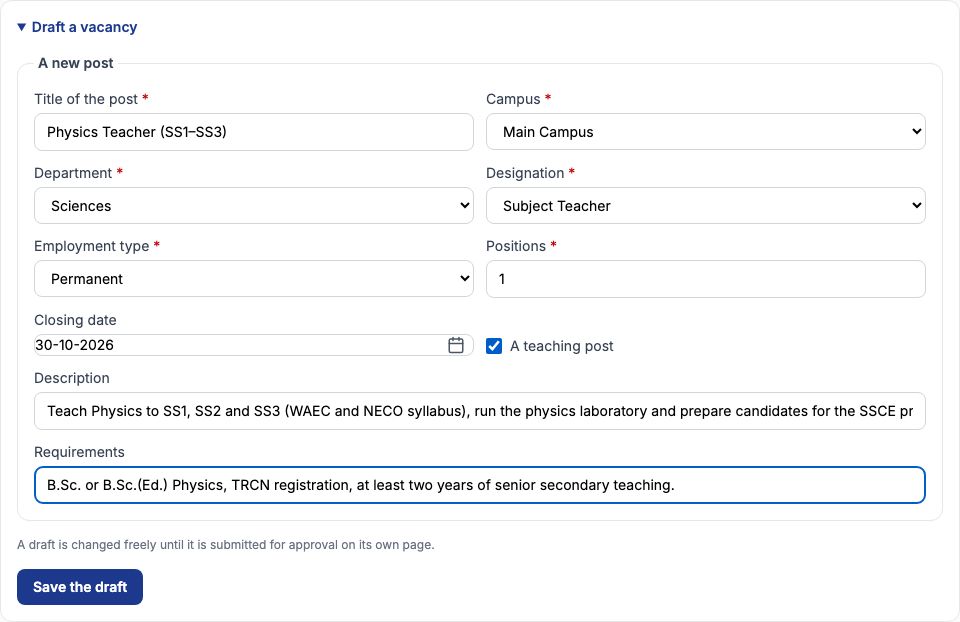
Open "Vacancies" from the HR menu and open "Draft a vacancy" at the bottom of the page. Greenfield Model College needed a physics teacher for the senior classes, so we typed Physics Teacher (SS1–SS3) in "Title of the post", chose Main Campus as the "Campus" (choose Whole school for a post shared by every campus), Sciences as the "Department", Subject Teacher as the "Designation" and Permanent as the "Employment type". "Positions" is how many people you will hire for this post — 1 here. We set the "Closing date" to 30-10-2026, ticked "A teaching post", described the job in "Description" and wrote the qualifications in "Requirements": B.Sc. or B.Sc.(Ed.) Physics, TRCN registration and two years of senior secondary teaching. Press "Save the draft". The new vacancy opens on its own page at the Draft stage. Until it is submitted you can change it freely with "Edit the draft", or cancel it with a reason.
2. Submit it and have it approved
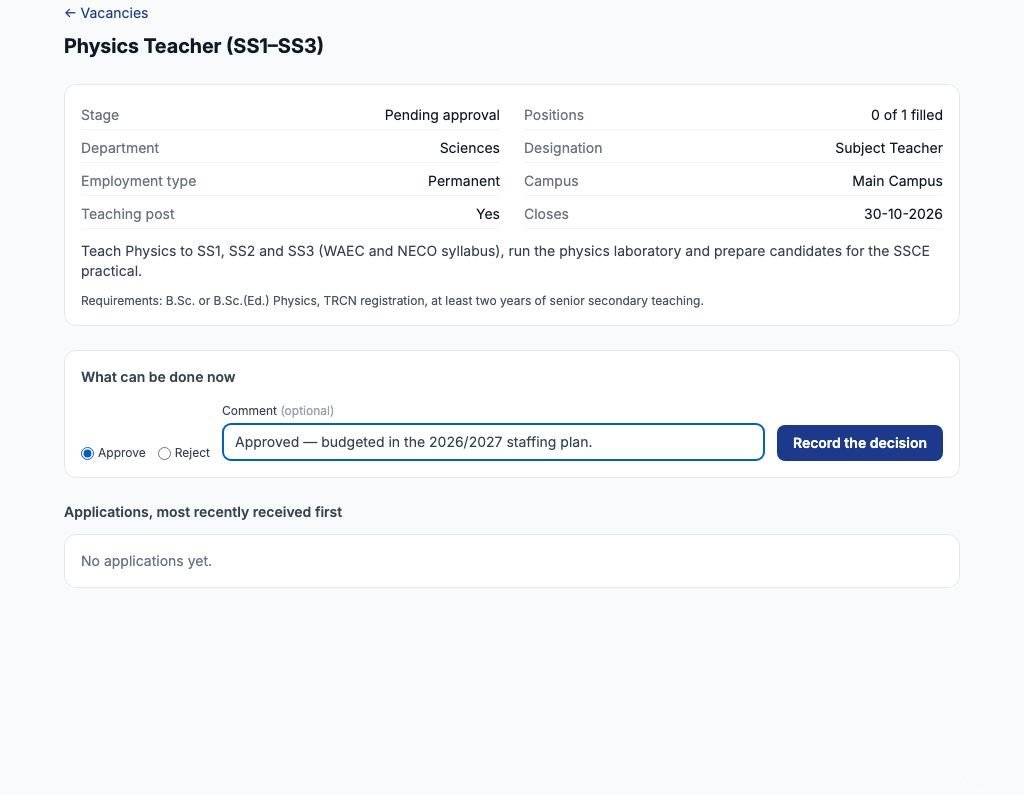
On the vacancy's page, under "What can be done now", press "Submit for approval". The stage becomes Pending approval. A vacancy is approved by somebody else: whoever submits it cannot approve it, so a school needs at least two people who hold the permission to approve recruitment. Who approves is set on "Approval chains" in the HR menu (process Vacancy); at Greenfield it is one level, any holder of that permission. Mrs. Ngozi Eze, the school's second administrator, signed in, opened the vacancy, chose "Approve", typed Approved — budgeted in the 2026/2027 staffing plan in "Comment" and pressed "Record the decision". Choosing "Reject" instead sends it back with your comment. While it waits, the person who submitted it can press "Withdraw the submission" to take it back.
3. Post the vacancy
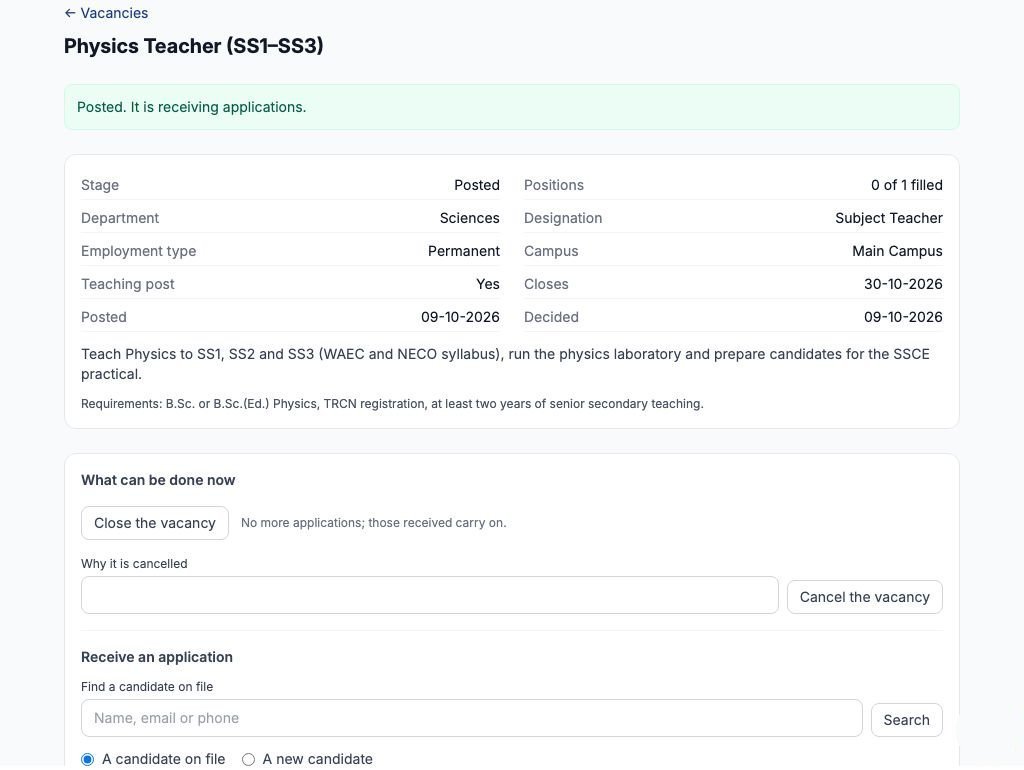
Once approved, the vacancy shows "Post the vacancy". Press it and the stage becomes Posted: it now receives applications, and the page shows the date it was posted and decided. However the advert went out — newspaper, noticeboard or online — record each application here as it arrives. The same panel offers "Close the vacancy" (no more applications; those already received carry on) and "Cancel the vacancy", which needs a reason in "Why it is cancelled".
4. Receive an application from a new candidate
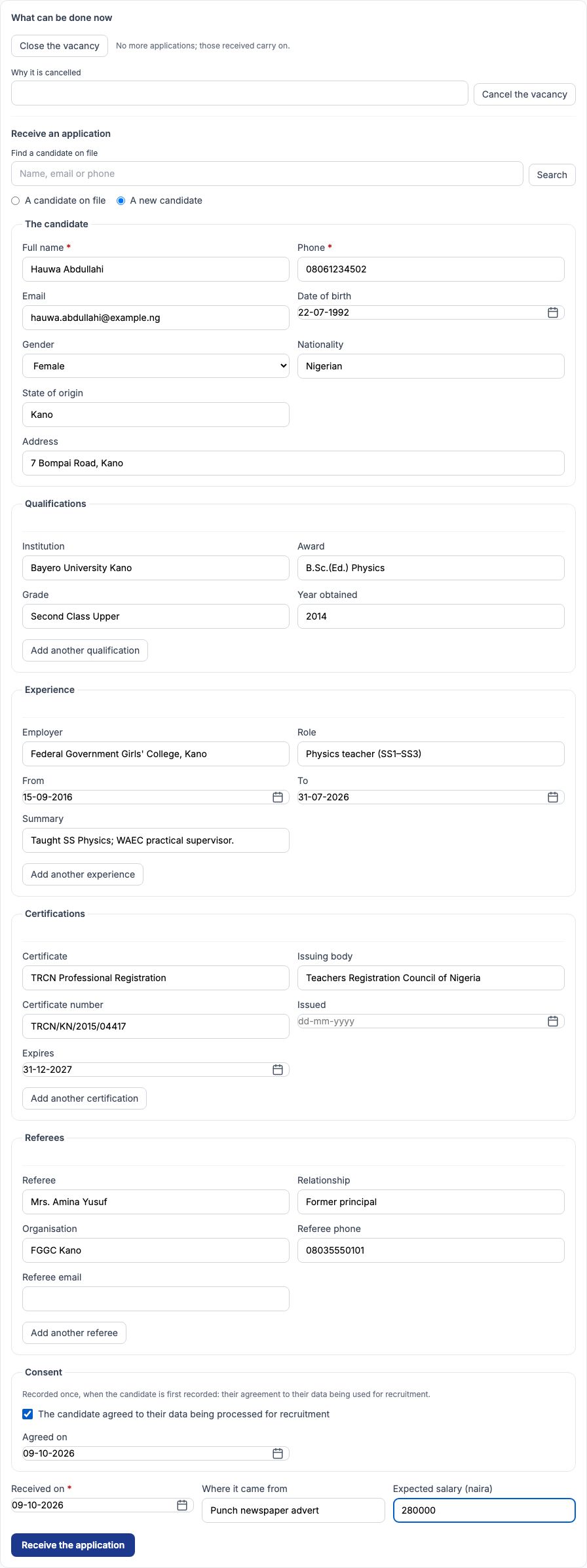
Applications are received on the posted vacancy's page, in "Receive an application". Hauwa Abdullahi answered the newspaper advert, and she was not yet on file, so we chose "A new candidate". Fill in "The candidate" (her "Full name" and "Phone" are required; we added her email, date of birth, gender, state of origin and address), then her qualifications (B.Sc.(Ed.) Physics, Bayero University Kano, 2014), her experience (Physics teacher at FGGC Kano from 15-09-2016 to 31-07-2026), her certifications (TRCN Professional Registration, expiring 31-12-2027) and her referees (Mrs. Amina Yusuf, her former principal). Use the Add another buttons for more rows. Under "Consent", tick the box saying the candidate agreed to their data being processed for recruitment, and set "Agreed on" — Tocademy will not record a candidate without it. Finally set "Received on" to 09-10-2026, "Where it came from" to Punch newspaper advert and "Expected salary (naira)" to 280000, and press "Receive the application". The application opens on its own page at the Received stage.
5. Candidates already on file
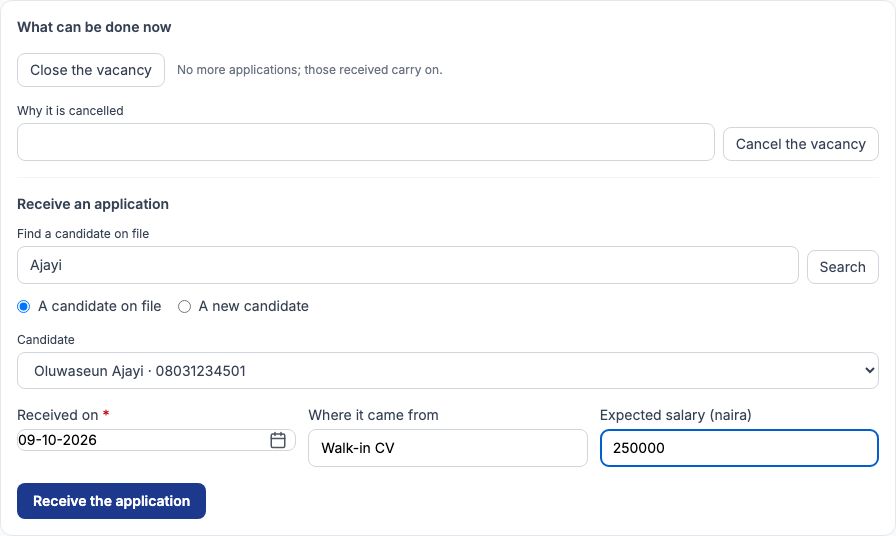
"Candidates" in the HR menu lists everyone recorded for recruitment, with their consent date; open "Record a candidate" there to add someone who dropped in a CV before any post was open. Oluwaseun Ajayi left his CV at the gate, so we recorded him there first with the same fields and consent, and pressed "Record the candidate". When the physics post opened, we typed Ajayi in "Find a candidate on file" on the vacancy, pressed "Search", kept "A candidate on file", chose him in "Candidate", set "Where it came from" to Walk-in CV and his expected salary to 250000, and pressed "Receive the application". A candidate's own page shows their record, their applications to every post, and "Documents" — choose the "Kind of document", pick a PDF, PNG or JPEG of 5 MB or less, and press "Attach" to keep a CV or certificate. Press "Get a link" to open one.
6. Screening and the shortlist
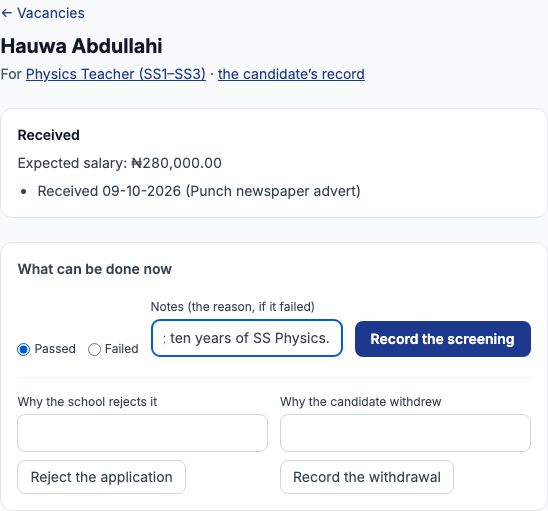
Open an application from the list at the bottom of the vacancy ("Open the application"). Its page shows where it stands and, under "What can be done now", only the next step. First is screening against the requirements: mark it Passed or Failed, write a note in "Notes (the reason, if it failed)" and press "Record the screening". Hauwa holds the degree and a current TRCN registration, so she passed; we then pressed "Shortlist". Oluwaseun is not yet registered with TRCN, which the post requires, so his screening was recorded as Failed — a failed screening rejects the application at once (it shows as Rejected at received). At any live stage you can also end an application yourself: write the reason in "Why the school rejects it" and press "Reject the application", or record that the candidate pulled out with "Record the withdrawal".
7. Schedule the interview and score it
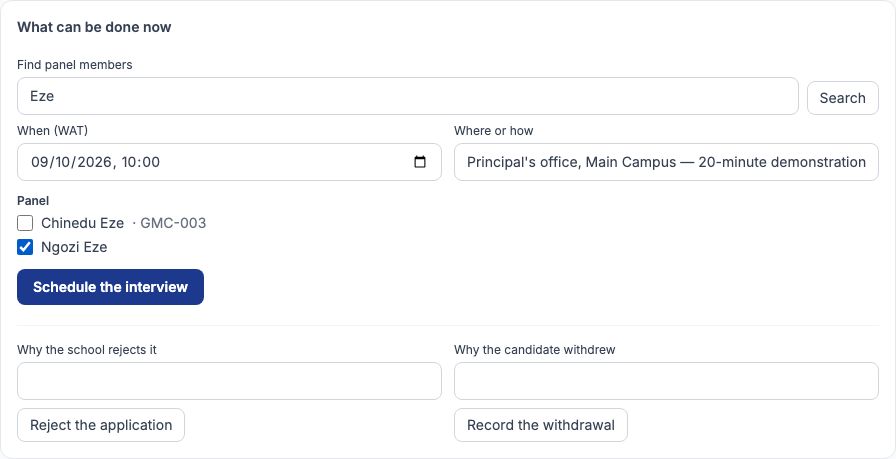
A shortlisted application offers the interview. Search for the people who will sit on the panel in "Find panel members" and press "Search". Only staff who can sign in and who hold the permission to manage recruitment can sit on a panel, because each panel member records their own score. The list offers only staff with a working sign-in; a person whose HR record is still awaiting completion is shown without a staff number. If you tick someone who lacks the permission, Tocademy refuses by name and says what they need. We set the date and time, typed Principal's office, Main Campus — 20-minute demonstration lesson to SS2A in "Where or how", ticked Mrs. Ngozi Eze and pressed "Schedule the interview". Each panel member then opens the application from their own sign-in, types a mark out of 10 in "Your score (1–10)" with an optional comment, and presses "Record your score". The first score moves the application to Interviewed. Mrs. Eze gave Hauwa 8: Clear, confident demonstration on Ohm's law. Another interview can be added until the assessment is recorded.
8. Assessment and references
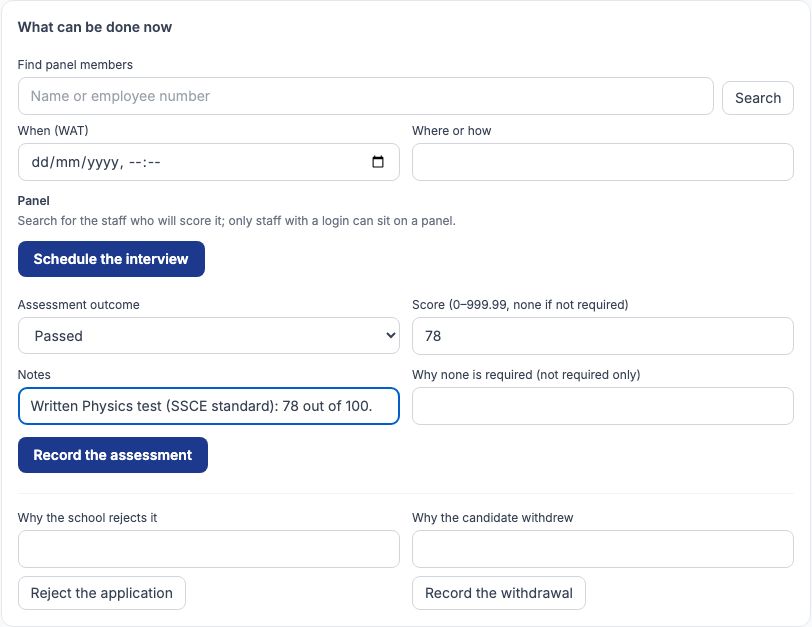
After the interview, record the assessment: choose the result in "Assessment outcome", type a mark in "Score (0–999.99, none if not required)" and a note, and press "Record the assessment". If your school sets no test for the post, choose Not required and say why in "Why none is required (not required only)". Hauwa scored 78 on a written SSCE-standard physics test. Next comes one row per referee the candidate gave: pick the outcome for Mrs. Amina Yusuf (Satisfactory), note what she said, and press "Record the references". A referee who could not be reached is recorded as Not obtained with the reason. If the candidate gave no referee at all, the page asks why none was checked instead.
9. Propose the offer
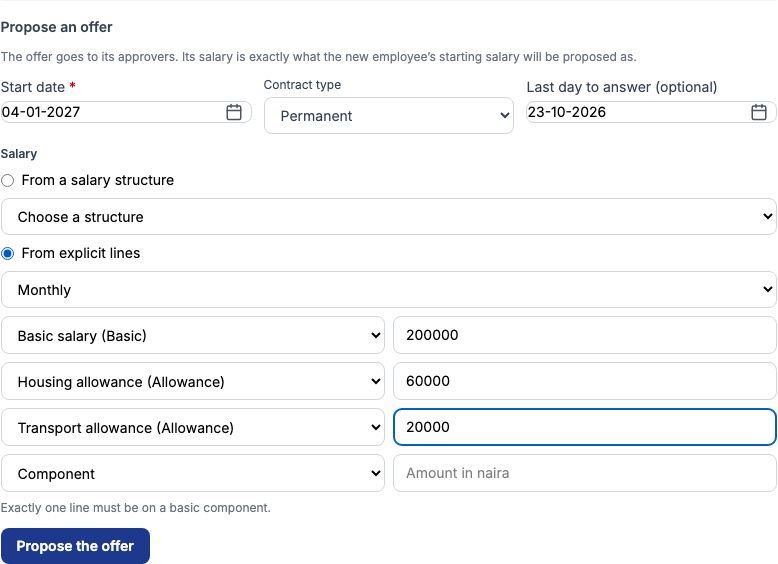
With references checked, "Propose an offer" appears. Set the "Start date" (04-01-2027, the first day of the second term), the "Contract type" (Permanent) and, if the candidate must answer by a date, "Last day to answer (optional)" — we gave Hauwa until 23-10-2026. For the salary choose "From a salary structure" and pick one, or "From explicit lines" and build it: we picked Monthly and three lines — Basic salary ₦200,000, Housing allowance ₦60,000 and Transport allowance ₦20,000, ₦280,000 a month in all. Exactly one line must be a basic component. The figure you offer is exactly what her starting salary will be proposed as when she joins. Proposing needs the permission to manage salaries, because it reads the school's pay components. Press "Propose the offer".
10. The offer is approved, then answered
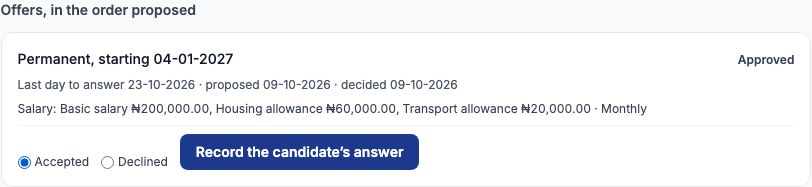
An offer goes to its approvers ("Approval chains", process Recruitment), and again the person who proposed it cannot approve it. Mrs. Ngozi Eze opened Hauwa's application, chose "Approve" on the offer, commented Within the Level 08 budget for the post, and pressed "Record the decision". The offer is now Approved and the application is Offered. When the candidate replies — by letter, phone or in person — choose "Accepted" or "Declined" on the offer and record her answer with the button beside it. Hauwa accepted. If the last day to answer passes with no reply, the offer offers "Supersede the lapsed offer" so you can propose a revised one; until it is approved, the proposer can also "Withdraw the offer".
11. Turn the hired candidate into a staff record
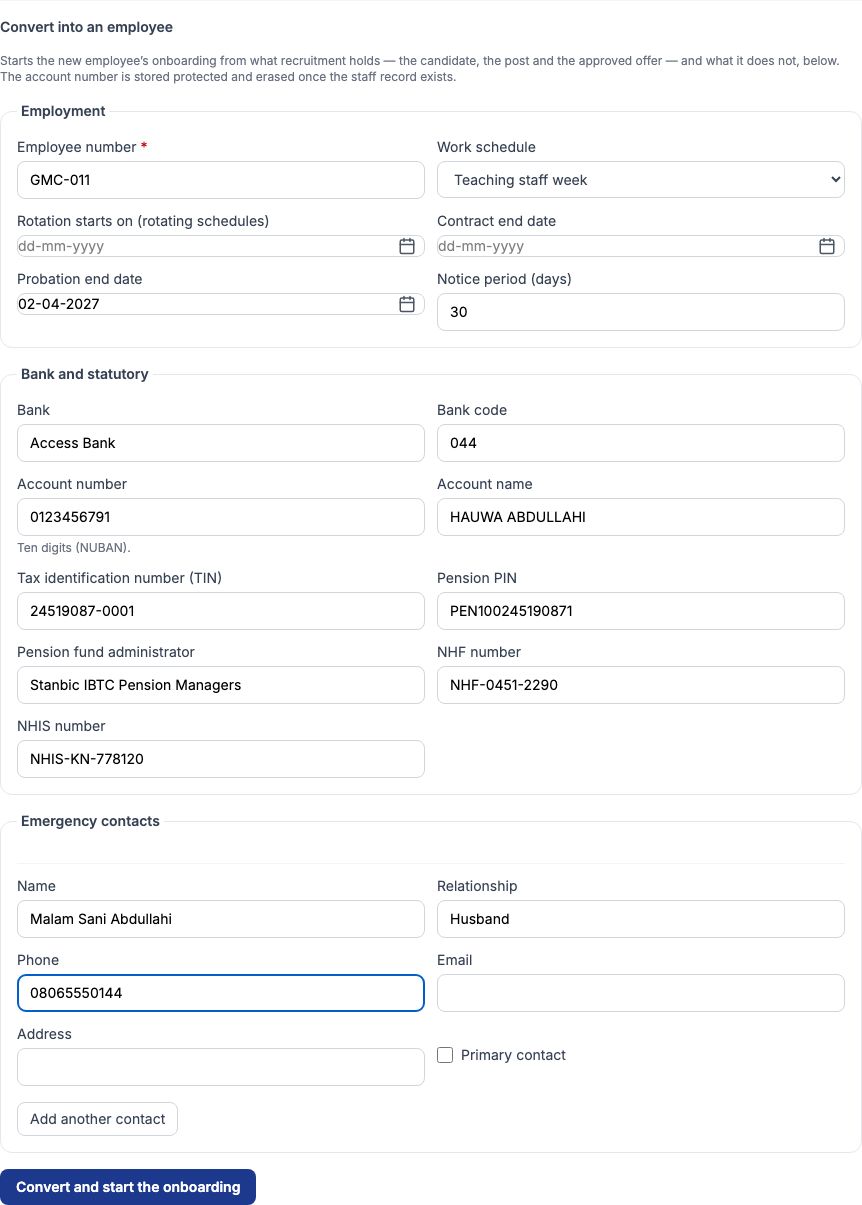
An accepted application shows "Convert into an employee". Tocademy already holds her name, personal details, qualifications, the post (department, designation, campus, teaching) and the approved offer, so you only add what recruitment does not know. We typed GMC-011 in "Employee number", chose Teaching staff week as her "Work schedule", set the "Probation end date" to 02-04-2027 and "Notice period (days)" to 30, then her bank details (Access Bank, code 044, account 0123456791, HAUWA ABDULLAHI), TIN, pension PIN and administrator, NHF and NHIS numbers, and her husband as emergency contact. The account number is kept protected and erased once her staff record exists. Press "Convert and start the onboarding". This marks the application Hired, counts the position as filled and opens her onboarding. Converting needs the permission to manage staff onboarding as well as recruitment.
12. The onboarding's five steps
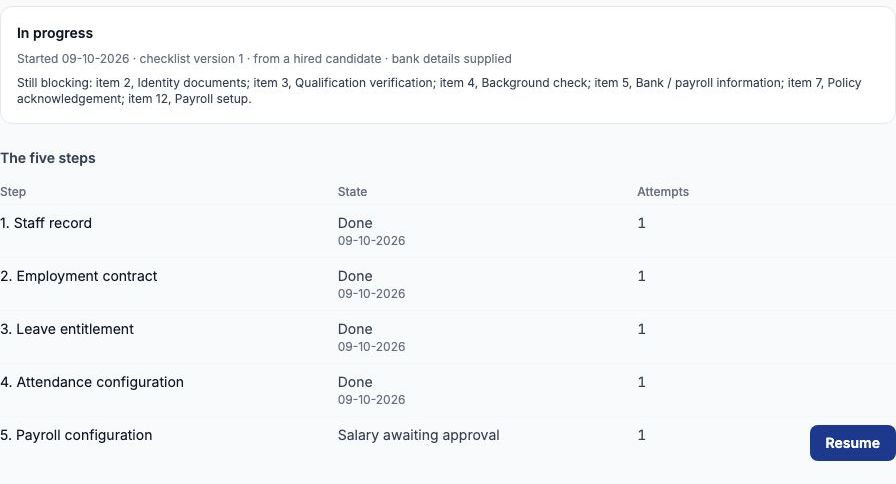
An onboarding runs five steps for you, each through its own part of Tocademy: 1, the staff record; 2, the employment contract; 3, the leave entitlements; 4, the work schedule (attendance); and 5, the starting salary. For Hauwa the first four were Done at once. Step 5 shows Salary awaiting approval, because a starting salary goes through its own approval chain and nobody's pay changes until it is approved. If a step fails — for example a missing work schedule — the onboarding stops at that step with the reason in red; correct the cause, use "Correct the hire details" if an input was wrong, and press "Resume". You can also start an onboarding without recruitment: open "Start an onboarding" on the "Onboarding" page, enter the new employee's details once and press "Start the onboarding".
13. Approving the starting salary
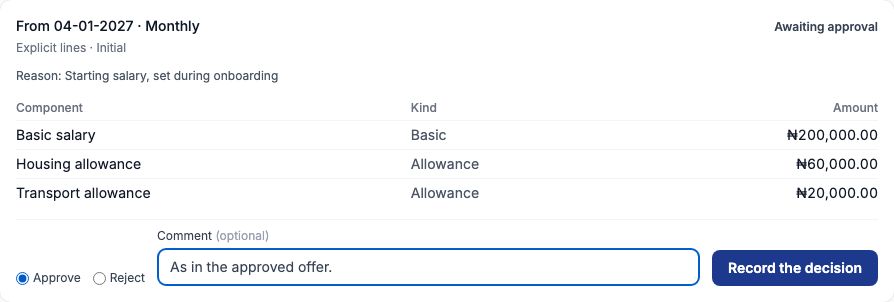
The starting salary waits on the new employee's "Salary" tab for its approver; who that is is set on "Approval chains" (process Salary change). Mrs. Ngozi Eze opened Hauwa's record, then "Salary", chose "Approve" on the change from 04-01-2027 (Basic salary ₦200,000.00, Housing allowance ₦60,000.00, Transport allowance ₦20,000.00; its reason reads Starting salary, set during onboarding), commented As in the approved offer, and pressed "Record the decision". Back on the onboarding we pressed "Resume": step 5 became Done, which also completed checklist items 5 (Bank / payroll information) and 12 (Payroll setup).
14. Work through the checklist
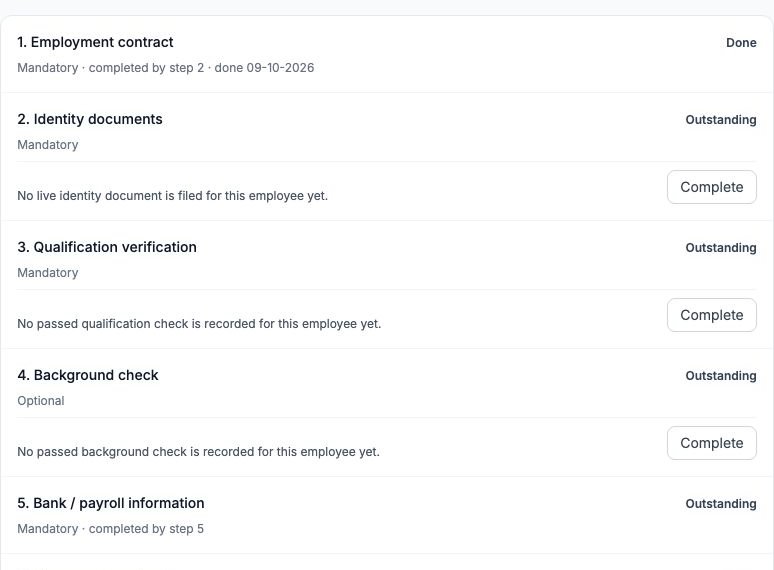
Below the steps is the checklist: thirteen items, each Mandatory or Optional. Items the steps produce tick themselves (employment contract, emergency contacts, department, payroll, leave). The rest you complete by pointing at the evidence. For Hauwa's identity documents we filed her NIN slip in the Identity documents category on her "Documents" tab, then chose it on item 2 and pressed "Complete". For qualification verification (her degree and TRCN registration) we recorded a passed Qualification check on her "Vetting" tab, chose Qualification check, passed 09-10-2026 on item 3 and pressed "Complete". Item 7 takes a note in "Policy title, version and the date it was acknowledged" — use it for the staff handbook signed at the first-day induction. Item 9 creates her login ("Email (the username)", names, "Create the login") and item 10 gives it a role ("Role the login is given", "Provision the access"). Do the optional items first: see the next section.
15. A complete onboarding
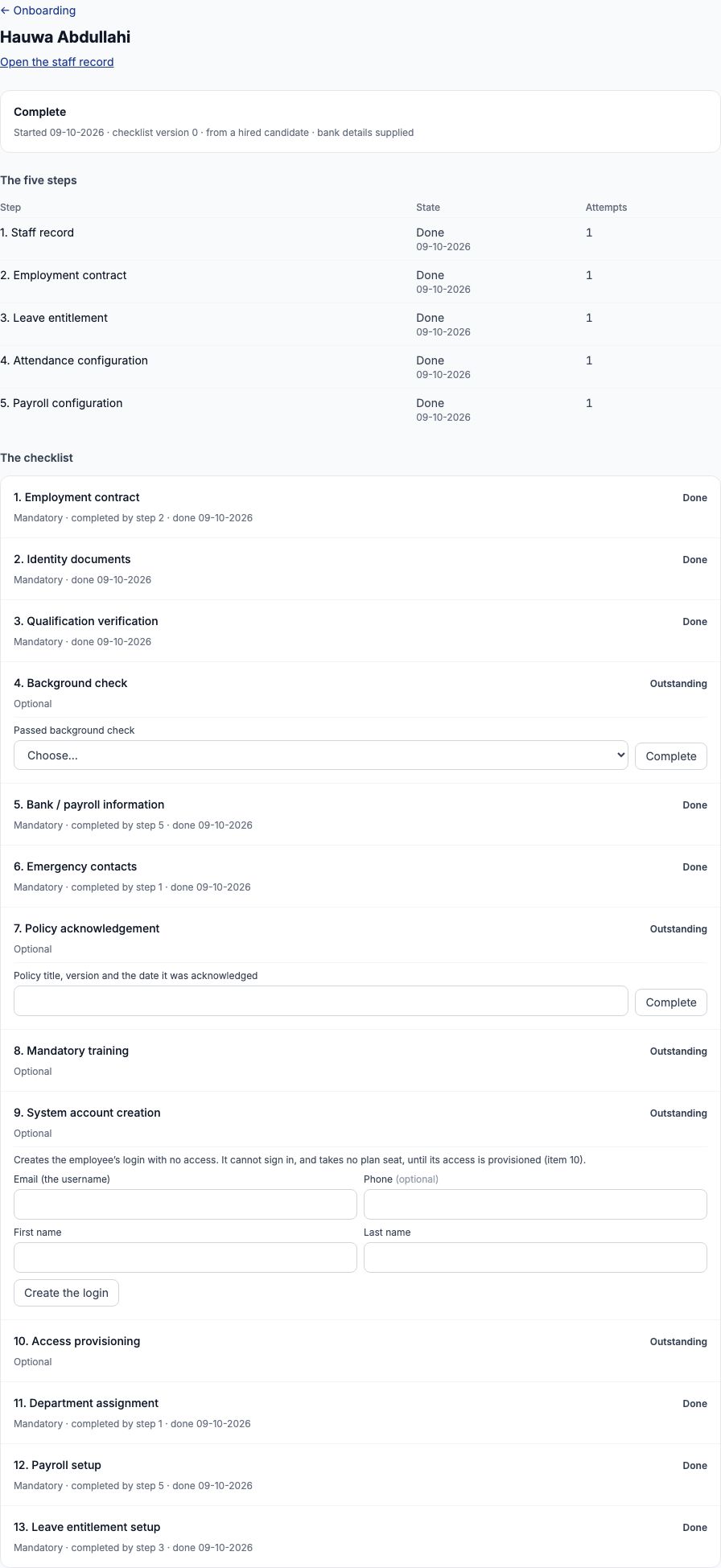
The onboarding becomes Complete the moment no mandatory item is outstanding. When we completed Hauwa's qualification verification it said Item completed. The onboarding is complete. The optional items (background check, policy acknowledgement, mandatory training, login and access) stay Outstanding until you complete them, and they can still be completed after the onboarding is Complete — Hauwa's passed police check is on her "Vetting" tab, so it can be chosen on item 4 and recorded with "Complete". Her staff record ("Open the staff record") shows GMC-011, Active, Teaching, Sciences, Subject Teacher, Permanent, employed from 04-01-2027, with her contract, leave, work schedule and salary already in place. Her onboarding is also on her record's "Onboarding" tab.
16. Your school's own checklist
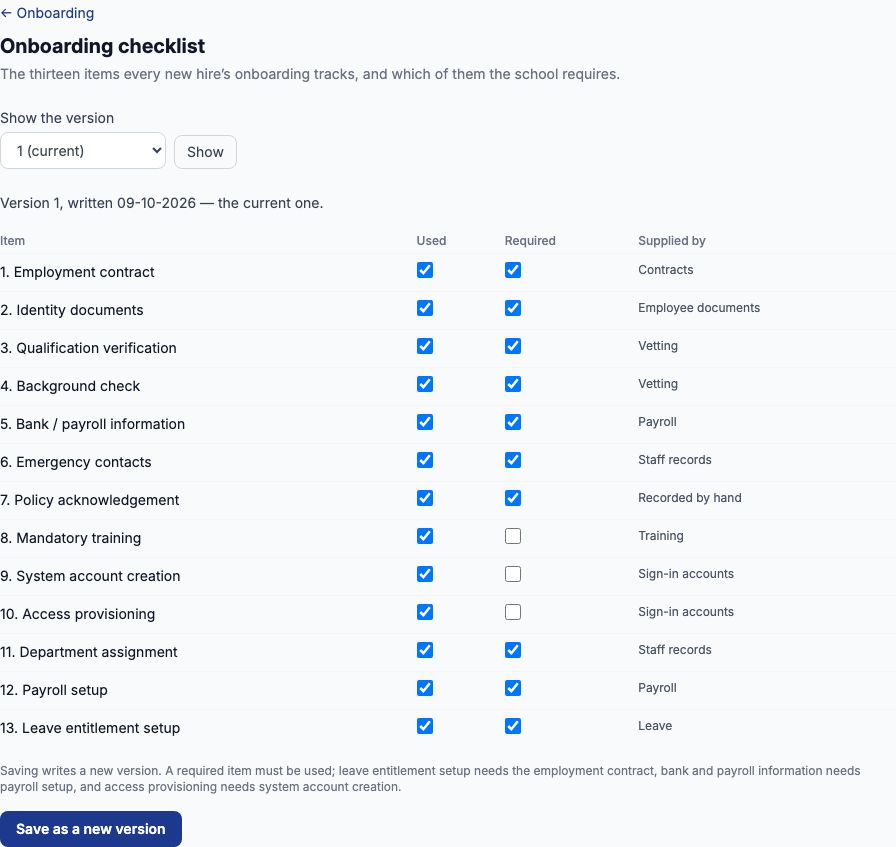
Open "Onboarding checklist" from the HR menu to decide which of the thirteen items your school uses and requires. Clear an item's Used box if you never track it; tick its Required box to make it block completion. Some items depend on others: leave entitlement setup needs the employment contract, bank and payroll information needs payroll setup, and access provisioning needs system account creation. "Supplied by" says which part of Tocademy completes each item, or Recorded by hand when you complete it yourself. Greenfield made the background check and the policy acknowledgement required, then pressed "Save as a new version". Each save is a new version (the first was version 0, the built-in default); onboardings already started keep the version they began with, so Hauwa's stays on version 0. Pick an earlier one in "Show the version" to see what it required.
17. Close the vacancy
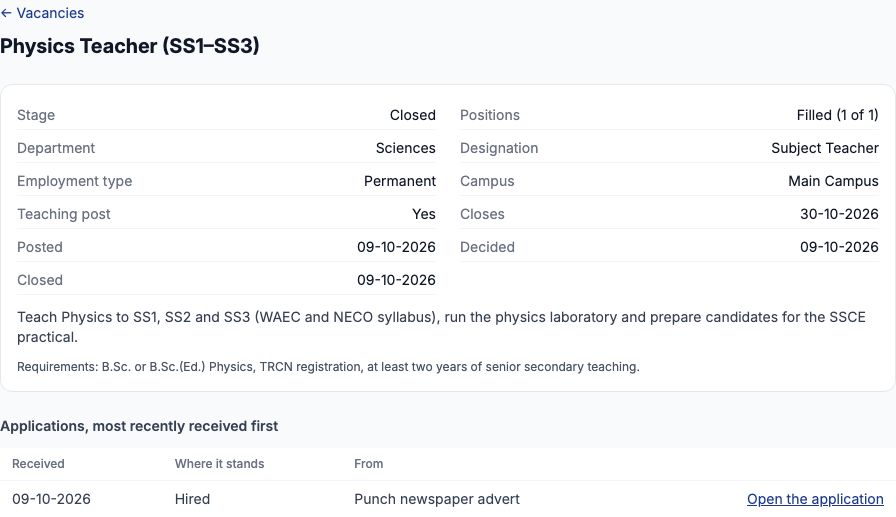
With Hauwa hired, the vacancy shows Filled (1 of 1) and stops offering "Receive an application". Its list of applications, most recent first, shows Hauwa as Hired and, until his details are purged (next section), Oluwaseun as Rejected at received; after the purge only Hauwa's application is listed. Use "Close the vacancy" so that the post is finished; the "Vacancies" list keeps it, and its "Stage" filter (Draft, Pending approval, Posted, Closed and so on) helps you find open posts. If a post is no longer needed before anyone is hired, cancel it instead with a reason.
18. Removing an unsuccessful candidate's personal data
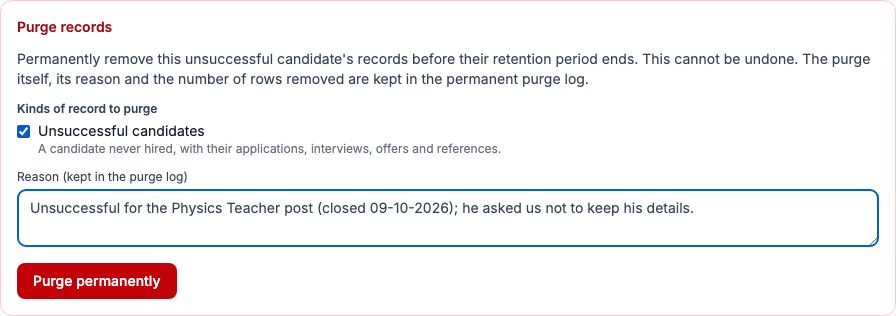
Tocademy keeps unsuccessful candidates' records for the school's retention period. When a candidate asks you to delete their details sooner, a person with the permission to purge HR records can do it from the candidate's page: once every application they made is unsuccessful, "Purge records" appears at the bottom. Oluwaseun Ajayi asked us not to keep his details, so we ticked Unsuccessful candidates, wrote the reason in "Reason (kept in the purge log)" and pressed "Purge permanently". His record, application, qualifications, experience and referee were removed — the page lists how many of each — and the purge itself, its reason and the counts stay in the permanent purge log. This cannot be undone.
Still stuck?
Email info@tocel.ng and tell us which guide you were following.