Appraisals and Teacher Evaluation
Set up rating scales and a teacher evaluation template, run a termly appraisal cycle with self, principal and peer reviews, get each appraisal approved, and let staff read and acknowledge their result.
1. How an appraisal fits together
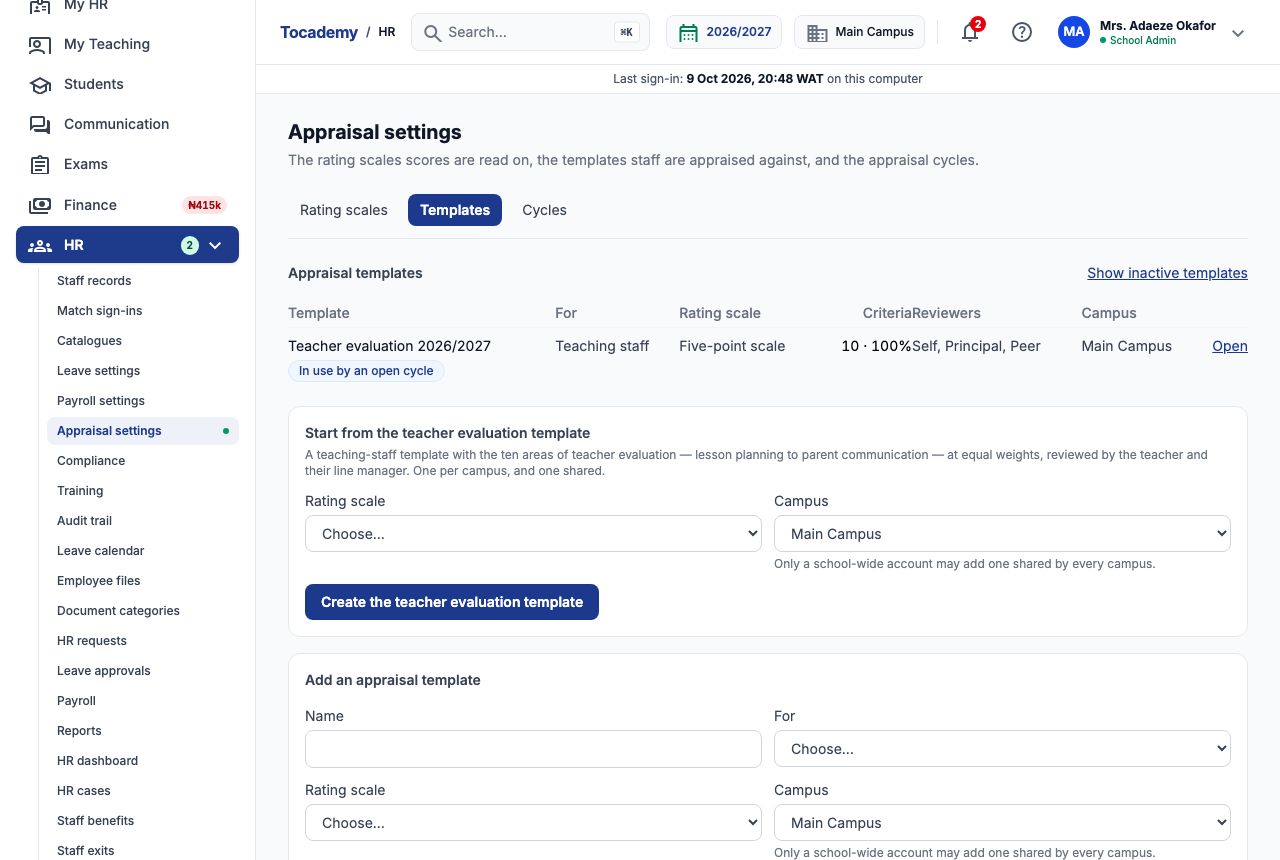
Appraisals are built from three settings and one record per employee. A rating scale says what the scores mean (for example 1 to 5, with 4.5 and above read as Outstanding). A template lists the criteria staff are scored on, how much each one weighs, and who reviews: the employee themself, their line manager, the Principal, a head of department, a peer, and optionally pupils and guardians. A cycle is one appraisal round, such as the First Term of 2026/2027, using one template. When a cycle opens, HR creates an appraisal for each employee the template covers, assigns reviewers, and each reviewer scores the criteria. HR then submits the appraisal, Tocademy works out the overall score and rating, the school's approval chain approves it, and the employee reads and acknowledges it. All of the setup lives on "Appraisal settings" in the HR menu, in three tabs: "Rating scales", "Templates" and "Cycles".
2. Add a rating scale
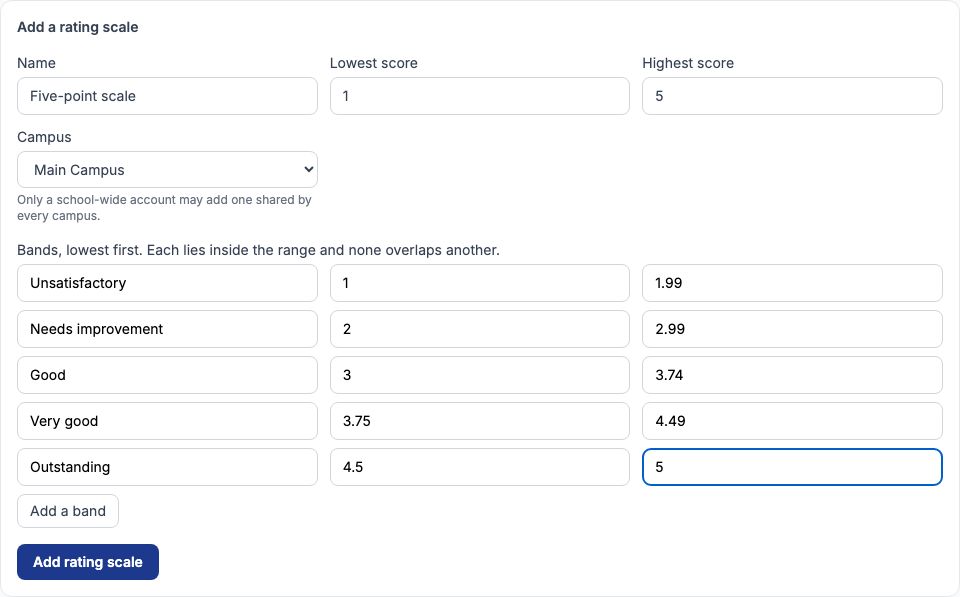
Open the "Rating scales" tab. Under "Add a rating scale" give it a "Name", a "Lowest score" and a "Highest score" (whole numbers from 0 to 100), then list the bands from lowest to highest — each band has a label and a From and To score, inside the range and not overlapping. Press "Add a band" if you need more rows. Greenfield Model College added a "Five-point scale" from 1 to 5 with five bands: Unsatisfactory 1 to 1.99, Needs improvement 2 to 2.99, Good 3 to 3.74, Very good 3.75 to 4.49 and Outstanding 4.5 to 5. Press "Add rating scale" to save it. Choose the campus the scale belongs to, or "Shared by every campus" if you have a school-wide account.
3. The bands give the rating
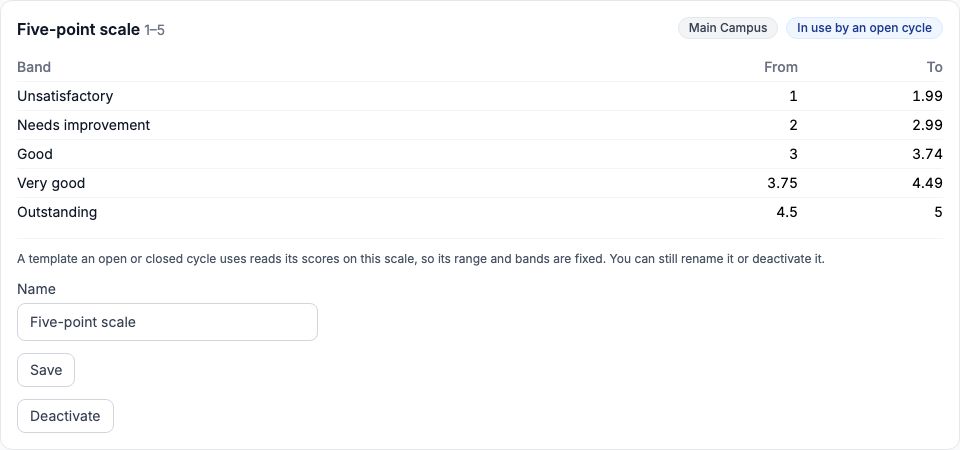
The saved scale shows its bands. When an appraisal is submitted, its overall score is read against these bands and the matching label becomes the employee's rating — at Greenfield an overall score of 4.14 falls in 3.75 to 4.49, so it reads "Very good". You can rename a scale and change its bands until an open cycle uses it. From then on its range and bands are fixed (the scale shows "In use by an open cycle"), so every appraisal in that cycle is read the same way; you can still rename it or press "Deactivate" so it is not offered for anything new.
4. Start from the teacher evaluation template
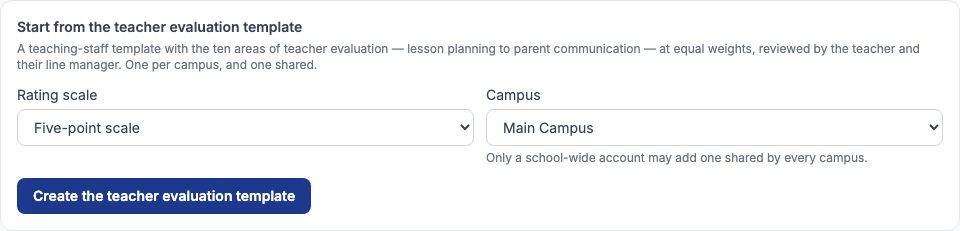
Open the "Templates" tab. The quickest start for teachers is "Start from the teacher evaluation template": choose your scale in "Rating scale" and press "Create the teacher evaluation template". Tocademy creates a teaching-staff template with the ten areas of teacher evaluation — lesson planning, lesson delivery, classroom management, student engagement, assessment quality, professional conduct, attendance and reliability, collaboration, professional development and parent communication — at 10% each, reviewed by the teacher and their line manager. Each campus can have one, plus one shared by every campus. For non-teaching staff, use "Add an appraisal template" below it and set "For" to "Non teaching staff" or "All staff".
5. Set the criteria and their weights
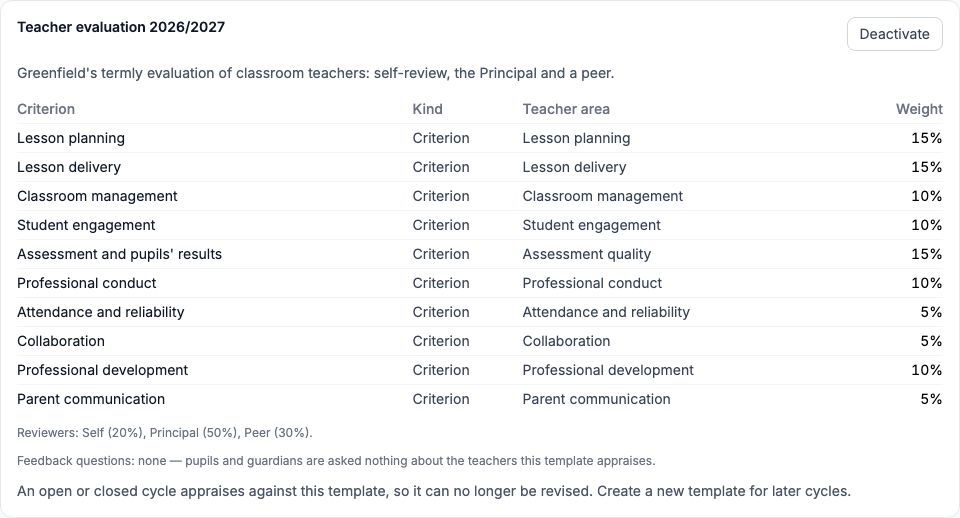
Press "Open" beside the template to see it and revise it. Each criterion has a name, a kind (Criterion, Competency, KPI or KRA), a weight and, on a teaching-staff template, the teacher area it measures. The weights must total exactly 100 — the form keeps a running total as you type ("Weights total 100 of 100." when it is right) and will not save at any other figure. Press "Add a criterion" to add a row. Greenfield renamed it "Teacher evaluation 2026/2027", gave lesson planning, lesson delivery and assessment 15% each, renamed the assessment criterion "Assessment and pupils' results" so that results count, kept classroom management, student engagement, professional conduct and professional development at 10%, and set attendance, collaboration and parent communication at 5%.
6. Choose who reviews, and how much each counts
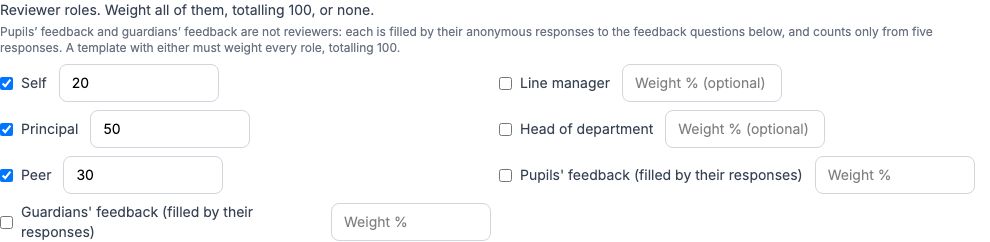
Under "Reviewer roles" tick each role that reviews: "Self", "Line manager", "Principal", "Head of department" and "Peer". Either weight every ticked role so the weights total 100, or weight none and let each review count equally. Greenfield ticked Self at 20%, Principal at 50% and Peer at 30%, and unticked Line manager. Pupils' feedback and guardians' feedback are not reviewers: if you add feedback questions at the bottom of the form (each rated 1 to 5 and asked of pupils, guardians or both), pupils answer on the "Teacher feedback" page of their portal and guardians on the "Teacher feedback" page of the parent portal, anonymously. Their answers count only from five responses about a teacher, and a template that uses them must weight every role. Press "Save revision" when done. Once an open cycle uses a template it can no longer be revised; make a new one for later cycles.
7. Add an appraisal cycle
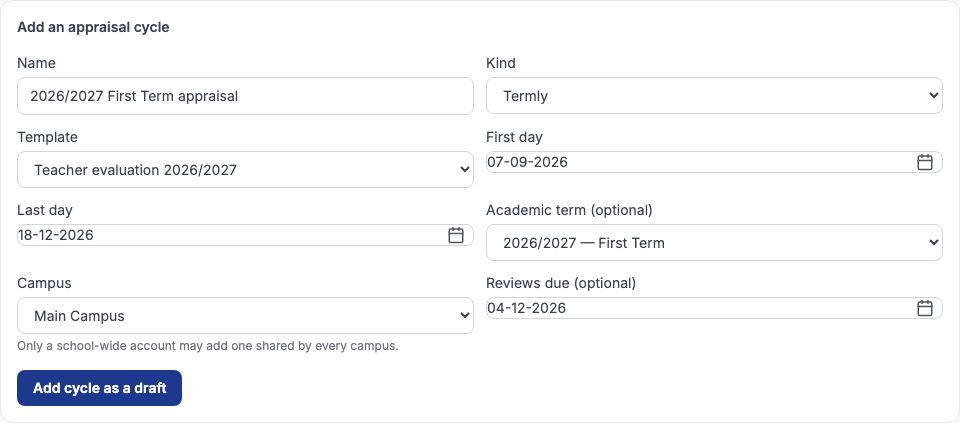
Open the "Cycles" tab and fill in "Add an appraisal cycle": a "Name", the "Kind" (Annual, Termly, Semester, Probationary or Other), the "Template", the "First day" and "Last day", and optionally the "Academic term (optional)" and "Reviews due (optional)". Greenfield named it "2026/2027 First Term appraisal", chose "Termly" and "Teacher evaluation 2026/2027", ran it from 07-09-2026 to 18-12-2026 for "2026/2027 — First Term", and asked for reviews by 04-12-2026. Press "Add cycle as a draft".
8. Open the cycle
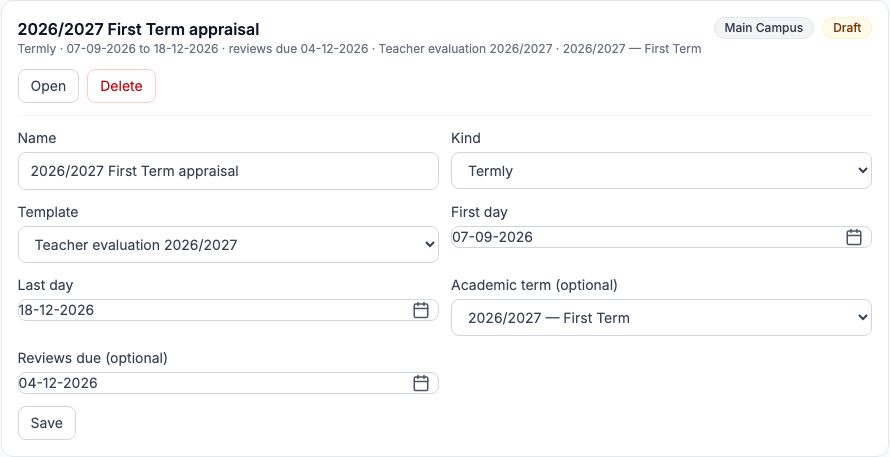
A draft cycle can still be changed in full, or removed with "Delete". When it is right, press "Open". Opening fixes the cycle's template and that template's rating scale, so nobody can change the rules halfway through the term; after that only the cycle's name and the review due date can change. At the end of the round press "Close" — a closed cycle is never reopened, and its feedback figures are kept as they stood. Once the cycle is open, choose "Appraisals in this cycle" under it.
9. Create the appraisals
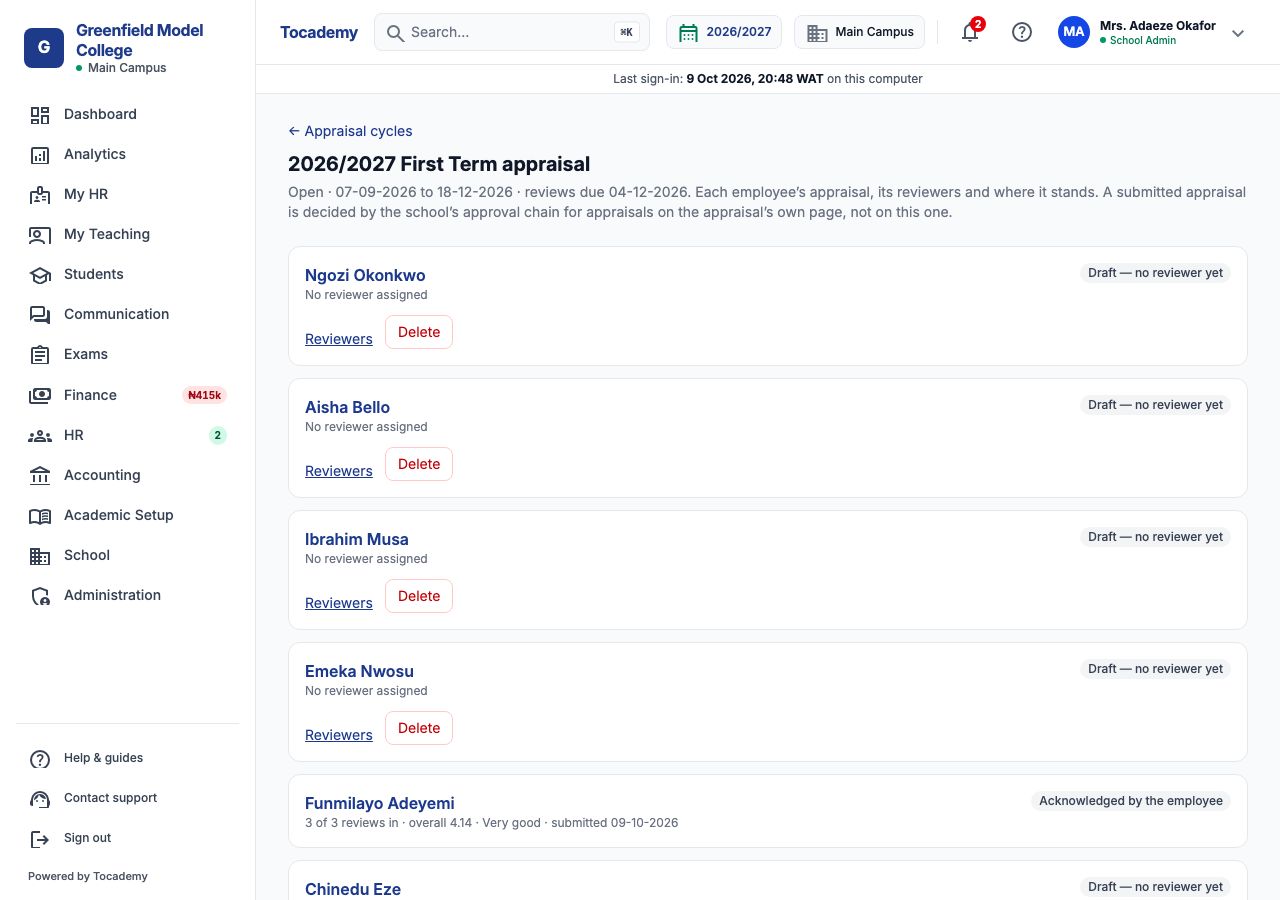
On the cycle's page press "Create for the audience". Tocademy creates one draft appraisal for every employee the template covers who does not have one yet, and tells you who was skipped and why. At Greenfield it created six appraisals — Chinedu Eze, Funmilayo Adeyemi, Ibrahim Musa, Ngozi Okonkwo, Aisha Bello and Emeka Nwosu — and skipped Grace Ojo, Tunde Bakare and the support staff because the template covers teaching staff only. Run it again after a new teacher joins: it only adds what is missing. A draft that was never submitted can be removed with "Delete".
10. Example: assign Funmilayo Adeyemi's reviewers
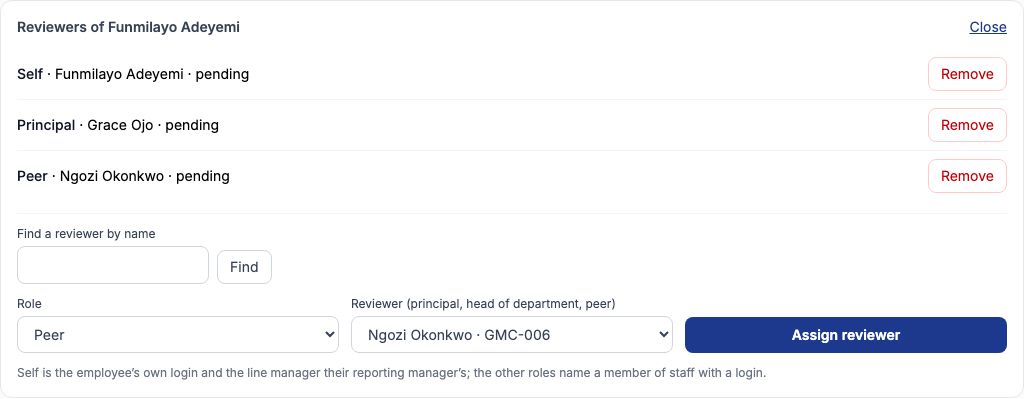
Choose "Reviewers" under Funmilayo Adeyemi. In "Role" choose "Self" and press "Assign reviewer" — Self is always the employee's own login, and Line manager is always the person they report to, so neither needs a name. Then choose "Principal" as the role, pick "Grace Ojo · GMC-001" in "Reviewer (principal, head of department, peer)" and press "Assign reviewer"; then "Peer" with Ngozi Okonkwo, the other English Language teacher. Use "Find" to search the list by name. Each reviewer is told they have a review to do. A pending reviewer can be taken off with "Remove"; a submitted review stays on the record.
11. The self-review
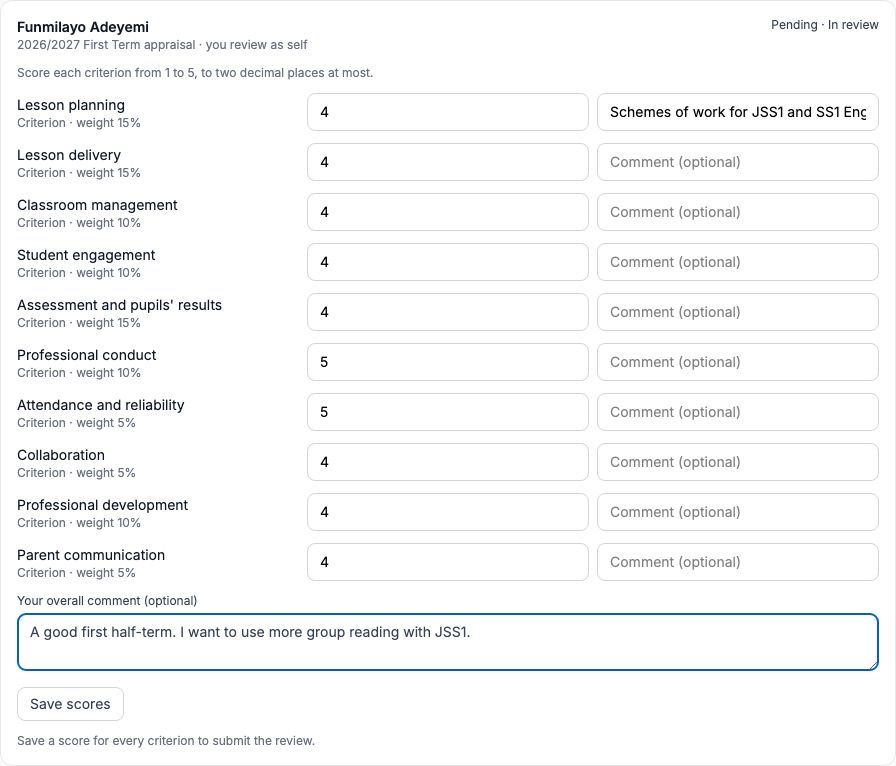
Every reviewer works from "My HR" → "Appraisals I review". Funmilayo signed in, opened it and saw her own appraisal with "you review as self". She scored each criterion from 1 to 5 (two decimal places at most), added an optional comment beside any score, wrote "Your overall comment (optional)" and pressed "Save scores" — she can save part of it and come back. When every criterion had a score she pressed "Submit my review"; after that her review is fixed unless HR reopens the appraisal. She gave herself 4 for most criteria and 5 for professional conduct and attendance, which works out at 4.15.
12. The Principal's and the peer's reviews
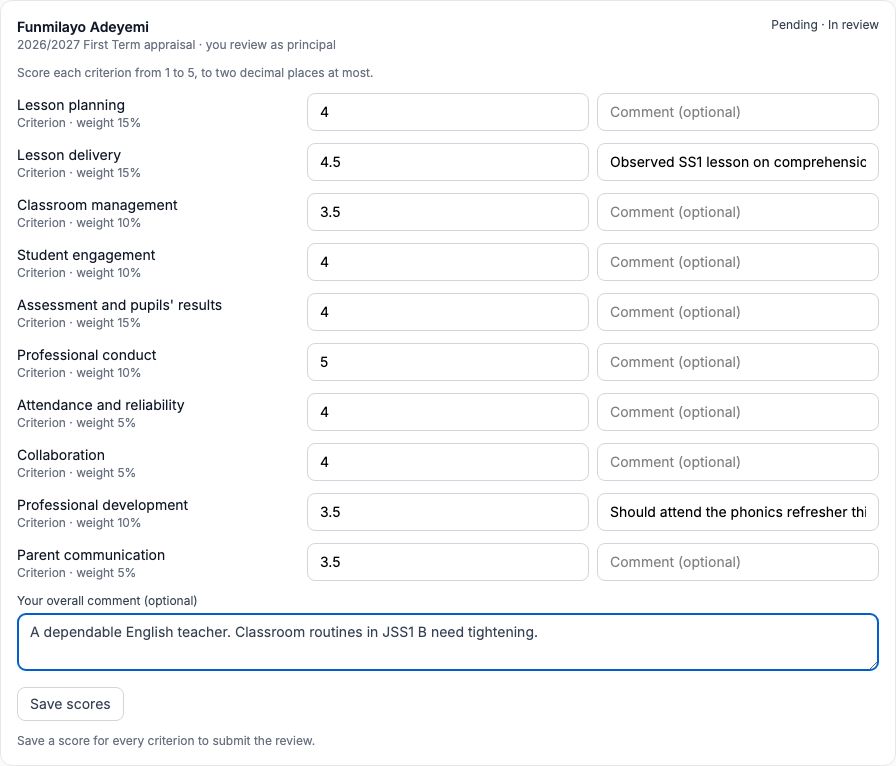
Grace Ojo, the Principal, did the same from her own "Appraisals I review", where it reads "you review as principal". She scored from a lesson she observed — 4.5 for lesson delivery, 3.5 for classroom management, professional development and parent communication, 5 for professional conduct — and commented that routines in JSS1 B need tightening: 4.05 overall. Ngozi Okonkwo reviewed as peer and came to 4.28. Reviewers see only their own review, never each other's.
13. Submit it: how the overall score is worked out
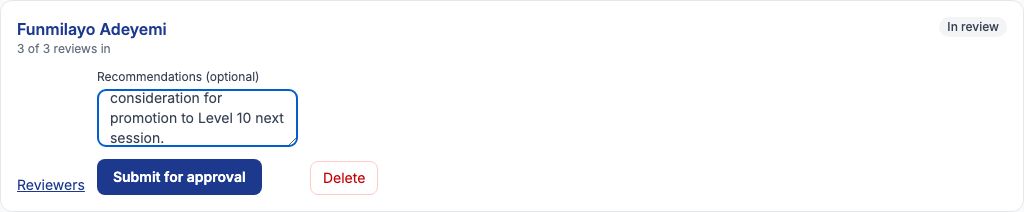
When every assigned review is in, the cycle page shows "3 of 3 reviews in" and HR can press "Submit for approval", with optional "Recommendations (optional)" — Greenfield recommended the Jolly Phonics refresher on 14-11-2026 and a reading clinic next term. Tocademy then fixes the score. Each reviewer's score is their criterion scores weighted by the criteria: Funmilayo's self-review 4.15, Grace Ojo's 4.05 and Ngozi Okonkwo's 4.28. Those are then weighted by role: 4.15 × 20% = 0.83, 4.05 × 50% = 2.025 and 4.28 × 30% = 1.284, which add up to 4.139 — an overall score of 4.14, in the Very good band.
14. Approve or reject it
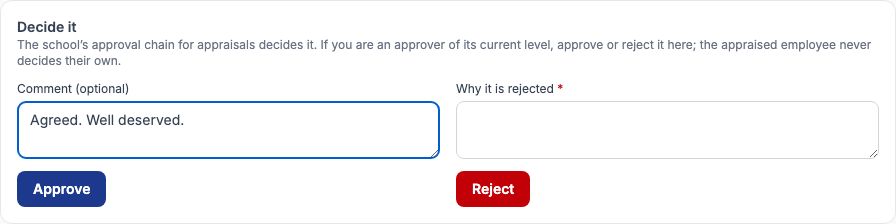
A submitted appraisal waits for the school's approval chain for appraisals (set under "Approval chains" in the HR menu); the person who submitted it cannot approve it, and nor can the employee. An approver opens the appraisal's own page — from the cycle or from their approvals — and sees "Decide it". Grace Ojo added "Agreed. Well deserved." in "Comment (optional)" and pressed "Approve". To send it back instead, write "Why it is rejected" and press "Reject"; HR can then press "Reopen for its reviewers" on the cycle page so the reviews can be revised and submitted again.
15. Reading one appraisal
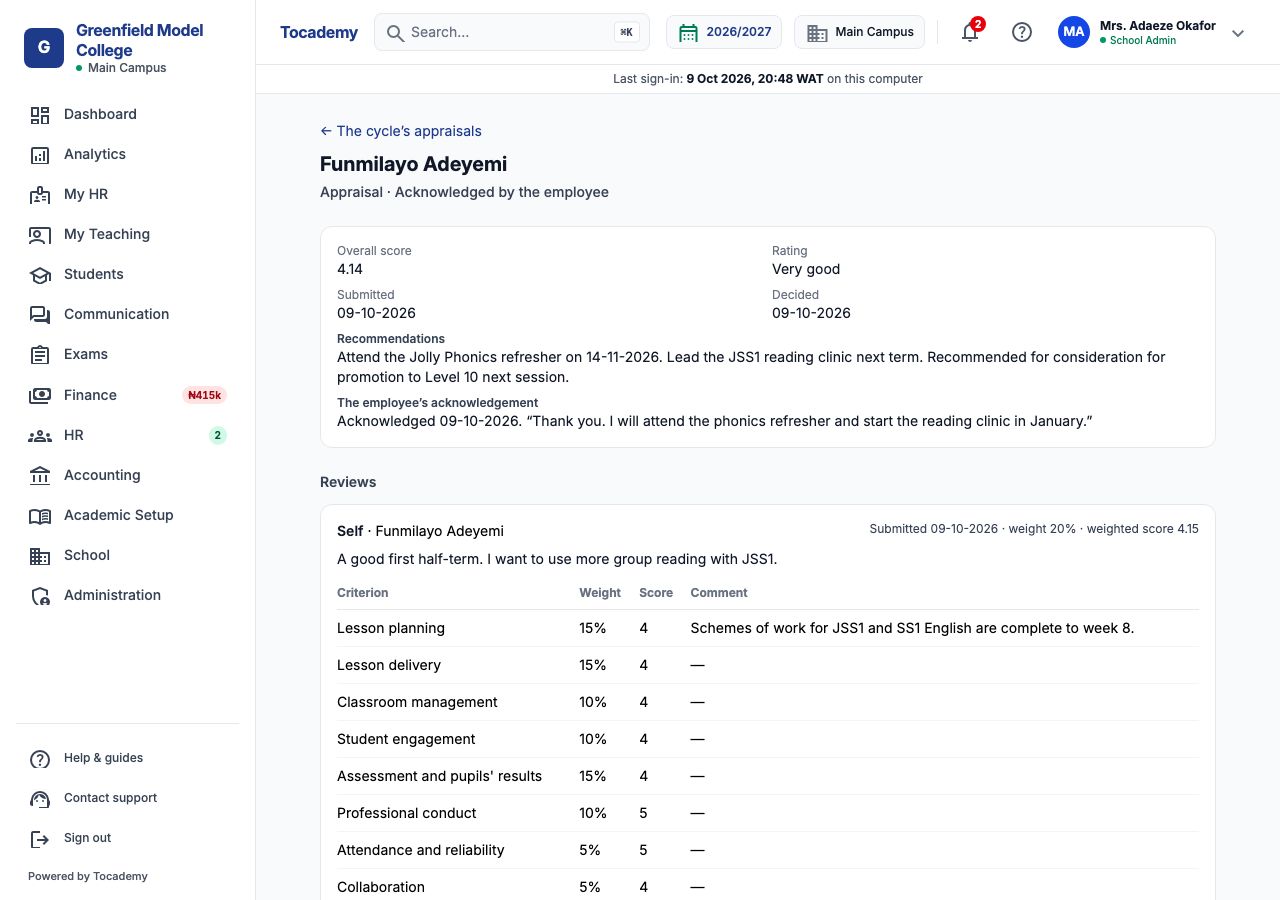
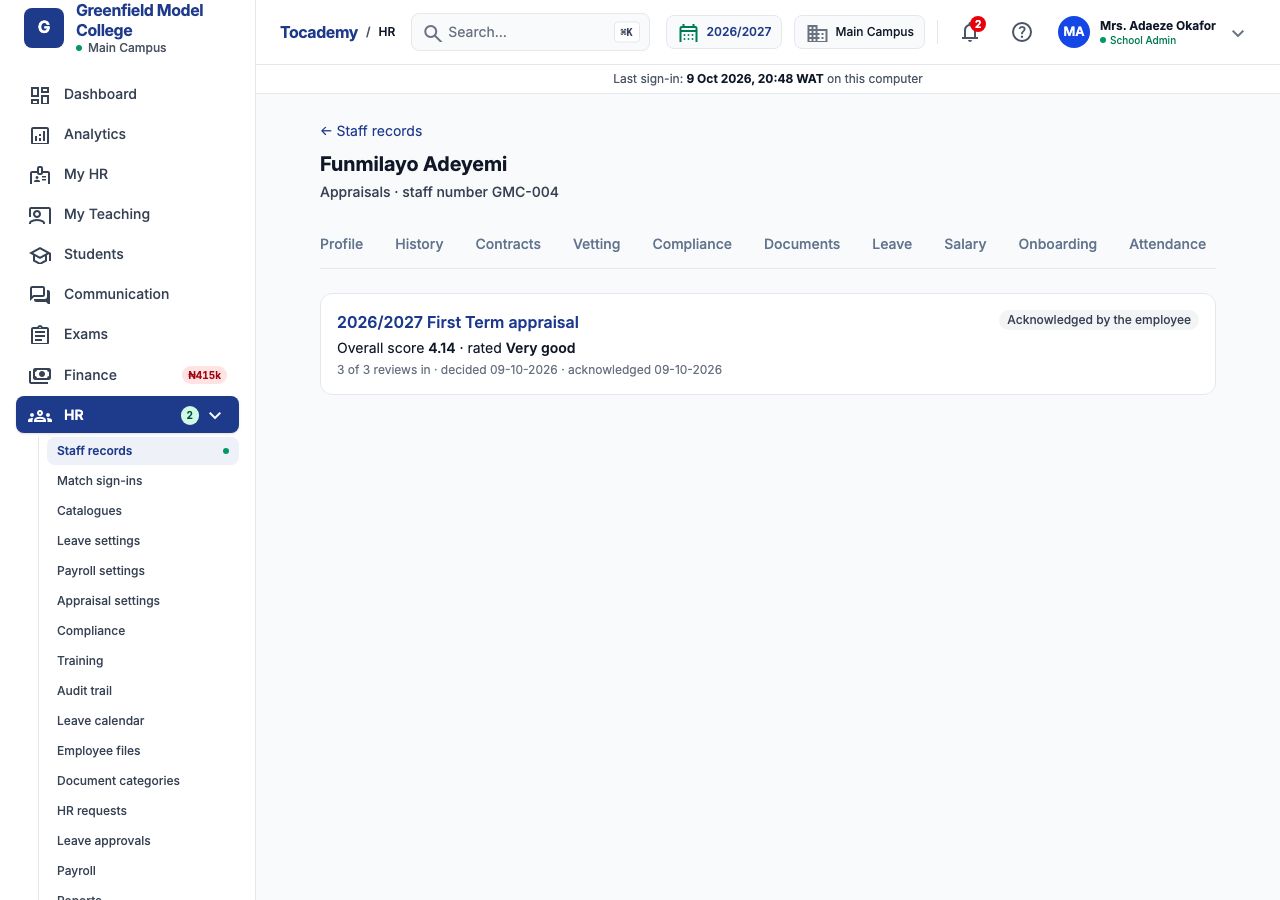
The appraisal page shows where it stands, the "Overall score" and "Rating", when it was submitted and decided, the recommendations, the employee's acknowledgement, and every review — role, reviewer, weight, the reviewer's score, their comment and each criterion's score. Funmilayo's reads "Acknowledged by the employee" with 4.14, Very good. Below the reviews, "Teacher analytics (evidence)" opens the teacher's figures (see step 18).
16. What the teacher sees
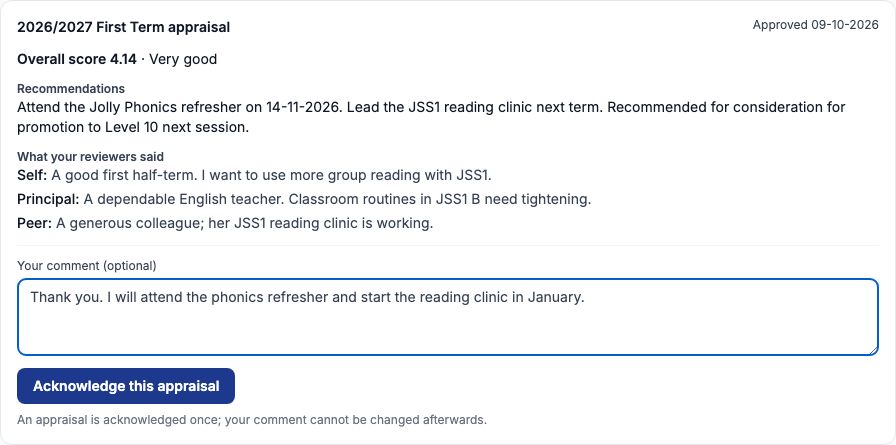
A member of staff sees nothing of their appraisal until it is approved. Then it appears on "My HR" → "My appraisals": the cycle, the overall score and rating, the recommendations, and what each reviewer said by role (Self, Principal, Peer) — never the reviewer's name, and never pupils' or guardians' comments, only their figures. Funmilayo wrote a reply in "Your comment (optional)" and pressed "Acknowledge this appraisal". An appraisal is acknowledged once, and the comment then becomes part of the record HR sees.
17. A staff member's appraisal history
Every appraisal an employee has had, newest first, is on the "Appraisals" tab of their staff record. The score and rating show only once an appraisal is approved; before that the row says where it stands. Funmilayo's tab shows the 2026/2027 First Term appraisal, overall score 4.14, rated Very good, 3 of 3 reviews in, decided and acknowledged on 09-10-2026. Each row opens the full appraisal.
18. Teacher analytics: evidence for the appraiser
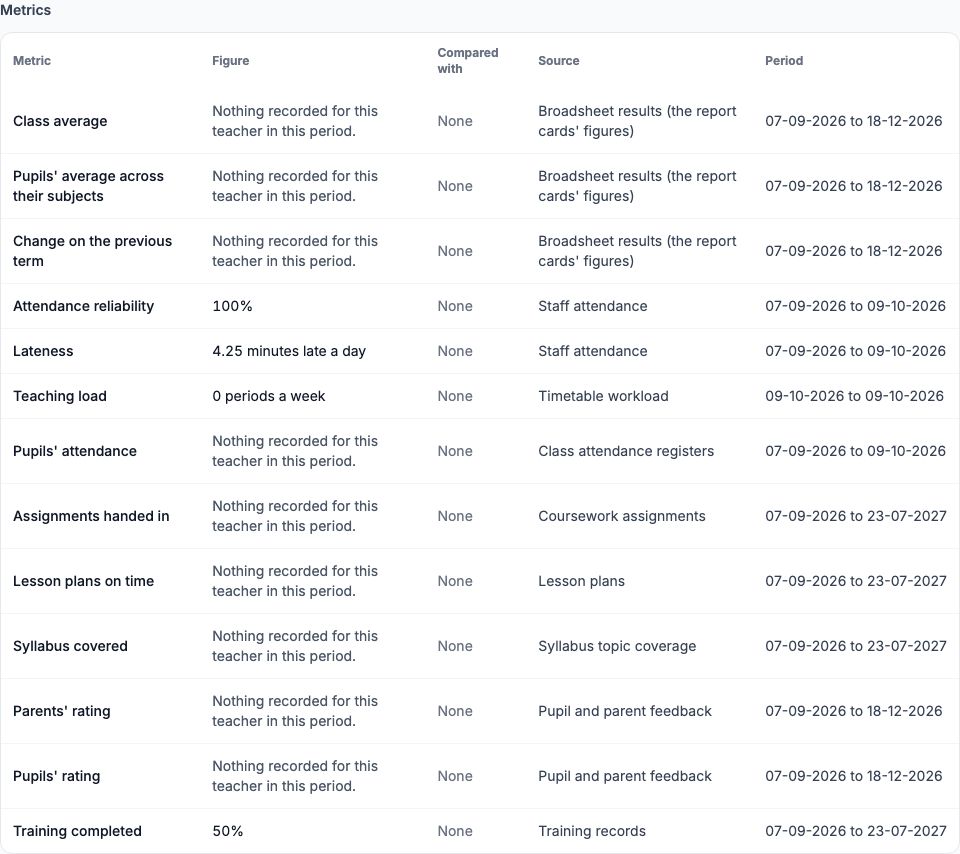
The "Analytics" tab of a teacher's staff record lists raw figures for the chosen "Academic year" and "Term" (press "Show"): class average, pupils' average and the change on the previous term from the report-card results, attendance and lateness, teaching load, pupils' attendance, assignments handed in, lesson plans on time, syllabus covered, pupils' and parents' ratings, and training completed. Each figure stands alone with its source, and none of them changes an appraisal's score — they are evidence for the reviewers. A figure with nothing behind it says so in words rather than showing zero. Lesson plans come from teachers' "My lesson plans" and their heads' "Review lesson plans"; syllabus coverage needs the syllabus set up on "Lesson-plan settings".
Still stuck?
Email info@tocel.ng and tell us which guide you were following.