When Staff Leave
Record a resignation, retirement or other exit, have it approved, clear the employee (handover, school property, departments, documents, exit interview), settle their leave, and see what Tocademy does on their last working day.
1. Staff exits at a glance
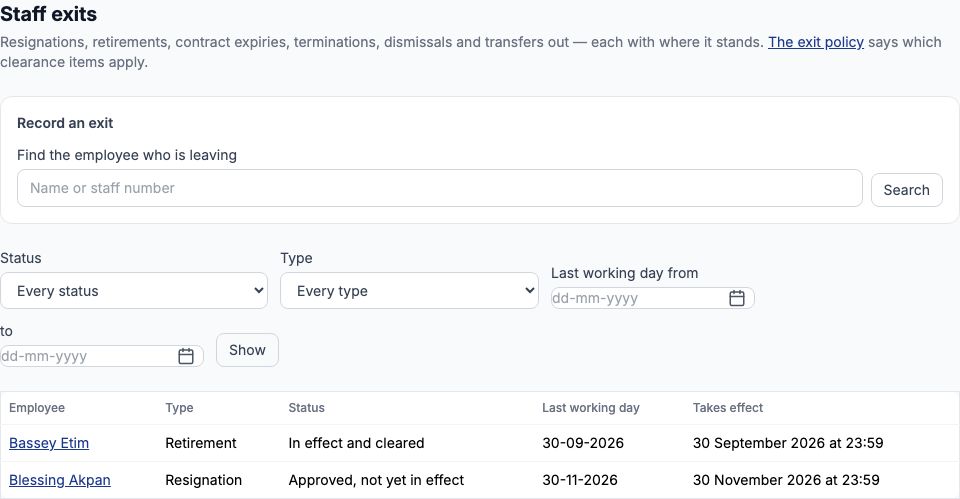
Open "Staff exits" from the HR menu. The page lists every exit — resignations, retirements, contract expiries, terminations, dismissals and transfers to another organisation — with its type, status, last working day and the moment it takes effect. An exit's status tells you where it stands: Awaiting approval, Approved, not yet in effect, In effect, clearance outstanding, In effect and cleared, or Closed (rejected, withdrawn or rescinded). Narrow the list with "Status", "Type" and the last-working-day dates, then press "Show". The two exits in this guide are Blessing Akpan, a part-time cleaner who resigned, and Bassey Etim, a security guard who retired.
2. The exit policy: what clearance means at your school
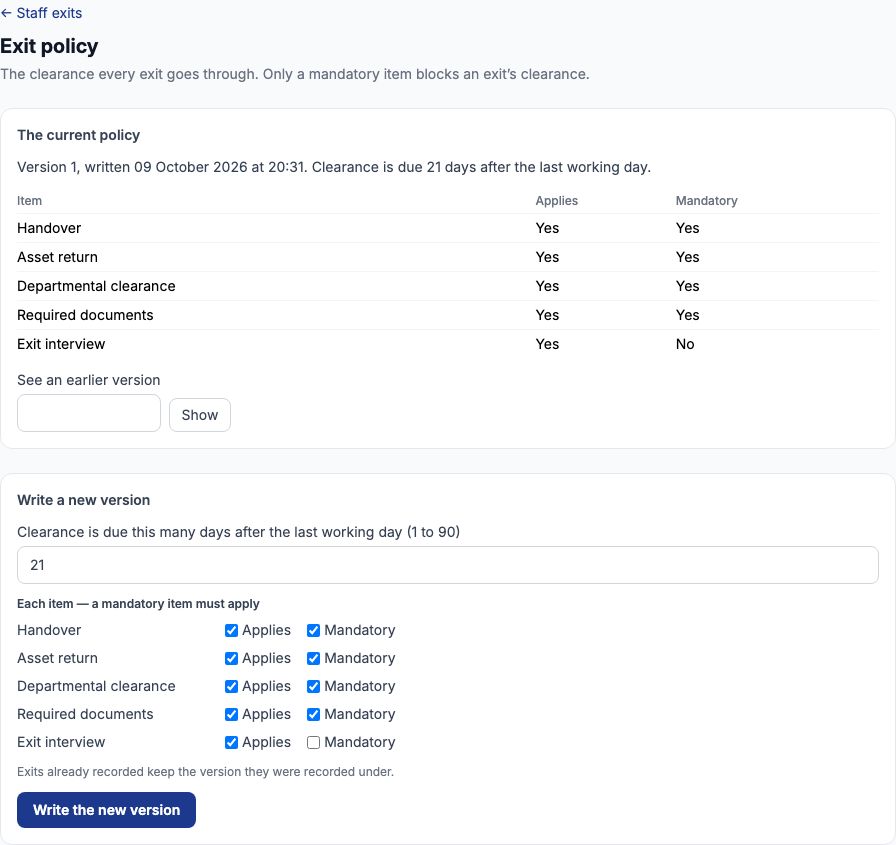
Open "The exit policy" from the top of the Staff exits page. It lists the five clearance items every exit goes through — Handover, Asset return, Departmental clearance, Required documents and Exit interview — whether each applies and whether it is mandatory, and how many days after the last working day clearance is due. Only a mandatory item blocks an exit's clearance. Out of the box the first three are mandatory and clearance is due in 14 days. Greenfield wanted a signed letter on file for every leaver and more time to collect property, so under "Write a new version" we set clearance to be due 21 days after the last working day, ticked "Mandatory" beside Required documents, and pressed "Write the new version". The page now shows version 1 as the current policy, and "See an earlier version" opens an older one. Exits already recorded keep the version they were recorded under. Writing the policy needs the permission to approve exits.
3. Who approves an exit
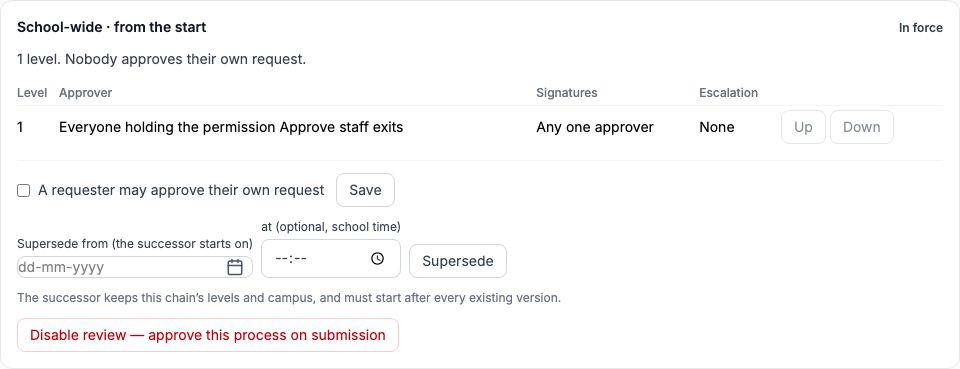
Every exit is approved by somebody other than the person who records it. Open "Approval chains" from the HR menu and pick Staff exit in "Process" to see who that is. At Greenfield the chain is one level, approved by any one person holding the permission to approve exits, and nobody approves their own request. A school can add levels (for example the Principal, then the proprietor), but think twice before pressing "Disable review — approve this process on submission": an exit ends somebody's employment.
4. Example: recording Blessing Akpan's resignation
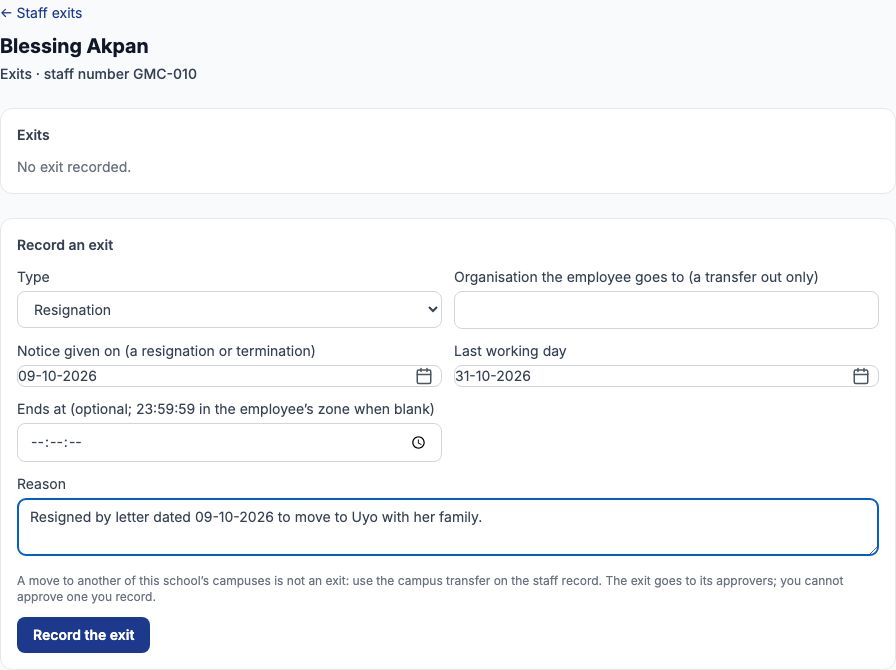
Blessing Akpan (GMC-010) has cleaned Block B part-time since January 2025. On 9 October 2026 she handed the Principal a letter resigning to move to Uyo with her family. On the Staff exits page, type her name in "Find the employee who is leaving", press "Search" and open her name. Under "Record an exit", choose Resignation in "Type", set "Notice given on (a resignation or termination)" to 09-10-2026 and the "Last working day" — she first asked for 31-10-2026 — and write the "Reason". Leave "Ends at" blank and the exit takes effect at 23:59:59 on the last working day. "Organisation the employee goes to (a transfer out only)" is for a transfer to another school or employer; a move to another of your own campuses is not an exit at all — use the campus transfer on the staff record. Press "Record the exit".
5. Approving, rejecting or withdrawing the exit
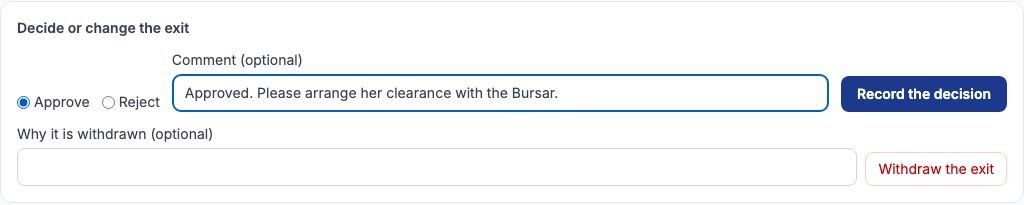
The exit opens at Awaiting approval, with its clearance list already set out under version 1 of the policy. The approver — at Greenfield, Mrs. Ngozi Eze — opens it, chooses "Approve" (or "Reject"), adds a "Comment (optional)" and presses "Record the decision". While it is still awaiting approval, the person managing it can call it off instead with "Withdraw the exit". Once approved, the status becomes Approved, not yet in effect and the page shows who decided it and when.
6. Rescheduling or rescinding an approved exit
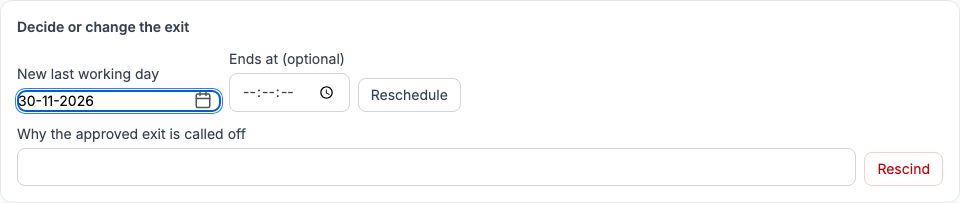
Until an approved exit takes effect, an approver can change it under "Decide or change the exit". The Bursar asked Blessing to stay until a replacement started, and she agreed, so we typed 30-11-2026 in "New last working day" and pressed "Reschedule"; the page confirmed Rescheduled to 30-11-2026, and her clearance due date moved to 21-12-2026. If the employee changes their mind altogether, write it in "Why the approved exit is called off" and press "Rescind": the exit is closed and the employment carries on. Neither is possible once the exit has taken effect, because by then the employment has ended.
7. The last working day and sign-in access
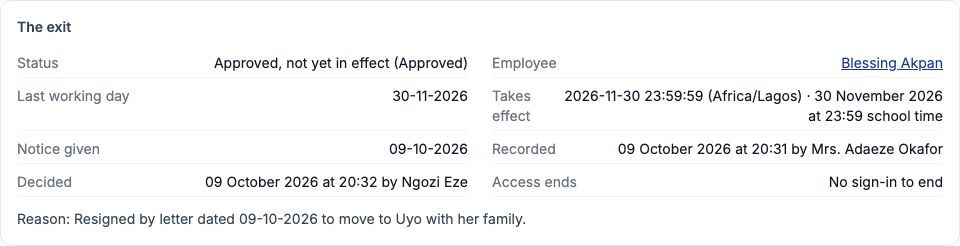
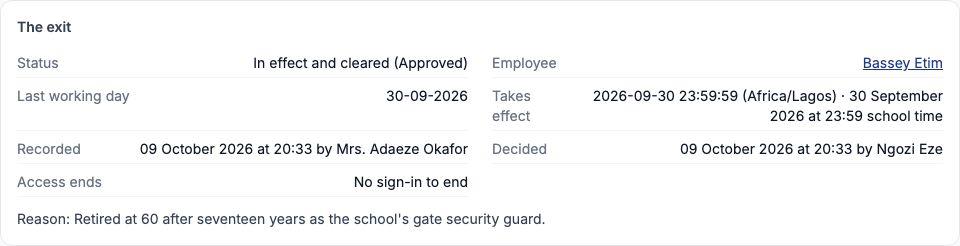
"The exit" panel shows the last working day, the exact moment the exit takes effect (in the employee's time zone and in school time), and "Access ends" — the moment any Tocademy sign-in the employee has stops working. For a teacher with a sign-in, that is when they lose My HR, the timetable and their payslips online, so plan handover of marks and class records before then. Blessing never had a sign-in, so "Access ends" reads No sign-in to end and nothing changes for her except her staff record. The panel also names who recorded the exit and who decided it. Her exit takes effect at 23:59 on 30 November 2026.
8. Clearance: the handover
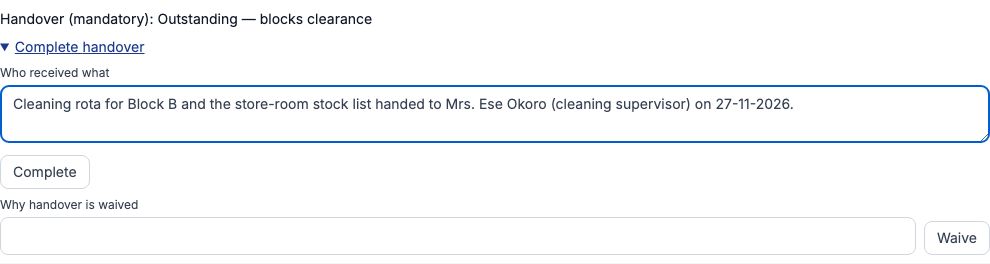
Clearance can start as soon as the exit is approved — you do not have to wait for the last day. Each item in "Clearance" says whether it is mandatory and whether it still blocks clearance. Open Complete handover, describe in "Who received what" the work, notes and records the employee handed over and to whom, and press "Complete". Blessing handed the Block B cleaning rota and the store-room stock list to Mrs. Ese Okoro, the cleaning supervisor. For a teacher this is where schemes of work, mark books and class registers go.
9. Clearance: returning school property
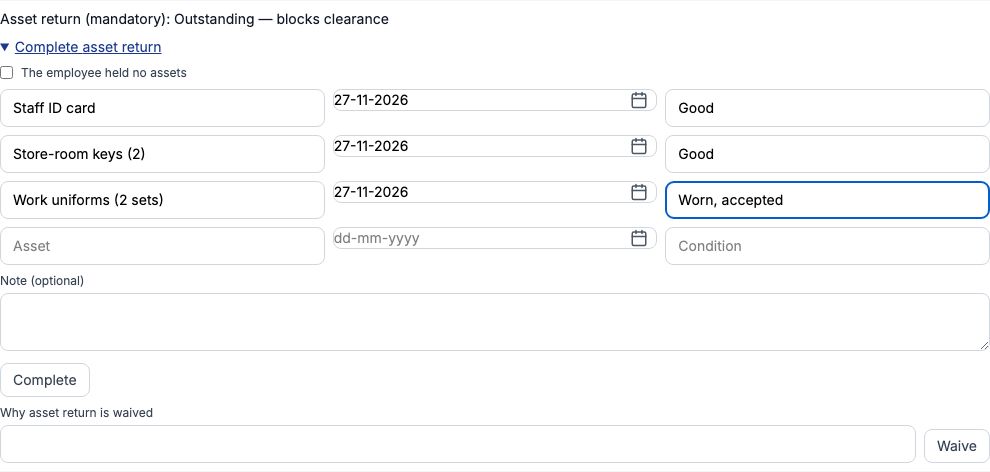
Open Complete asset return and list each item on its own row: what it is, the date it came back and its condition. Blessing returned her staff ID card and the two store-room keys in good condition, and two sets of work uniform, worn but accepted. For a teacher, list the laptop, keys, ID card and any textbooks. If the employee held nothing, tick "The employee held no assets" instead. Press "Complete".
10. Clearance: departments sign off
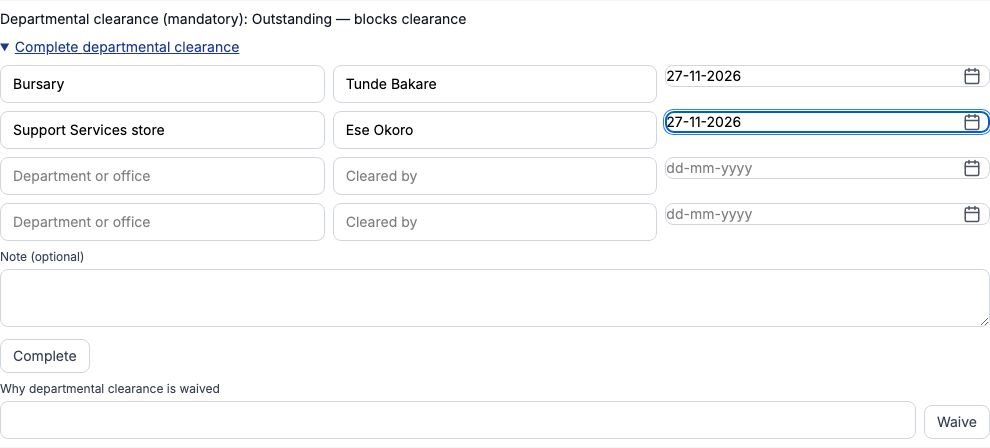
Departmental clearance records that each office that might be owed something has signed the leaver off. Open Complete departmental clearance and, for each office, type the department or office, who cleared the employee and the date. The Bursary (Tunde Bakare) confirmed Blessing owed the school nothing, and the Support Services store (Ese Okoro) confirmed her cleaning materials were returned. Press "Complete".
11. The exit's documents
At the bottom of the exit, "Documents" keeps the paperwork: choose the "Kind" — Resignation letter, Termination letter, Clearance certificate, Handover note, Exit interview record or Other — pick a PDF, PNG or JPEG of 5 MB or less and press "Upload". We uploaded a scan of Blessing's resignation letter. Press "Open" beside a document for a short-lived link to it. Documents are never deleted. Because Greenfield's policy makes Required documents mandatory, we then opened Complete required documents, chose the letter in the list of the exit's documents and pressed "Complete".

12. The exit interview and the finished clearance
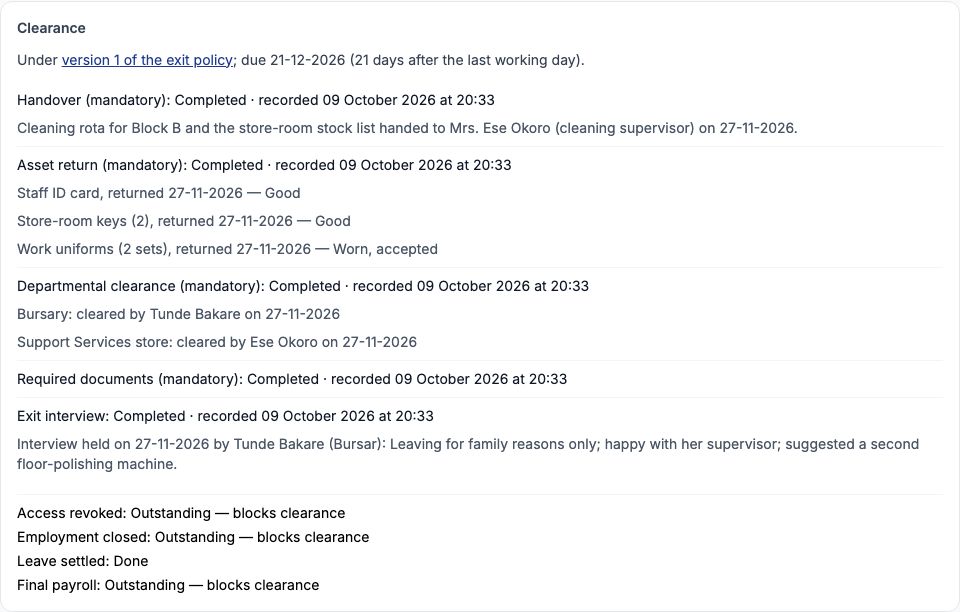
The exit interview is optional at Greenfield but worth doing. Open Complete exit interview, choose "Held" or "Declined", set the date, and for a held interview type the interviewer and a summary; press "Complete". Blessing's interview with the Bursar found she was leaving for family reasons only. Each completed item now shows its details. Below the five items are four that Tocademy completes itself: Access revoked, Employment closed, Leave settled and Final payroll. They stay outstanding until the exit takes effect and the leave is settled, and they block clearance until then.
13. Settling leave and final pay
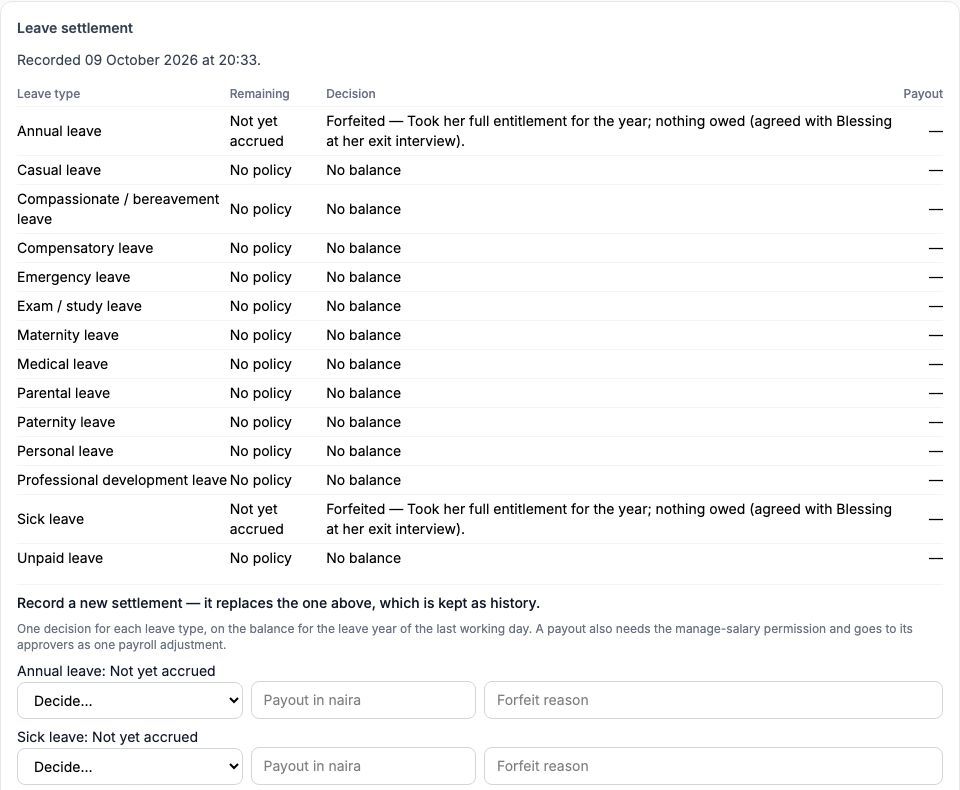
"Leave settlement" asks for one decision on each leave type, using the balance for the leave year of the last working day: "Pay out" (type the "Payout in naira"), "Forfeit" (with a reason) or "No balance". A leave type whose balance is unknown — Not yet accrued — cannot be marked No balance; run the accrual first, or forfeit it with a reason. Blessing had taken her full entitlement, so we forfeited annual and sick leave with that reason, set every other type to No balance, and pressed "Record the settlement". The recorded settlement then heads the panel, and the form below it reads Record a new settlement — it replaces the one above, which is kept as history; use it only to correct a settlement. A payout is not paid from here: it needs the permission to manage salaries and goes to its approvers as one payroll adjustment, so it reaches her final pay through payroll. Final payroll is one of the items Tocademy ticks off itself.
14. Example: an exit that has taken effect
Bassey Etim (GMC-012) guarded Greenfield's gate for seventeen years and retired on 30 September 2026, before his exit was put into Tocademy. We recorded a Retirement with that last working day (a retirement needs no notice date), and once Mrs. Ngozi Eze approved it, it took effect straight away because the moment had already passed. The status was In effect, clearance outstanding until we cleared it (section 16); "Access ends" says No sign-in to end, because he never had one. His staff record's employment status is now Exited, and it stays on file as part of the school's history.
15. What taking effect did
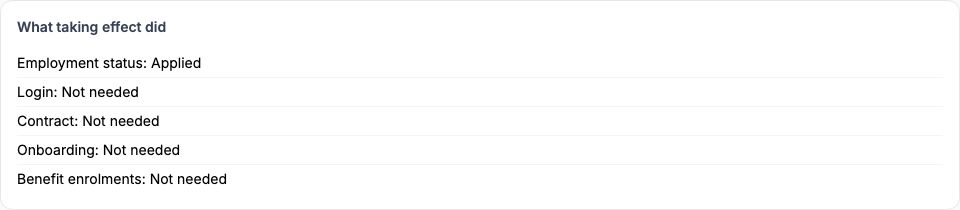
When an exit takes effect, Tocademy carries out each consequence and lists it under "What taking effect did": the employment status is changed, the sign-in is switched off, the contract is ended, any open onboarding is closed and benefit enrolments are stopped — each marked Applied, or Not needed when there was nothing to do. Bassey had no sign-in, contract, onboarding or benefits, so only his employment status was applied. Before an exit takes effect the panel says Nothing yet: the exit has not taken effect.
16. Waiving a clearance item
Sometimes a mandatory item cannot be completed — the employee has gone and the evidence is informal, or there is genuinely nothing to hand over. A person with the permission to approve exits can type the reason in the box under the item (for example Why handover is waived) and press "Waive"; the reason is shown on the exit for good. Bassey's keys and uniform had gone back to the Bursar on his last day, before anything was recorded, so we waived his four mandatory items with that reason and recorded his leave settlement. His exit now shows In effect and cleared on the Staff exits list — the end of the process.

Still stuck?
Email info@tocel.ng and tell us which guide you were following.