Setting up HR
Switch on the HR module's building blocks: the menu, the staff catalogues your records are filed under, who may do what, and how long HR records are kept.
1. What HR is for
HR keeps one record for every person the school employs — teachers, the bursar, the principal, drivers, cleaners and security staff — whether or not they ever sign in to Tocademy. That record is the starting point for everything else in HR: contracts, vetting checks, compliance deadlines, the employee file, leave, attendance, appraisals and payroll. HR is part of the Enterprise plan. If your school is on Free, Basic, Standard or Professional, the HR menu does not appear; ask your proprietor or Tocademy support about upgrading. In this guide we set up HR for Greenfield Model College, a secondary school in Ikeja, Lagos, signed in as the school administrator, Mrs. Adaeze Okafor.
Open HR in the left-hand menu. The list is long because HR covers a lot, but you only need a few entries on day one. "Staff records" is the list of everyone employed. "Match sign-ins" makes sure every staff login has an HR record. "Catalogues" holds the departments, designations and grades that records are filed under. "Compliance" shows everything falling due across the school, and "Audit trail" shows who changed what. "Employee files" and "Document categories" look after scanned documents. "Record retention" (at the very bottom) controls how long records are kept. Leave, payroll, appraisals, training, exits and recruitment have their own guides. What you see depends on your role: someone who may only view staff records sees fewer entries than the school administrator.

3. The staff catalogues
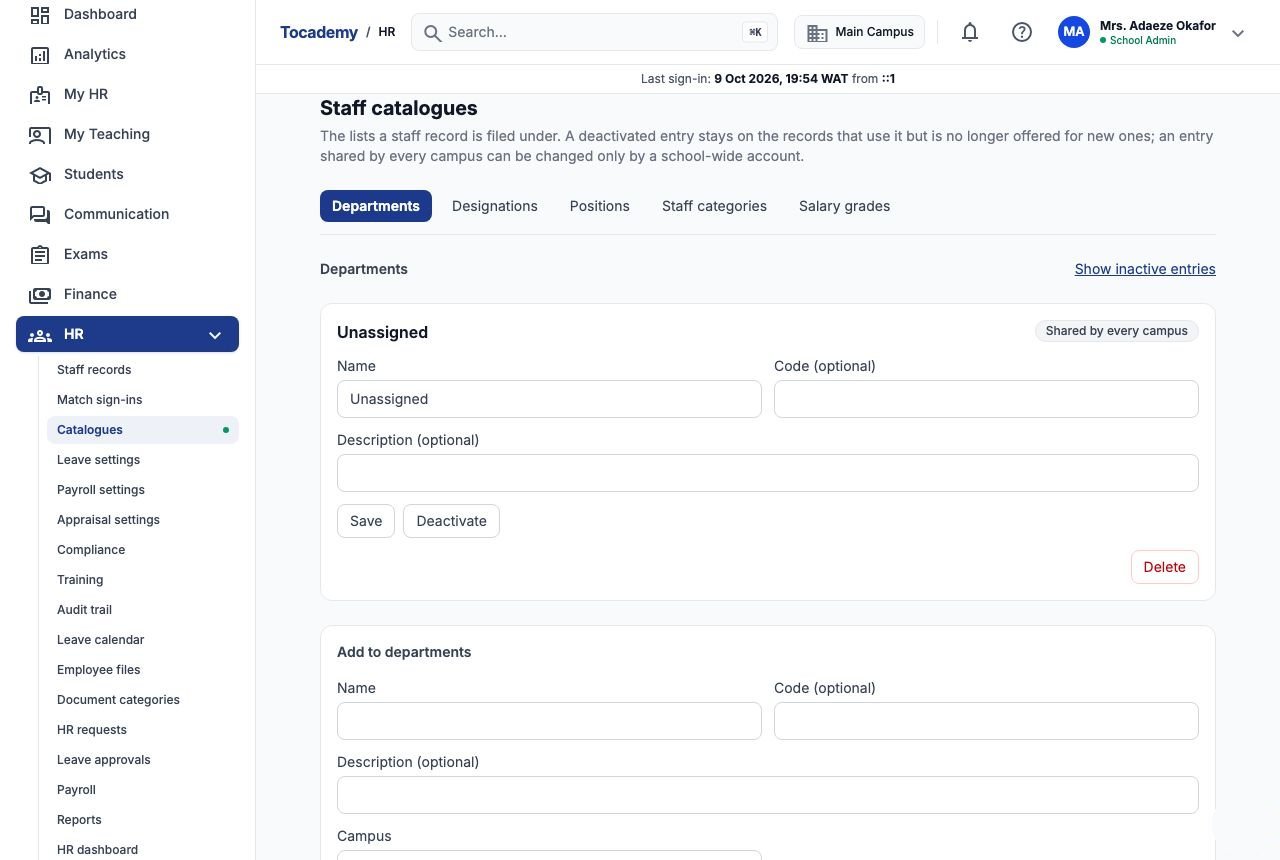
Choose "Catalogues" in the HR menu. The page is called "Staff catalogues" and has five tabs: "Departments", "Designations", "Positions", "Staff categories" and "Salary grades". Every staff record must have a department and a designation; position, staff category and salary grade are optional. A new school starts with one department and one designation called Unassigned. Records created automatically from a staff sign-in sit on Unassigned until HR completes them, so leave it in place — the real entries you add are what HR picks when it completes a record.
4. Example: adding the Sciences department
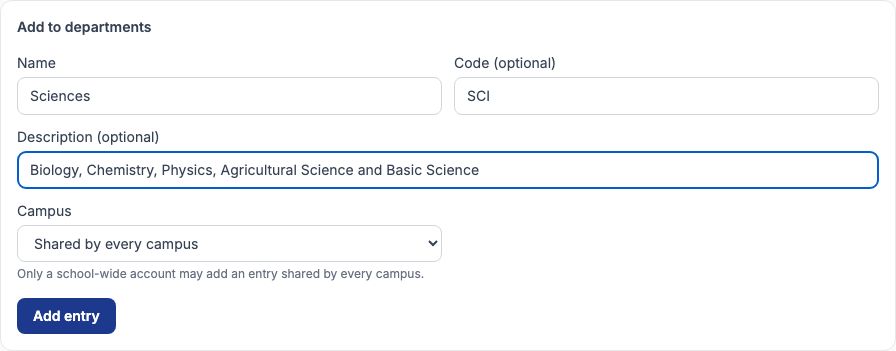
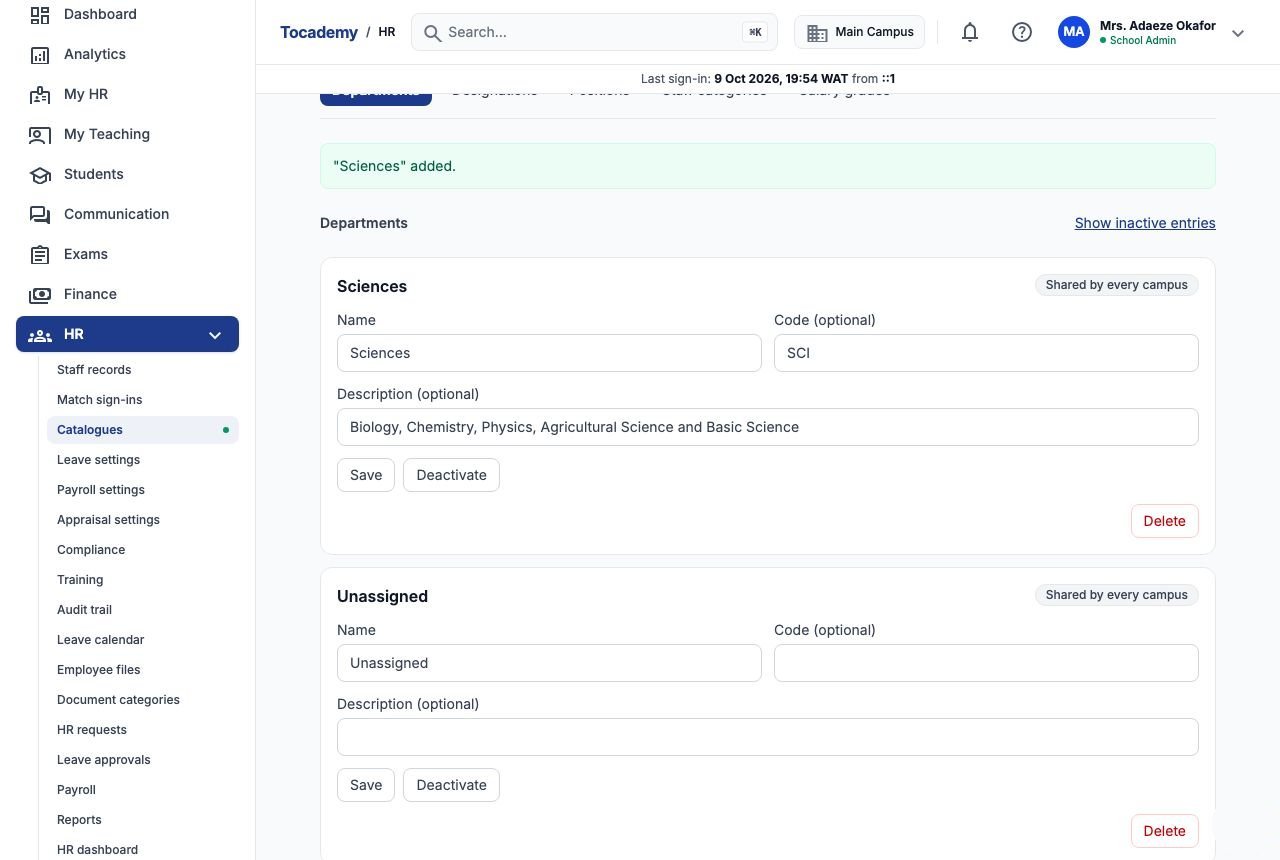
Greenfield's first department is Sciences. On the "Departments" tab, scroll to the "Add to departments" form. Type Sciences in "Name", SCI in "Code (optional)", and a short note in "Description (optional)" such as Biology, Chemistry, Physics, Agricultural Science and Basic Science. Under "Campus", choose "Shared by every campus" so the department can be used for staff at any campus; choose a single campus only for a department that exists at that campus alone. Only a school-wide account may add a shared entry. Press "Add entry". A green message says "Sciences" added, and the department appears at the top of the list with a "Shared by every campus" badge.
5. Fill in the other catalogues the same way
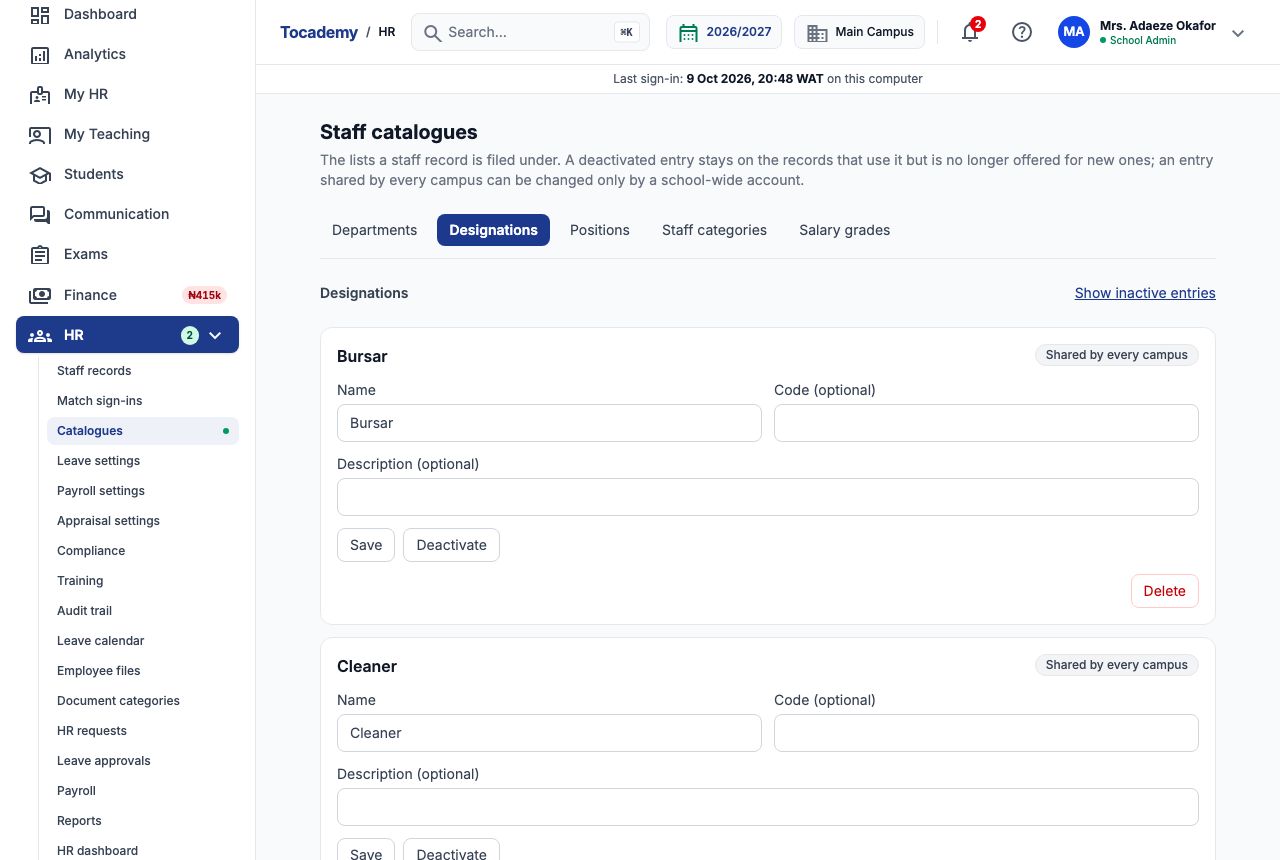
Repeat for each tab. Greenfield added these departments: Sciences, Languages, Mathematics, Humanities, Administration, Bursary and Support Services. Designations (a person's job title): Principal, Vice Principal, Head of Department, Subject Teacher, Bursar, School Secretary, Driver and Cleaner. Positions (an extra responsibility someone holds): Head of Sciences, Head of Languages, Examinations Officer and Form Teacher. Staff categories: Academic staff, Senior non-academic staff and Junior non-academic staff. You do not need every tab filled before you start — add an entry the day you first need it.
6. Designations, positions and categories — what goes where
A designation is the job a person was employed to do, so every record has exactly one: Ibrahim Musa is a Subject Teacher, Tunde Bakare is the Bursar. A position is an additional role on top of the designation: Chinedu Eze is a Head of Department by designation and Head of Sciences by position, and Emeka Nwosu is Vice Principal and also the Examinations Officer. A staff category groups people for reports and policies, for example Academic staff versus Junior non-academic staff. Use the staff list's filters (see the Staff Records guide) to find everyone in one department or designation.
7. Salary grades
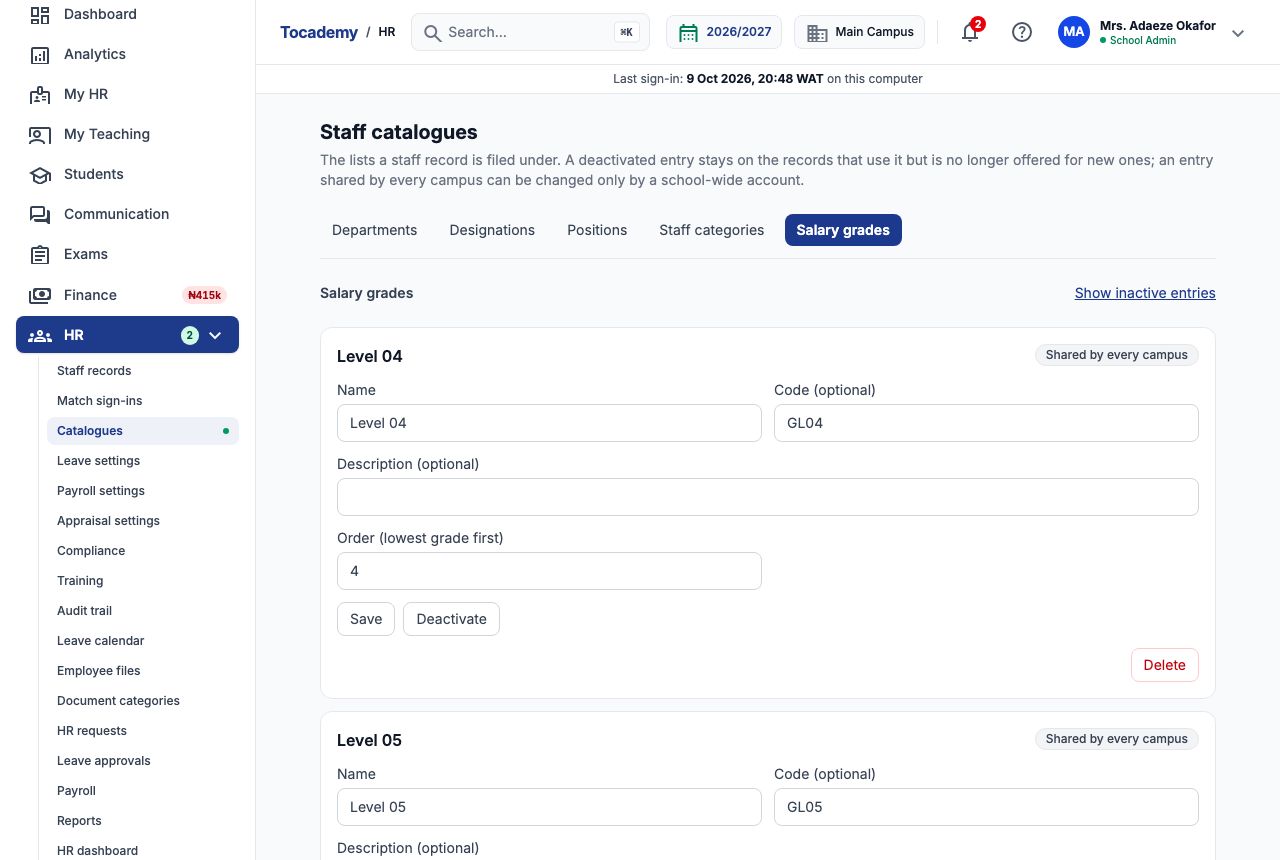
The "Salary grades" tab has one extra field, "Order (lowest grade first)", which puts the grades in their proper order. Greenfield uses Level 04, Level 05, Level 07, Level 08, Level 10, Level 12 and Level 14, with codes GL04 to GL14 and the level number as the order. A grade here is a label on the staff record; the actual pay amounts are set in Payroll settings, covered in the payroll guides.
8. Renaming, retiring and removing an entry
Each entry is its own small form. Change the name, code or description and press "Save". If the school stops using an entry — say a department is merged — press "Deactivate" rather than deleting it. A deactivated entry stays on the records that already use it but is no longer offered for new ones. To see retired entries again, choose "Show inactive entries"; each one then has a "Reactivate" button. "Delete" removes an entry for good and is refused while any record still uses it, so deactivating is almost always the better choice.
9. Who can do what
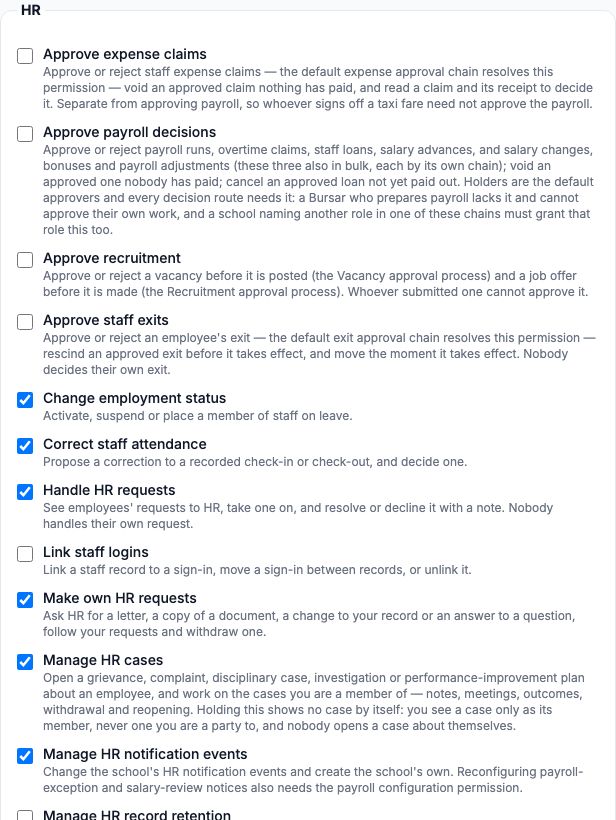
HR access is set per role on Administration, then "Roles & Permissions". Open a role (for example Principal) and scroll to the "HR" group. Each line is one thing a person in that role may do, with a sentence explaining it — for example "Manage staff records" (create and update a staff profile), "View staff records", "Manage staff catalogues", "Change employment status", "Link staff logins", "Manage employment contracts", "Manage staff vetting checks", "View vetting outcomes", "Manage staff compliance deadlines", "View staff bank details", "View staff tax details", "View staff salary figures" and "View the HR audit trail". Tick or untick lines to suit your school. Sensitive details are deliberately separate: a person can be allowed to manage staff records without seeing bank details, tax numbers or salaries, and on screen those fields then read Restricted. Roles that came with Tocademy cannot be renamed, but their permissions can be changed; press "+ New role" to create your own, such as HR Officer.
10. Schools with more than one campus
The campus button in the top bar (Main Campus at Greenfield) shows which campus you are working in. HR follows it: a person whose account is limited to one campus sees that campus's staff plus anything shared by every campus, and cannot change shared entries. A school-wide account sees everyone. When you add a catalogue entry or a staff record, the "Campus" field starts on your current campus; choose "Shared by every campus" for something that belongs to the whole school. Moving a person to another campus is done from their record (the "Campus transfer" panel), not by editing the record.

11. How long HR records are kept
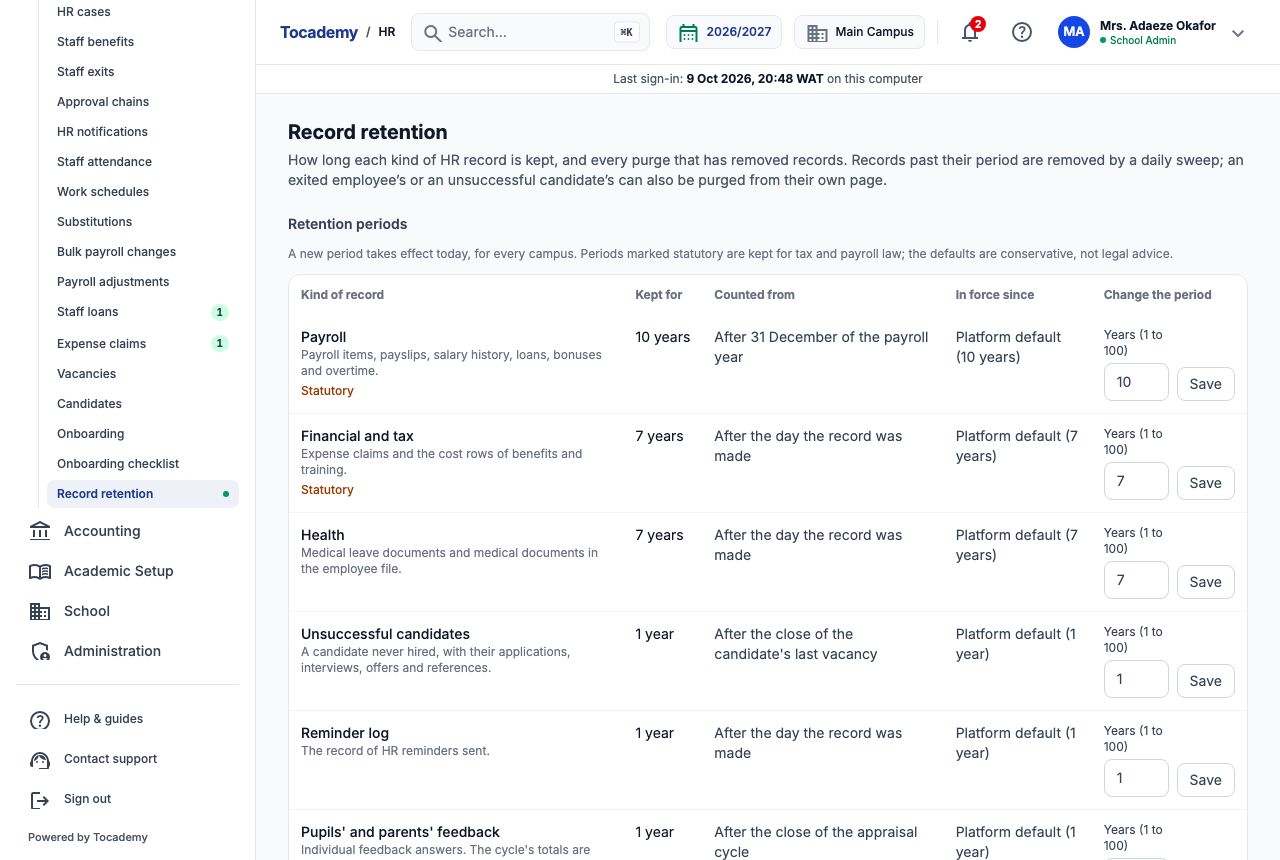
Choose "Record retention" at the bottom of the HR menu. The "Retention periods" table lists each kind of HR record — Payroll, Financial and tax, Health, Unsuccessful candidates, Reminder log, Pupils' and parents' feedback, Employment and others — with how long it is kept, when the clock starts, and whether the period is a platform default. Rows marked Statutory are kept for tax and payroll law. To change a period, type a new number of years in "Change the period" and press "Save"; the new period takes effect today for every campus. Records past their period are removed by a daily sweep, and every removal is listed under "Purge log", which can never be edited. The defaults are conservative; check with your auditor before shortening any statutory period.
12. What to do next
With the catalogues in place, go to the Staff Records guide to complete the records your staff sign-ins created and to add staff who never sign in, such as drivers and cleaners. Then use the Vetting and Compliance guide to record police and reference checks and to keep TRCN registrations and other certificates from lapsing.
Still stuck?
Email info@tocel.ng and tell us which guide you were following.