Bank Reconciliation
Import your bank statement, match each line to the books, deal with what only the bank knows about, and keep a dated record that the two agree.
1. What reconciling means
Your books record what the school believes went in and out of each bank account; the bank's statement records what actually did. Reconciling is checking the two line by line until every difference is explained. In Tocademy you import the statement as a CSV file, pair each statement line with its entry in the books, post the few things only the bank knew about (charges, interest), set aside lines that cancel out, and then record a dated reconciliation that says the two agree. The worked example below reconciles Greenfield Model College's Zenith account for 1–9 October 2026, ending on a statement balance of ₦15,014,855.23. The work lives under Accounting → Bank and reconciliation and needs the "Reconcile bank and cash accounts" permission.
2. Your bank and cash accounts
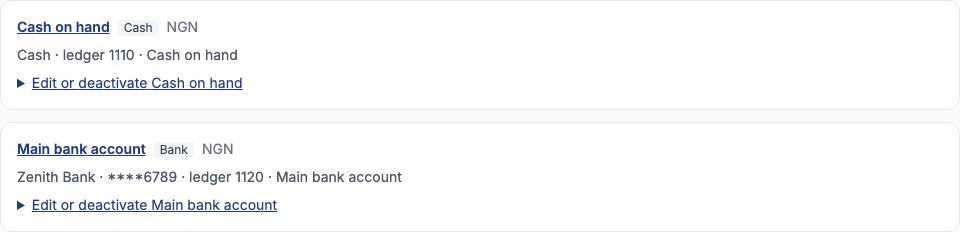
Accounting → Bank and reconciliation lists every bank and cash account the books know about. Setting up the books creates two: "Cash on hand" (the school's till or petty cash, ledger 1110) and "Main bank account" (ledger 1120). Each card shows its kind, currency, bank details and the ledger account it is tied to. Click an account's name to open its statement and reconciliation page.
3. Give an account its bank details
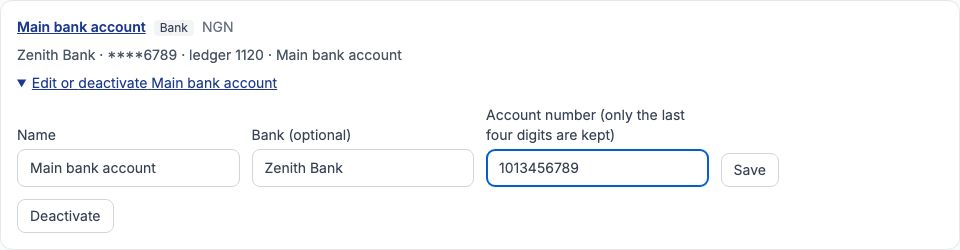
Open "Edit or deactivate Main bank account" on its card. Fill in "Bank (optional)" — here Zenith Bank — and the account number; only the last four digits are kept, so the full number is never stored. Press "Save". The card then reads "Zenith Bank · ****6789". "Deactivate" retires an account that is no longer used: it then takes no import, match or posting until you press "Activate" again.
4. Adding another account
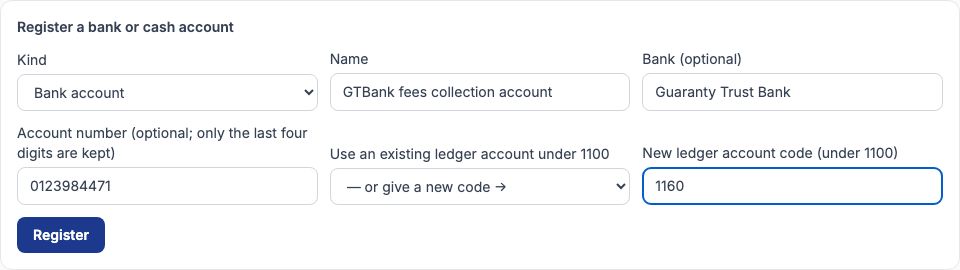
If the school banks with more than one bank, or keeps a separate petty-cash box, register each one under "Register a bank or cash account". Choose the "Kind" — "Bank account" or "Cash (a till or petty cash)" — and give it a "Name". Then either choose a ledger account that already exists in "Use an existing ledger account under 1100", or leave that on "— or give a new code →" and type a fresh code in "New ledger account code (under 1100)", such as 1160 for a GTBank fees-collection account (Greenfield's 1150 is already its admin-office petty cash). Press "Register". The ledger account is what every payment in or out of this bank is posted to.
5. Get the statement as a CSV file
Download the statement from your internet banking as CSV (or save the Excel statement as CSV). Any layout works as long as each row has a date, a description and the amount — either one signed amount column, or separate debit (money out) and credit (money in) columns. A running balance column is worth keeping: Tocademy uses it to know the statement balance on any date. The example file has the header row Trans Date, Narration, Reference, Debit, Credit, Balance, with rows such as "07/10/2026, NIP TRF TO LEKKI FUEL DEPOT LTD LFD/INV/2026/0418, NIP/ZEN/0710/88231, 429069.77, , 14570930.23" and "09/10/2026, ACCOUNT MAINTENANCE FEE SEP 2026 + VAT, AMF/0926, 1075.00, , 15014855.23". A file may hold up to 5,000 lines and 2 MB.
6. Import the statement
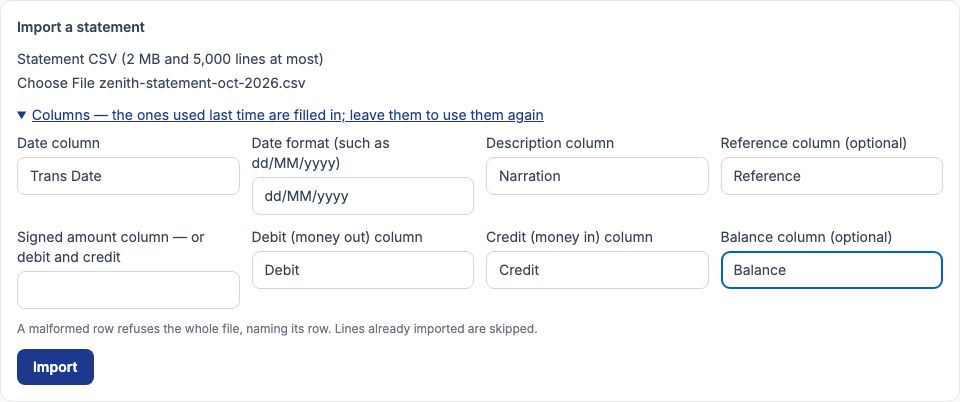
On the account's page, under "Import a statement", pick the file in "Statement CSV (2 MB and 5,000 lines at most)". The first time, tell Tocademy which column is which by typing the header names exactly as the file spells them: "Date column" Trans Date, "Date format (such as dd/MM/yyyy)" dd/MM/yyyy, "Description column" Narration, "Reference column (optional)" Reference, "Debit (money out) column" Debit, "Credit (money in) column" Credit and "Balance column (optional)" Balance. Leave the signed amount column empty when you use debit and credit. Press "Import". The columns are remembered for next time: the next import opens them as "Columns — the ones used last time are filled in; leave them to use them again", as in this picture. If any row is malformed the whole file is refused with the row named, so nothing half-imports; and a line already imported is skipped, so importing an overlapping statement is safe. The example reported "6 lines added, 0 already imported and skipped".
7. Start from the day the books opened
The first statement you import should begin on the day your books opened, and it should show the balance brought forward on that day. Greenfield's books opened on 1 September 2026 with ₦15,000,000 in the Zenith account, recorded as an opening entry. Its statement's first line is "BALANCE BROUGHT FORWARD ₦15,000,000", and matching that line to the opening entry is what lets the rest of the reconciliation come to zero. If your bank does not print the balance brought forward as a line, add one to the top of your first CSV with the opening date and amount. If you skip this, the opening entry stays "Unmatched in the books" and the difference never reaches zero.
8. Accept the suggested matches
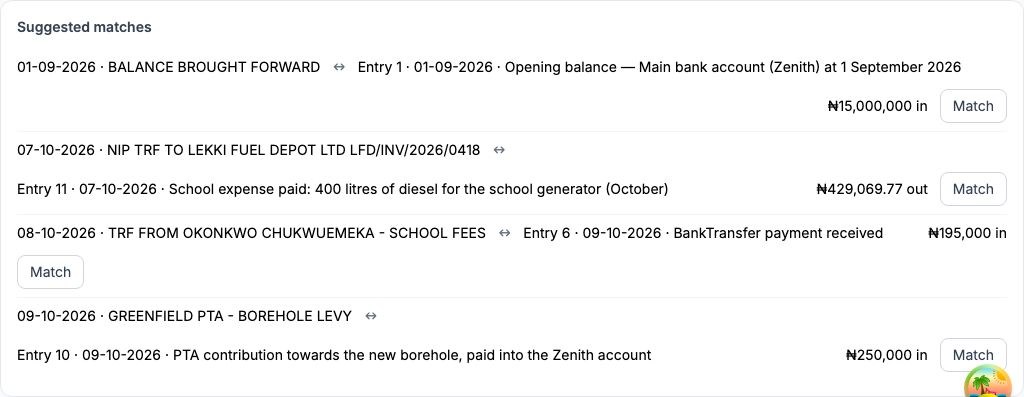
"Suggested matches" pairs a statement line with a ledger line when there is exactly one ledger line of the same amount within three days of it. Read each pair: on the left the bank's words and date, on the right the entry in the books. If it is right, press "Match". In the example four suggestions appeared — the balance brought forward with the opening entry, the ₦429,069.77 transfer to Lekki Fuel Depot with the diesel payment, the ₦195,000 fee transfer from Okonkwo Chukwuemeka with the recorded bank-transfer payment, and the ₦250,000 PTA levy with the PTA contribution. A suggestion is only a suggestion: if two amounts happen to agree but are different transactions, do not match them.
9. The statement lines
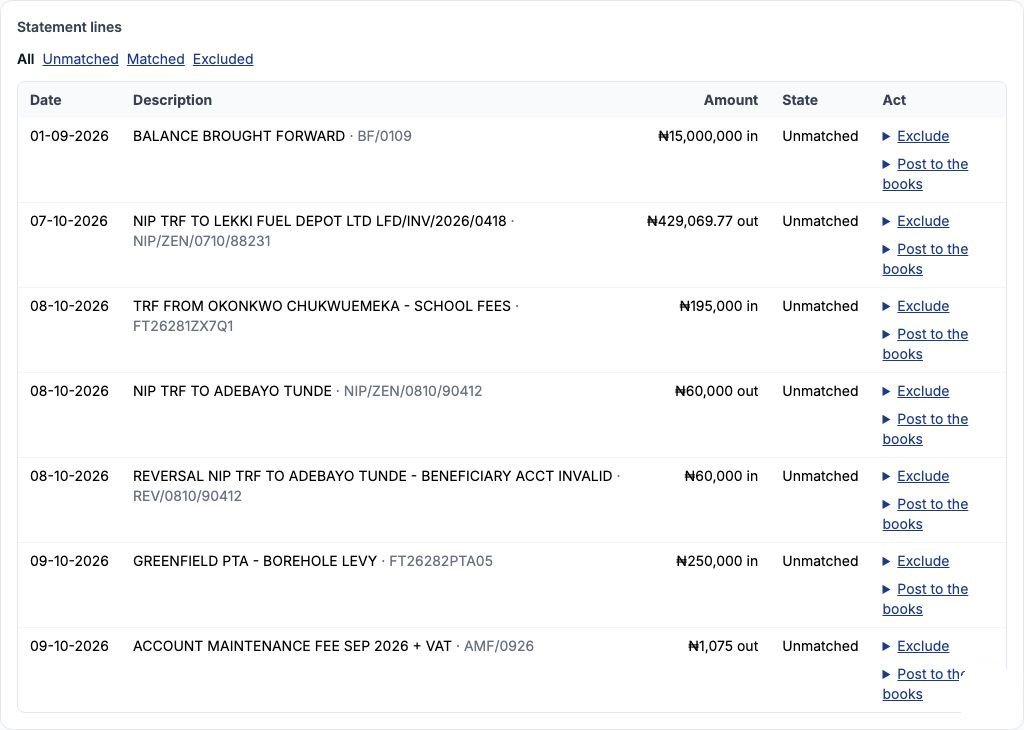
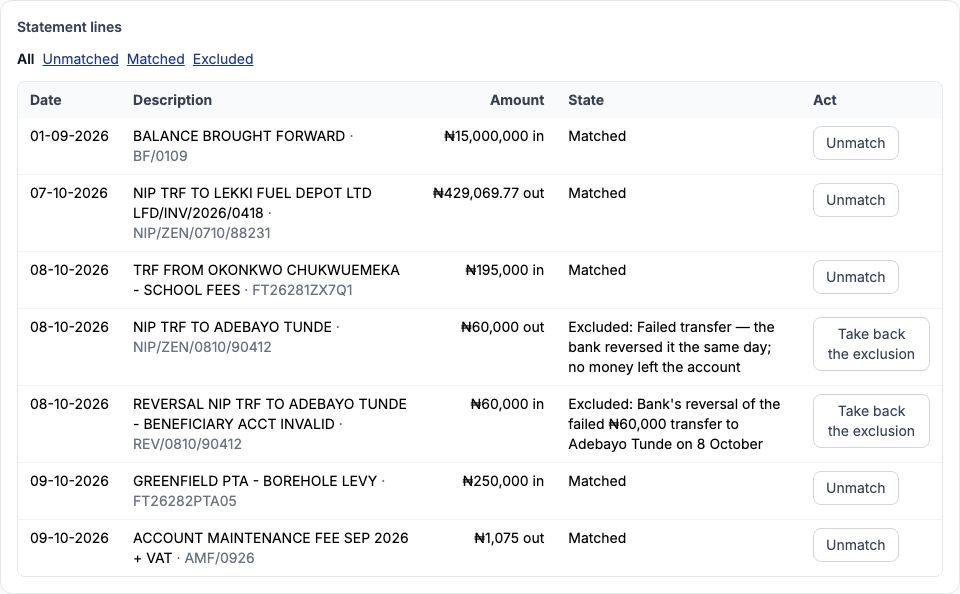
"Statement lines" lists everything imported, newest last, with its amount marked in or out and its state. Use the "All", "Unmatched", "Matched" and "Excluded" links above the table to narrow it. Every unmatched line offers two things: "Exclude" for a line that has no counterpart in the books, and "Post to the books" for a line the books do not know about yet. A matched line offers "Unmatch" if you paired it wrongly.
10. Matching by hand
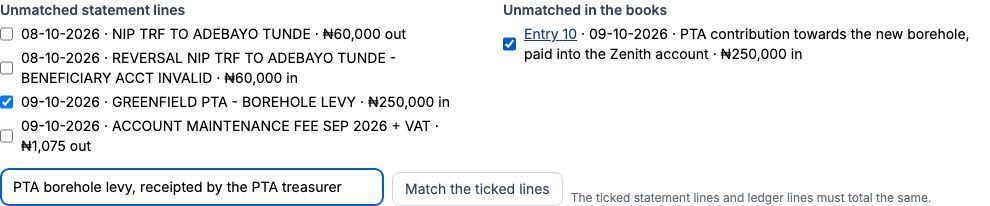
When there is no suggestion — the amounts were split, or the dates are more than three days apart — match in the "Reconciliation" section further down. It lists "Unmatched statement lines" on the left and "Unmatched in the books" on the right, each with a tick box. Tick the statement line or lines and the ledger line or lines that are the same money, add a note if it helps, and press "Match the ticked lines". The ticked lines on each side must add up to the same total, so you can match one bank deposit against three receipts, or the other way round. In the example the ₦250,000 PTA borehole levy was matched this way, with the note "PTA borehole levy, receipted by the PTA treasurer".
11. Excluding a line, with a reason
Some statement lines should never appear in the books. On 8 October the school's ₦60,000 transfer to Adebayo Tunde failed and the bank reversed it the same day — one line out, one line in, no money moved. Open "Exclude" on the line, type why it has no ledger counterpart, and press "Exclude". Do the same for the reversal. The reasons are kept and shown on the reconciliation, so an auditor can see why each line was set aside: here "Failed transfer — the bank reversed it the same day; no money left the account". If you excluded something by mistake, press "Take back the exclusion".

12. Posting a bank-only line: bank charges
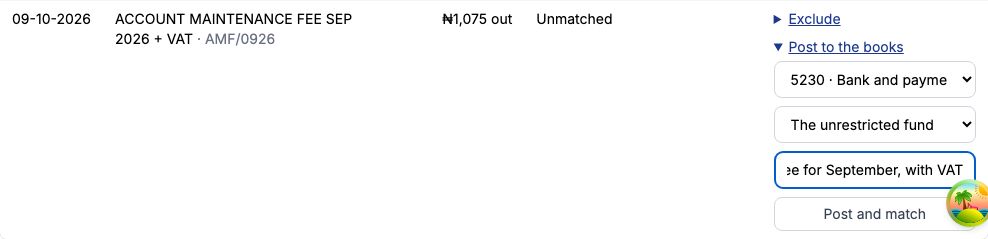
Bank charges, SMS alert fees and interest appear on the statement before anyone has entered them in the books. Instead of writing a separate journal, open "Post to the books" on the line, choose the account it posts against (for charges, 5230 · Bank and payment charges), leave the fund on "The unrestricted fund" unless it belongs to another, type a memo, and press "Post and match". Tocademy writes the journal and matches it to the line in one step. For the ₦1,075 account maintenance fee (₦1,000 plus ₦75 VAT) the journal is: debit 5230 · Bank and payment charges ₦1,075, credit 1120 · Main bank account ₦1,075 — the cost goes up and the bank balance in the books comes down to what the bank says. Posting needs the "Post manual journals" permission as well as the reconcile permission.
13. Every line accounted for
When you are done, every statement line is either "Matched" or "Excluded" with its reason. For the example: the balance brought forward, the diesel payment, the fee transfer, the PTA levy and the bank charge are matched; the failed transfer and its reversal are excluded.
14. Record the reconciliation
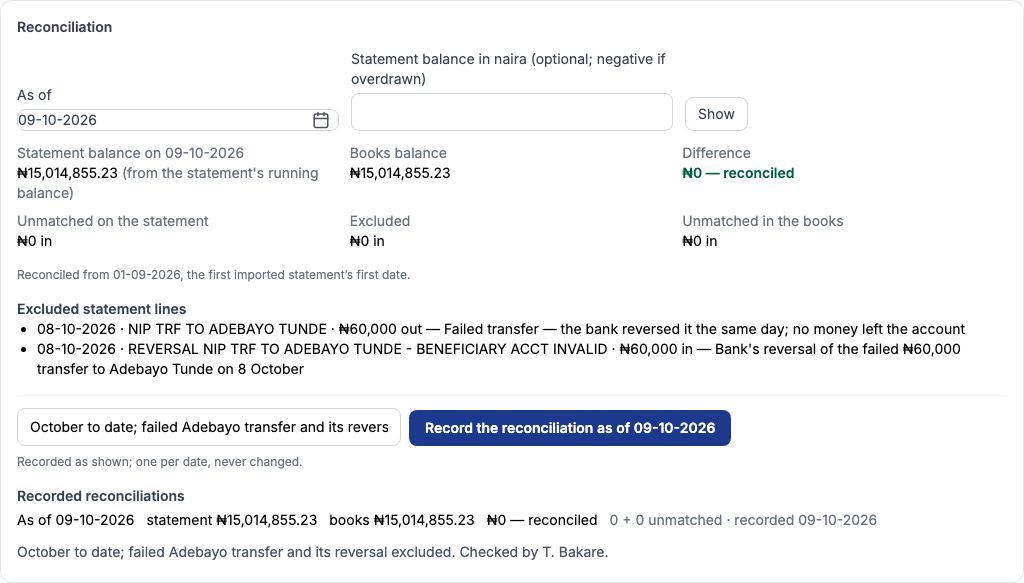
In "Reconciliation", set "As of" to the statement's last date and press "Show". If your file had no balance column, type the closing balance from the paper statement in "Statement balance in naira (optional; negative if overdrawn)". The section compares "Statement balance" with "Books balance" and shows the "Difference"; the unmatched and excluded totals underneath explain any gap. For 9 October: statement ₦15,014,855.23, books ₦15,014,855.23, "₦0 — reconciled". Type a note (who checked it, anything unusual) and press the button that reads "Record the reconciliation as of" and the date. The record is kept exactly as shown, one per date, and never changes afterwards, even if entries are added to that period later — it is your signed-off proof for the auditor. It appears under "Recorded reconciliations".
15. When the difference is not zero
A difference means something on one side has no partner on the other. Look at "Unmatched on the statement": money the bank moved that the books do not know about yet — an unrecorded fee, a parent's transfer nobody receipted, a charge to post. Then "Unmatched in the books": entries that have not reached the bank yet — a cheque not yet presented, a transfer dated after the statement. Timing items like these are normal; they should clear on the next statement. Anything older than a month deserves a phone call to the bank or a look at who recorded the entry.
16. Online payment providers
Fees paid online through Paystack or Flutterwave do not land in the bank straight away: they sit in the provider's clearing account until the provider settles them. "Provider clearing" on the Bank and reconciliation page shows, for each provider, the "Clearing balance", what is "Still to be settled", and the "Difference" between them, with any payment whose settlement is unknown called out so you can check with the provider. Greenfield takes no online payments yet, so its page says "No online payment provider has a clearing account in the books yet."

Still stuck?
Email info@tocel.ng and tell us which guide you were following.