Running Monthly Payroll
Each month: add the pay period, open and calculate its run, clear what the checks flag, have a second person approve it, finalise it to publish payslips, record the payments and close it — with the October 2026 run at Greenfield Model College as the worked example.
1. How a month's payroll flows
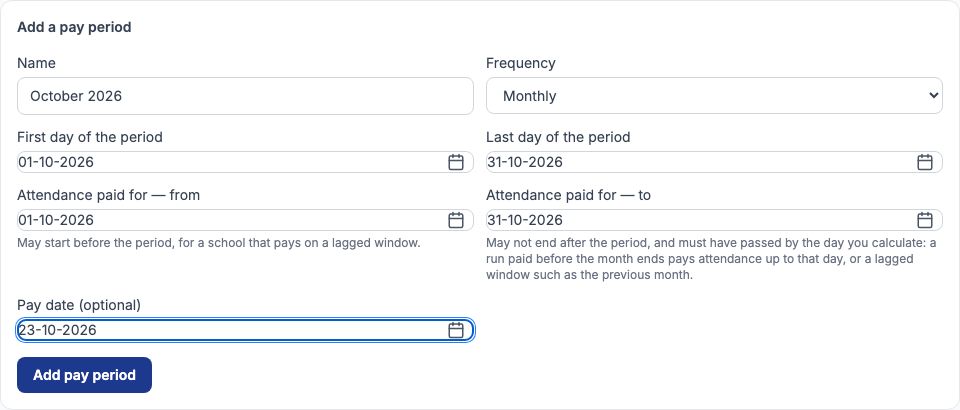
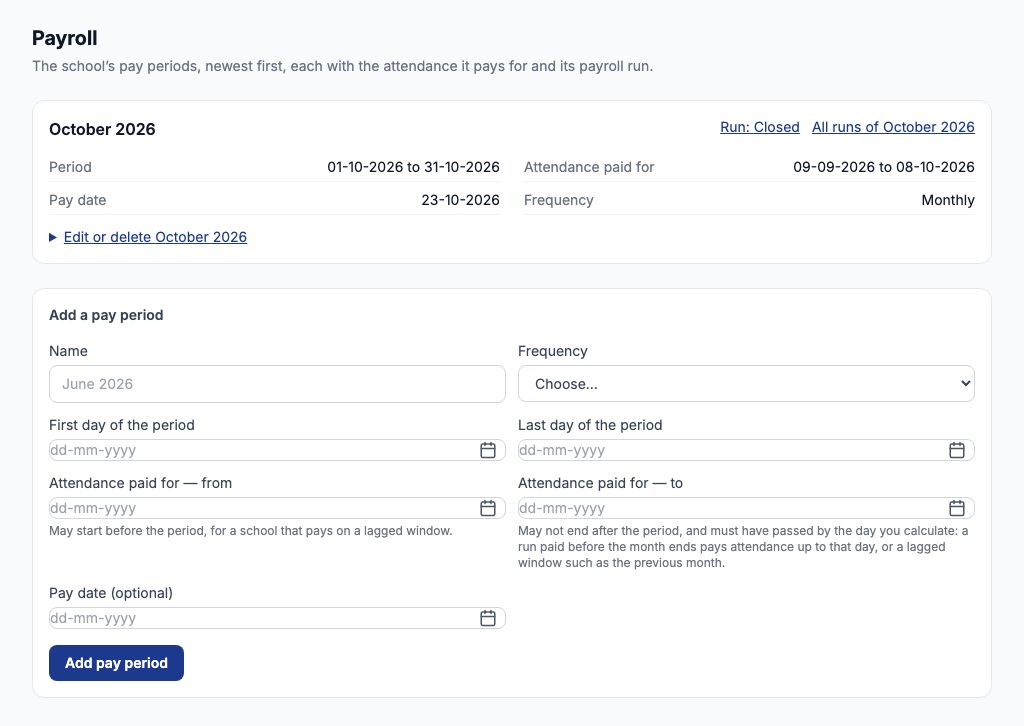
A payroll run moves through fixed stages: Draft (just opened), Calculated (every employee priced and checked), In review (submitted for approval), Approved, Finalized (payslips published, nothing can change), then paid and Closed. Each stage only offers the buttons that make sense in it, and every step is recorded. Before your first run, finish the Setting Up Payroll guide: pay components, statutory deductions, a payroll policy and an approved salary for everyone you pay. Start by choosing "Payroll" in the HR menu and filling in "Add a pay period". Greenfield named it October 2026, chose Monthly, set the "First day of the period" to 01-10-2026 and the "Last day of the period" to 31-10-2026, the attendance it pays for to the same dates, and the "Pay date (optional)" to 23-10-2026. Press "Add pay period".
2. Open the run
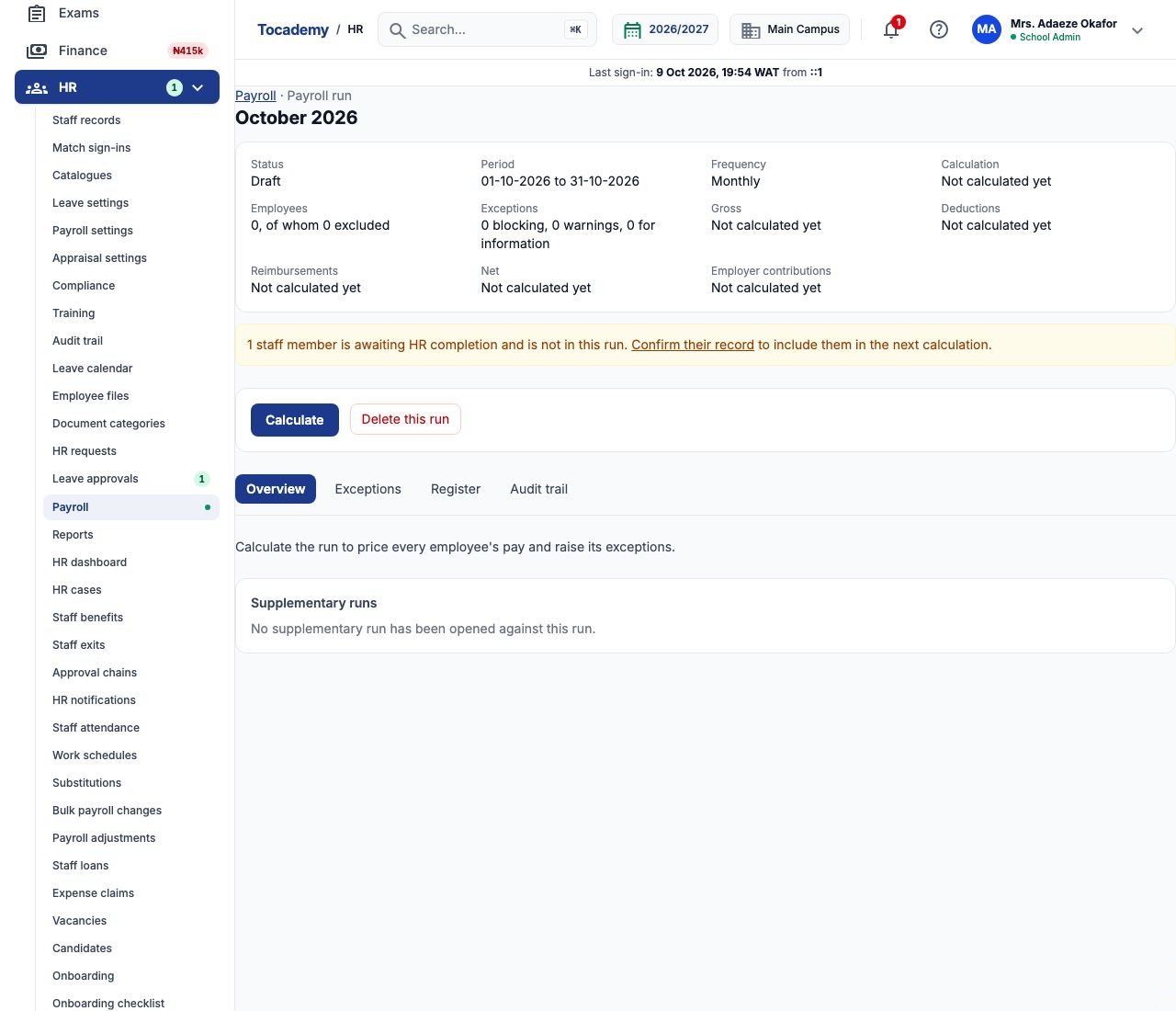
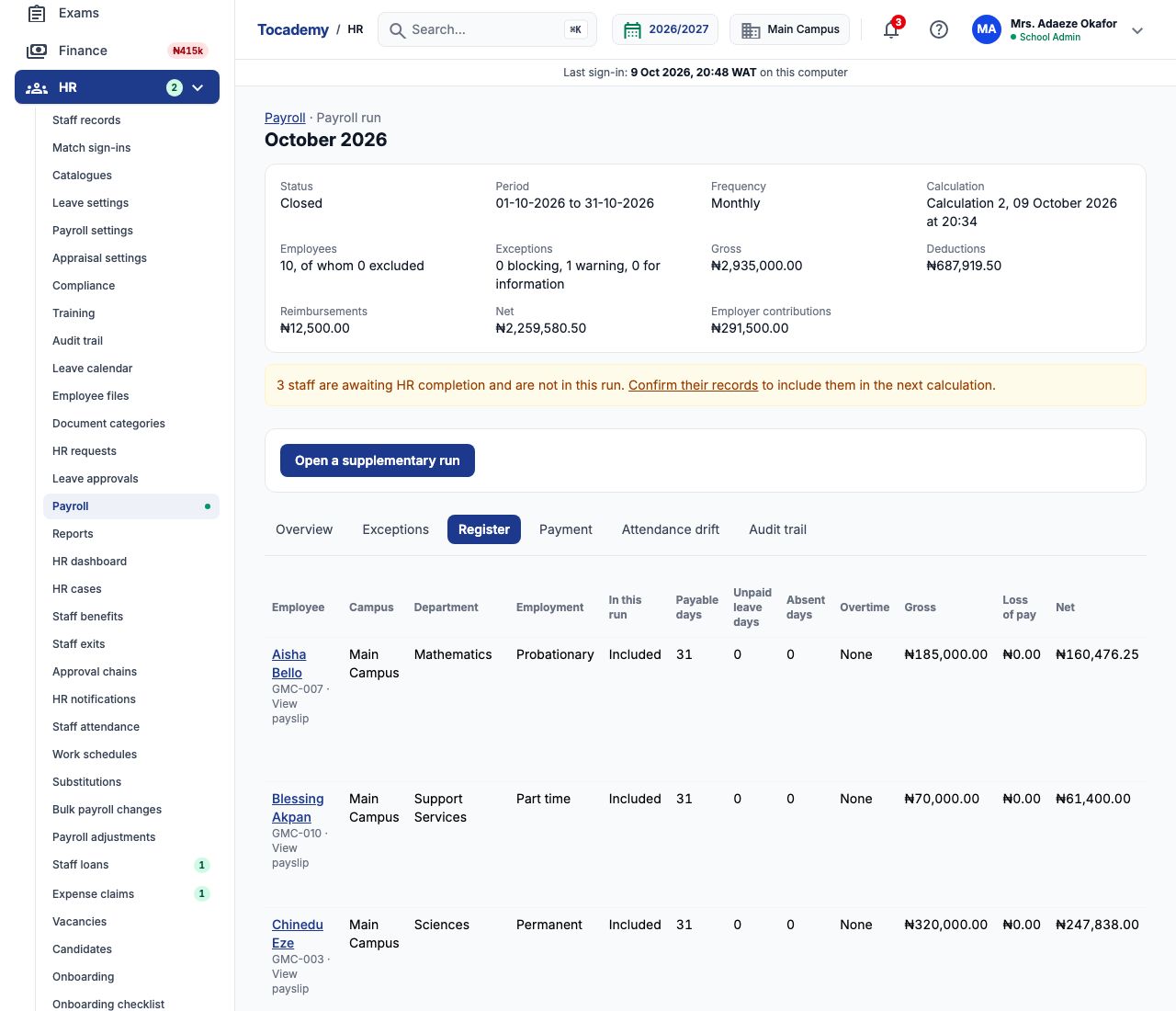
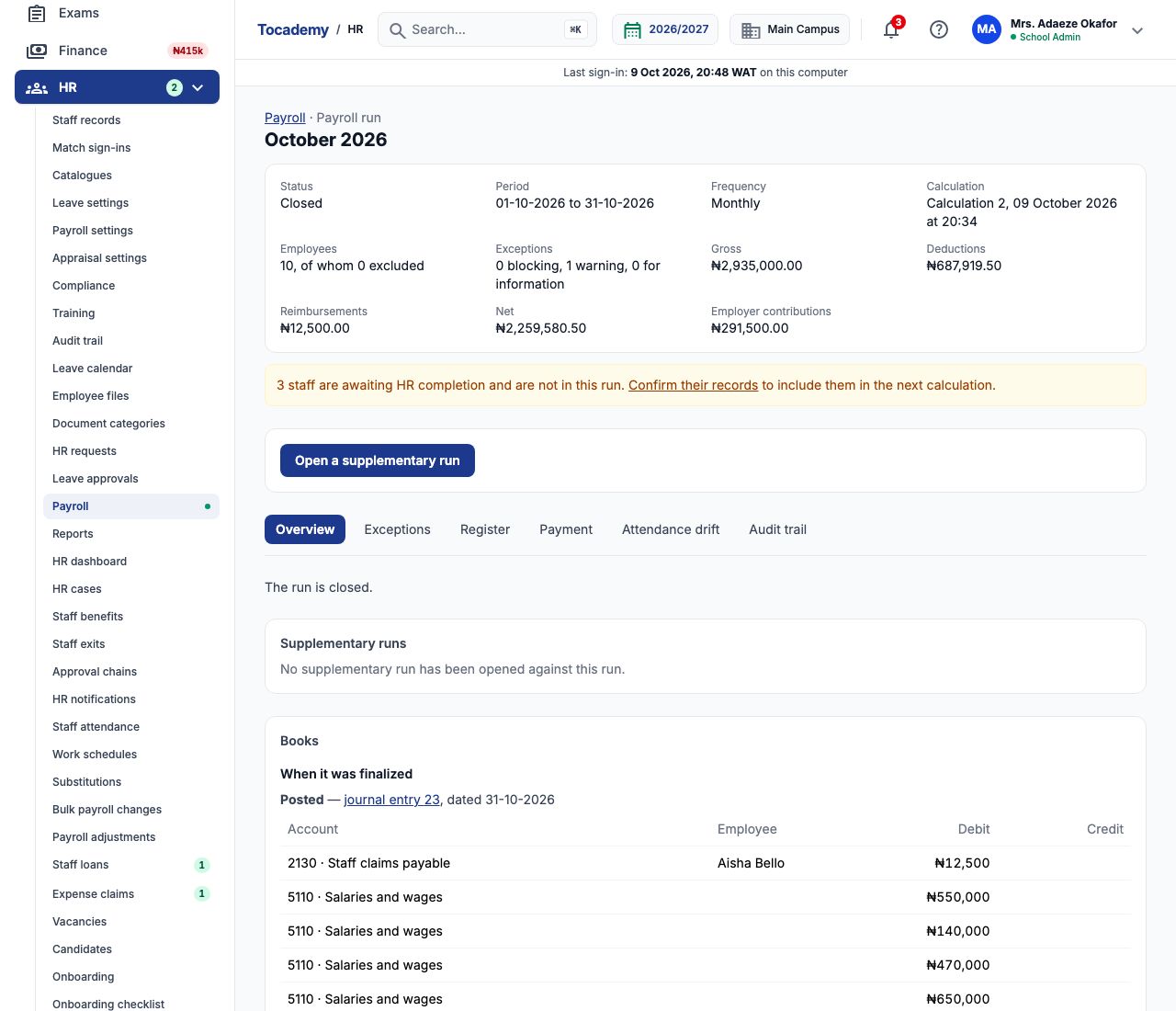
The period appears at the top of the list with "No run yet". Press "Open a payroll run" beside it (a period has one regular run; you can edit a period's dates until its run is submitted). The run opens as a Draft. The summary at the top shows its status, period, number of employees, exceptions, and — once calculated — the gross pay, deductions, reimbursements, net pay and employer contributions. An amber note counts staff who are "awaiting HR completion": records created from a staff sign-in that HR has not confirmed yet are never paid, so confirm them on the staff list first if they should be. Below are the buttons for this stage — "Calculate" and "Delete this run" — and the tabs "Overview", "Exceptions", "Register" and "Audit trail". "Payment" and "Attendance drift" join them later.
3. Calculate — and the first thing it caught
Press "Calculate". Tocademy prices every employee from their approved salary, the period's attendance and approved leave, adds that month's adjustments, loan repayments and approved expense claims, and runs the validation checks. Some problems stop the whole calculation. Greenfield calculated on 9 October, but the period said it paid for attendance up to 31 October, so Tocademy refused: attendance for days that have not happened yet cannot be counted.

4. Fix it: pay on a lagged attendance window
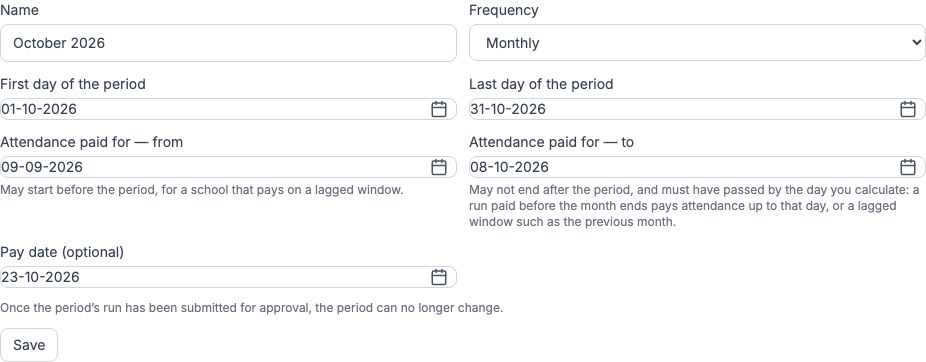
Many schools pay before the month ends, so they pay this month's salary on last month's attendance. Go back to "Payroll", open the period's edit link, set "Attendance paid for — from" to 09-09-2026 and "Attendance paid for — to" to 08-10-2026, and press "Save". The period itself still runs from 1 to 31 October; only the window of attendance, unpaid leave and absence it pays for moves. Return to the run and press "Calculate" again. You can recalculate as often as you like until the run is submitted; each calculation is numbered.
5. Read the exceptions
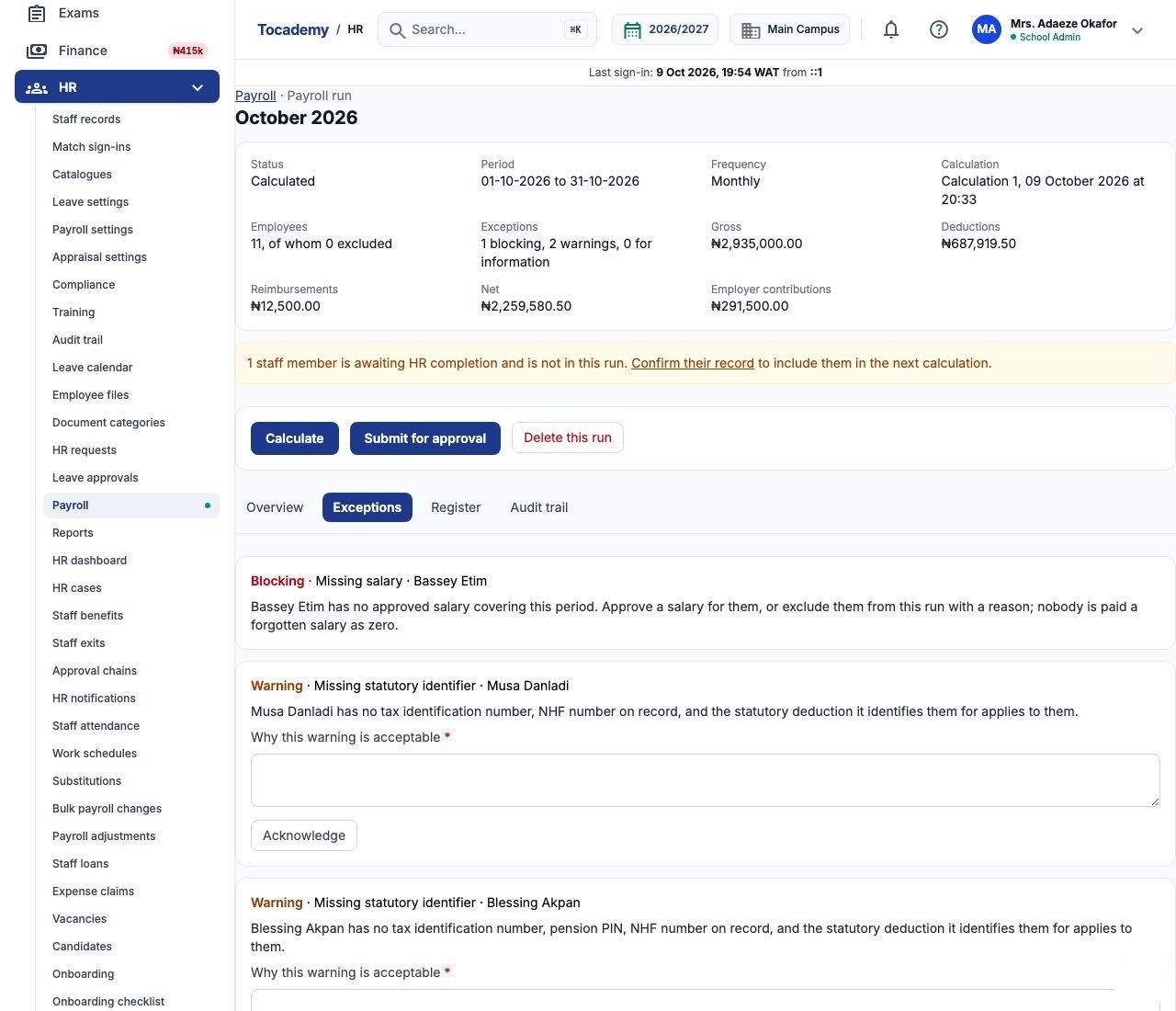
The second calculation priced eleven people and raised one blocking exception and two warnings, listed on "Exceptions". Blocking: Bassey Etim had no approved salary covering October — Tocademy never pays a forgotten salary as zero, so the run cannot be submitted until he either gets a salary or is excluded. Warnings: Musa Danladi had no tax identification number or NHF number on his record, and Blessing Akpan had no TIN, pension PIN or NHF number. A warning does not stop the run, but each one must be fixed or acknowledged with a reason before you can submit.
6. Example: fixing a warning at its source
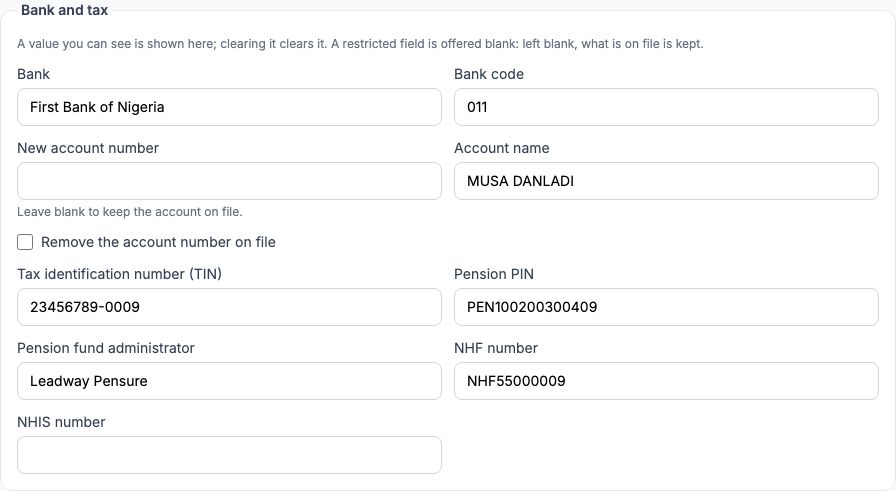
The best fix is to correct the record. Open Musa Danladi's staff record, choose edit, and under Bank and tax type his Tax identification number (TIN) 23456789-0009 and his NHF number NHF55000009. Give a "Reason" (Greenfield wrote that the numbers came from his FIRS and FMBN slips) and press "Save changes". The warning is not cleared by itself: it goes away at the next calculation. Bassey Etim's case was handled on "Register": type why in the box on his row and press "Exclude" ("Include again" reverses it). An excluded employee is listed but not paid, and the run must be recalculated after any exclusion. By the time Greenfield recalculated, his exit had been recorded and he was no longer in the run at all.
7. Acknowledge what you accept
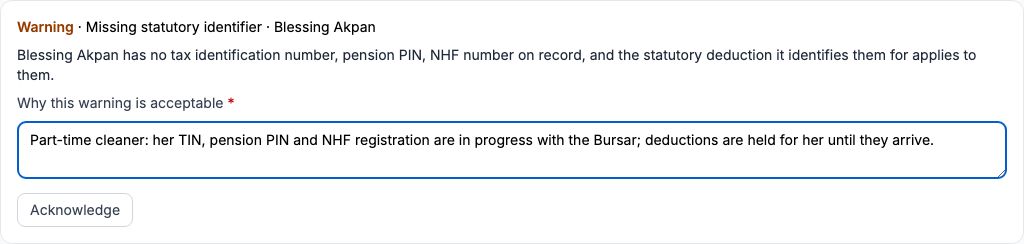
After recalculating, only Blessing Akpan's warning remained. She is a part-time cleaner whose registrations are still being processed, so Greenfield accepted it: on "Exceptions", type the reason in "Why this warning is acceptable" and press "Acknowledge". The acknowledgement, who made it and when stay on the run. Her pension, NHF and NHIS are still deducted and held in the school's books until her numbers arrive.
8. The register and loss of pay
"Register" lists every employee in the run: campus, department, employment type, whether they are included, payable days, unpaid leave days, absent days, overtime, gross, loss of pay, net and payment status. Loss of pay is the day's pay (from the payroll policy) times the days of approved unpaid leave — or unauthorised absence, if the policy deducts it — that fall inside the attendance window, taken only from components marked "Reduced by loss of pay". In Greenfield's October window nobody had unpaid leave, so every loss of pay is ₦0.00; had Chinedu Eze taken two days of unpaid leave there, ₦29,090.91 (two days at ₦320,000 ÷ 22) would have come off his gross. Leave still awaiting a decision is never deducted; it shows as an Unapproved leave warning instead.
9. One employee's detail
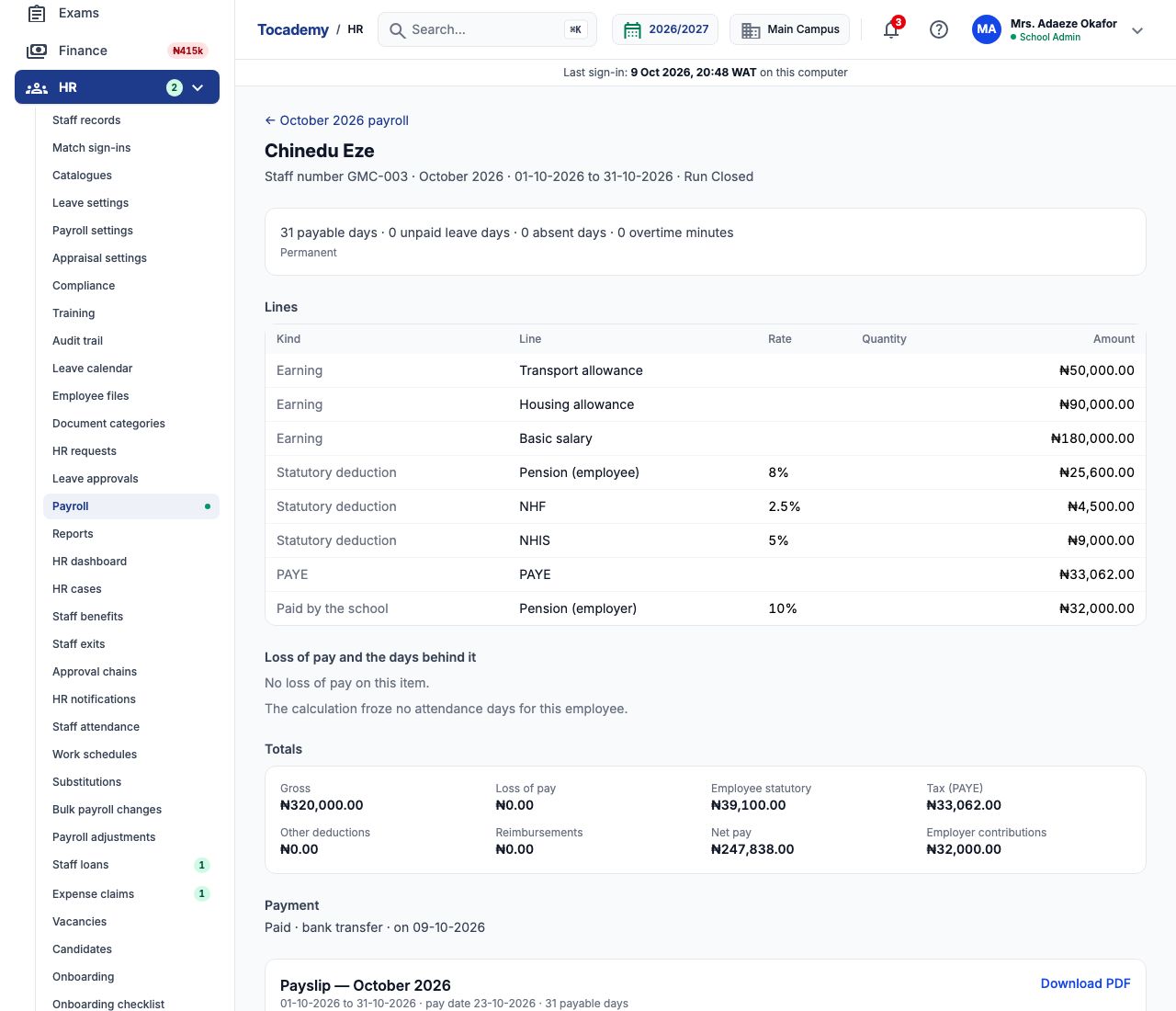
Choose a name in the register to open their item. Chinedu Eze's shows 31 payable days, every line — Basic salary ₦180,000, Housing allowance ₦90,000, Transport allowance ₦50,000, pension ₦25,600 (8%), NHF ₦4,500 (2.5%), NHIS ₦9,000 (5%), PAYE ₦33,062 and the school's own pension contribution ₦32,000 (10%) — then the loss of pay and the days behind it, and the totals: gross ₦320,000.00, net pay ₦247,838.00. Other items show more kinds of line: Emeka Nwosu's has a ₦20,000 allowance and a ₦25,000 loan repayment, and Aisha Bello's a ₦12,500 reimbursement.
10. Submit for approval
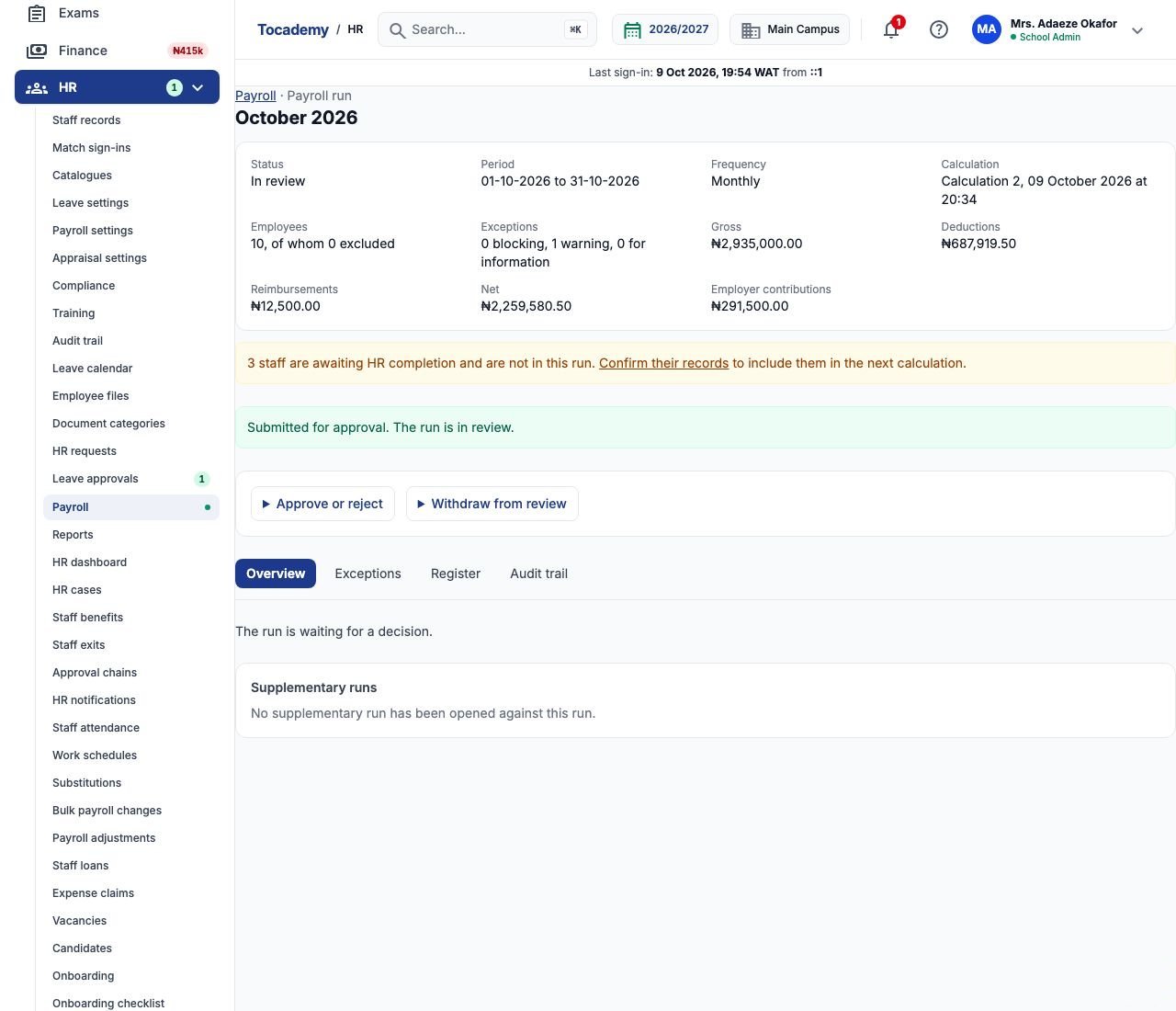
Greenfield's run came to ten employees: gross ₦2,935,000.00, deductions ₦687,919.50, reimbursements ₦12,500.00, net ₦2,259,580.50 and employer contributions ₦291,500.00. With no blocking exceptions and every warning acknowledged, press "Submit for approval". The run is now In review and cannot be recalculated; if something must change, open "Withdraw from review", give a reason and press "Withdraw" to bring it back to Calculated.
11. A second person approves
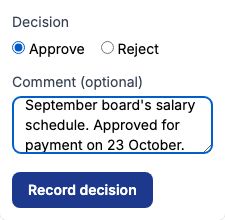
Payroll runs follow the payroll-run approval chain under HR → "Approval chains". Out of the box it has one level — anyone holding the Approve payroll decisions permission, which the school admins have — and "A requester may approve their own request" is unticked, so the person who submitted cannot approve. Change the chain there if your school wants, say, the principal and then the proprietor. At Greenfield, Mrs. Ngozi Eze opened the run, opened "Approve or reject", chose "Approve", wrote a comment and pressed "Record decision". A rejected run goes back to be fixed and resubmitted.
12. Finalize: payslips are published
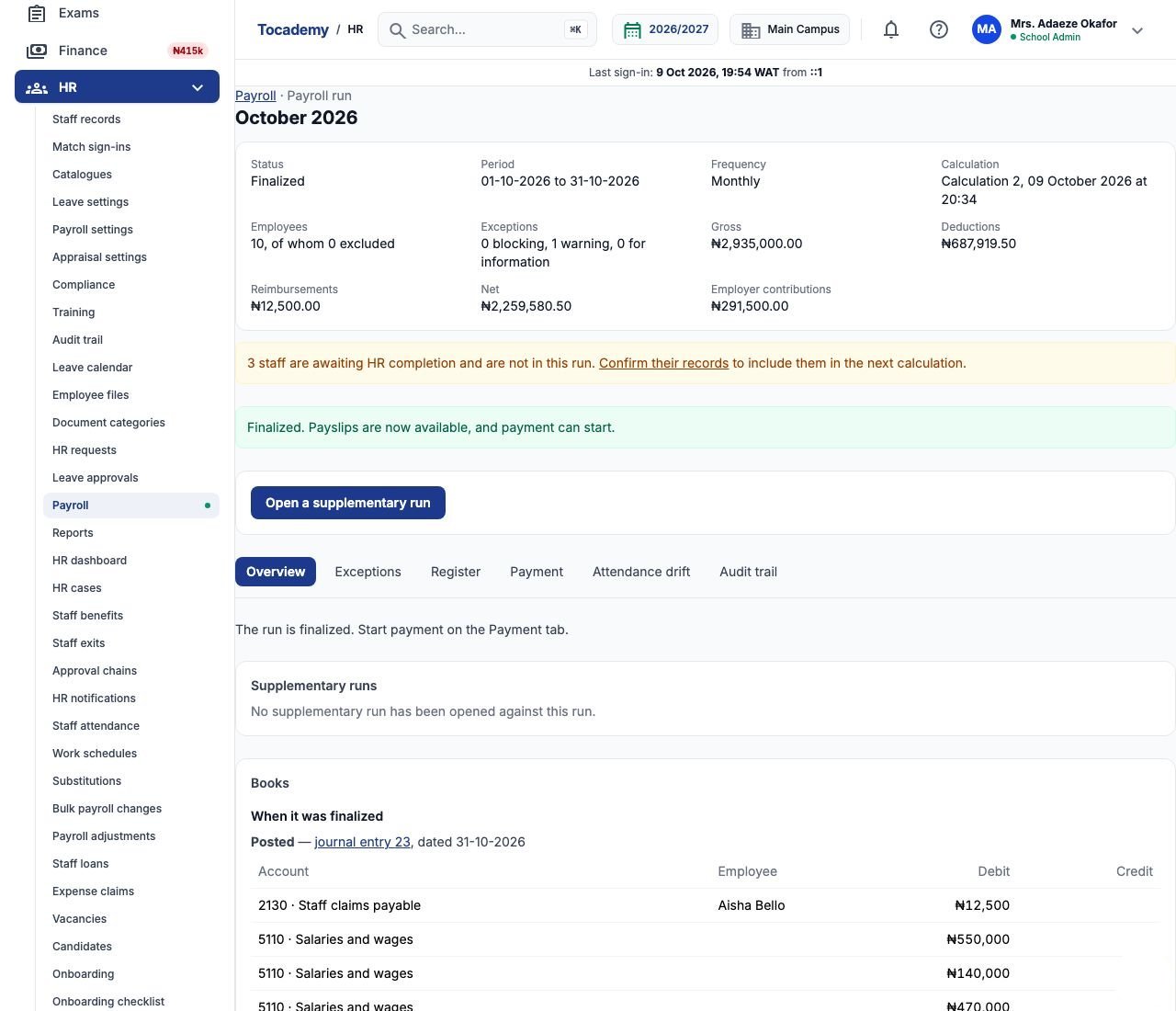
Once approved, press "Finalize". Finalizing freezes the run for good — amounts cannot change after this — publishes every employee's payslip, marks loan repayments and expense reimbursements as recovered and paid, and, because Greenfield's books are set up, posts the payroll to the ledger (see the Payroll in the Books guide). A mistake found later is corrected with an adjustment in a later run or with a supplementary run (step 18), never by editing this one.
13. Start payment
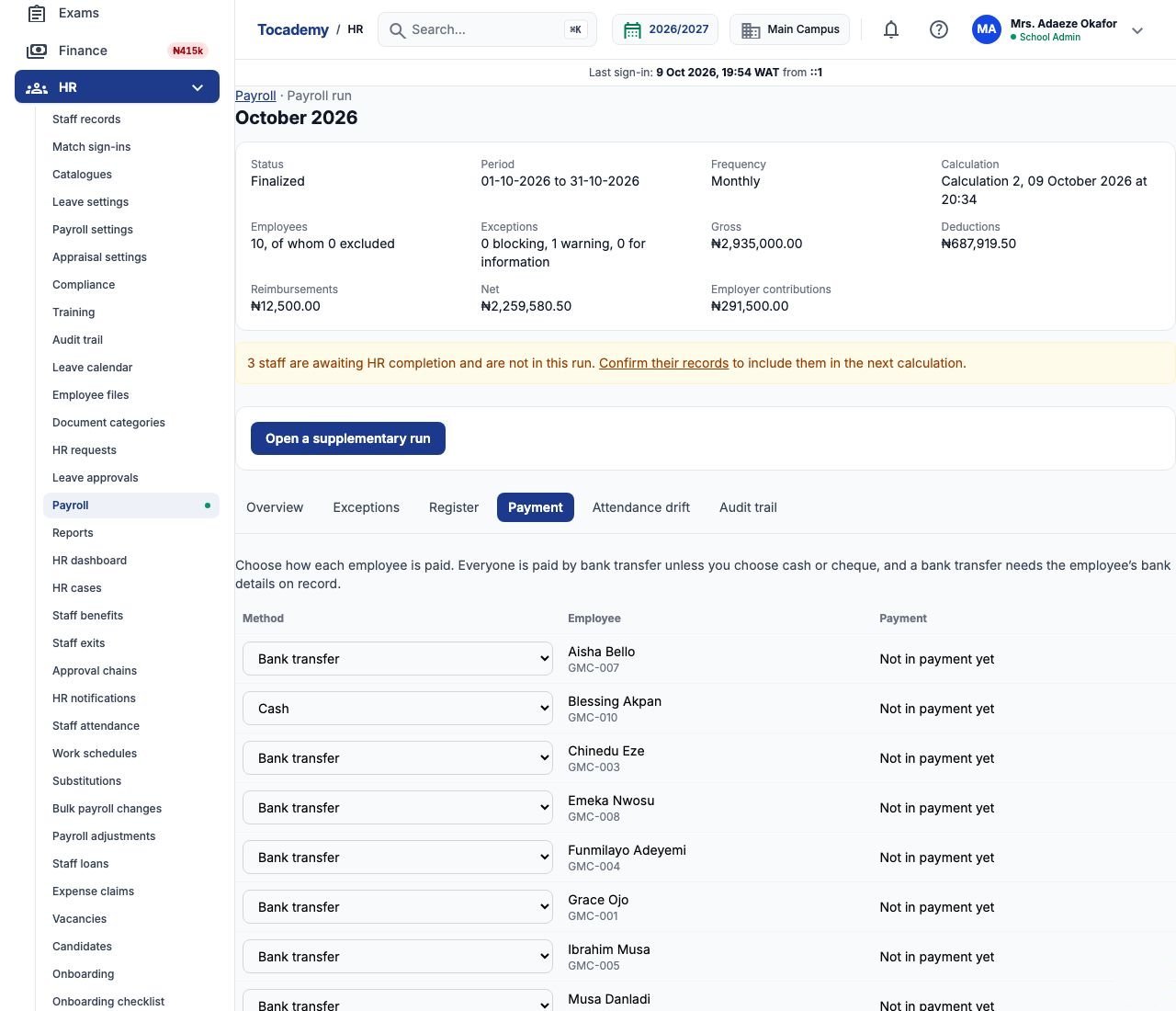
Tocademy does not move money; it records how and when each person was paid. On "Payment", choose how each employee is paid — bank transfer (the default, which needs bank details on the record), cash or cheque. Greenfield pays Blessing Akpan in cash and everyone else by bank transfer. Press "Start payment". The bursar then makes the transfers through the school's bank as usual.
14. Record the results and close
When the bank confirms, come back to "Payment". Tick individual employees, or choose "Everyone still outstanding (any ticks are ignored)"; choose "Paid" (or "Failed" for a transfer that bounced, which you can record again later), add a note such as the bank's batch reference, and press "Record results". When everyone is paid, press "Close the run". Greenfield's October run is now Closed, with every employee recorded paid on 09 October 2026.
15. The audit trail
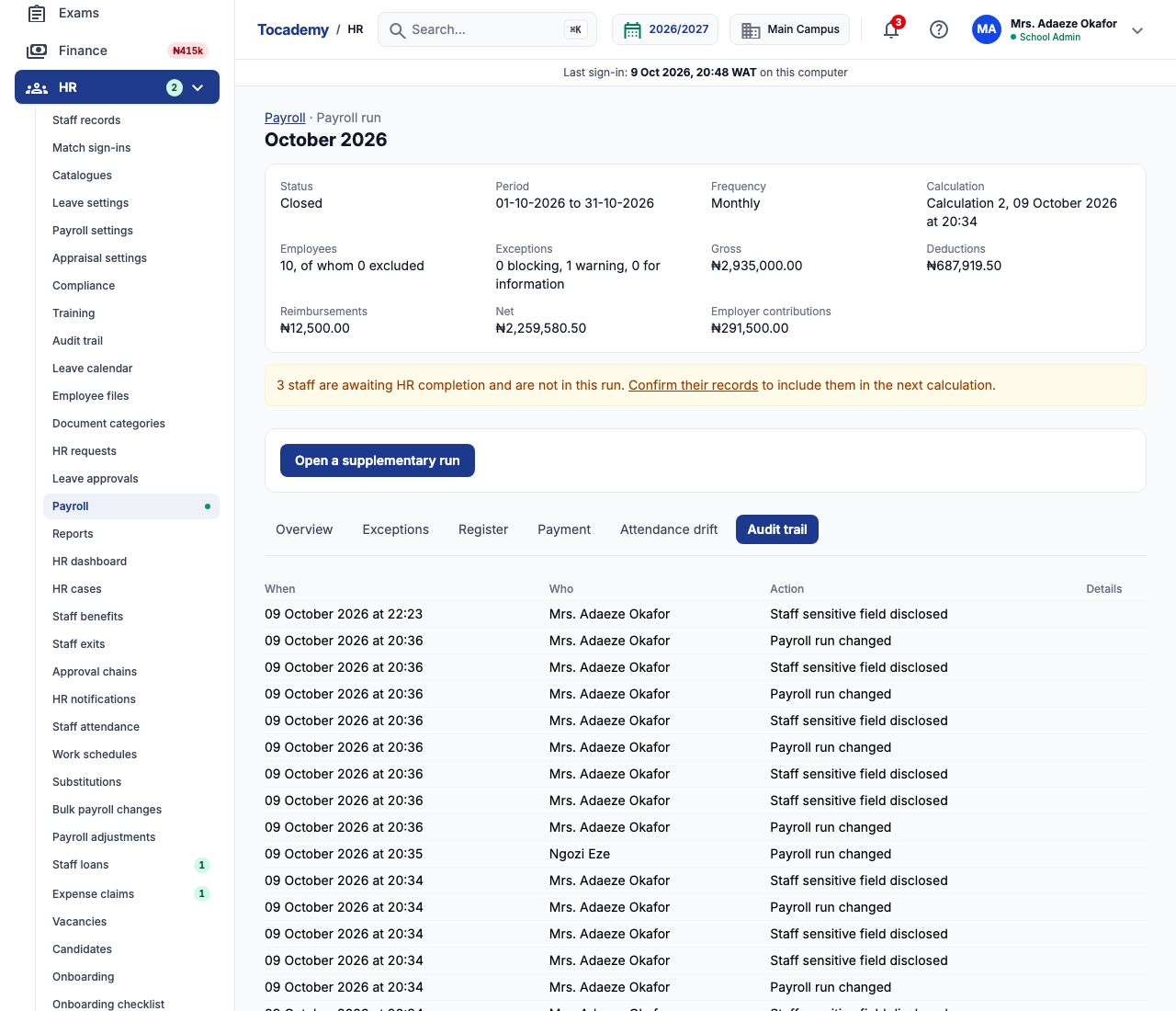
"Audit trail" lists every change to the run — each calculation, exclusion, acknowledgement, submission, decision, finalisation and payment — with when it happened and who did it, by name: at Greenfield, Mrs. Adaeze Okafor's calculations and submission, and Ngozi Eze's approval. Opening the register or an employee's figures is also recorded, as a disclosure of sensitive data. Nothing in the trail can be edited or deleted.
16. Chinedu Eze's payslip
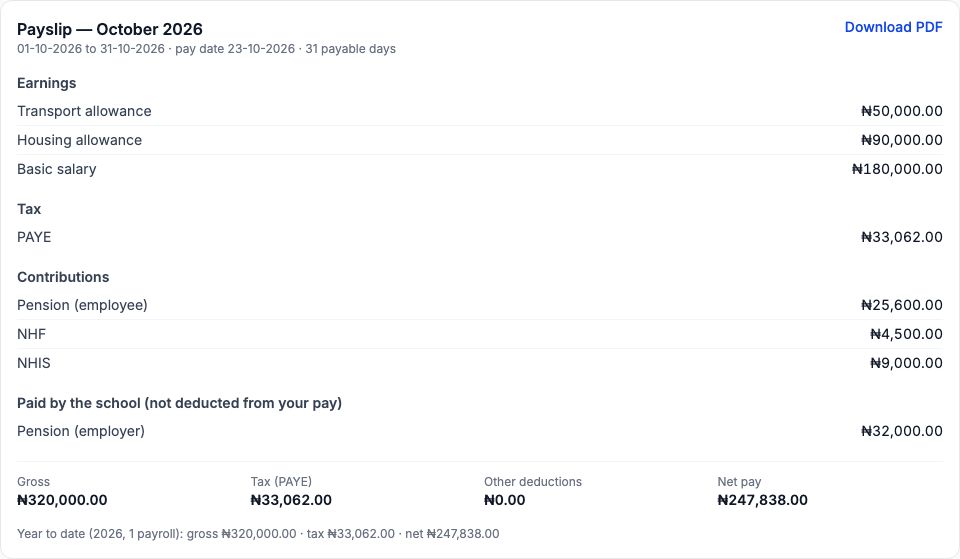
Every employee's item now ends with their payslip. Chinedu's shows the period, the pay date 23-10-2026 and 31 payable days; his earnings (Basic salary, Housing allowance, Transport allowance); tax (PAYE ₦33,062.00); his contributions (Pension (employee), NHF and NHIS) and, under "Paid by the school (not deducted from your pay)", the school's own Pension (employer) contribution of ₦32,000.00; then gross ₦320,000.00, other deductions ₦0.00 and net pay ₦247,838.00, with a year-to-date line beneath (2026, 1 payroll). Use the "Download PDF" link for a copy to print or send.
17. What staff see: My payslips
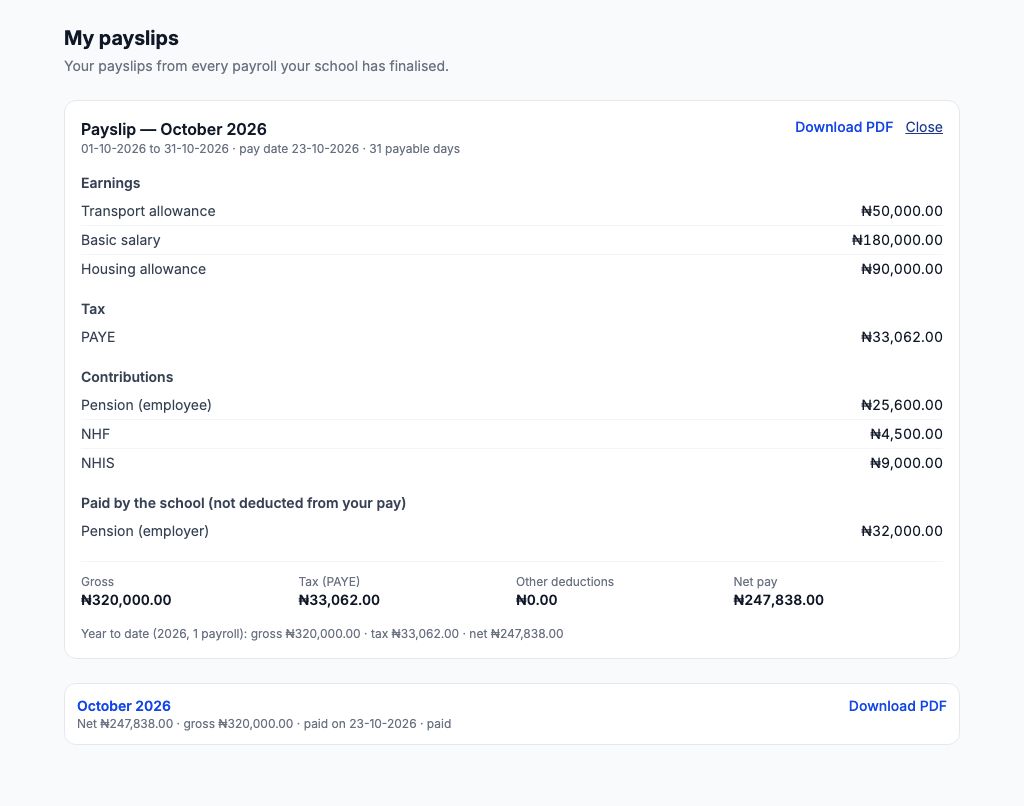
Staff see their own payslips under My HR → "My payslips" as soon as the run is finalised: one row per payroll with the net, the gross, the pay date and whether it has been paid. Choosing a month opens the payslip, and its "Download PDF" link saves it. Ngozi Okonkwo, Head of Languages on the same Level 10 salary as Chinedu, sees exactly the same October figures — net ₦247,838.00 — on her own phone or computer, and nobody else's.
18. Supplementary runs
If someone was missed or underpaid after a run was finalised — a new teacher whose record was confirmed late, say — press "Open a supplementary run" on the finalised regular run. It opens a separate run for the same period that goes through the same steps: calculate, clear the exceptions, submit, approve, finalise and pay. On "Payroll", the period's link to all of its runs lists the regular run and any supplementary ones. Next month, add November 2026 and start again from step 1.
Still stuck?
Email info@tocel.ng and tell us which guide you were following.