AI Schemes of Work
Plan a class subject's term week by week with AI, from its own syllabus topics and the term's length; check it, change it and save it as the scheme of work.
What it does, and for whom
A scheme of work plans one class subject's term week by week: which topic of the syllabus each week teaches, which weeks are for revision or assessment, and what pupils will be able to do by the end of each week. Whoever sets the school's syllabuses can ask the AI for a first draft of the whole term. It plans only the topics your syllabus lists for that term, never one of its own, and never more weeks than the term has. Nothing is saved until you save the scheme yourself.
Before you start
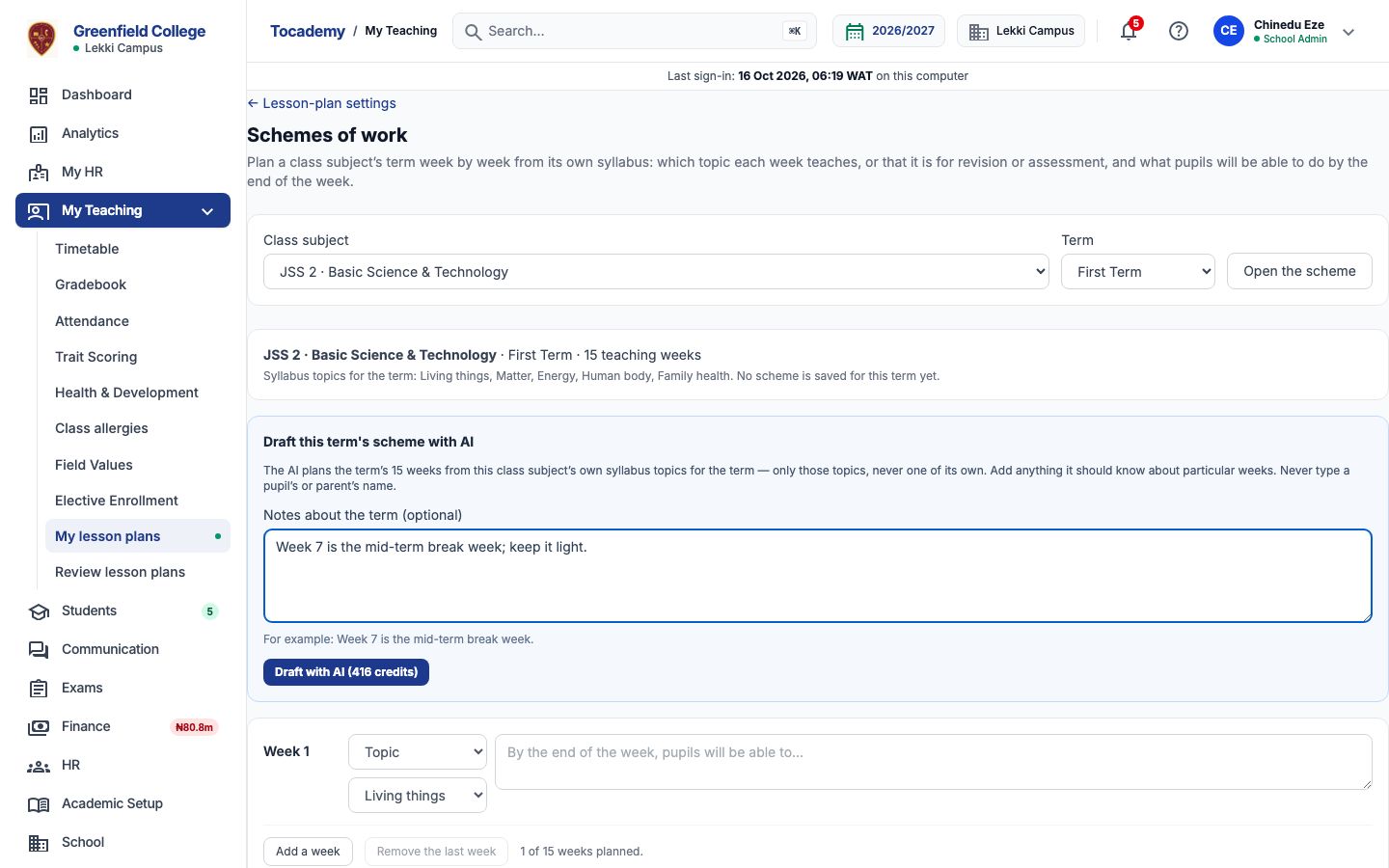
Your school has switched on Scheme of work (Turning On AI Features), you hold credits that cover it, and you may set syllabuses; at Greenfield that is the school administrator, Mr Chinedu Eze. The class subject needs syllabus topics planned for the term: set them under Lesson-plan settings, in the Syllabus section. From there, follow the Schemes of work link, choose the class subject and the term, and press "Open the scheme". The page shows the term's teaching weeks, counted from its dates, and the syllabus topics it may teach.
Worked example: JSS 2 Basic Science for the first term
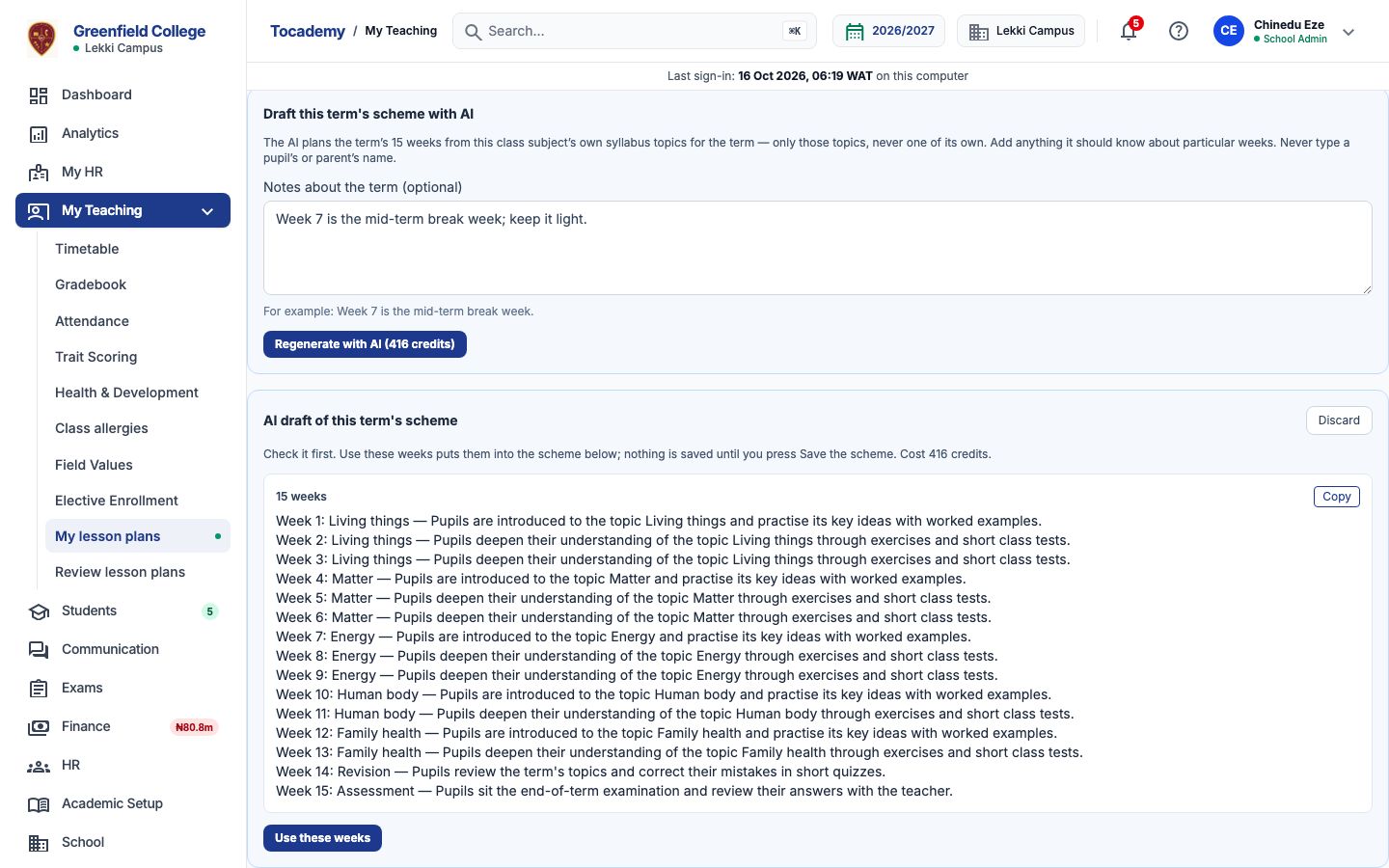
Mr Eze opens JSS 2 · Basic Science & Technology for the first term, whose syllabus lists Living things, Matter, Energy, Human body and Family health. He types a note, Week 7 is the mid-term break week; keep it light, and presses "Draft with AI". The draft appears above the scheme: every week of the term, each listed topic given at least one week in the syllabus's order, a revision week and an end-of-term assessment week, each with its learning objectives.
Use it, change it, and save the scheme
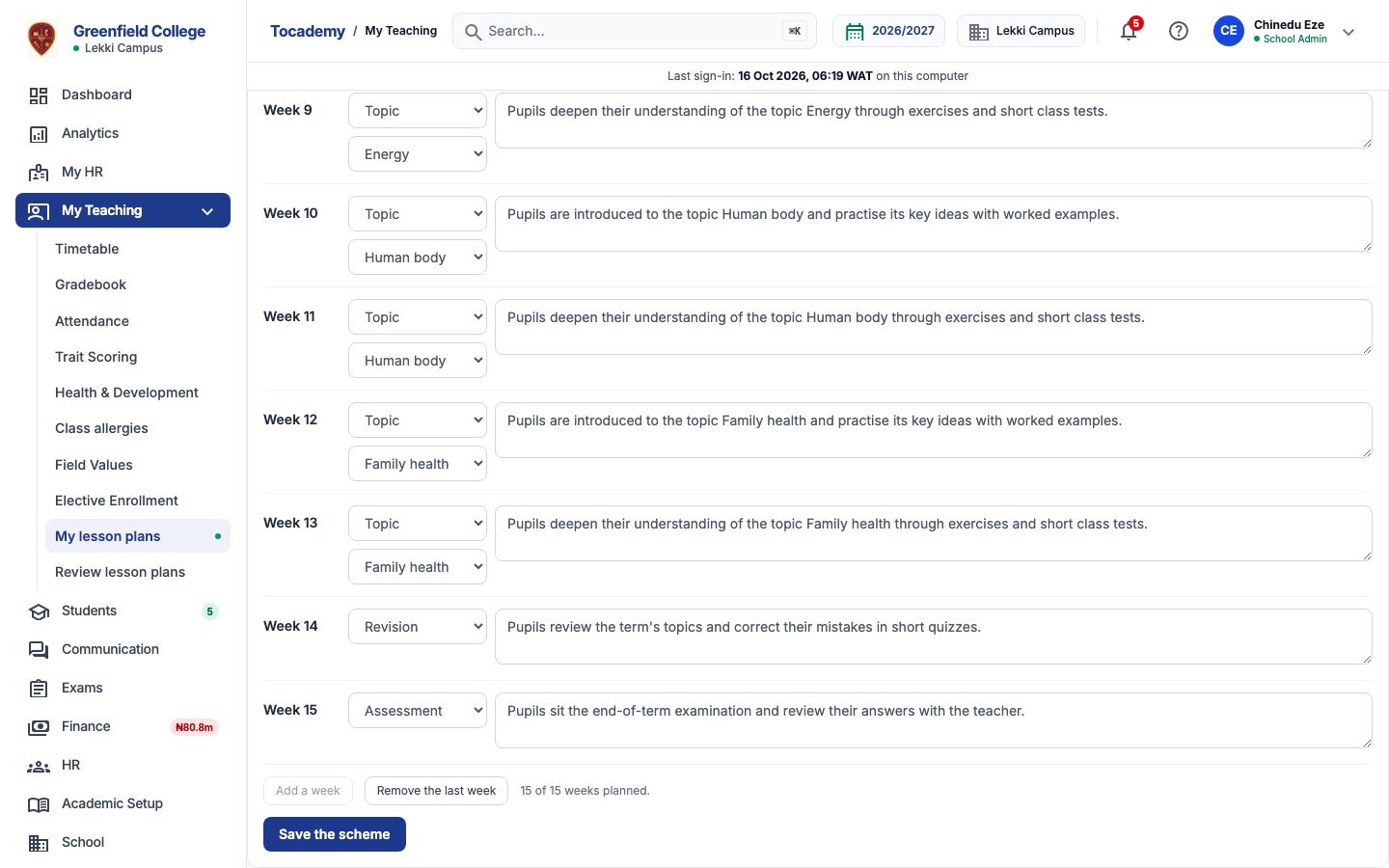
Press "Use these weeks" to put the draft into the scheme below. Nothing is saved yet: change any week's topic, kind or objectives, press "Add a week" or "Remove the last week", then press "Save the scheme". The scheme is checked as it is saved: a week must teach a topic on the class subject's syllabus for the term, or be a revision or assessment week, and a term never holds more weeks than it has. Discard throws a draft away and costs nothing more.
What is sent to the AI, and what never is
The class level, the subject's and the term's names, the number of teaching weeks, the syllabus topics' names under short codes such as T1, and your notes. No topic, class or term id, and no pupil or member of staff, is part of it; the codes are matched back to your own topics on Tocademy's server. Notes are checked before they leave: a note with a name or a phone number in it is refused, and nothing is charged.
When the AI says no
A refusal says why and ends "Nothing was charged." The class subject may have no syllabus topics for the term yet, or more topics than the term has weeks: plan some for another term first. A draft that names a topic the syllabus does not list, or plans more weeks than the term has, is refused as an unusable answer. If the syllabus or the term's dates change while the AI is drafting, or before you save, the draft no longer fits and is refused: draft it again. Each class subject keeps one draft waiting at a time; a draft for another term is shown with a link to that term.
Cost, and My AI credits
Each draft costs the credits on the button, 416 at Greenfield, because it plans a whole term; whether you save it, change it or discard it, a refused or unfinished request is never charged. My AI credits, under My Profile, lists every request: a scheme you saved says Draft used, one still waiting says Saved as a draft with an Open the draft link back to the class subject's schemes.
Still stuck?
Email info@tocel.ng and tell us which guide you were following.