Subject Teachers
Choosing who teaches each subject in each arm — for the year, or for one term — and saving many changes at once.
What this page is for
Every subject a class takes needs a teacher in each of its arms. The teacher you choose for a subject in an arm is the one who records that subject's scores for the arm, and who can set its homework and share learning materials with it. Each choice is for one subject in one arm, for the whole academic year or — if you need it — for just one term.
Opening the page
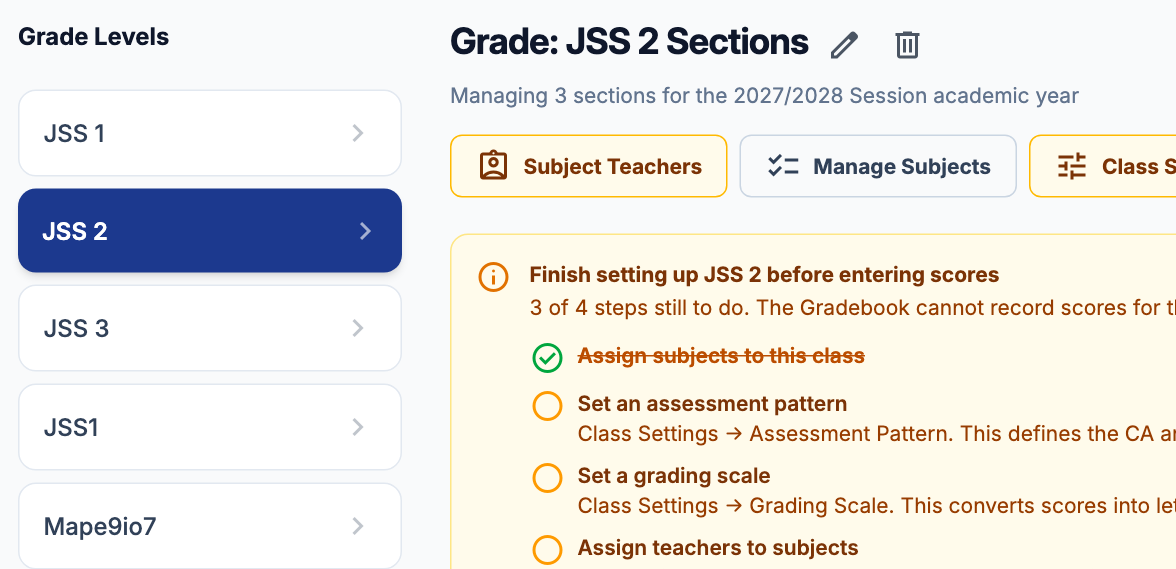
Go to Academic Setup → Classes & Sections, choose the class in the list on the left, and press "Subject Teachers". The button has an amber outline while the class has no subject teacher at all. The page works for the current academic year, so set one under Academic Years first if the page tells you none is set.
What you see
At the top, the year or term you are working on ("Whole Year" to begin with) and a count of how many subject-and-arm combinations have a teacher. Below it, "Quick assign" for giving one teacher several subjects and arms at once, and then the grid: one row per subject, one column per arm, and a teacher picker in every cell. Type a few letters of a name in any picker to find the teacher.
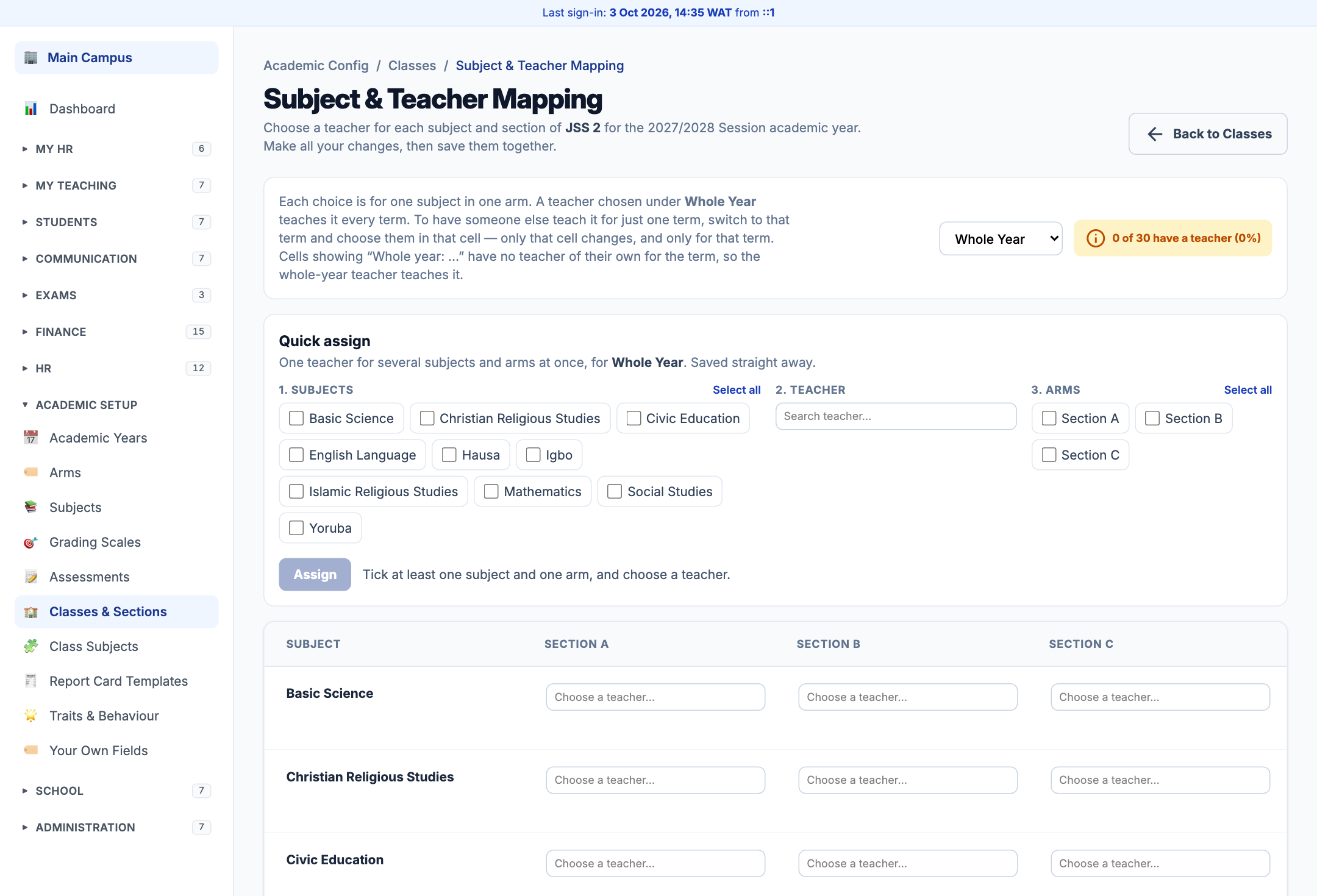
Example 1: one teacher for two subjects in every arm
Mrs Adaeze Okafor teaches English Language and Mathematics in all three JSS 2 arms. In "Quick assign": 1. tick English Language and Mathematics; 2. type "Ada" in the teacher box and choose Adaeze Okafor; 3. press "Select all" beside the arms. The button now reads "Assign Adaeze Okafor to 6" — two subjects in three arms — and saves all six at once when you press it. The page says "Assigned 6 subject-and-arm combinations.", and the grid shows her in every one of those cells.
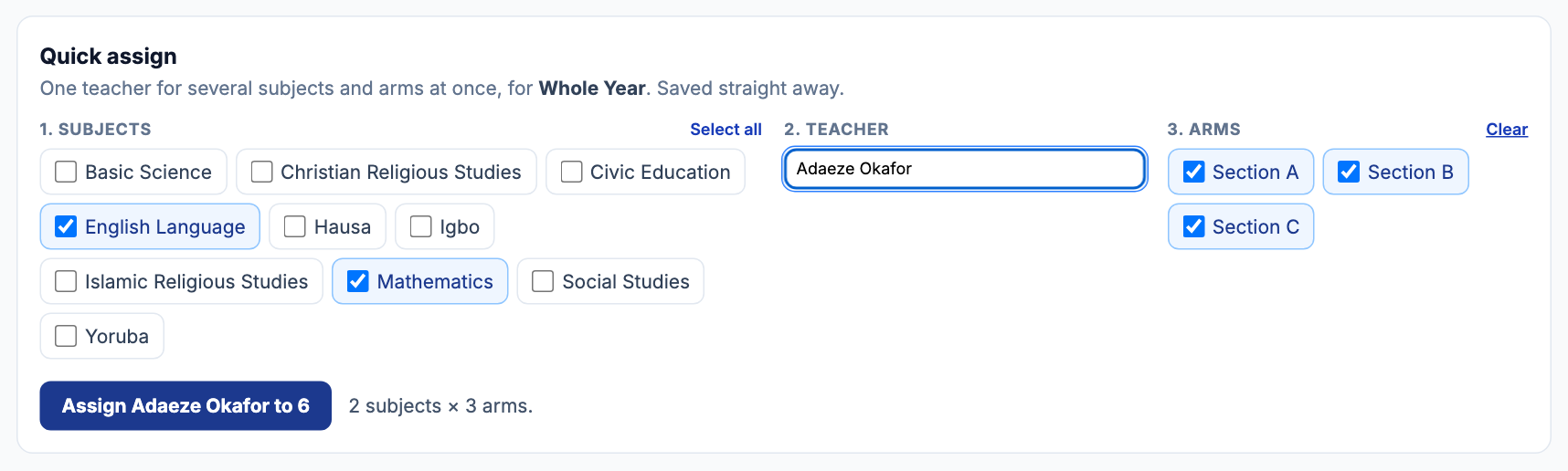
Example 1, the result
After assigning, the subjects you ticked clear so you can start the next teacher; the arms stay ticked, because the next teacher often takes the same arms. Each filled cell has "Remove" under it. Quick assign uses the term chosen at the top — here "Whole Year".
Example 2: change the teacher for one arm
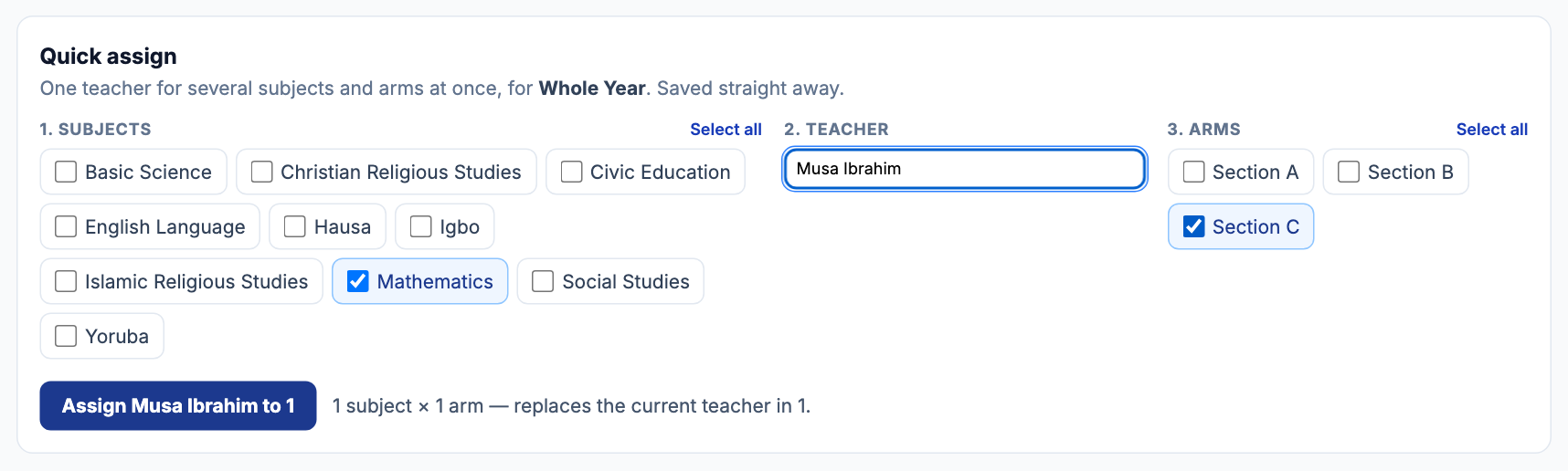
Mr Musa Ibrahim takes over JSS 2C Mathematics. In "Quick assign" press "Clear" beside the arms, tick Mathematics and Section C, and choose Musa Ibrahim. The line beside the button warns before you press it: "1 subject × 1 arm — replaces the current teacher in 1." Pressing "Assign Musa Ibrahim to 1" replaces Mrs Okafor in that one cell only; she keeps Mathematics in A and B. You can make the same change in the grid instead — see Example 3.
Example 3: one-off changes in the grid, saved together
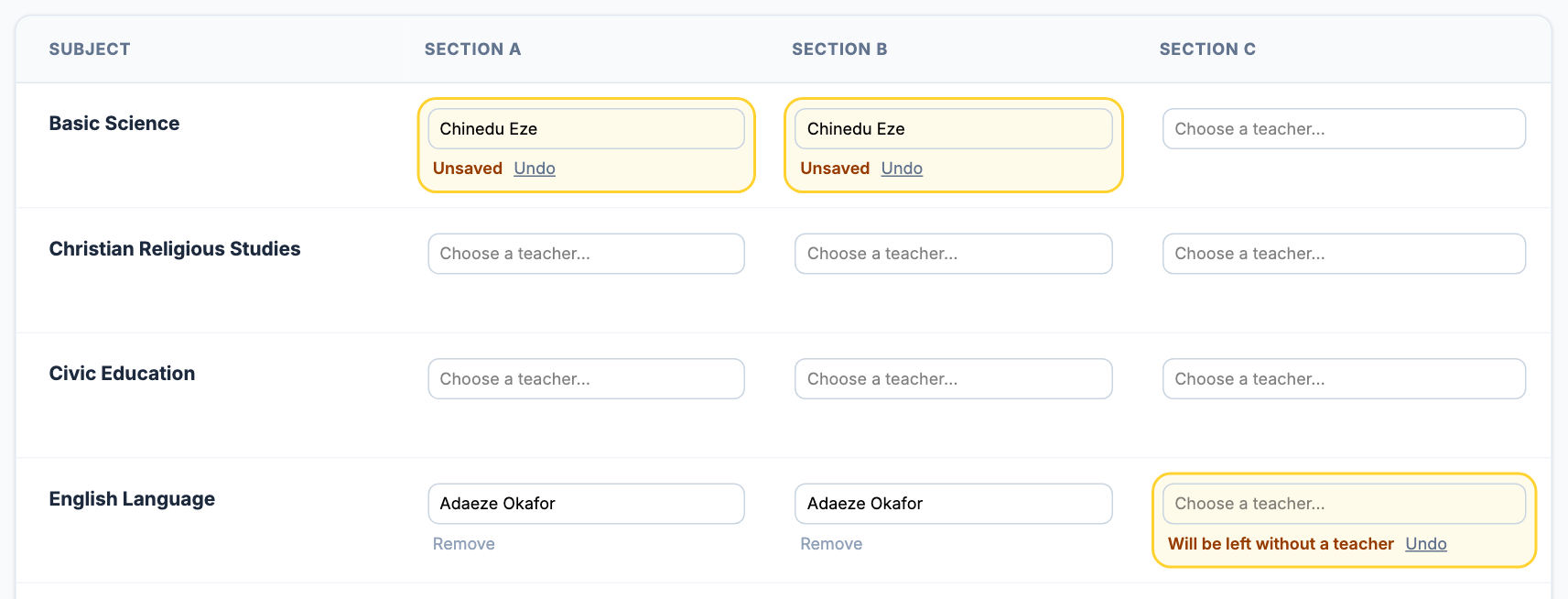
For a few individual changes, use the grid directly. Choose Chinedu Eze in the Basic Science cells for Sections A and B, and press "Remove" under English Language in Section C. Nothing is saved yet: each changed cell turns yellow and says "Unsaved" (or "Will be left without a teacher" for a removal), with "Undo" to put that one cell back as it was.
Example 3, saving
A bar at the bottom of the page stays in view while you scroll and counts what is waiting — here "3 unsaved changes". Press "Save 3 changes" to save them all in one go, or "Discard changes" to drop them. You can make changes under several terms before saving; the bar says how many are in another term.

Example 3, saved
The page confirms "Saved 3 changes." and the cells show what is now stored. If any part could not be saved, the page says so and lists those cells with the reason; the rest stay saved, and the ones that failed stay marked so you can try again.

Example 4: a different teacher for one term
Mrs Okafor is away for the Second Term, and Mrs Ngozi Obi covers her English Language class in Section B only. Change the selector at the top from "Whole Year" to Second Term.

Example 4, what a term shows
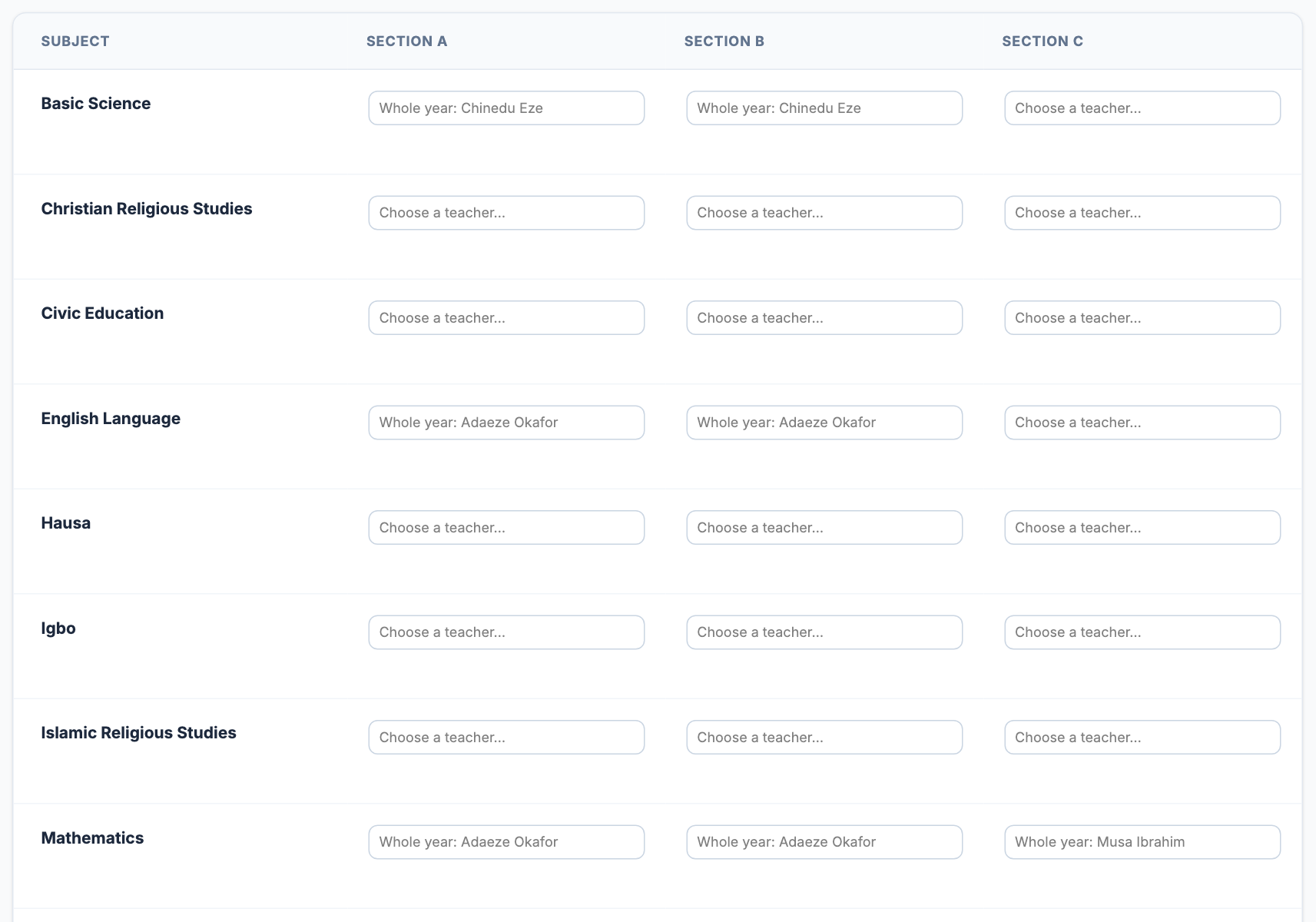
In a term, a cell that has no teacher of its own for that term shows "Whole year:" and the whole-year teacher's name, in grey — that teacher teaches it that term, and the cell counts as having a teacher. A cell with no whole-year teacher either shows "Choose a teacher…".
Example 4, the override
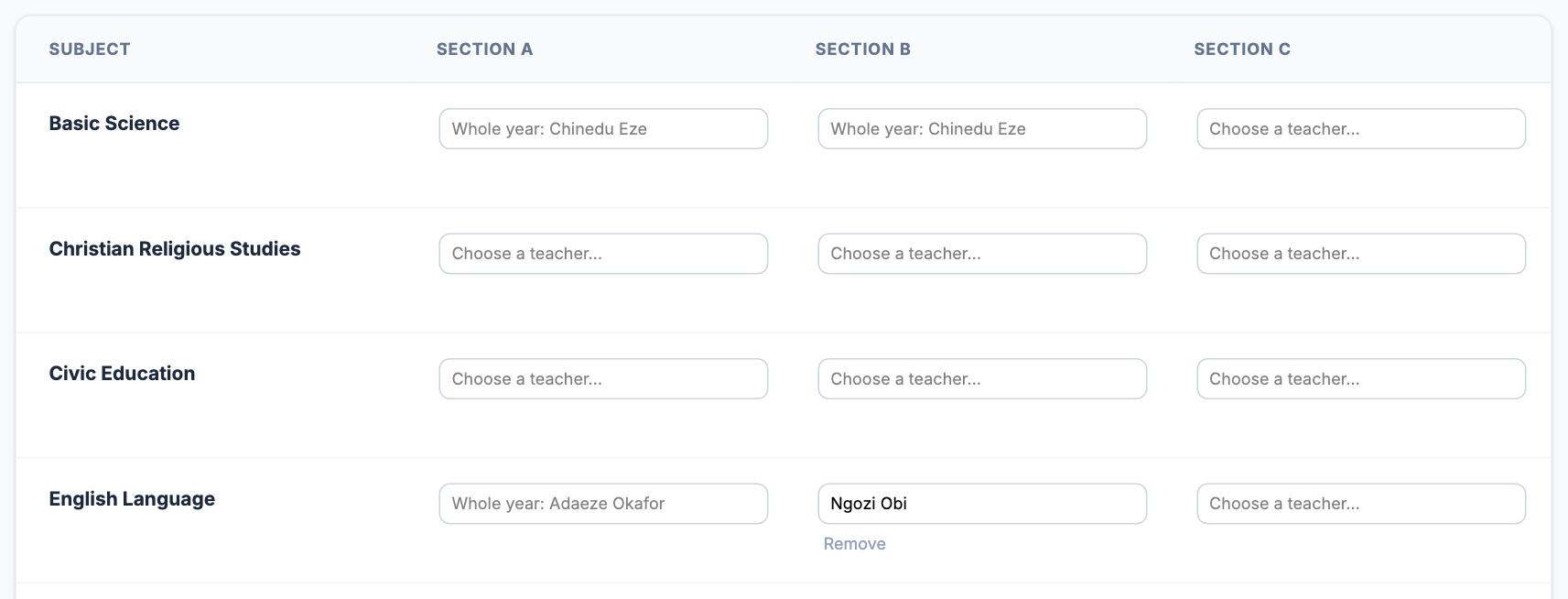
Choose Ngozi Obi in the English Language cell for Section B and save. Only that cell changes, and only for the Second Term: Section A still shows "Whole year: Adaeze Okafor", and when you switch back to "Whole Year", First Term or Third Term, Section B is Mrs Okafor's again. To end the cover early, switch to Second Term and press "Remove" in that cell — it says "Will use whole-year teacher" — then save.
Example 5: leaving with unsaved changes
If you have unsaved changes and press "Back to Classes" or follow any other link, the page asks first: "Stay and save" keeps you on the page with your changes, "Leave without saving" drops them. Closing the browser tab asks too.

Checking a class is fully covered
The count at the top — for example "30 of 30 have a teacher (100%)" — turns green when every subject in every arm has a teacher for the year or term you are looking at. In a term view, cells covered by the whole-year teacher count. Check the count on each class you set up — it is the quickest way to spot an arm that still has a subject with nobody teaching it.
Still stuck?
Email info@tocel.ng and tell us which guide you were following.