Publishing and Sharing Your Website
Check your draft, publish it, share the address by WhatsApp, Facebook, text message or a printed QR poster, and write and publish news.
What Publish does
Page wording and sections wait in your draft until you publish. Publishing puts every page that has changes live at once, so the website never shows half an update. Colours, logo, contact details and the notice banner are not drafts — they changed your website when you saved them — and news posts are published one at a time on the News tab.
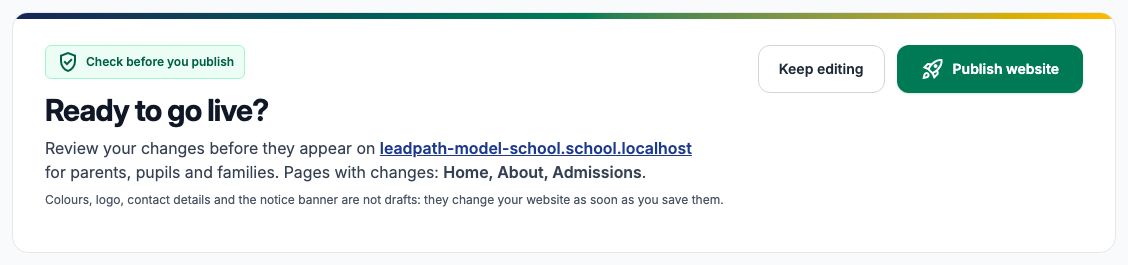
Press the green Publish button at the top of any website tab, or open the "Publish & share" tab. "Ready to go live?" names the pages with changes — for Leadpath Model School: Home, About and Admissions. "Keep editing" takes you back to the pages.
2. Check what changes, and the checklist
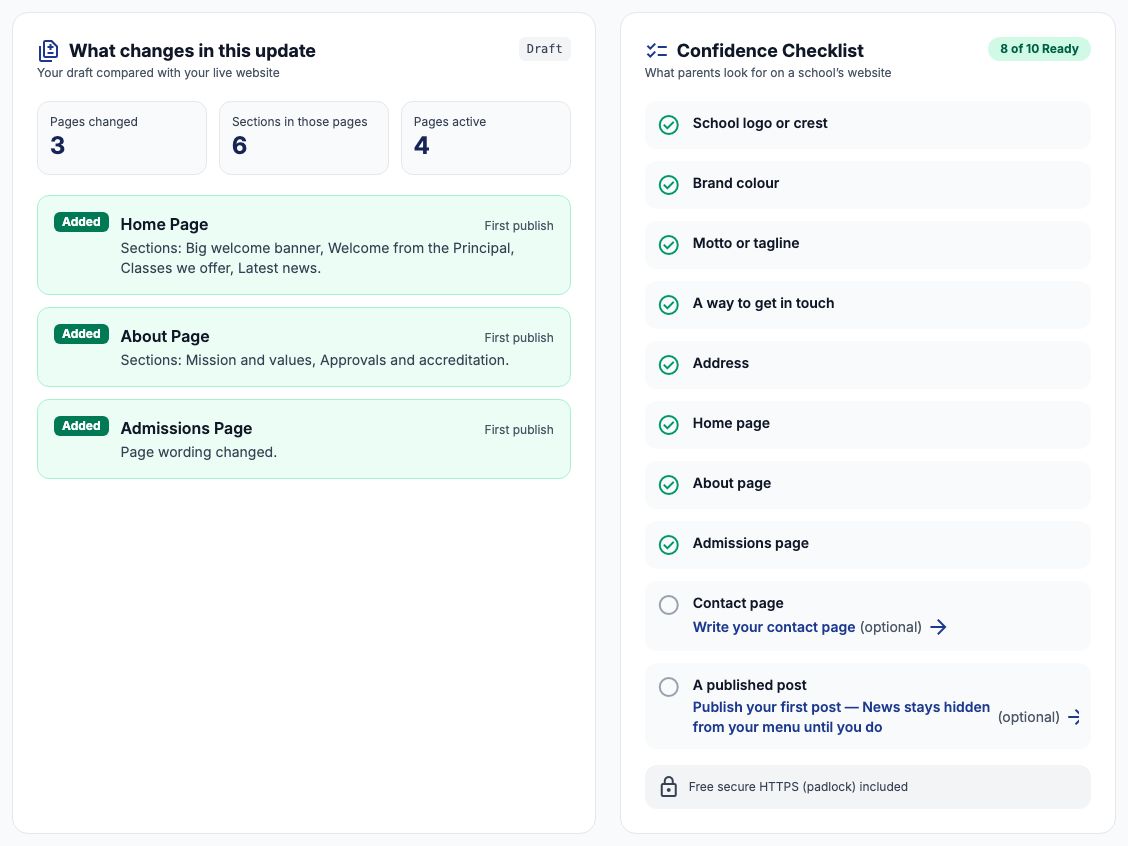
"What changes in this update" compares your draft with the live website: Leadpath has 3 pages changed, 6 sections in those pages and 4 pages active, and each page is marked Added (its first publish) or Edited, with its sections listed. Beside it, the "Confidence Checklist" is ten things parents look for on a school website — crest, brand colour, motto, a way to get in touch, address, the Home, About, Admissions and Contact pages, and a published news post. Leadpath is at 8 of 10; each missing item has a link to fix it. None of them stops you publishing; the ones marked optional are simply nice to have.
3. Look at every page
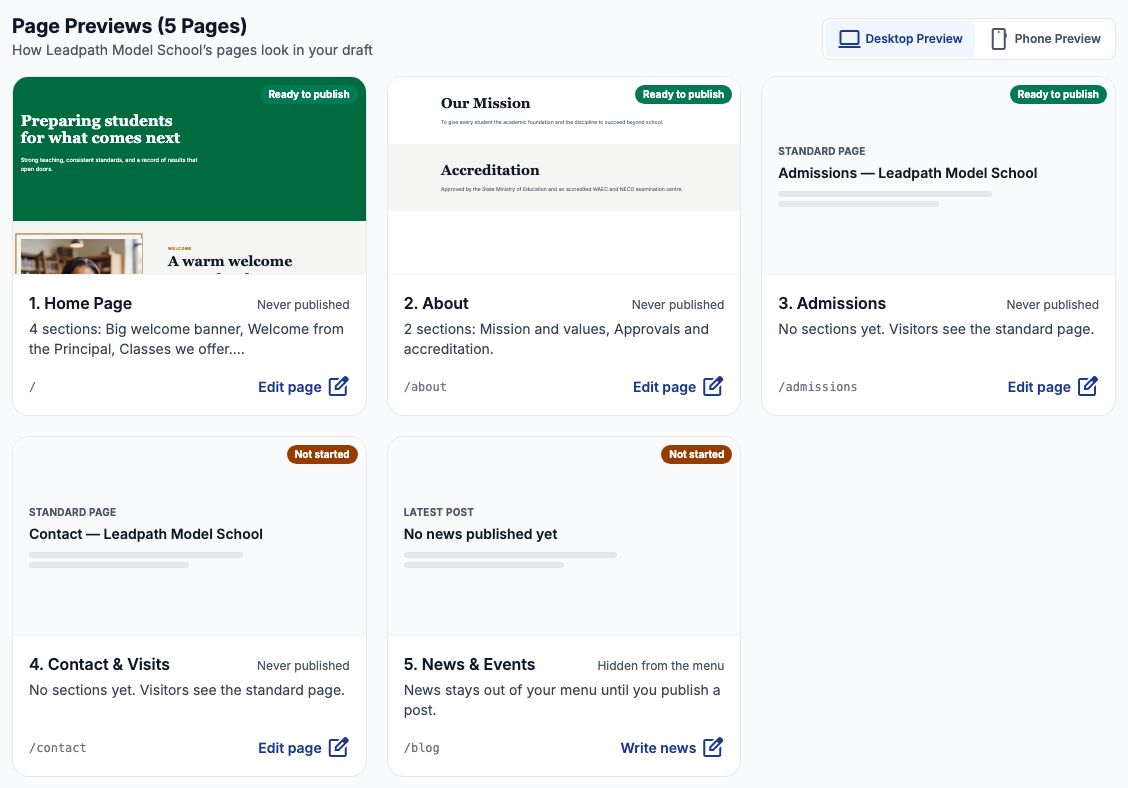
"Page Previews" shows a small picture of each page from your draft, with its state — Ready to publish, Live, Not started or Turned off — and when it was last published. Switch between "Desktop Preview" and "Phone Preview". Each card links to that page in the editor; the News & Events card links to the News tab.
Example: publish Leadpath's website
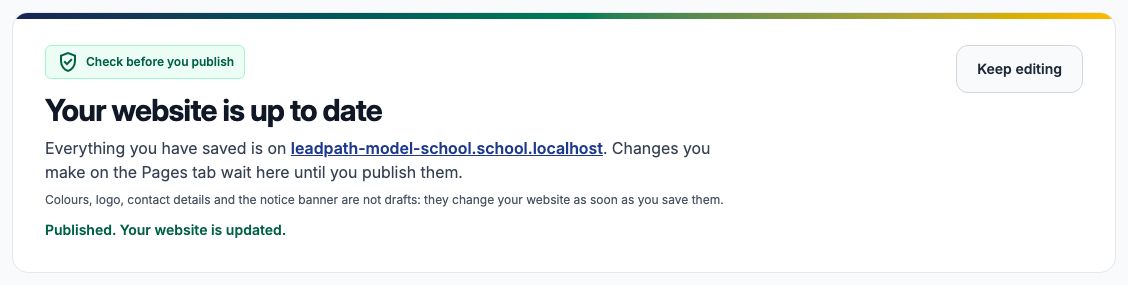
Press "Publish website". In a moment the page says "Published. Your website is updated." and the heading becomes "Your website is up to date". The chip beside the school's address at the top changes from Draft to Live. Anything you change later waits in the draft again until you publish it.
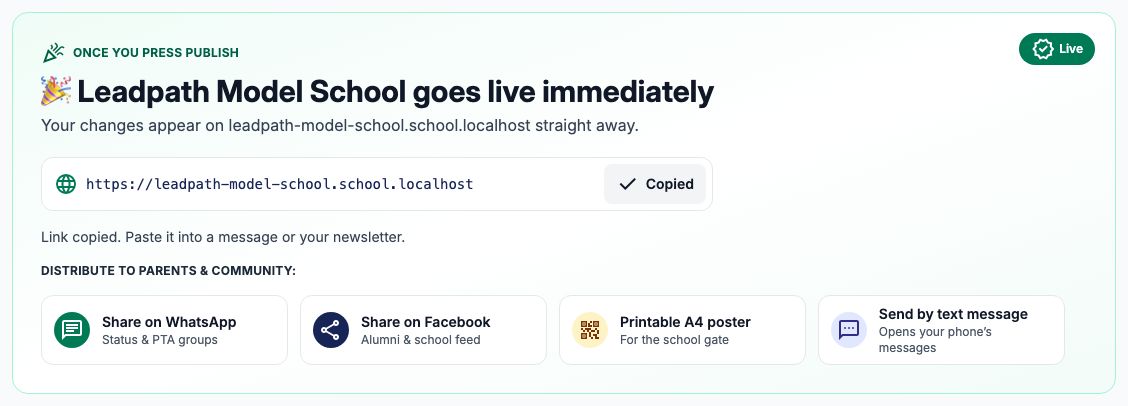
Further down is the school's address. Press "Copy link" and paste it into a message or newsletter — the page says the link is copied. Share on WhatsApp opens WhatsApp with a ready-written message for your status or PTA groups; Share on Facebook does the same for Facebook; Send by text message opens your phone's messages with the address in it.
5. Print a QR poster
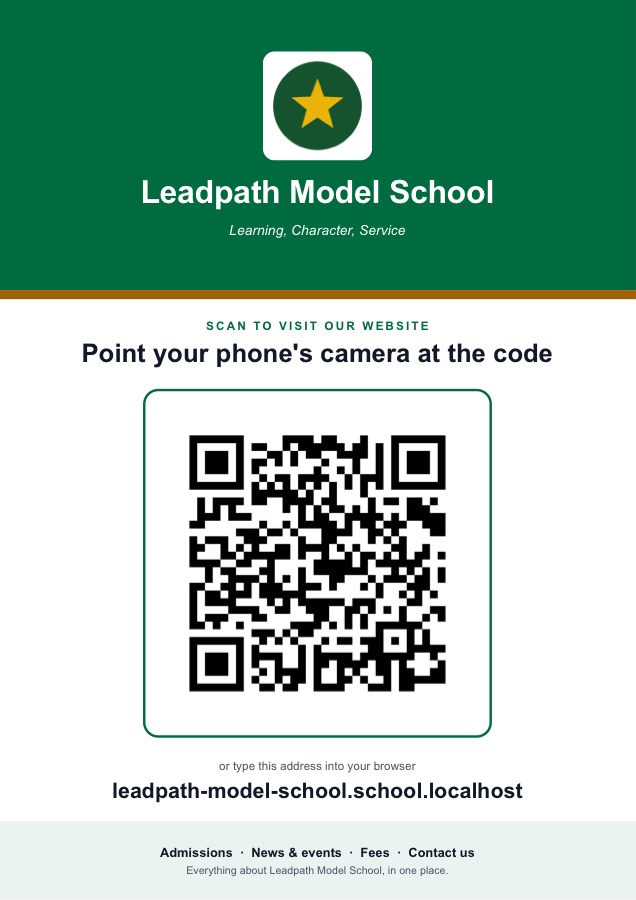
"Printable A4 poster" downloads a ready-to-print PDF: your crest, name and motto in your colours, a QR code a parent can scan with their phone's camera, and the address written out for anyone who would rather type it. Put it at the school gate, on the notice board or in the reception.
6. News
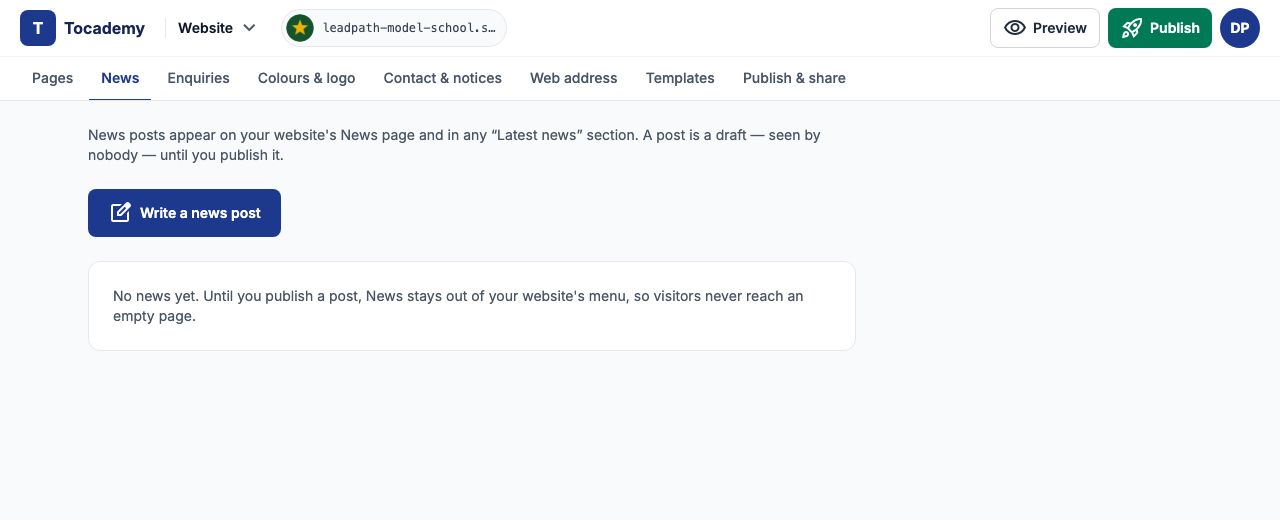
Open the "News" tab. Posts appear on your website's News page and in any "Latest news" section. Until you publish a post, News stays out of your website's menu, so visitors never reach an empty page.
News: write a post
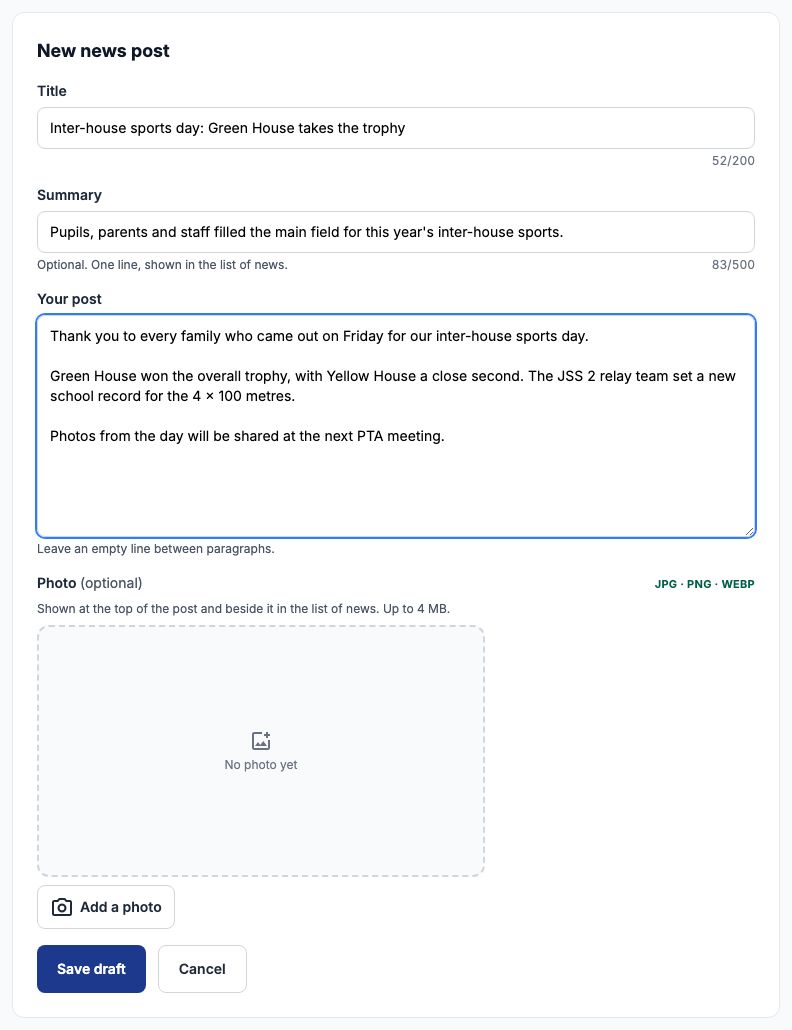
Press "Write a news post" and fill in the "Title", an optional "Summary" (one line, shown in the list of news) and "Your post" — leave an empty line between paragraphs. Under "Photo", "Add a photo" puts a picture (JPG, PNG or WebP, up to 4 MB) at the top of the post and beside it in the list of news; it is optional. Leadpath writes up its inter-house sports day and presses "Save draft".
News: publish it
The post is listed as "Draft — not visible to anyone yet", with "Edit", "Publish" and "Delete". Press "Publish" and it goes on your website straight away — on the News page and in any "Latest news" section — without pressing Publish website. The row now says when it was published, and the note above the list says the post is on your website.

News: change or take down a post
"Edit" changes a published post on your website as soon as you press "Save and update website"; its web address stays the same, so links already shared keep working. "Unpublish" takes a post down but keeps it. "Delete" removes it for good after asking you to confirm with "Delete post" — "Keep it" changes nothing.

Still stuck?
Email info@tocel.ng and tell us which guide you were following.