Leave
Set up leave types, the policy behind each and the school's holidays, then follow a request from the employee through each approver to the balance, the leave calendar and cover for the lessons missed.
1. Where leave lives
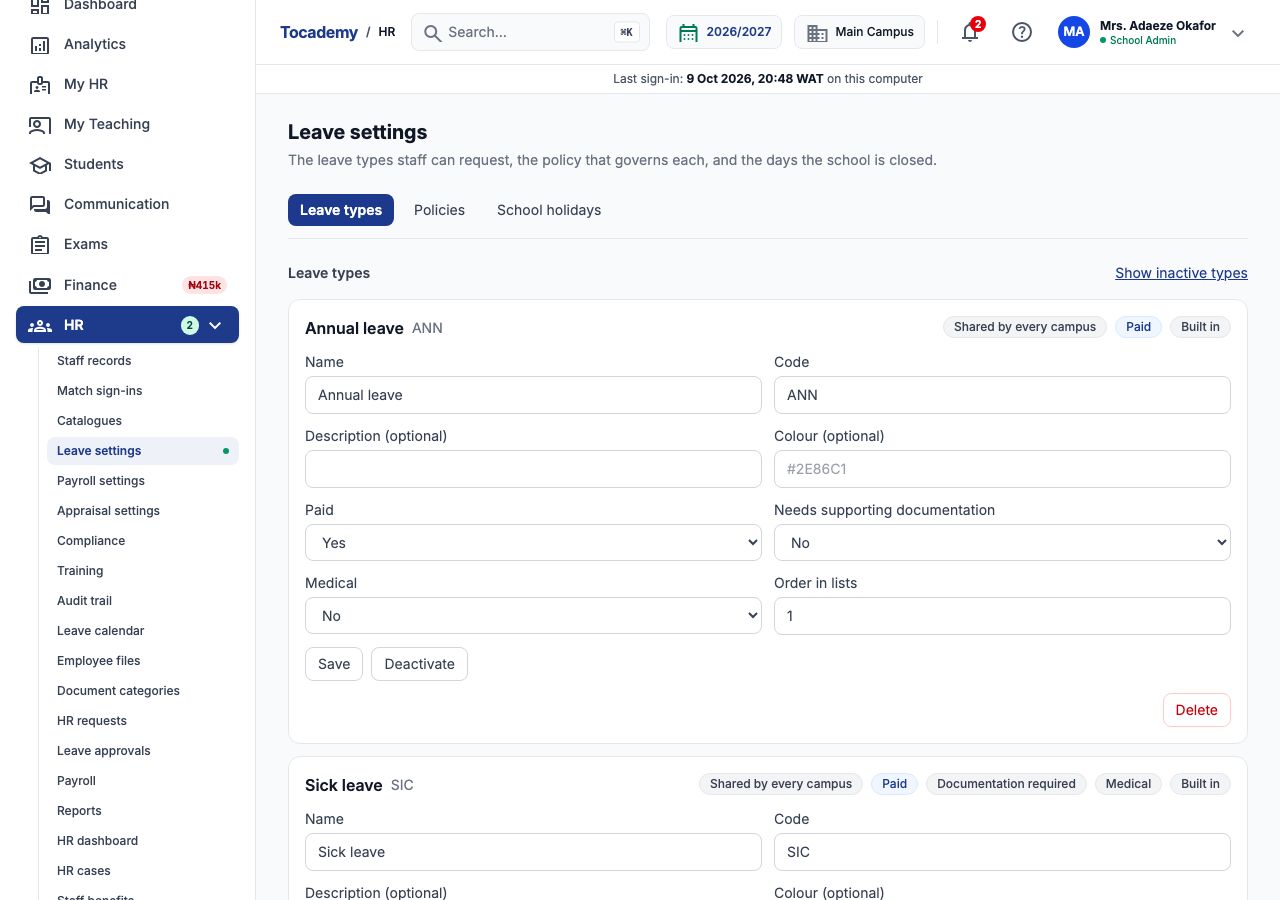
HR officers set leave up and watch it from the HR menu: "Leave settings" (leave types, policies and school holidays), "Leave approvals" (requests waiting for your decision), "Leave calendar" (who is away and when), and the "Leave" tab on each staff record (one person's balances and requests). Staff request their own leave under My HR, "My leave". Open "Leave settings" first. It has three sections, "Leave types", "Policies" and "School holidays", and opens on the leave types. Tocademy comes with the common types already built in: Annual, Sick, Maternity, Paternity, Parental, Exam / study, Personal, Emergency, Compassionate / bereavement, Unpaid, Medical, Professional development and Compensatory leave. Each card shows badges for whether it is shared by every campus, "Paid" or "Unpaid", whether it needs "Documentation required", whether it is "Medical", and "Built in".
2. Add a leave type of your own
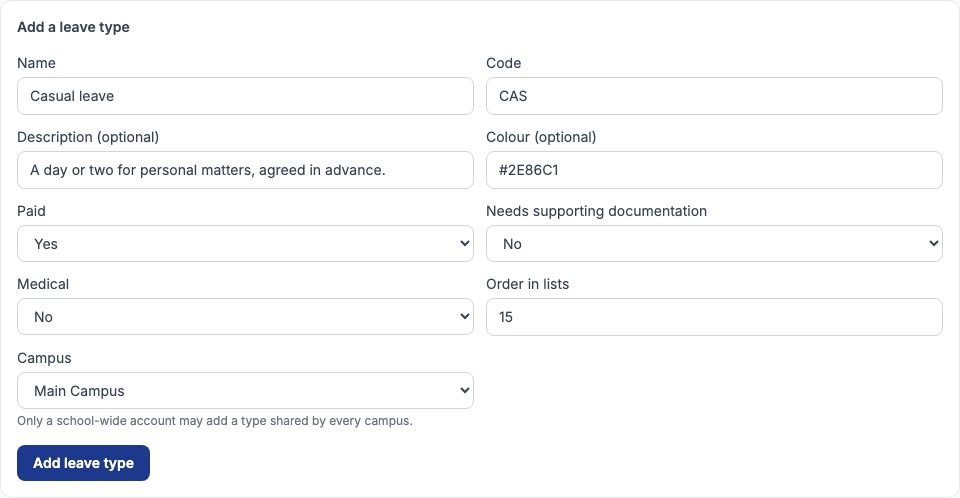
Scroll to "Add a leave type". Fill "Name" and a short "Code", a "Description (optional)" and a "Colour (optional)" for the calendar. Set "Paid", "Needs supporting documentation" and "Medical" to Yes or No, and "Order in lists". Choose the "Campus" it is offered at (only a school-wide account can add one shared by every campus). Press "Add leave type". Greenfield Model College added Casual leave (code CAS), paid, no documents, for a day or two of personal matters agreed in advance. To stop offering a type, press "Deactivate": it disappears from new requests, and the requests, balances and calendar entries that used it stay readable. "Delete" works only on a type nobody has used; for one in use Tocademy refuses and offers to deactivate it instead.
3. Policies: the rules behind each type
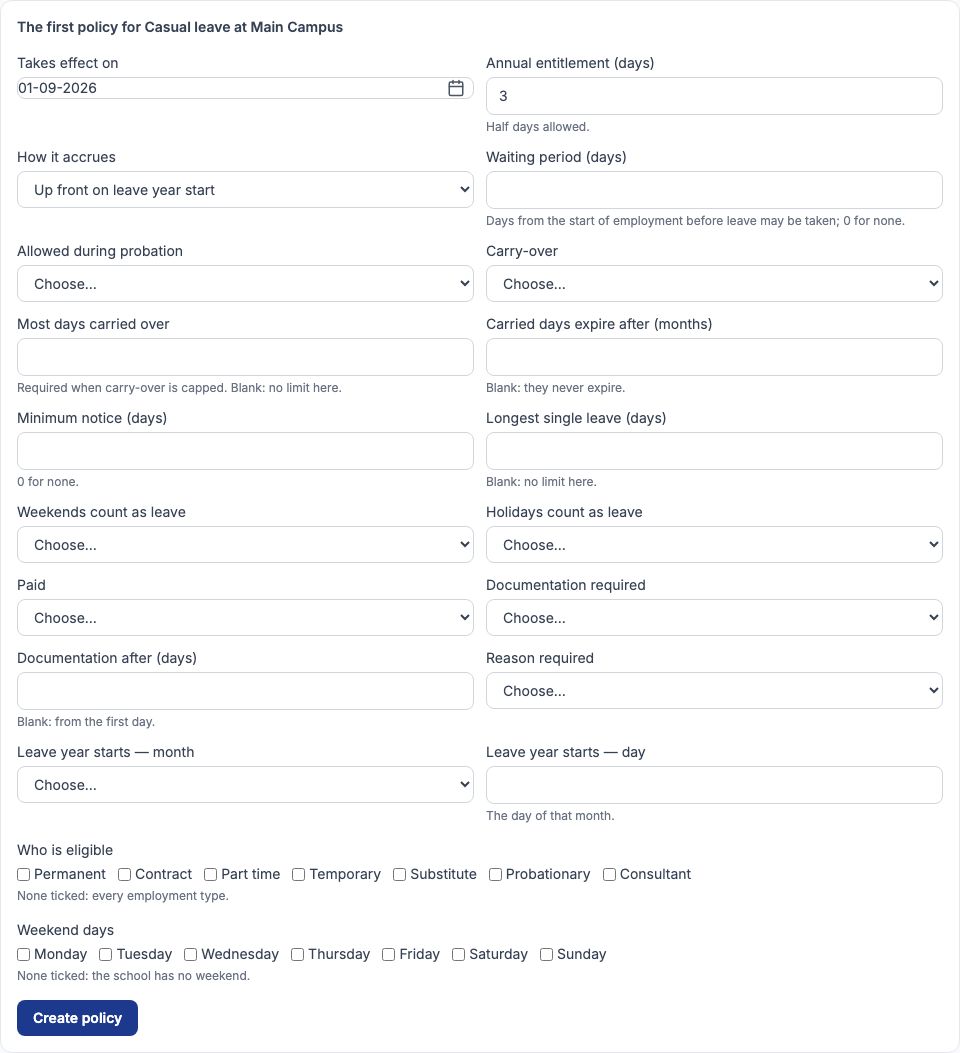
A leave type cannot be requested until a policy governs it. Open "Policies", choose the "Leave type" and "Where" ("School-wide" or one campus), and press "Show". A campus can have a policy of its own; if it does, that policy replaces the school-wide one completely at that campus. The form asks for: "Takes effect on"; "Annual entitlement (days)" (half days allowed); "How it accrues" (all at the start of the leave year, a little each month, or all on the employee's work anniversary); "Waiting period (days)" from the start of employment; whether it is "Allowed during probation"; "Carry-over" (none, capped or unlimited) with "Most days carried over" and "Carried days expire after (months)"; "Minimum notice (days)"; "Longest single leave (days)"; whether weekends and holidays count as leave; "Paid"; whether documents are needed and after how many days; "Reason required"; when the leave year starts; "Who is eligible" (leave every box empty for everyone) and the "Weekend days". Press "Create policy".
4. Example: Greenfield's Annual and Sick leave policies
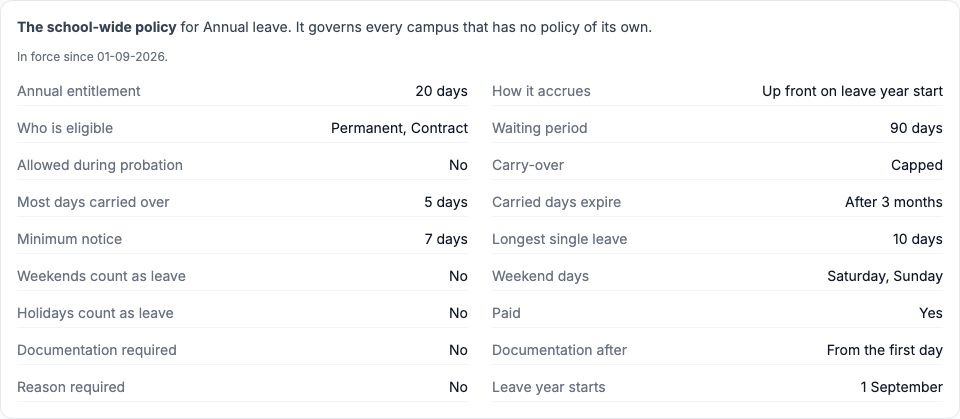
Greenfield's school-wide Annual leave policy took effect on 01-09-2026: 20 days a year, all granted at the start of the leave year on 1 September; only Permanent and Contract staff are eligible, after a 90-day waiting period and not during probation; up to 5 unused days carry over and expire after 3 months; 7 days' notice; no single leave longer than 10 days; Saturday and Sunday are the weekend and neither weekends nor holidays count as leave days; paid. So Aisha Bello, still on probation, cannot take annual leave yet. The Sick leave policy gives 10 days to every employment type, including staff on probation, with no notice period, no carry-over, a reason required, and a doctor's note required for anything longer than 2 days. A policy is never edited: to change the terms, fill "Change the terms from a date" and press "Supersede from this date". The old terms stop the day before and stay on record for requests made under them.
5. School holidays
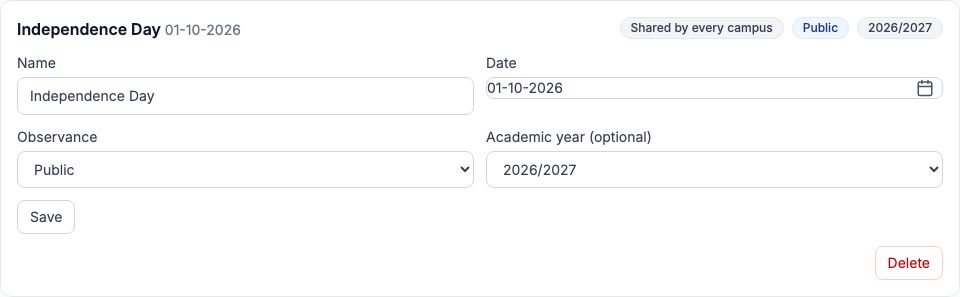
Open "School holidays" to record the days the school is closed. Choose the "Year" and press "Show" to see a year's list. To add one, fill "Name" and "Date", set "Observance" to Public, School or Religious, choose the "Academic year (optional)" and the "Campus", and press "Add holiday". Greenfield added Independence Day, 01-10-2026, a public holiday shared by every campus. Holidays matter twice: a holiday inside a leave request is not taken from the balance (unless the policy says holidays count), and staff attendance shows a holiday as Holiday rather than Absent. Each holiday can be corrected and saved, or deleted, from its card.
6. Who approves leave: the approval chain
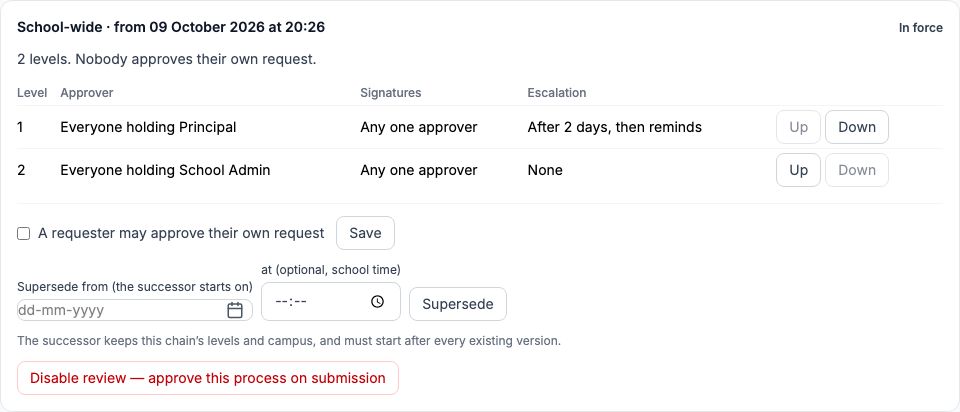
Every leave request goes through the school's leave approval chain. To see it, open "Approval chains" in the HR menu, choose the leave request process in "Process" and "School-wide" in "Campus", and press "Show". The version "In force" lists its levels in order, who approves at each level, whether one approver is enough or everyone must sign, and when a level that has not acted is chased. Greenfield's chain has two levels: level 1, the Principal (Grace Ojo), reminded after 2 days; level 2, the School Admin (Mrs. Adaeze Okafor). "Nobody approves their own request" unless "A requester may approve their own request" is ticked and saved. A chain is versioned: a change is a new version from a date, and old versions stay as history. A level can also be the requester's reporting line (their line manager), but that person must be allowed to act on approvals and to see staff records, or the request waits for someone who cannot open it. Greenfield's heads of department cannot, which is why the chain names the Principal.
7. Grant this year's leave
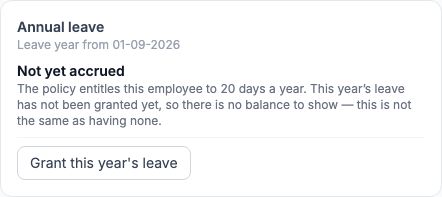
A balance does not exist until the year's leave has been granted. On a staff record's "Leave" tab, each leave type shows its balance for the leave year containing the date in "Leave year containing" (blank means today; press "Show" after changing it). "Not yet accrued" means the policy entitles the person to leave but this year's has not been granted, which is not the same as having none. "No leave policy yet" means no policy covers that type for them. Press "Grant this year's leave" under the card to give this year's entitlement; pressing it again later works the grant out again from the policy, it never adds a second year's worth. Greenfield granted Ngozi Okonkwo's Annual leave on 9 October: 20 days. The picture shows Blessing Akpan's card, whose leave has not been granted yet.
8. Reading a balance
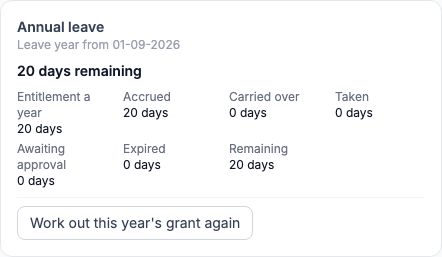
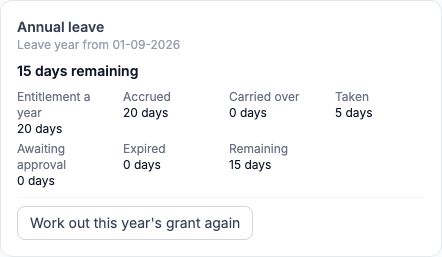
Once granted, the card shows the days remaining in large type and seven figures: "Entitlement a year", "Accrued" (granted so far), "Carried over" from last year, "Taken", "Awaiting approval" (held by requests still being decided), "Expired" (carried days past their expiry) and "Remaining". Remaining is accrued plus carried over, less taken, awaiting approval and expired. Approved leave counts as taken as soon as it is approved, even if the days are still in the future. Ngozi's card after the grant read 20 days entitlement, 20 accrued, nothing taken, 20 days remaining, the same as Funmilayo Adeyemi's in the picture. The button under a granted card becomes "Work out this year's grant again". Staff see the same balance on "My leave". The link to every employee's balances opens the school-wide leave balance report.
9. Example: Ngozi Okonkwo requests 5 days' annual leave
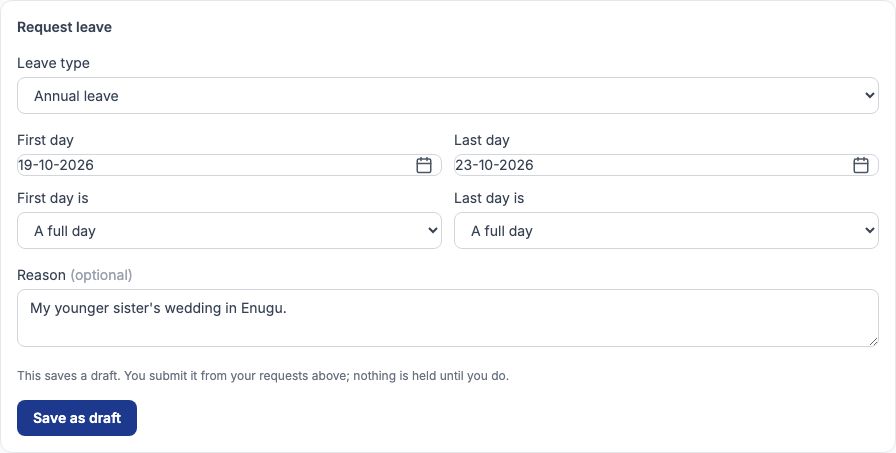
Ngozi Okonkwo, Head of Languages, wants Monday 19 to Friday 23 October 2026 off for her younger sister's wedding in Enugu. She signs in, opens "My leave" under My HR, and goes to "Request leave". She picks Annual leave in "Leave type", enters 19-10-2026 as "First day" and 23-10-2026 as "Last day", leaves "First day is" and "Last day is" on "A full day" (either can be "The first half only" or "The second half only" for half days), writes a "Reason", and presses "Save as draft". A draft holds nothing and tells nobody. Requests are made by the employee from their own "My leave"; HR cannot file one on someone's behalf. The request must also respect the policy: 19 October is 10 days away, more than Annual leave's 7 days' notice.
10. Submit the request
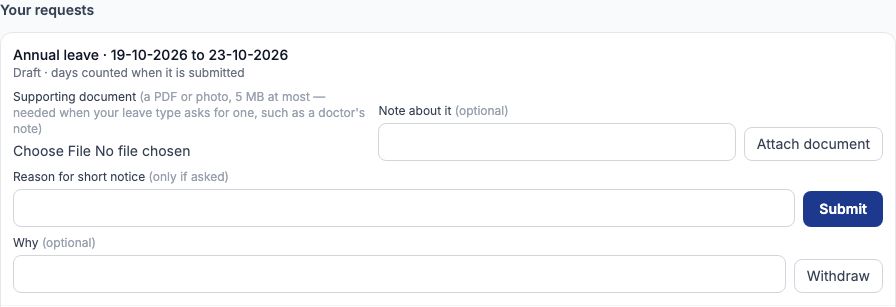
The draft appears under "Your requests", reading "days counted when it is submitted". If the leave type needs a supporting document, such as a doctor's note for sick leave longer than 2 days, choose the file under "Supporting document" on the draft and press "Attach document" first; a draft that needs one cannot be submitted without it. Ngozi presses "Submit". Tocademy now checks the policy: that she is eligible, that the request is no longer than the longest single leave, that a reason is given where the policy requires one, that she has not already got leave on those days, and that enough notice is given. It counts only working days, so 19 to 23 October is 5 working days. If notice is short, the refusal says so; "Reason for short notice" is for a user who manages leave, whose own request may override the notice period with a recorded reason. Once submitted, the request reads Awaiting approval, the 5 days are held as awaiting approval on her balance, and the first approver is notified. While it is still awaiting approval she can take it back with "Withdraw", saying "Why" if she likes. A request for a day already past is refused for lack of notice, so sick leave is best requested on the morning itself, as Funmilayo Adeyemi did for her sick day on 9 October.
11. The approver's queue
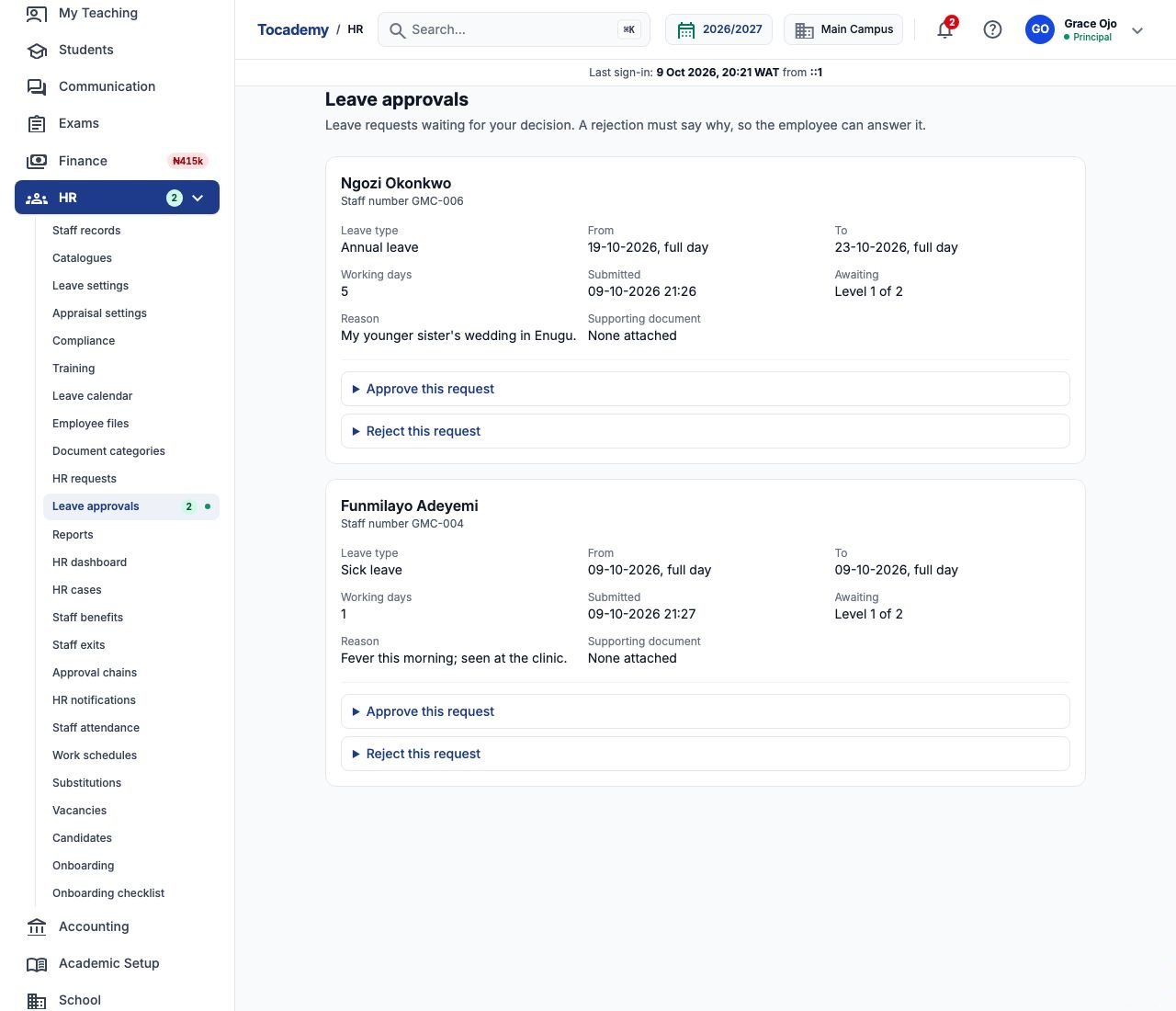
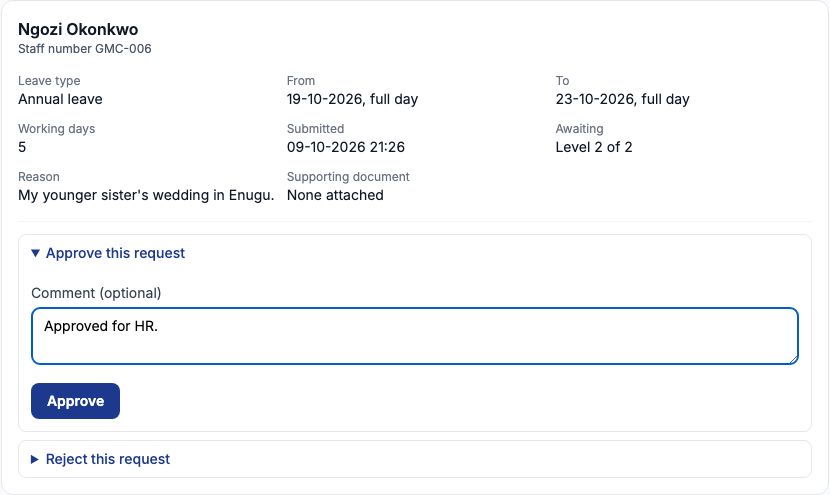
Approvers find requests under "Leave approvals" in the HR menu; the menu shows how many are waiting. Each card shows the employee and staff number, "Leave type", "From" and "To" with full or half days, "Working days", when it was "Submitted", which level it is "Awaiting" (for example Level 1 of 2), the "Reason" and any "Supporting document". For a document, press "Get a link to the supporting document"; the link works for a short time only. Grace Ojo, the Principal, signed in on 9 October and found two requests at level 1: Ngozi's annual leave and Funmilayo Adeyemi's sick day.
12. Level 1: the Principal approves
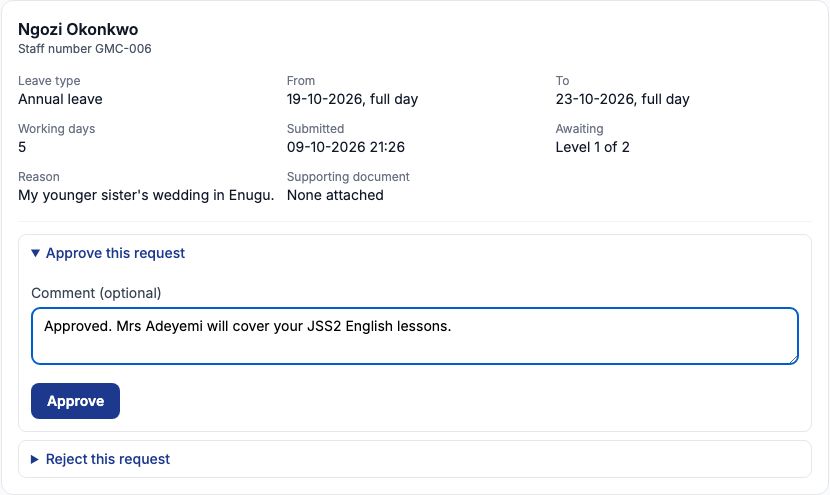
Grace opens "Approve this request" on Ngozi's card, writes in "Comment (optional)" that Mrs Adeyemi will cover the JSS2 English lessons, and presses "Approve". Because a second level follows, the page says nothing was decided yet: the request is still waiting for a later level, and it moves to the School Admin. To turn a request down, open "Reject this request", fill "Why it is rejected" (required, so the employee can answer it) and press "Reject". A rejection at any level closes the request and releases the days it held.
13. Level 2: the School Admin approves
Mrs. Adaeze Okafor opens "Leave approvals", where Ngozi's request now reads Level 2 of 2. She presses "Approve" and the page confirms that her approval decided the request: the leave is approved. On her "My leave" the request now reads Approved, 5 working days. Mrs. Okafor approved Funmilayo's sick day the same way, and once her days were worked out again, Funmilayo's attendance for 9 October read Authorised absence (see the Staff Attendance and Schedules guide).
14. The balance after approval
Back on Ngozi's "Leave" tab, the Annual leave card now reads 15 days remaining: 20 accrued, 5 taken, 0 awaiting approval. Under "Requests" her leave shows as Approved, 5 working days, with when it was submitted and decided. Approved leave not yet taken can still be cancelled by a user who manages leave: fill "Why" and press "Cancel this leave"; the 5 days return to her balance. Once the days have passed the request reads Taken and can no longer be cancelled. If a request shows that its approval's decision is not yet recorded on it, the button beneath it records the decision the approvers already made.
15. The leave calendar
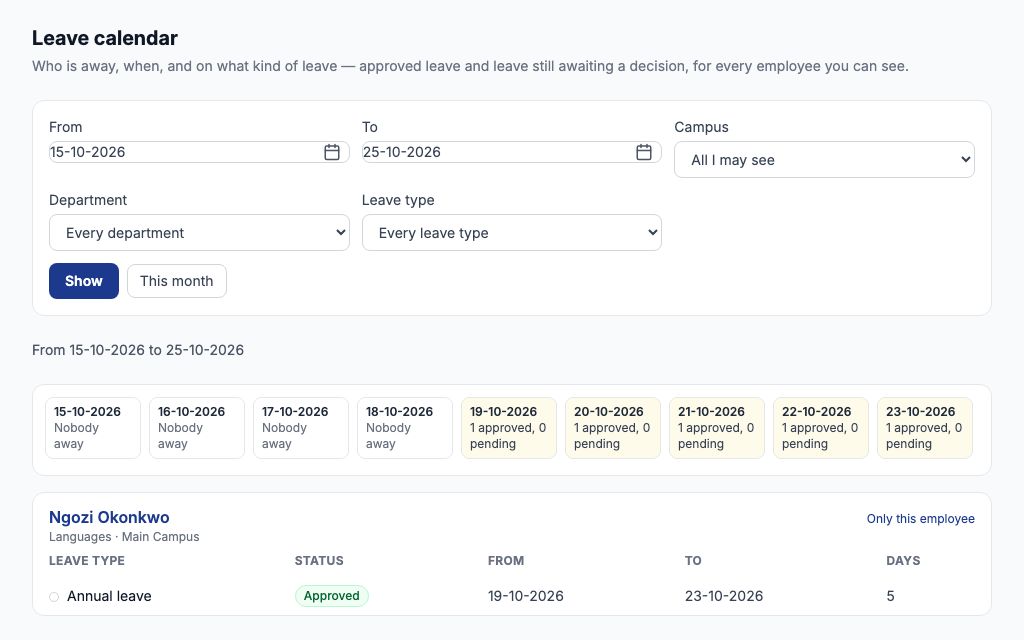
Open "Leave calendar" to see who is away. Set "From" and "To" (up to about three months; "This month" goes back to the current month), narrow by "Campus", "Department" or "Leave type" if you wish, and press "Show". A strip of days shows how many people are away each day, approved and pending counted separately, with today marked; below it each person lists their leave with its type, status (Approved or Pending), dates and days. Reasons and documents never appear here. For 15 to 25 October, the strip shows 1 approved, 0 pending on each day from 19 to 23 October, and Ngozi Okonkwo's Annual leave, Approved, 19-10-2026 to 23-10-2026. The link "On the leave calendar" on a staff record's "Leave" tab opens the calendar for that person alone.
16. Arrange a substitute for her lessons
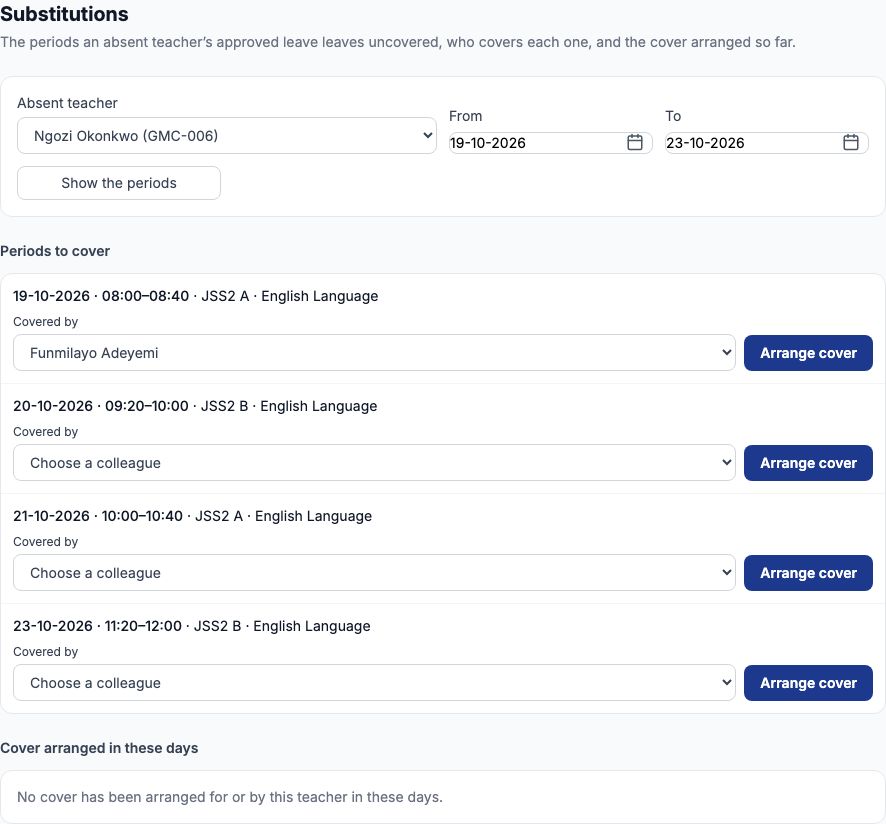
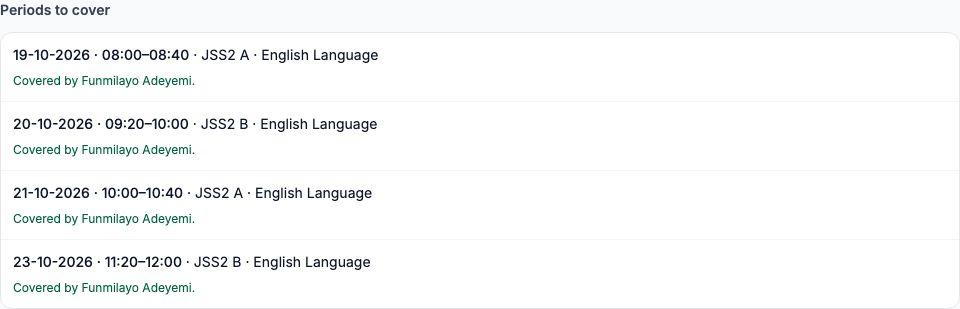
Ngozi teaches English Language to JSS2 A and JSS2 B, four lessons a week. Once her leave is approved, open "Substitutions", choose Ngozi Okonkwo (GMC-006) as the "Absent teacher", set "From" 19-10-2026 and "To" 23-10-2026, and press "Show the periods". "Periods to cover" lists her four lessons that week: Monday 08:00 JSS2 A, Tuesday 09:20 JSS2 B, Wednesday 10:00 JSS2 A and Friday 11:20 JSS2 B, all English Language. Under each, "Covered by" lists colleagues: Funmilayo Adeyemi first, because she teaches English and is free, then teachers who are free but "does not teach this subject". A colleague teaching at that moment, or on approved leave that day, is shown but cannot be chosen.
17. Cover arranged
Choose Funmilayo Adeyemi in "Covered by" for each lesson and press "Arrange cover". Both teachers are notified, and each lesson now reads Covered by Funmilayo Adeyemi The cover is also listed under "Cover arranged in these days" with who arranged it and when. If Funmilayo falls ill, choose another colleague in "Hand it to", say "Why" and press "Hand on"; if Ngozi's leave is cancelled, fill "Why stand it down" and press "Stand down". Both keep a record with the reason. Cover can only be arranged for approved leave, so approve first, then arrange cover.
18. Unpaid leave and pay; who can do what
Unpaid leave is a type like any other, marked "Unpaid", and needs its own policy before staff can request it. Approved unpaid days reduce the employee's pay for the month (loss of pay); how that is worked out and shown on the payslip is covered in the Payroll guide. Paid leave, such as Annual and Sick leave here, does not affect pay. Permissions, described in words: requesting your own leave needs the permission to request own leave, which every staff role has. Viewing leave settings, balances and the calendar needs the permission to view staff records. Changing types, policies and holidays needs the permission to manage the leave settings. Granting balances and cancelling approved leave needs the permission to manage leave. Approving needs the right to act on approvals and to be on the request's approval chain, and approvers also need to view staff records to read the request. Roles are set on Settings, Roles.
Still stuck?
Email info@tocel.ng and tell us which guide you were following.