Expenses and Suppliers
Record what the school spends, get a second person to approve it, pay it from a bank or cash account, and keep each supplier's bill straight.
1. How an expense moves
Every expense goes through the same steps: it is recorded as a draft, submitted for approval, approved by somebody other than the person who recorded it, and then paid from one of the school's bank or cash accounts. Nothing reaches the books while it is a draft or waiting for a decision. Approval is the moment the cost enters the books as money owed to the supplier; payment is the moment the money leaves the bank. All of it lives under Accounting → Payables and expenses, Suppliers and Expense categories. Who may do what is set by four permissions in the role editor: "Record school expenses", "Approve school expenses", "Pay school expenses" and "Manage expense categories". The worked example on this page follows one real-looking purchase all the way through: ₦450,000 of diesel for the school generator, bought from Lekki Fuel Depot Ltd.
2. Set up your expense categories
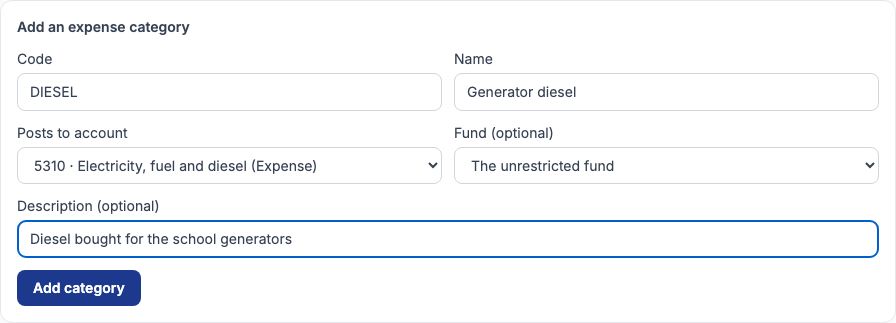
A category is the heading a cost is filed under, and it decides which account in the books the cost lands in. Open Accounting → Expense categories and fill in "Add an expense category": a short "Code" (it cannot be changed later), a "Name", and "Posts to account" — the expense account the cost belongs to. Choose "Fund (optional)" only when a category's spending always belongs to one fund, such as a PTA project; otherwise leave it on "The unrestricted fund". Press "Add category". In the example the school adds Generator diesel (DIESEL), posting to 5310 · Electricity, fuel and diesel. A category may also post to an asset account, for purchases you will keep as fixed assets (see the Fixed Assets and Tax guide).
3. Your list of categories
Each category card says where its costs post — for example "Posts to 5310 · Electricity, fuel and diesel, fund Unrestricted". Greenfield Model College keeps three to start with: Generator diesel, Repairs and maintenance, and Printing and stationery. To change one, open its "Edit or deactivate …" link: you can rename it, point it at a different account and press "Save", or press "Deactivate" so it takes no new expenses (old expenses keep their category). If a card ever reads "Not mapped to an account", its expenses cannot reach the books until you choose an account for it again.
4. Add your suppliers
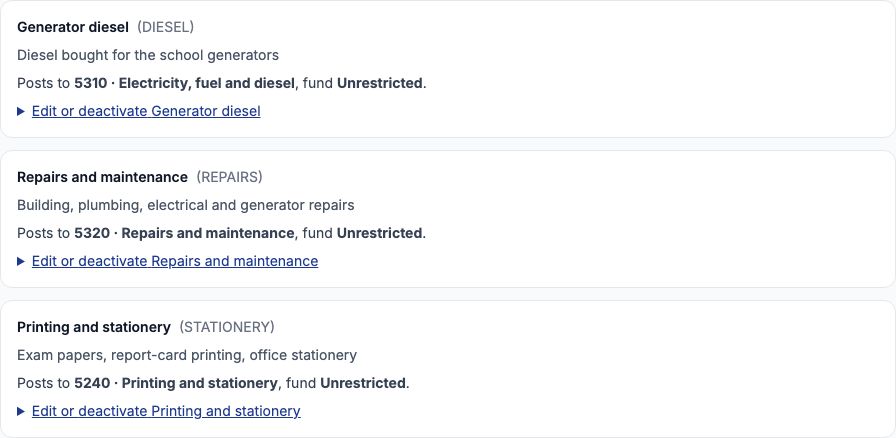
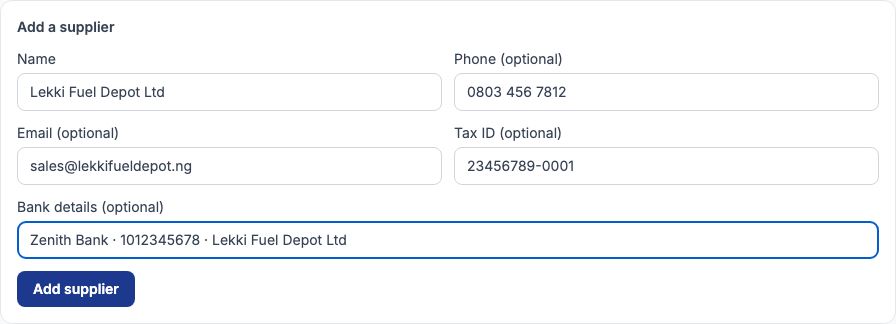
Suppliers are the firms and people the school pays regularly. Open Accounting → Suppliers and fill in "Add a supplier": the "Name", and if you have them "Phone (optional)", "Email (optional)", "Tax ID (optional)" (the supplier's TIN) and "Bank details (optional)". Press "Add supplier". For the example: Lekki Fuel Depot Ltd, 0803 456 7812, sales@lekkifueldepot.ng, Tax ID 23456789-0001, Zenith Bank 1012345678. Two suppliers cannot share a name, even with different capital letters or spacing. An expense that names a supplier is kept on that supplier's account, so you can always see what the school owes each one. Saving an edit replaces every detail, so a field you clear is cleared.
5. Record the expense
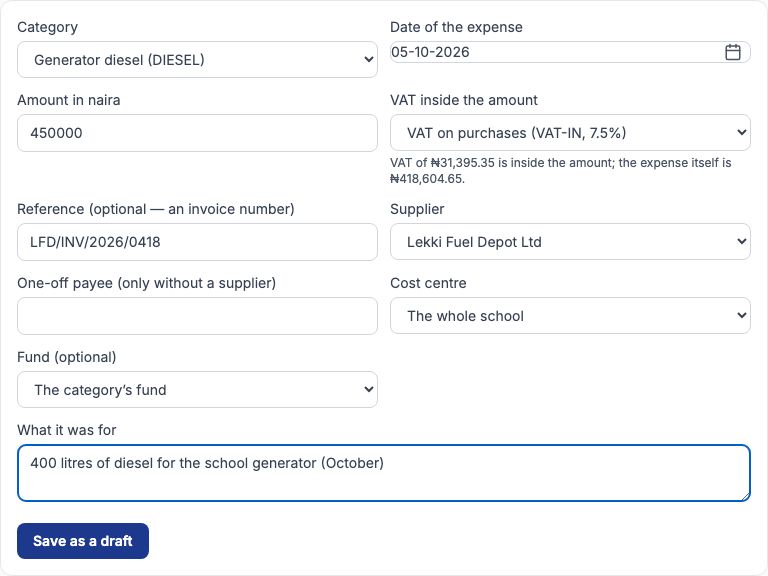
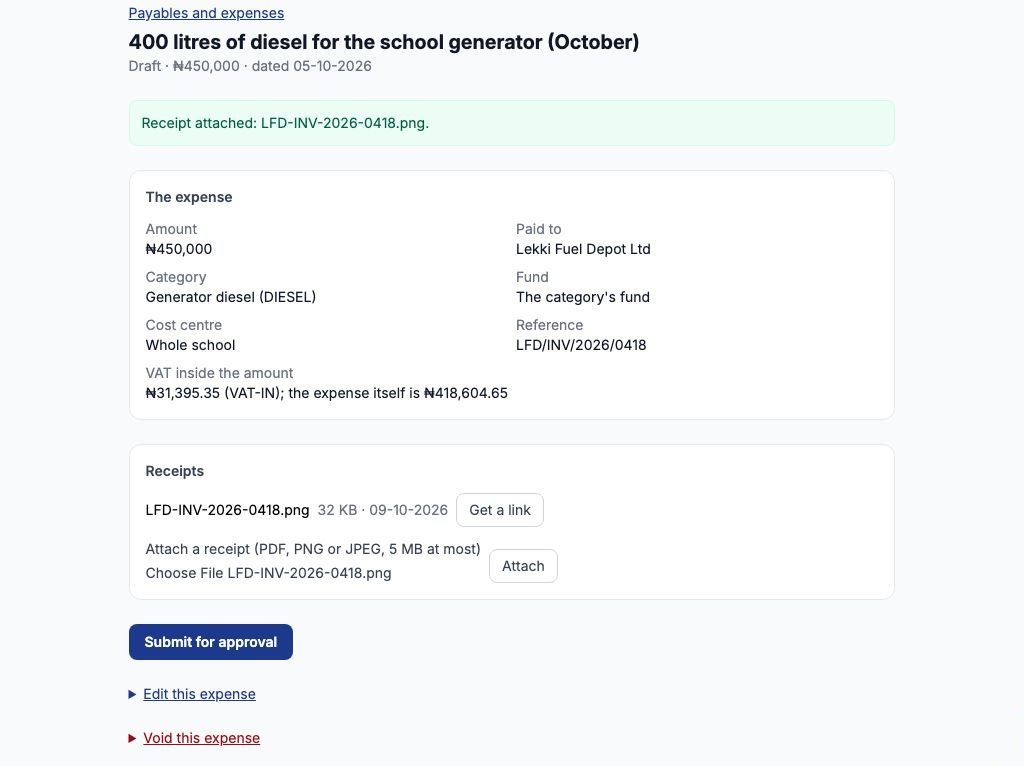
Go to Accounting → Payables and expenses and choose "Record an expense". Fill in "Category", "Date of the expense" (the date on the supplier's invoice), "Amount in naira" (the full amount on the invoice, VAT included), "Reference (optional — an invoice number)", and either a "Supplier" or, for a one-time payment to someone you will not pay again, leave "Supplier" on "None — a one-off payee" and type the name in "One-off payee (only without a supplier)". "Cost centre" tags the cost to a campus, or "The whole school". "What it was for" is the line everyone will read later, so make it specific. Then press "Save as a draft". A reference can be used once: if another expense already carries it, the page refuses and asks for the document's own reference, so the same invoice is not recorded twice. Worked example: category Generator diesel, dated 05-10-2026, amount 450000, reference LFD/INV/2026/0418, supplier Lekki Fuel Depot Ltd, "400 litres of diesel for the school generator (October)".
6. VAT inside the amount
If the school is recorded as VAT-registered (Accounting → Tax codes; see the Fixed Assets and Tax guide), the form also shows "VAT inside the amount". Choose the VAT code printed on the invoice, or "No VAT". The page works out the VAT that is already inside the amount you typed and shows it before you save. For the diesel: ₦450,000 includes VAT at 7.5%, so the VAT is ₦31,395.35 and the diesel itself cost ₦418,604.65 (450,000 × 7.5 ÷ 107.5 = 31,395.35). The VAT is kept apart in the books as "VAT recoverable (input)" — money the school may claim back — so only the ₦418,604.65 is counted as diesel spending. A school that is not VAT-registered never sees this field, and the whole ₦450,000 is the cost.
7. Attach the receipt and submit it
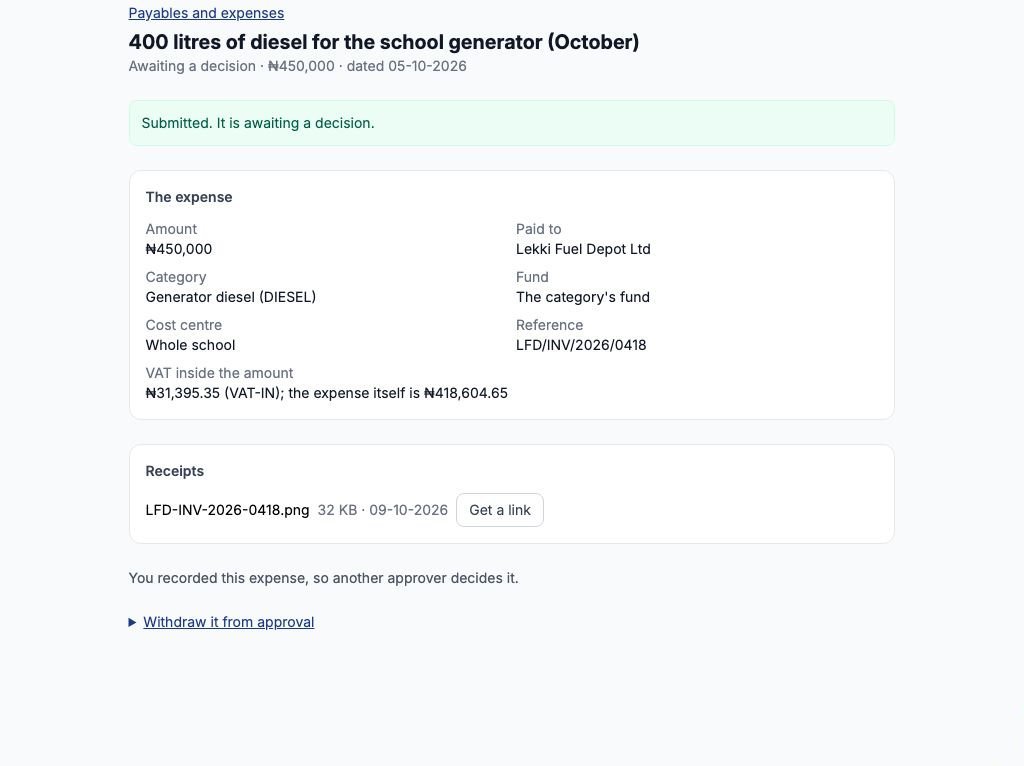
The expense opens on its own page as a draft. Under "Receipts", use "Attach a receipt (PDF, PNG or JPEG, 5 MB at most)" to pick the scanned invoice or a phone photo of it and press "Attach"; you can attach more than one. To look at a receipt later, press "Get a link": it opens the file for five minutes, so a receipt link cannot be passed around. While it is a draft you can still open "Edit this expense" to correct anything. When it is right, press "Submit for approval". From that moment the recorder can no longer change it, only open "Withdraw it from approval" and press "Withdraw" to turn it back into a draft.
8. The person who recorded it cannot approve it
This is the rule that protects the school's money: whoever records an expense can never approve it, even if they hold the approval permission. After submitting, the recorder's page says "You recorded this expense, so another approver decides it." and shows no approval buttons. In the example Mrs. Adaeze Okafor, the school administrator, recorded the diesel, so the decision went to the proprietor, Mrs Ngozi Eze. Make sure at least two people in your school hold "Approve school expenses", or expenses recorded by your only approver will wait forever.
9. Where approvers find their work
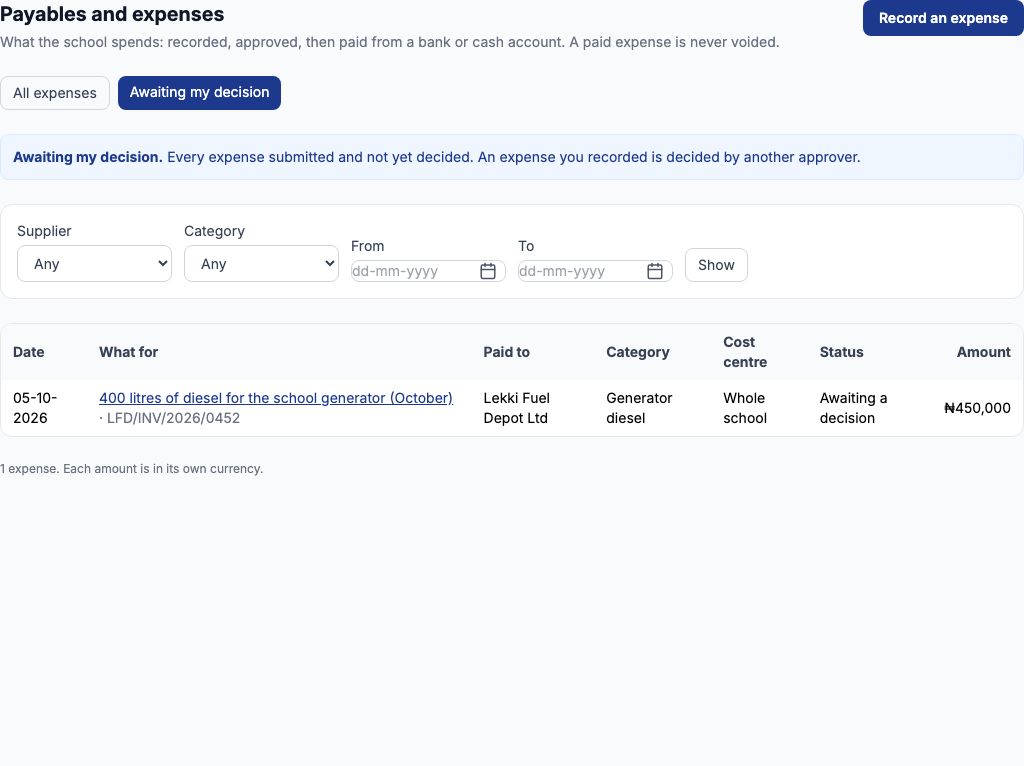
An approver opens Accounting → Payables and expenses and chooses "Awaiting my decision". The list shows every submitted expense not yet decided, with its date, what it was for, who is to be paid, the category and the amount. The approver opens the one to decide by its description. (Choose "All expenses" to go back to the full list.)
10. Approve or reject
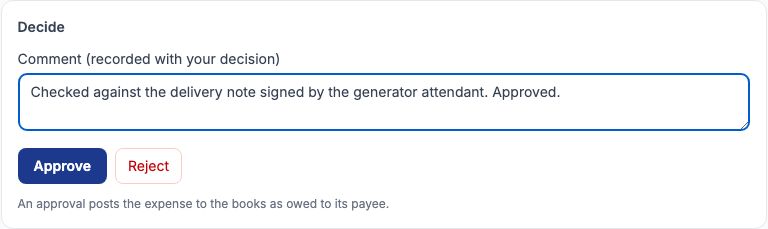
On the expense page the approver sees "Decide". Read the receipt first, then type a "Comment (recorded with your decision)" — for the diesel, Mrs Eze wrote "Checked against the delivery note signed by the generator attendant. Approved." — and press "Approve" or "Reject". Approving posts the expense to the books on the day of approval: in plain words, diesel spending goes up by ₦418,604.65, VAT recoverable goes up by ₦31,395.35, and the school now owes Lekki Fuel Depot Ltd ₦450,000 (in the books that is a debit to 5310 and 1330 and a credit to 2110 · Accounts payable). Rejecting posts nothing; the recorder can correct the expense and press "Submit it again for approval".
11. Pay it, with withholding tax if it applies
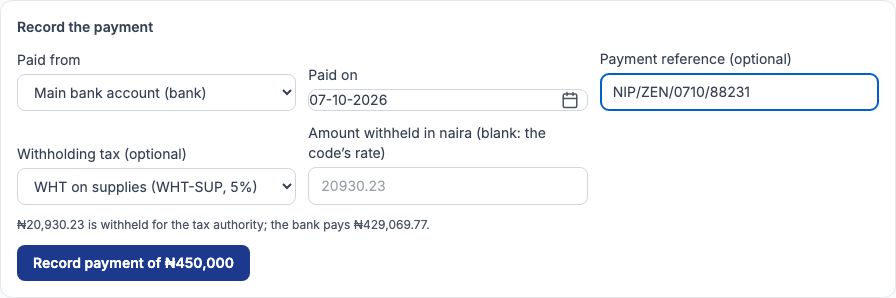
Once approved the status reads "Approved — awaiting payment" and somebody with "Pay school expenses" sees "Record the payment". Choose the account in "Paid from", set "Paid on" (the date the transfer went out), and put the bank's transfer reference in "Payment reference (optional)" — it is what you will look for when reconciling the bank. If the school deducts withholding tax from this supplier, choose the code in "Withholding tax (optional)". The page computes it on the amount without VAT (WHT is never charged on VAT) and you may type a different figure if the supplier's agreement says so. Diesel example: WHT on supplies at 5% of ₦418,604.65 is ₦20,930.23, so the bank pays Lekki Fuel Depot ₦429,069.77. Press the button that reads "Record payment of" followed by the expense amount.
12. What the payment does to the books
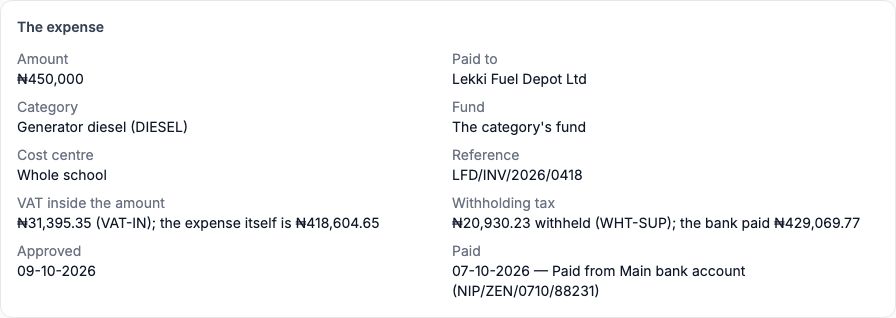
The payment clears the ₦450,000 the school owed the supplier. ₦429,069.77 leaves the Main bank account and ₦20,930.23 moves to "Withholding tax payable" — money the school now holds on behalf of the tax authority until it is remitted (remittances have their own guide). In debit and credit terms: debit 2110 · Accounts payable ₦450,000; credit 1120 · Main bank account ₦429,069.77; credit 2210 · Withholding tax payable ₦20,930.23. The expense page now shows the VAT, the tax withheld, what the bank paid, the approval date and "Paid from Main bank account (NIP/ZEN/0710/88231)". Give the supplier a WHT credit note for the ₦20,930.23 so they can claim it.
13. Voiding a mistake
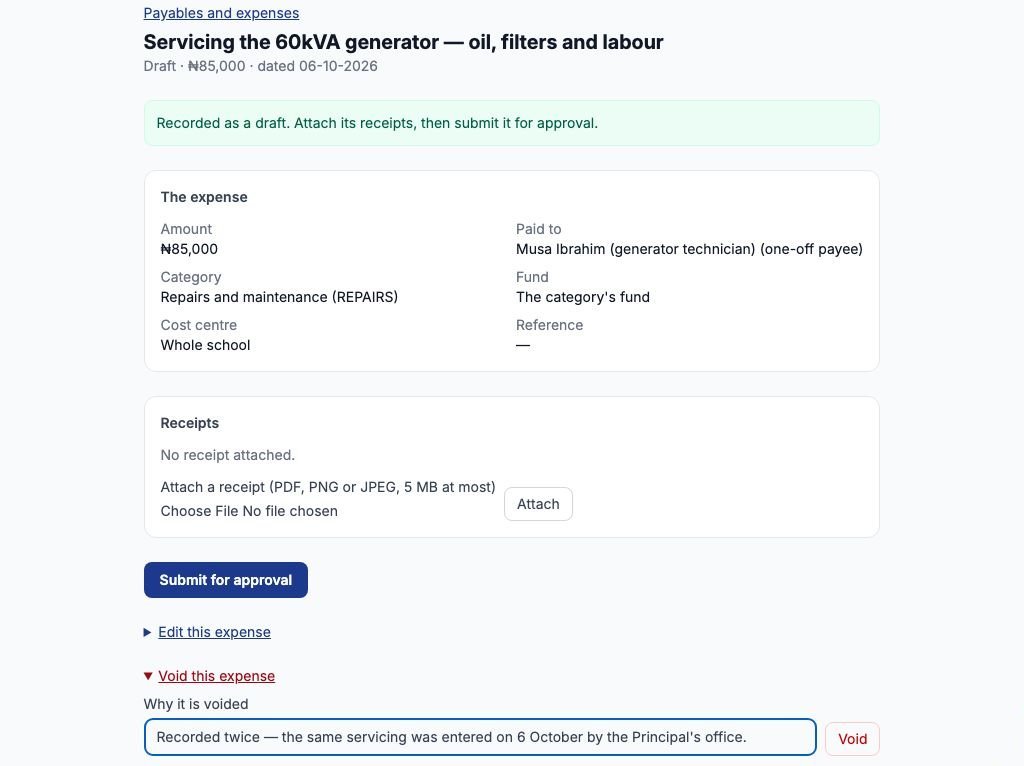
An expense that should never have been recorded — a duplicate, a wrong supplier, a bill that was cancelled — is voided rather than deleted, so the record of it remains. Open "Void this expense", type "Why it is voided" and press "Void". You can void a draft, a rejected expense, or an approved one that has not been paid; voiding an approved one reverses its approval entry in the books. A paid expense can never be voided — if money really went out, the correction is a separate entry. In the example a ₦85,000 generator servicing bill to Musa Ibrahim (a one-off payee) had been entered twice, so the second copy was voided with the reason "Recorded twice — the same servicing was entered on 6 October by the Principal's office." Voiding needs the "Approve school expenses" permission.
14. Finding expenses later
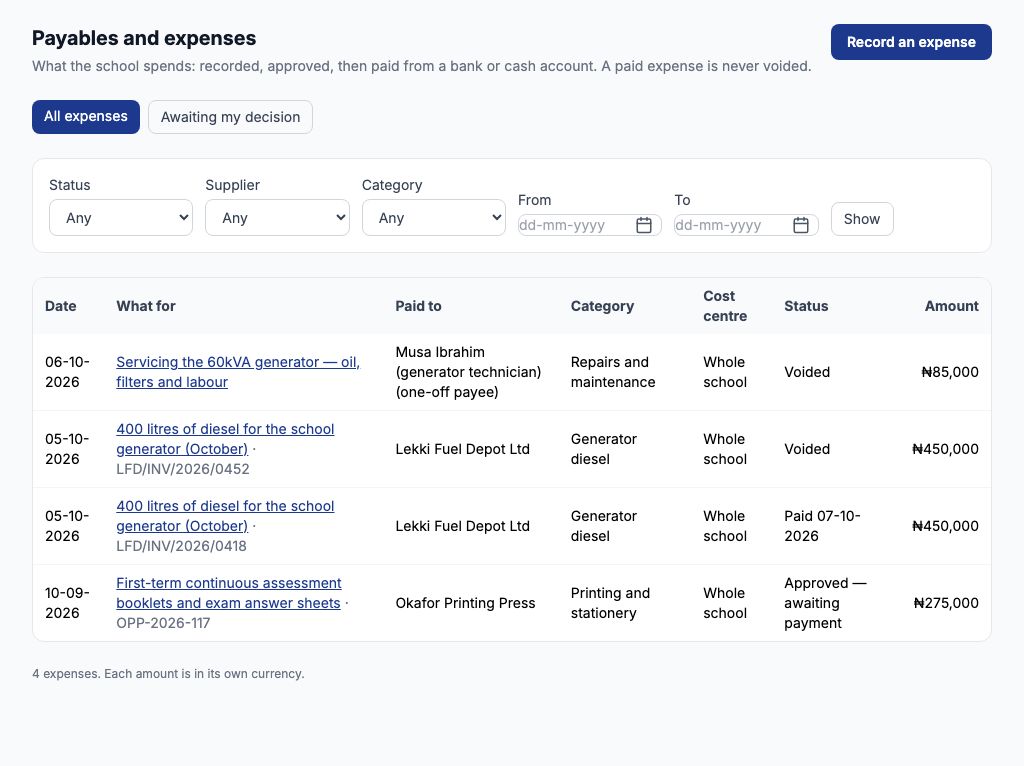
The full list under Accounting → Payables and expenses shows every expense with its "Status": "Draft", "Awaiting a decision", "Approved — awaiting payment", "Rejected", "Paid" (with the payment date) or "Voided". Narrow it with "Status", "Supplier", "Category" and a From/To date range, then press "Show". To see what the school owes each supplier and for how long, use the payables ageing (see the Budgets and Reports guide).
Still stuck?
Email info@tocel.ng and tell us which guide you were following.