Printed Exam Papers
Building a paper in sections — Objectives, Theory, Comprehension, Essay — from the question bank, then previewing, printing, and downloading it as PDF or Word.
What an exam paper is
An exam paper is a printed test or examination built from approved questions in your question bank. It is laid out the way Nigerian school papers are: the school's name and logo centred at the top, the subject, class, time and total marks on one line, a line for the candidate's name, then the paper in sections — usually "Objectives" (Section A, numbered 1 to 20 with the options A–D on the same line) followed by "Theory" (Section B). You choose the sections, the questions in each, and how the page looks, and you see every page before anything is printed. Only approved questions can be used, so write and approve questions in the Question Bank first.
Opening the page
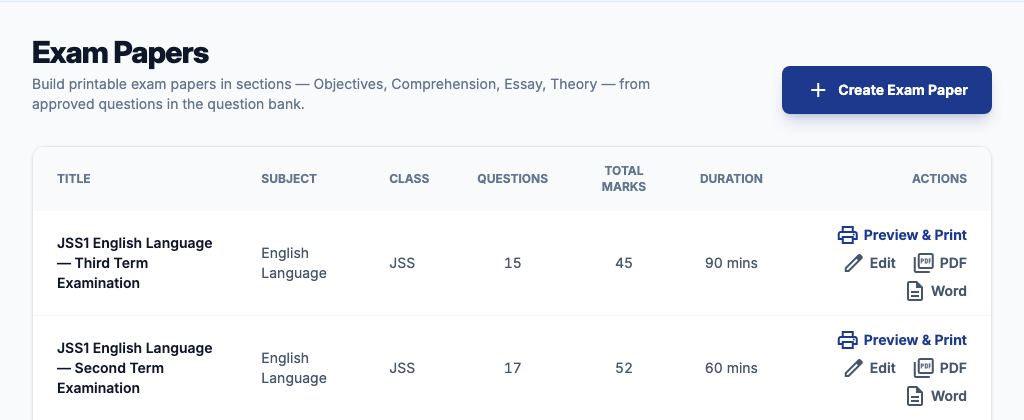
Go to Exams → Exam Papers. Each paper is listed with its subject, class, number of questions, total marks and duration, and four actions: "Preview & Print" opens the paper page by page, "Edit" changes its sections and questions, "PDF" downloads it as a PDF and "Word" downloads it as a Word document you can edit. "Create Exam Paper" starts a new one; it is greyed out until the question bank has at least one approved question. Anyone who manages the question bank can build papers.
1. Fill in the paper details
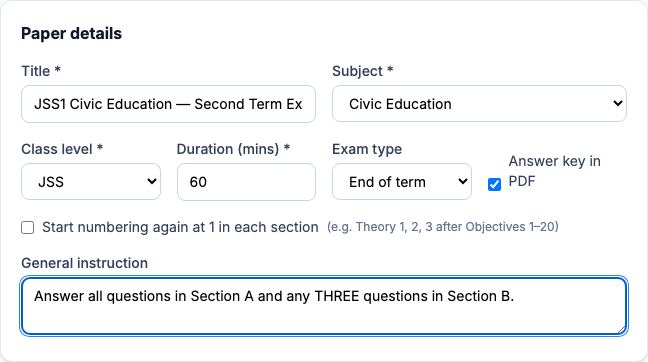
Choose "Create Exam Paper". Under "Paper details" give the paper a "Title" — it prints as the exam title, for example Second Term Examination 2026/2027 Session — and set the "Subject", the "Class level", the "Duration (mins)" and the "Exam type". Tick "Answer key in PDF" if the downloaded PDF and Word copies should end with an answer key on a page of their own; leave it unticked for candidates' copies. The "General instruction" prints under the header, for example: Answer all questions in Section A and any THREE questions in Section B. The subject cannot be changed once the paper is created, because every question was chosen for it.
2. Say where the questions come from
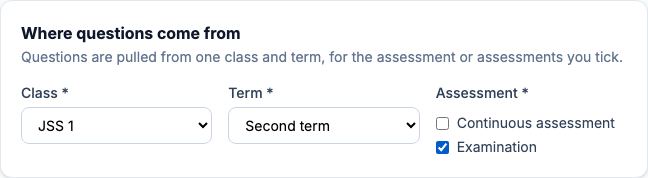
Under "Where questions come from", choose the "Class" and the "Term" whose questions the paper uses, and tick one or both kinds of "Assessment": Continuous assessment for a test such as CA1, Examination for the end-of-term paper. Ticking both lets the paper mix the two. Only approved questions for that subject, class, term and assessment are offered when you add questions, so a JSS 1 second-term examination never picks up a JSS 2 question by mistake. If you change the class, term or assessment after picking questions, any picked question that no longer matches is taken off the paper, and the page says how many.
3. Start from a template
Every new paper starts with two sections, "Objectives" then "Theory", which suits most subjects. To use another common layout, set "Template" to one of the layouts listed for your subject — for example "English Language — WAEC format" (Objectives, Comprehension, Summary, Essay / Letter Writing, Oral English), "Mathematics — WAEC format", "Sciences — WAEC format" or "Literature in English" — and press "Use template". The template only sets up the sections, headings and instructions; questions you have already picked are carried into the new sections. Everything a template sets can be changed afterwards.

4. Set up each section
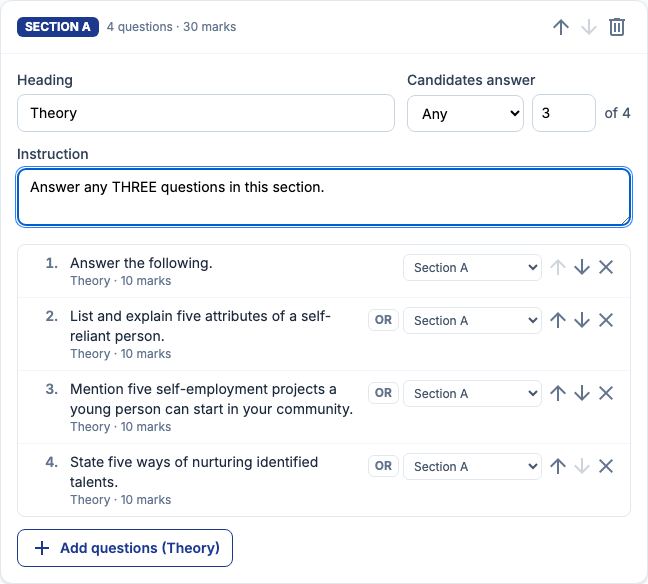
Each section is a card. Its "Heading" prints after the section letter, for example SECTION A: OBJECTIVES. Its "Instruction" prints beside the heading in italics. "Candidates answer" is "All" for a section where every question must be answered, or "Any" with a number — Any 3 of 4 — when candidates choose. The arrows beside each section move it up or down, and the bin removes it. "Add section" adds another card at the end. Sections are lettered A, B, C… in the order they appear, and a section with no questions is not saved or printed.
5. Add questions to a section
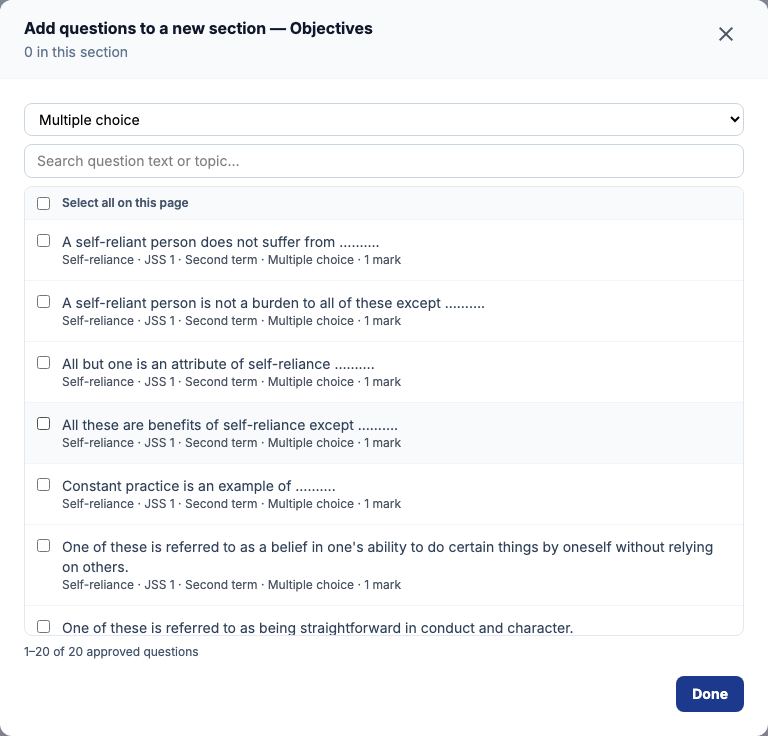
Press "Add questions" on the section's card. The list shows the approved questions that match the paper's subject, class, term and assessment. The line at the top says where the questions come from and how many there are. The list starts on the type the section suggests — multiple choice for Objectives, theory for Theory — and if the bank has none of that type here it shows every type instead and says so. Narrow it with the type list ("All types" shows everything) or by typing in "Search question text or topic…". If nothing at all is found, the list explains why and offers "Open the question bank": a question is offered only once it is approved and set to the paper's class, term and assessment. Tick each question you want, or tick "Select all on this page". A question already used in another section is greyed out and says "Already in" that section, so no question prints twice. Press "Done" to close the list. Questions print in the order shown on the card; use the arrows to reorder them, the "Move to section" list to send one to another section, and the cross to take it off the paper.
Or fill the paper automatically
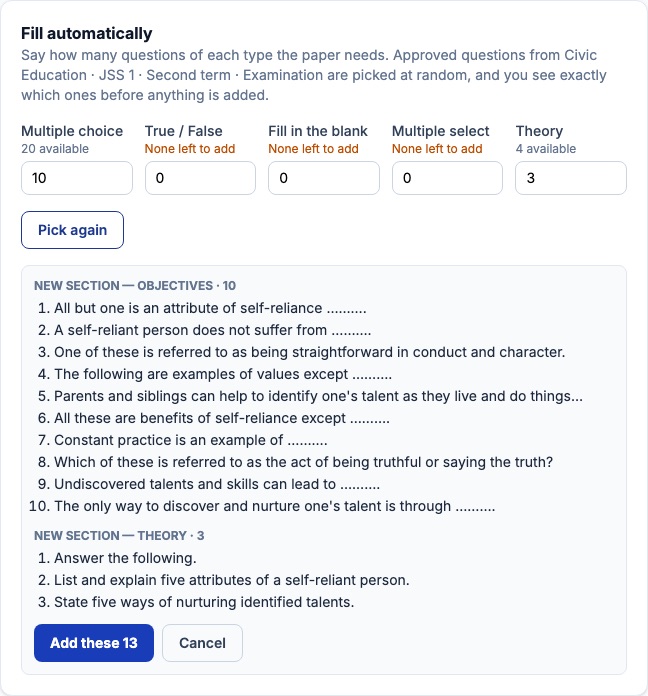
To have the questions drawn for you, use "Fill automatically" above the sections. Type how many questions of each type the paper needs — each box shows how many approved questions are available in the paper's class, term and assessment, leaving out those already on the paper — and press "Pick questions". Questions are picked at random and listed under the section each will go into: multiple choice into the Objectives section, theory into the Theory section, and other objective types with the objectives. Nothing is added yet. Press "Pick again" whenever you want a different random set of questions from the same bank, or press "Cancel" to start over; when the list is right, use the "Add these" button. You can still add, remove and reorder questions by hand afterwards. If fewer questions exist than you asked for, it says how many could be found. If the paper's class, term and assessment have no approved questions at all, the boxes are greyed out and the panel lists the terms and assessments where this class does have questions, with how many — choosing one switches "Where questions come from" to it.
6. Check the summary and save
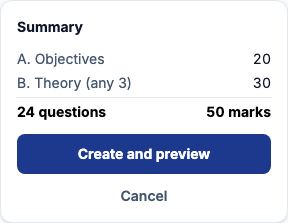
The "Summary" beside the sections lists each section with its marks, and the total number of questions and marks. If something is not right — no title, no questions, or a section asking for Any 5 when it has only 4 — it is listed in red when you save. Press "Create and preview" (or "Save and preview" when editing) and the paper opens page by page, ready to print.
7. Preview every page
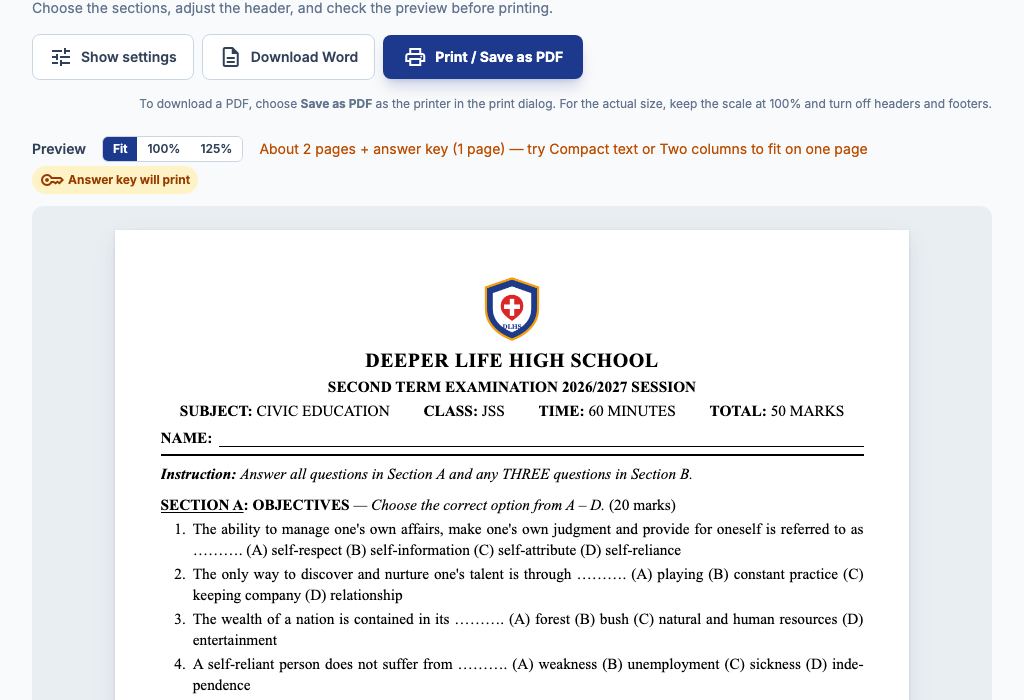
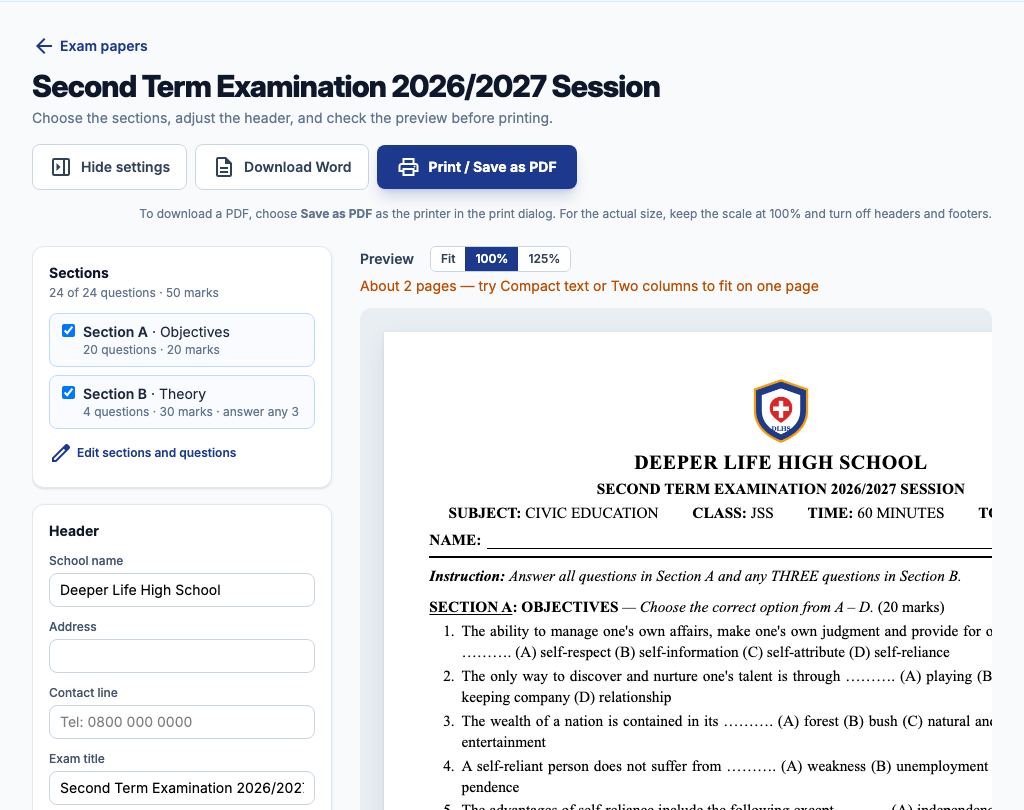
The preview shows the paper exactly as it will print, one A4 page after another, with its page number, such as Page 1 of 2, under each page. Above the pages, "Fit", "100%" and "125%" change the zoom, and a line tells you how many pages the paper takes — "Fits on one page", or About 2 pages with a suggestion such as Compact text or Two columns to bring it to one. "Hide settings" gives the preview the whole width; "Show settings" brings the settings back.
8. Choose what prints
Under "Sections", untick any section you do not want on this print — for example, print Section A alone for a quick objectives test. The count above the list shows how many questions and marks are left, and the remaining sections are re-lettered. These choices change only what prints from this page; the paper itself keeps every section. "Edit sections and questions" takes you back to change the paper.
9. Adjust the header
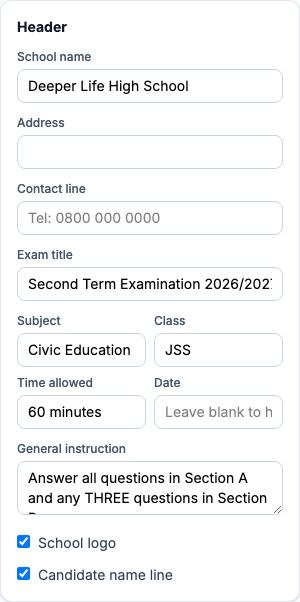
Under "Header", the "School name", "Address", "Contact line", "Exam title", "Subject", "Class", "Time allowed" and "Date" are filled in from the paper and the school; change any of them for this print, or leave "Date" blank to hide it. Switch "School logo" on to print the school's crest above the name — if it says "No logo uploaded for the school", the school administrator uploads one under the school's settings first. "Candidate name line" adds NAME: with a line to write on.
10. Adjust the layout
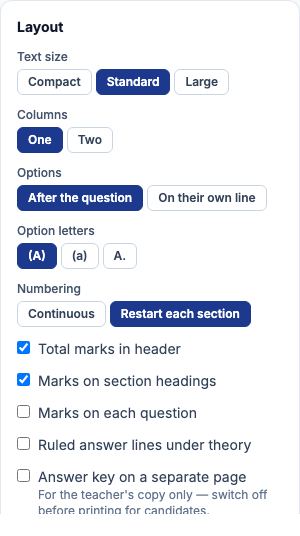
Under "Layout": "Text size" is "Compact", "Standard" or "Large"; "Columns" puts the paper in one column or two; "Options" prints the A–D options "After the question" (as on most school papers) or "On their own line"; "Option letters" picks (A), (a) or A.; and "Numbering" is "Continuous" or "Restart each section". Switch on "Total marks in header", "Marks on section headings" or "Marks on each question" as your school prefers, and "Ruled answer lines under theory" when candidates write on the question paper. "Reset to defaults" puts every setting back. The page remembers your settings for this paper on this computer.
11. Print it, or save it as a PDF
Press "Print / Save as PDF". In the print dialog, pick your printer to print, or set the destination to "Save as PDF" to keep a PDF that looks exactly like the preview. For the actual size, keep the scale at 100% and turn off the browser's headers and footers. The "PDF" action on the Exam Papers list gives a ready-made PDF without opening the preview, in the paper's own layout; use "Preview & Print" when you have changed the header or layout for this print.
12. Download it as a Word document
Use "Download Word" on the print page, or "Word" on the Exam Papers list, to get the paper as a Word document (.docx). It has the same header, sections, inline options, passages, parts and numbering as the PDF, and opens in Microsoft Word, Google Docs or WPS Office, so a teacher can make last-minute changes before printing. It is the saved paper: sections unticked, header changes and layout choices made on the print page are not applied to it — make those changes in Word, or print from the preview. The answer key is in it only when the paper has "Answer key in PDF" ticked, and then it starts on a page of its own.
Example 1: Objectives in Section A and Theory in Section B
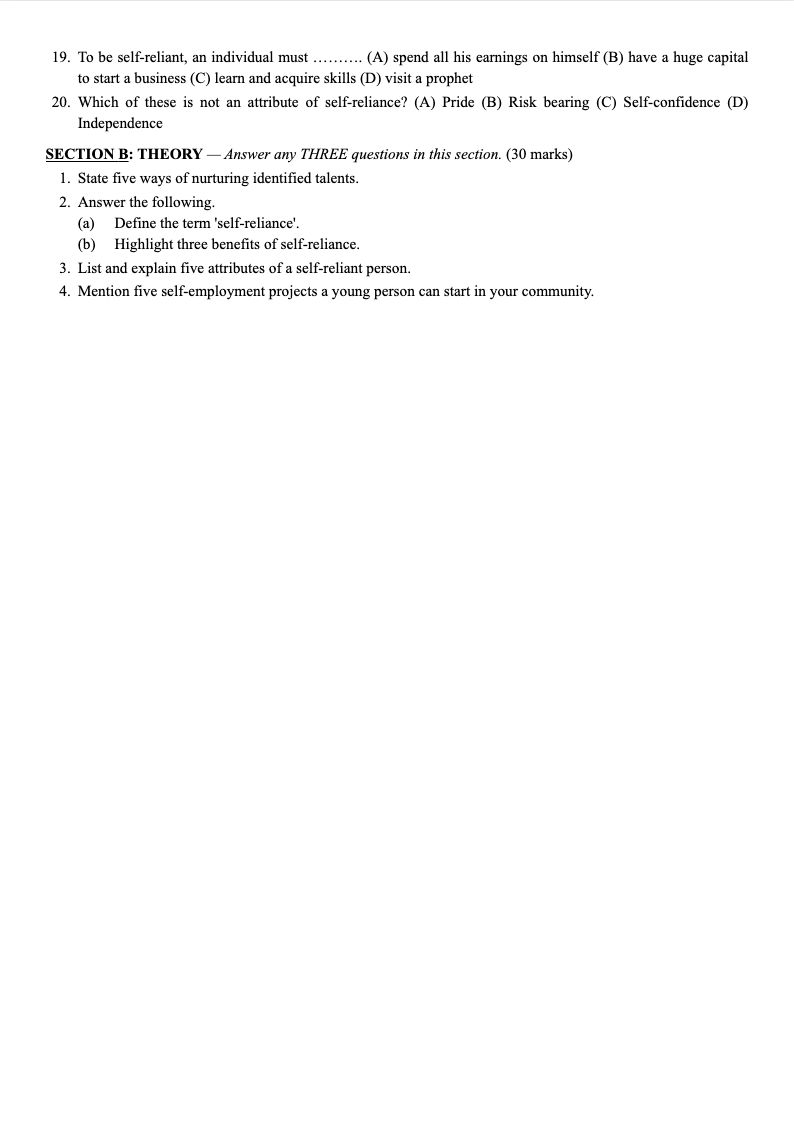
A JSS 1 Civic Education second-term examination. Choose "Create Exam Paper", set the "Subject" to Civic Education, the "Class level" to JSS and the "Duration (mins)" to 60, and type the instruction Answer all questions in Section A and any THREE questions in Section B. Under "Where questions come from" choose JSS 1 and Second term and tick Examination. On the "Objectives" card press "Add questions", set the type list to multiple choice, tick "Select all on this page" and press "Done" — twenty questions, 1 to 20. On the "Theory" card press "Add questions", tick four theory questions and press "Done"; then set "Candidates answer" to "Any" 3. Press "Create and preview". The paper prints Section A: Objectives, 1 to 20, and Section B: Theory, 21 to 24 — or 1 to 4, as in Example 2.
Example 2: Theory numbered from 1 again
Many schools number the theory questions 1, 2, 3 after objectives 1 to 20. Tick "Start numbering again at 1 in each section" under "Paper details", and every section starts at 1 — on the preview, the PDF and the Word copy. For one print only, set "Numbering" to "Restart each section" (or "Continuous") under "Layout" on the print page instead.
Example 3: answer any three of five
Your Theory section offers five questions and candidates answer three. On the "Theory" card set "Candidates answer" to "Any" and type 3 in the box beside it; the card shows of 5. Write the rule into the "Instruction" too — Answer any THREE questions in this section — so candidates see it. The "Summary" then counts the marks of three questions — the three worth most — towards the total, and the printed total agrees.
Example 4: EITHER … OR
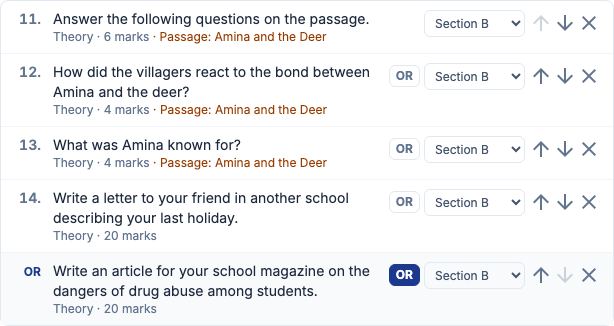
In an English paper, question 14 offers a choice: write a letter, OR write an article. Put both questions in the section, one after the other, and switch on "OR" beside the second. It stops having a number of its own: the paper prints 14. Write a letter… then OR, then Write an article…, and the pair counts as one question with one set of marks. Switch "OR" off again to make it an ordinary question.
Example 5: a comprehension passage with its questions
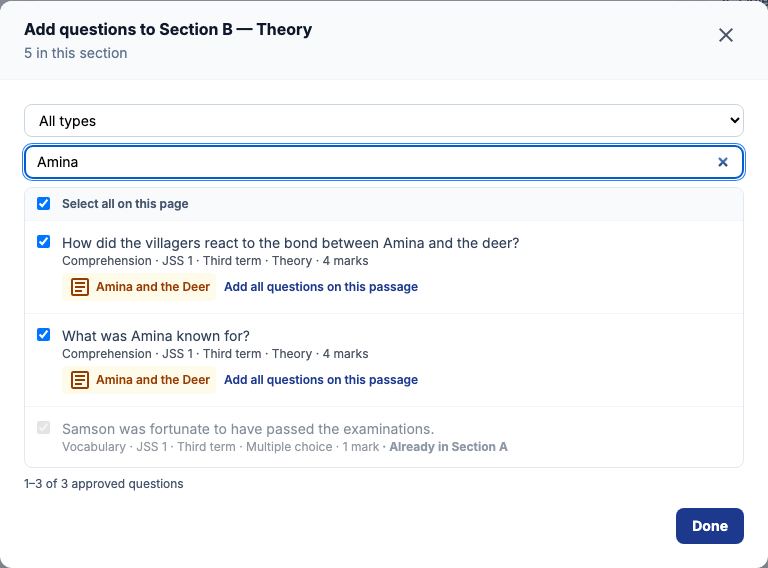
For a Comprehension section, the passage prints once, with the line Read the passage below carefully and answer questions 11–13, followed by its questions. Set up the passage and link its questions first (see the Passages and Structured Questions guide). Then on the "Comprehension" card press "Add questions", find one of the passage's questions, and press "Add all questions on this passage": every approved question on that passage which fits the paper's class, term and assessment is added together, in order.
Example 6: an English paper in WAEC format
For an SS 3 mock, set "Subject" to English Language, set "Template" to "English Language — WAEC format" and press "Use template". The paper gets five sections: Objectives, Comprehension, Summary, Essay / Letter Writing (candidates answer one) and Oral English. Add questions to each; a section you do not need can be removed with its bin, and an empty section is simply left off the paper.
Example 7: a quick CA test
For a first CA test, tick only Continuous assessment under "Assessment", set "Template" to "Continuous assessment test" and press "Use template". The paper has one section with no heading; add ten questions and save. On the print page switch off "School logo" and set "Text size" to "Compact" if you want it on half a sheet less.
Example 8: the teacher's copy with an answer key
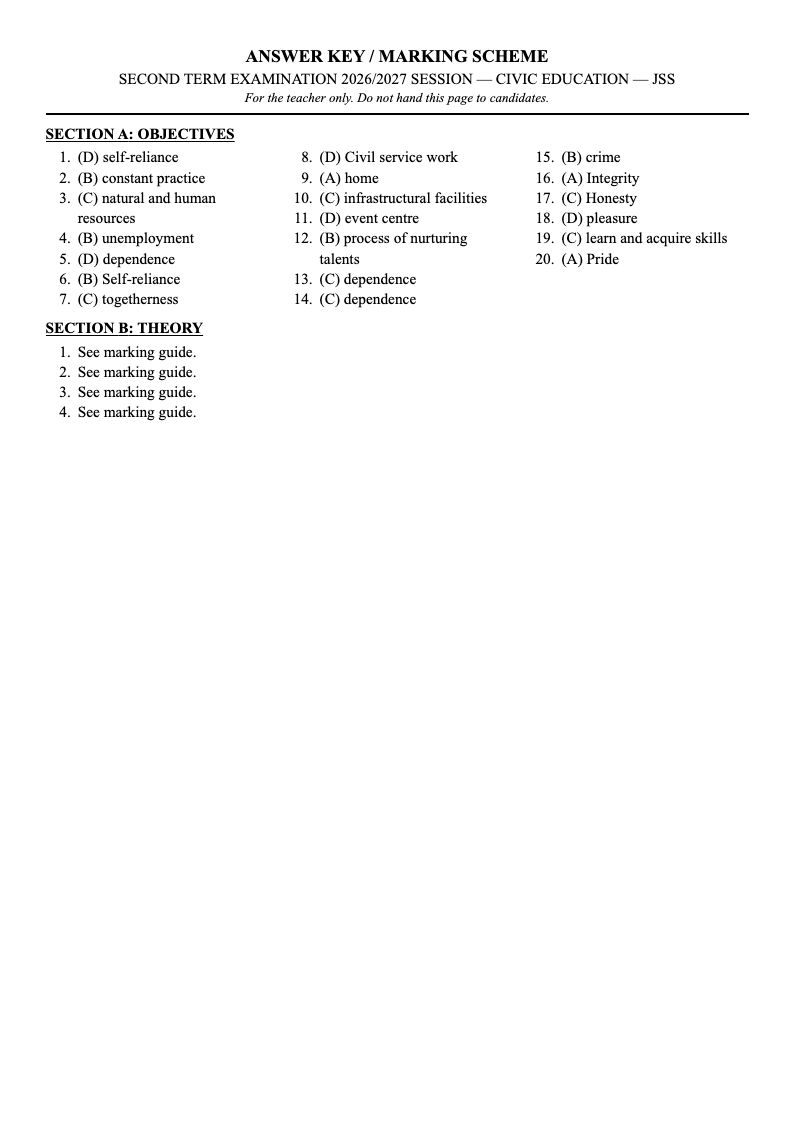
On the print page switch on "Answer key on a separate page". A badge says "Answer key will print", the page count adds the key, and the last page reads ANSWER KEY / MARKING SCHEME with the letter and text of each objective's correct option and each theory question's model answer, in the paper's numbering. Switch it off again before printing candidates' copies — it is never switched on by itself when the page is opened.
Example 9: changing a paper later
On the Exam Papers list choose "Edit" (or "Edit sections and questions" on the print page). Everything can change except the subject: add or remove sections, move questions between them, change the "Where questions come from" choices, or apply another template. Press "Save and preview". Downloads and prints made afterwards show the new version.
Still stuck?
Email info@tocel.ng and tell us which guide you were following.