Your School Website: Getting Started
Open the Website area, choose a starting template, add your crest, colours and motto, and set your web address, contact details and notice banner.
What the Website area is
Every Tocademy school has its own public website — Home, About, Admissions, Contact and News pages that parents can open on any phone. Everything about it is in one place, School › Website, with a row of tabs: "Pages", "News", "Enquiries", "Colours & logo", "Contact & notices", "Web address", "Templates" and "Publish & share". You only see the tabs your role may use. Two kinds of change behave differently, and it is worth knowing which is which. Page wording and sections are a draft: nobody sees them until you publish. Colours, logo, contact details and the notice banner are not drafts: they change your website as soon as you save them.

1. Open the Website area
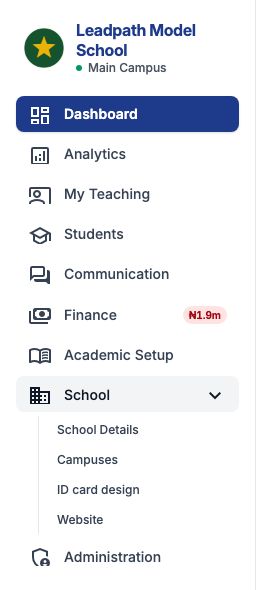
In the sidebar open School and click Website. It opens on the page editor; a school starting from nothing should go to the "Templates" tab first. The worked example in these website guides is Leadpath Model School, a secondary school in Ibadan setting up its site for the first time.
2. Follow the launch checklist
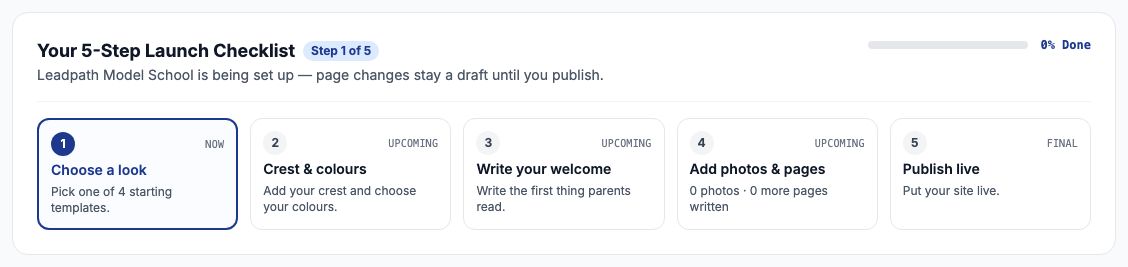
The Templates tab opens with "Your 5-Step Launch Checklist": "Choose a look", "Crest & colours", "Write your welcome", "Add photos & pages" and "Publish live". Each step ticks itself off when it is done, and the same five steps run across the top of the Templates and Publish & share tabs so you can always see how far you are. Leadpath starts at step 1 of 5, 0% done.
3. Choose a starting template
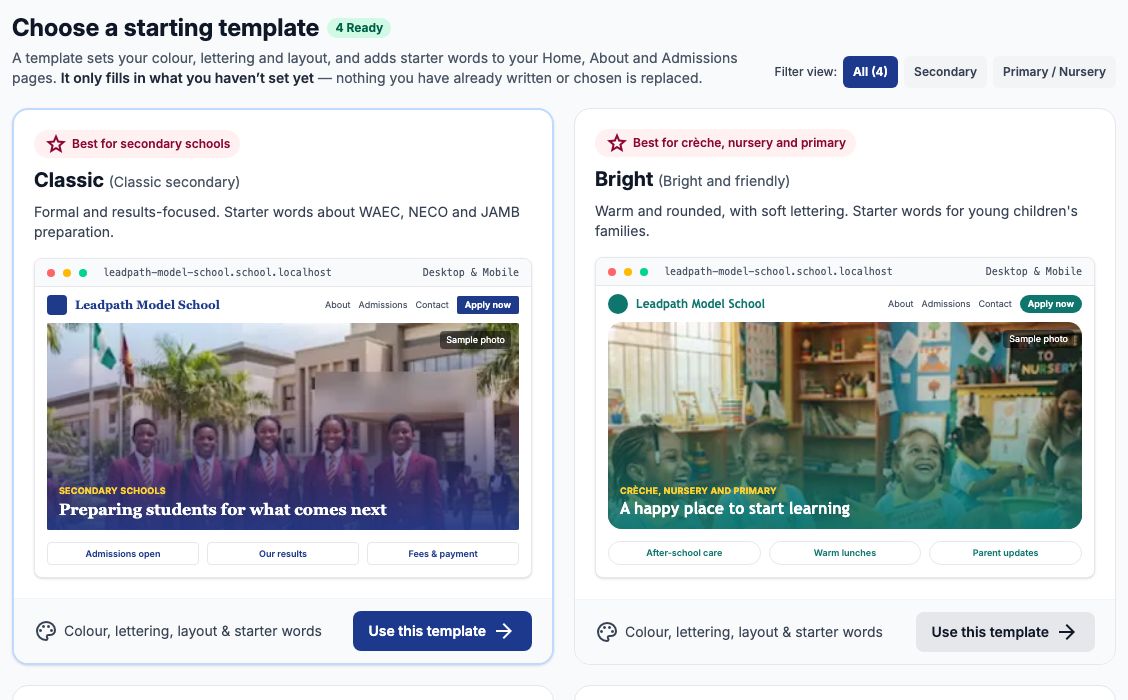
Under "Choose a starting template" are four looks: Classic (for secondary schools), Bright (for crèche, nursery and primary), Group (for several campuses under one name) and Faith-based. Each card shows your own school's name in that template. A template sets your colour, lettering and layout and adds starter words to your Home, About and Admissions pages. It only fills in what you have not set yet, so it can never undo work you have done. Leadpath is a secondary school, so it presses "Use this template" on Classic.
Example: the template is applied
A green box confirms: "Done. Your website has its starting look." Click "Next: your crest, colours and motto" to carry on. If you would rather keep the look you have, "Skip — keep my current look" at the bottom of the tab goes straight to the next step.

4. Add your crest, colours and motto
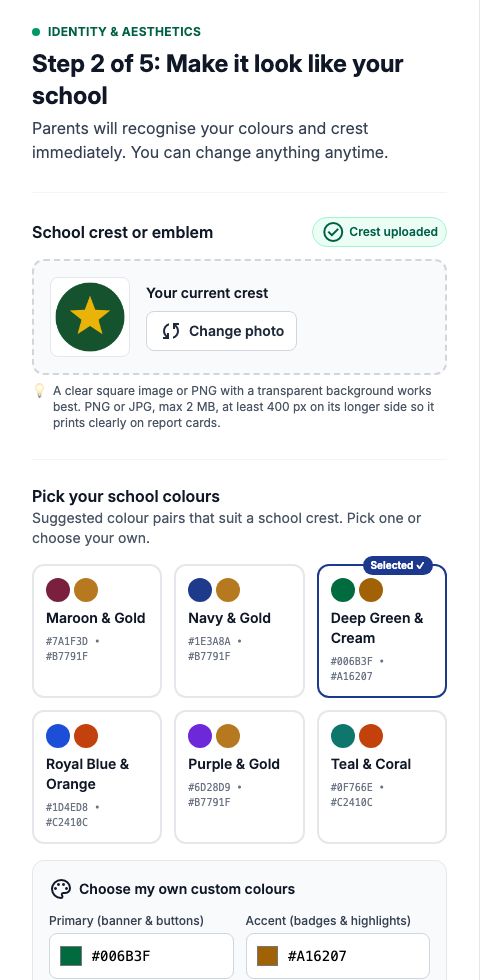
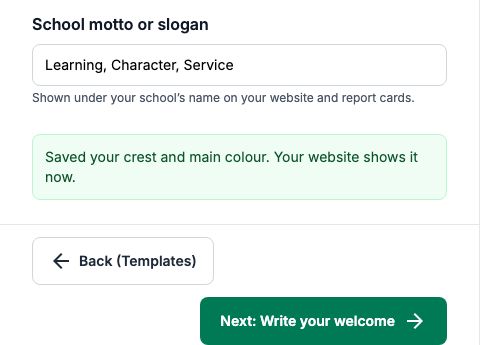
"Step 2 of 5: Make it look like your school". Choose your crest with "Upload crest" — a clear square PNG or JPG, at least 400 pixels across and no more than 2 MB, works best. Then pick a colour pair, or type your own colours under "Choose my own custom colours": "Primary (banner & buttons)" and "Accent (badges & highlights)". A line under them tells you whether text on your colour is easy to read. Last, the motto. Leadpath uploads its green star crest, settles on the "Deep Green & Cream" pair and types its motto, Learning, Character, Service. The live preview on the right shows its own home page in those colours as you choose.
Example: saved
Press "Save and continue". The page confirms that your crest and colours are saved and that your website shows them now — these changes are live at once. The button becomes "Next: Write your welcome", which opens the page editor on the Home page; see Editing Your Website Pages.
5. Fine-tune on Colours & logo
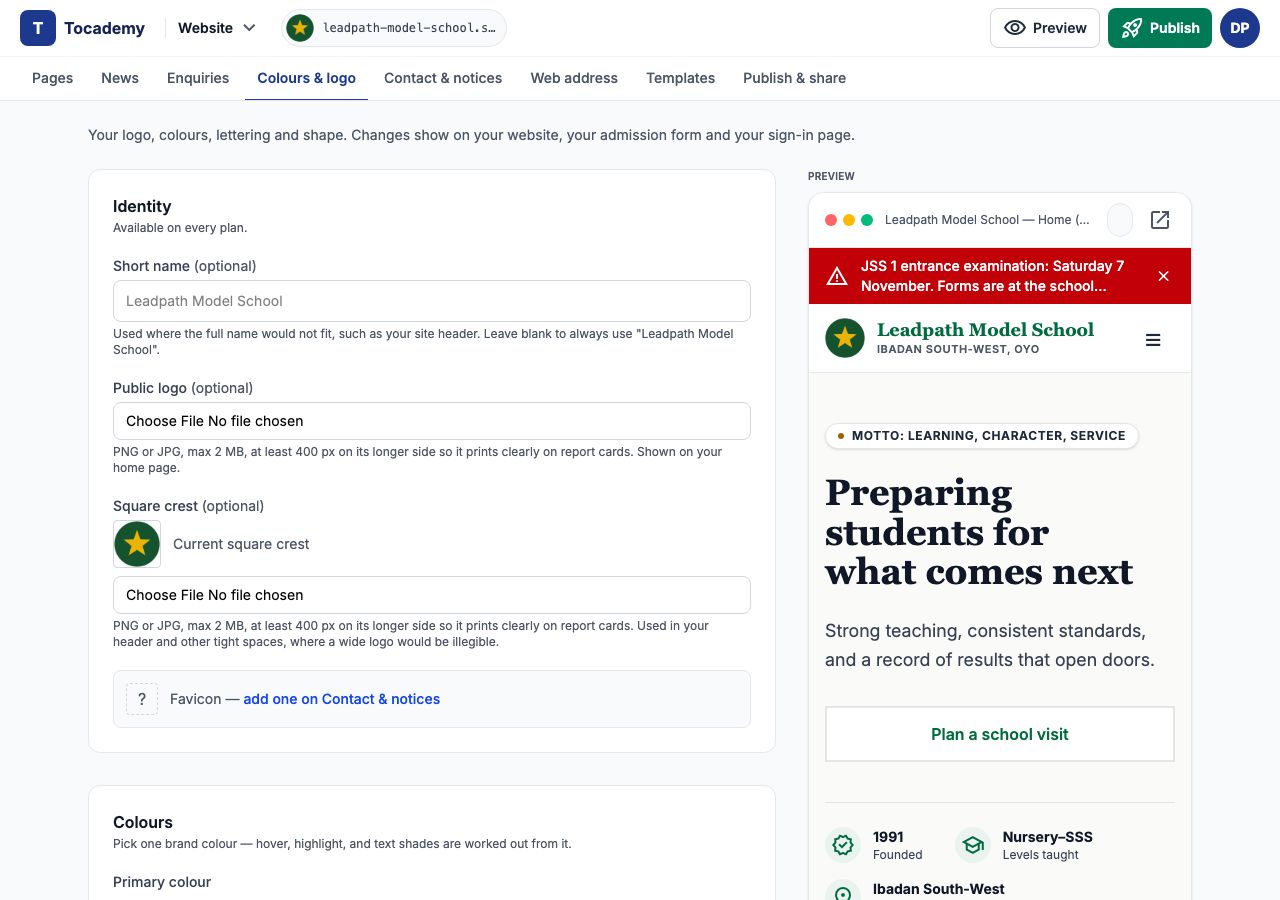
The "Colours & logo" tab holds everything about how the school looks, on its website, its admission form and its sign-in page: a "Short name" for tight spaces, a "Public logo", the "Square crest", the main colour and an optional accent, and Typography, Layout and Shape choices. The preview on the right is your own home page draft, wearing the colours, lettering and shape you choose as you choose them; press "Save Changes" to put them live. The motto is not on this tab: change it on Templates, step 2, or on School › School Details.
6. Your web address
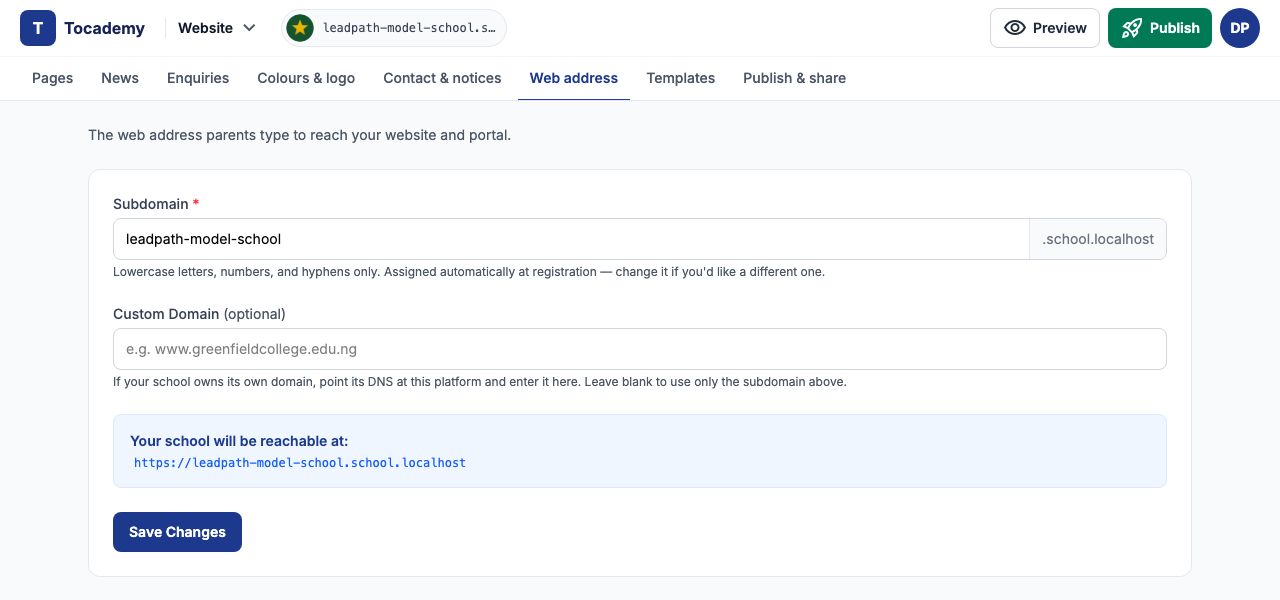
The "Web address" tab shows the address parents type to reach your website and portal. The "Subdomain" was set when you registered — Leadpath's is leadpath-model-school — and the box under it shows the full address. You can change it (lowercase letters, numbers and hyphens only), but do it before you print or share the address. If the school owns its own domain, enter it under "Custom Domain"; it works once whoever manages that domain points it at Tocademy.
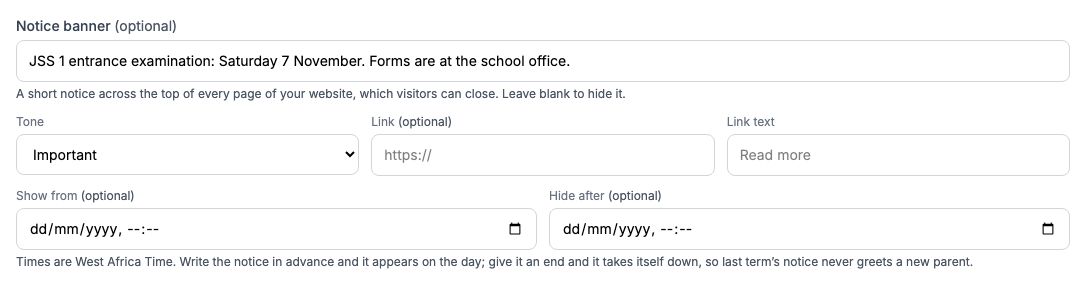
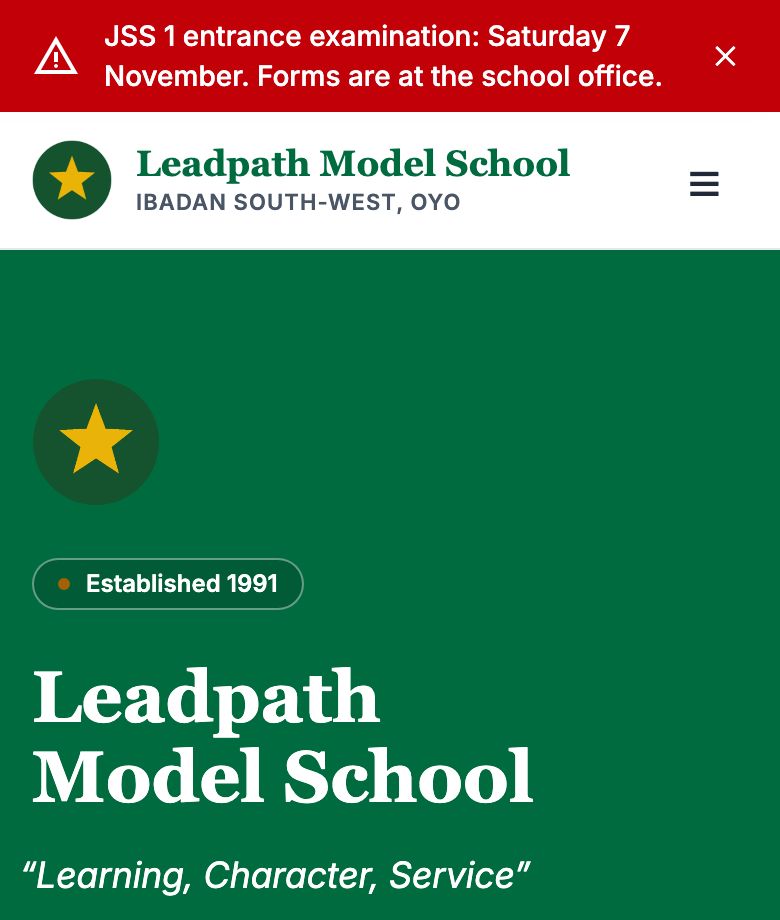
On "Contact & notices", the "Notice banner" is the notice that runs across the top of every page of your website. Write one sentence, choose a tone — "Normal", "Important" or "Good news" — and, if you like, a link and its wording. "Show from" and "Hide after" (West Africa Time) let you write a notice in advance and have it take itself down. Leadpath writes JSS 1 entrance examination: Saturday 7 November. Forms are at the school office. It sets the tone to Important and presses "Save Changes". Visitors can close the banner with its ×; empty the box to remove it.
8. How parents reach you
Lower on the same tab, "Public Contact Details" are the email and phone number shown on your website's contact page and footer. They are separate from the details on your Tocademy account, which stay private. The email matters more than it looks: when a parent sends a message from your website's contact form, it is emailed to this address. With no email here, messages still arrive in the Enquiries tab but nobody is emailed. Leadpath enters its office email and phone. Further down are your social media links and "Public Pages": untick About, Admissions, News or Contact to take that page out of your website's menu.
Example: live straight away
Open the website on a phone right after saving and the red notice is already across the top, in Leadpath's green with its crest and motto — before a single page has been published. Pages are different: the starter words from the template wait in your draft until you publish them. See Publishing and Sharing Your Website.
Still stuck?
Email info@tocel.ng and tell us which guide you were following.