Editing Your Website Pages
Add, fill in, move, hide and remove sections on each page, check them on a phone, and let your draft save itself — with a worked example.
The page editor at a glance
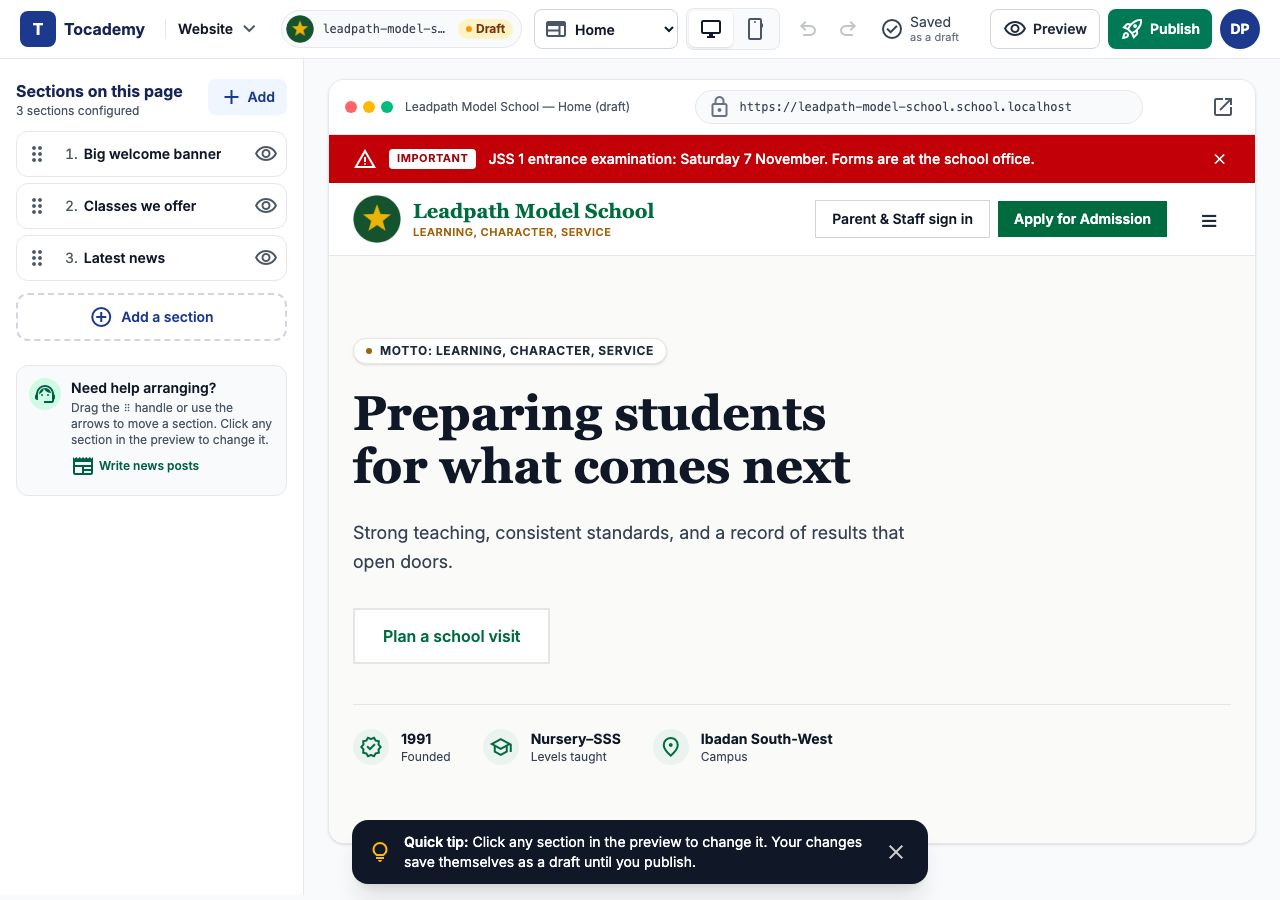
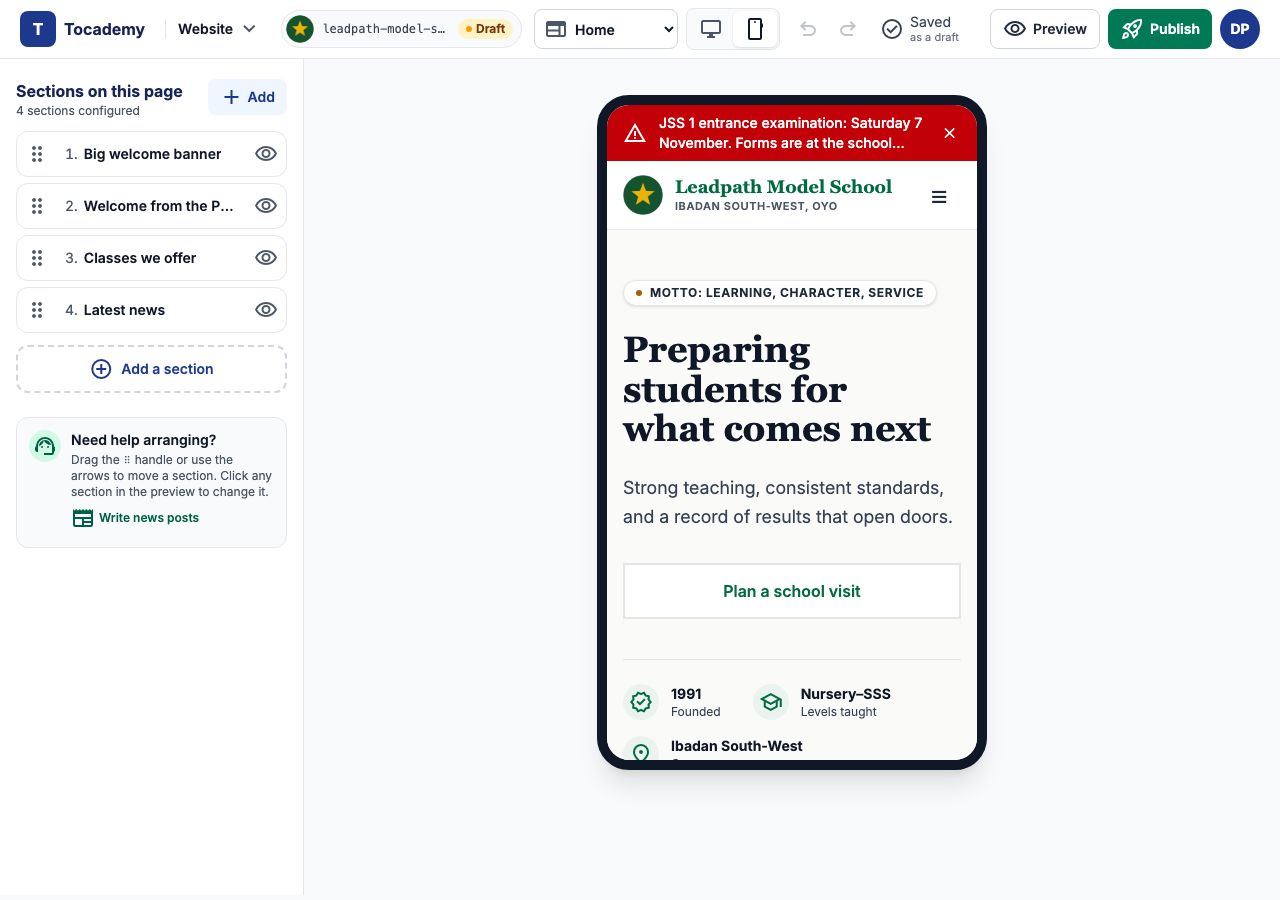
School › Website opens the page editor (the "Pages" tab). Each page is a stack of sections — a welcome banner, a welcome from the Principal, the classes you offer, the latest news and so on. On the left, "Sections on this page" lists them in order; on the right is a preview of your draft exactly as visitors will see it. Click any section in the preview, or in the list, to change it.
1. The toolbar
Along the top: "Page to edit" (Home, About, Admissions or Contact — a dot after a name means it has changes not yet saved), "Desktop" and "Phone" for the preview size, the undo and redo arrows, and the saved state. On About, Admissions and Contact the list also starts with "Page title and introduction". The News page is written on the News tab instead.

2. Your changes save themselves
There is no save button for pages. A moment after each change the status reads Saving soon…, then Saved as a draft. A draft is safe — it is still there tomorrow, on any computer — but visitors do not see it until you publish. If a save fails the editor says "Not saved" with "Try again", and if you try to leave a page with changes that have not saved yet, it asks first.
3. Undo and redo
The curved arrows in the toolbar step back through your recent changes — a section moved, a word typed, a section removed — and forward again. They work while you stay on the page; once you leave, your draft is what was saved.
Example: add a welcome from the Principal
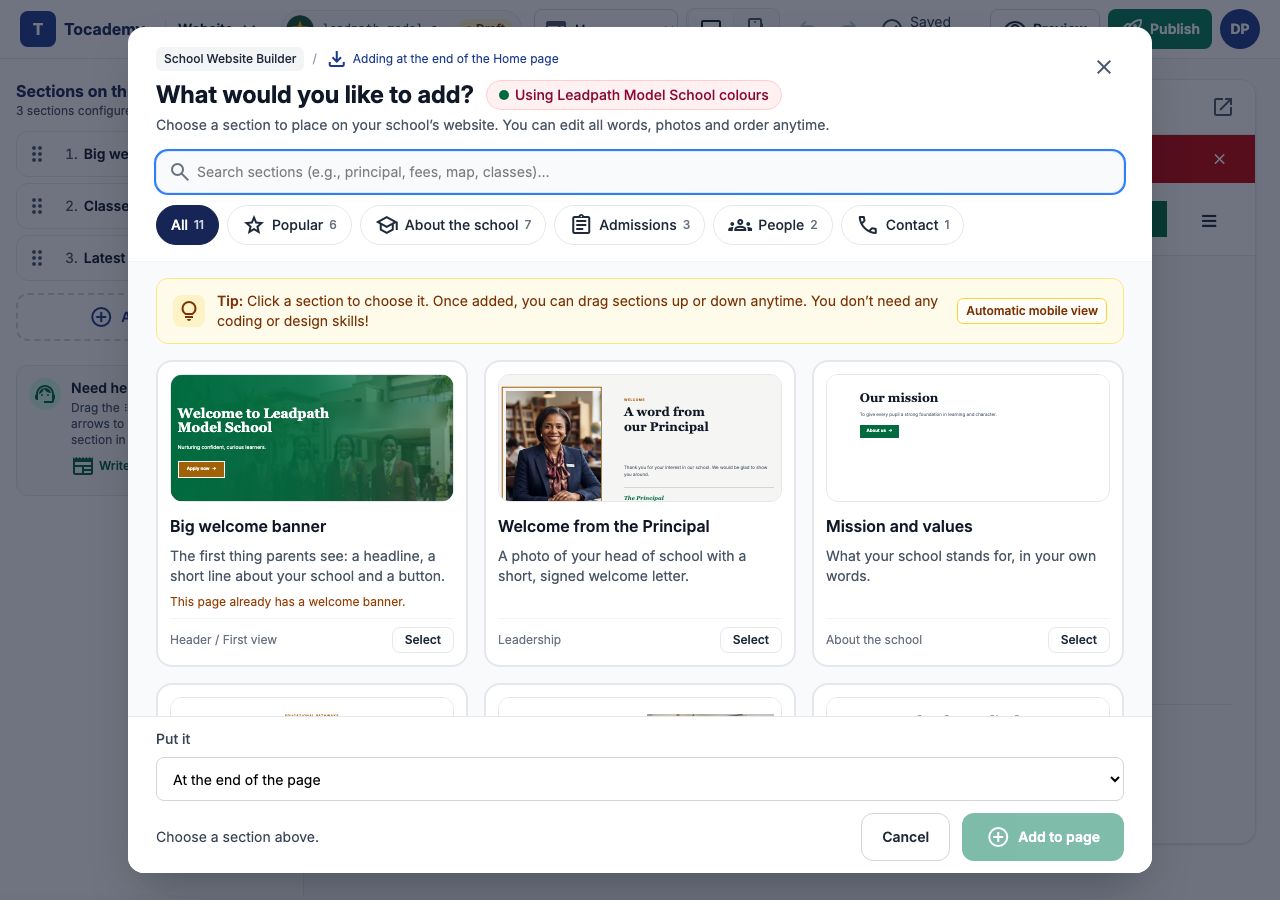
Leadpath's Home page has three sections, and the school wants a word from its Principal near the top. Press "Add" beside "Sections on this page". "What would you like to add?" shows every kind of section with a small picture of it in your school's colours. Filter by All, Popular, About the school, Admissions, People or Contact, or search for a word.
Example: choose it and where it goes
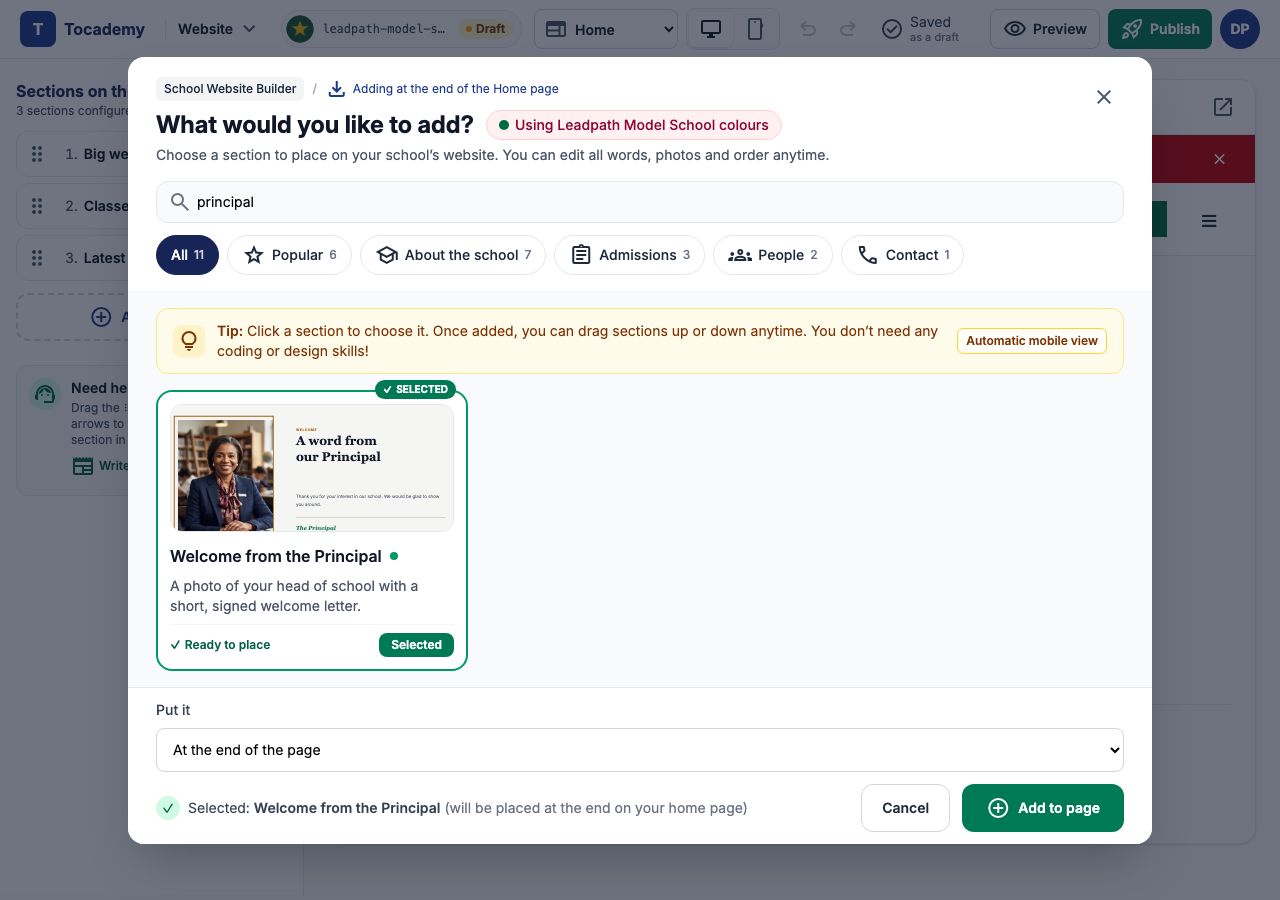
Type principal in the search and the "Welcome from the Principal" card appears; click the card so it is marked Selected, and under "Put it" choose where it goes — "At the end of the page", or directly under any section already there. Leadpath leaves it at the end and presses "Add to page".
Example: fill it in
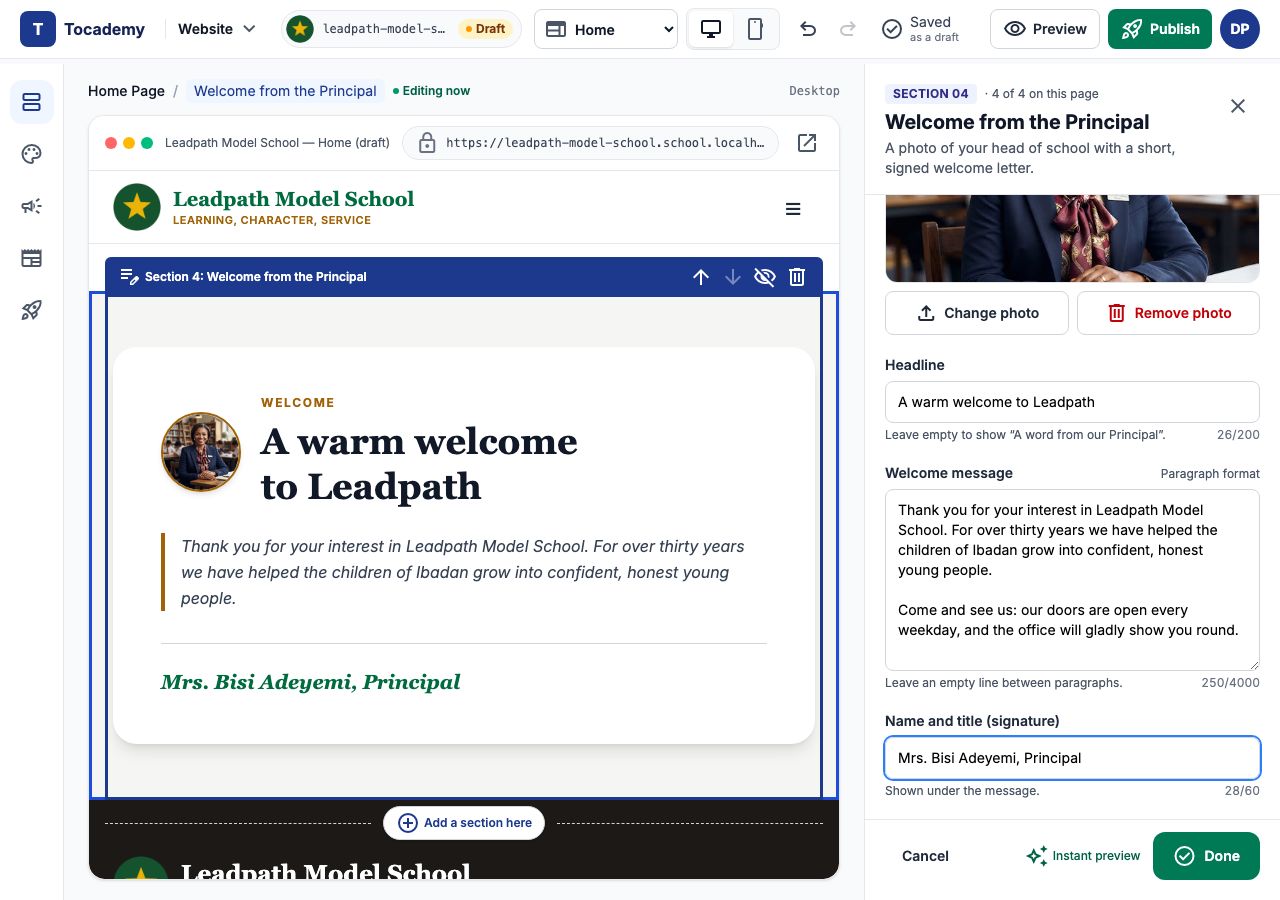
The section opens in a panel on the right. "Show this section" is on. Under "Principal's photo" press "Add a photo" and choose a warm portrait (JPG, PNG or WEBP). Then the "Headline" (Leadpath writes A warm welcome to Leadpath), the "Welcome message" (leave an empty line between paragraphs) and the "Name and title (signature)" — here Mrs. Bisi Adeyemi, Principal. The preview changes as you type, and the section being edited is outlined with its own bar of buttons to move, hide or delete it. Press "Done" to save and close the panel; "Cancel" puts the section back the way it was when you opened it. The icons down the left jump to Colours & logo, Contact & notices, News and Publish & share.
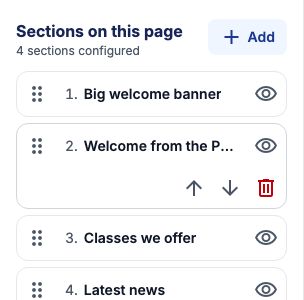
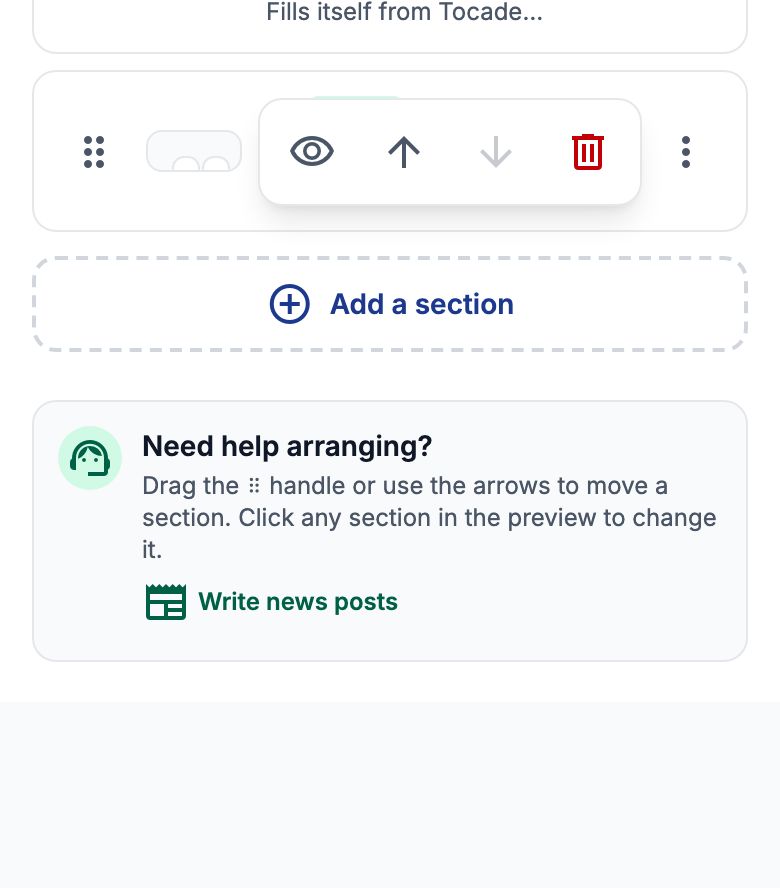
Back in the list, point at the Principal's row: up and down arrows and a bin appear on a line under its name. Press the up arrow twice and it moves from 4th to 2nd, right under the Big welcome banner. You can also drag a row by its ⠿ handle; with the keyboard, press Space on the handle, move with the arrow keys and press Space again.
Hide a section without deleting it
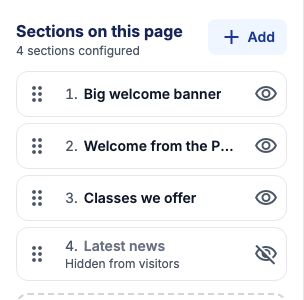
The eye on each row hides a section from visitors and keeps everything in it. The row then reads "Hidden from visitors"; press the eye again to bring it back. Hiding, like every page change, reaches the website when you publish.
Remove a section
The red bin removes a section from your draft. A message at the bottom says it leaves your website when you publish, with "Undo" beside it for a few seconds — press it if you removed the wrong one.

Example: check it on a phone
Most parents will open the website on a phone, so check there before publishing. Press "Phone" in the toolbar: the preview shrinks to a phone, with the notice, the header and the sections stacked one under another. Press "Desktop" to go back.
Editing on a phone
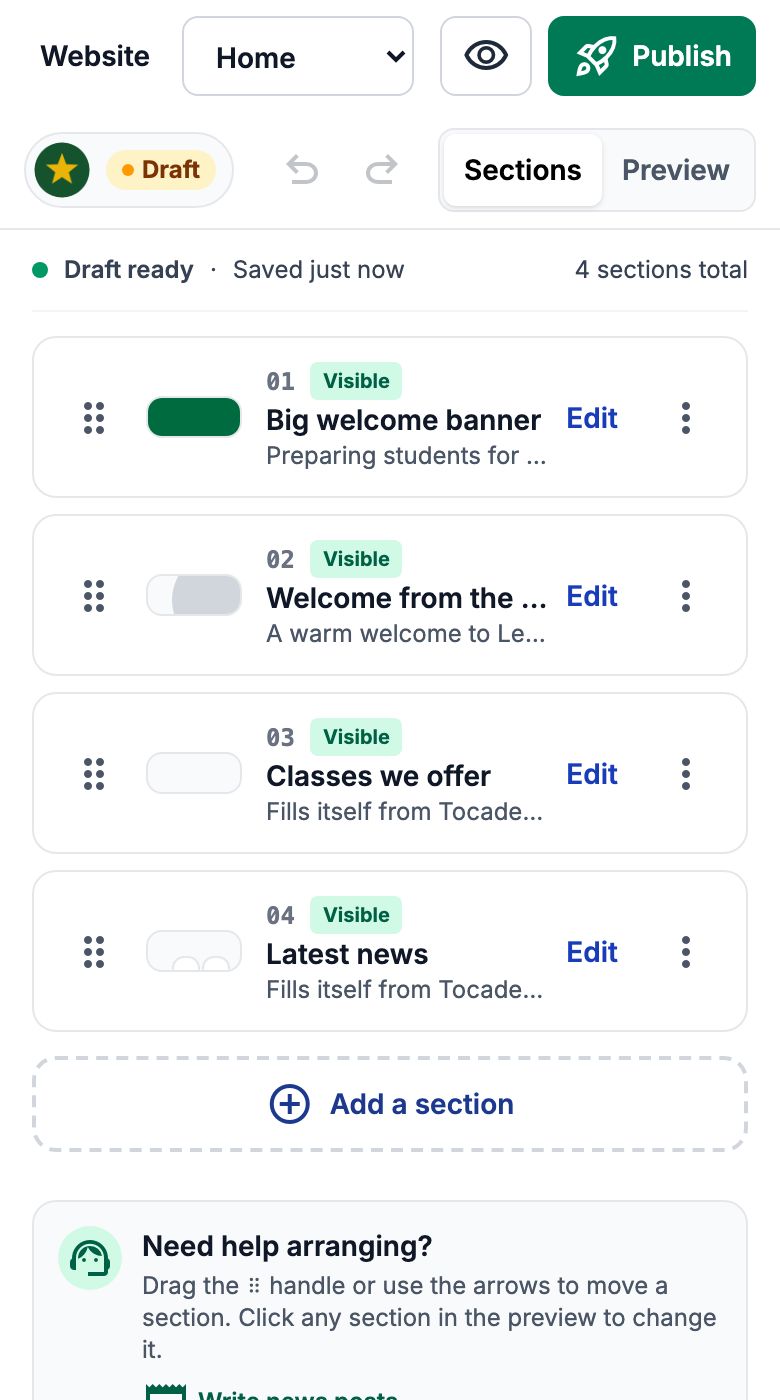
You can do all of this on a phone too. The editor shows the list or the preview, one at a time — switch with "Sections" and "Preview". Each row has its number, whether it is visible, a short summary, Edit and a ⋮ button. A green status line says whether your draft is saved.
Editing on a phone: the panel
Tap Edit and the section's panel slides up from the bottom of the screen with the same boxes as on a computer. "Done" saves and closes it; "Discard" puts the section back as it was.
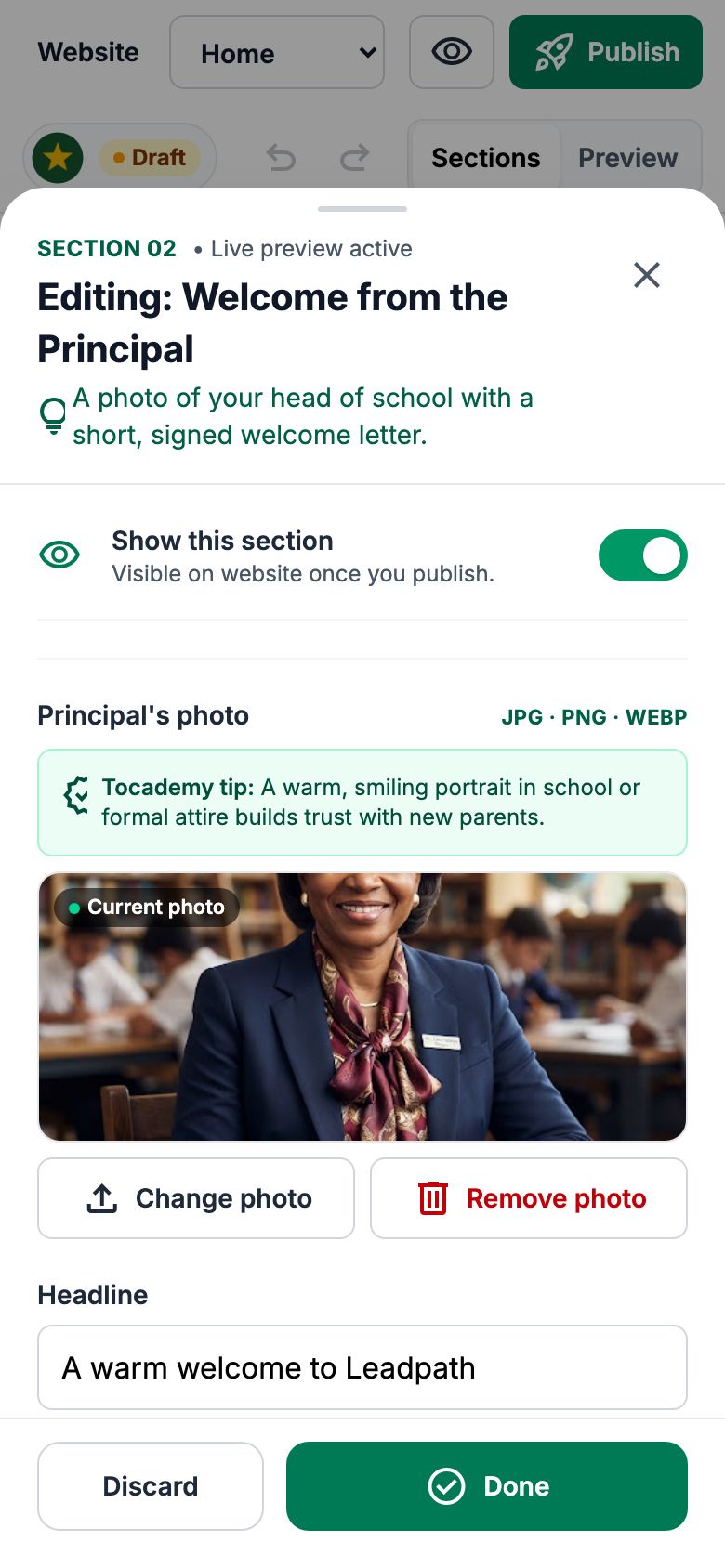
Editing on a phone: move, hide or remove
On a phone the ⋮ on a row opens the eye, the up and down arrows and the bin, inside the row beside the ⋮. When the page looks right, publish it — see Publishing and Sharing Your Website.
Still stuck?
Email info@tocel.ng and tell us which guide you were following.