HR Reports and Dashboard
Read the school's staff figures at a glance on the HR dashboard, open any of the HR reports, narrow them by campus, department and dates, and pull the figures a board meeting asks for.
1. The HR dashboard
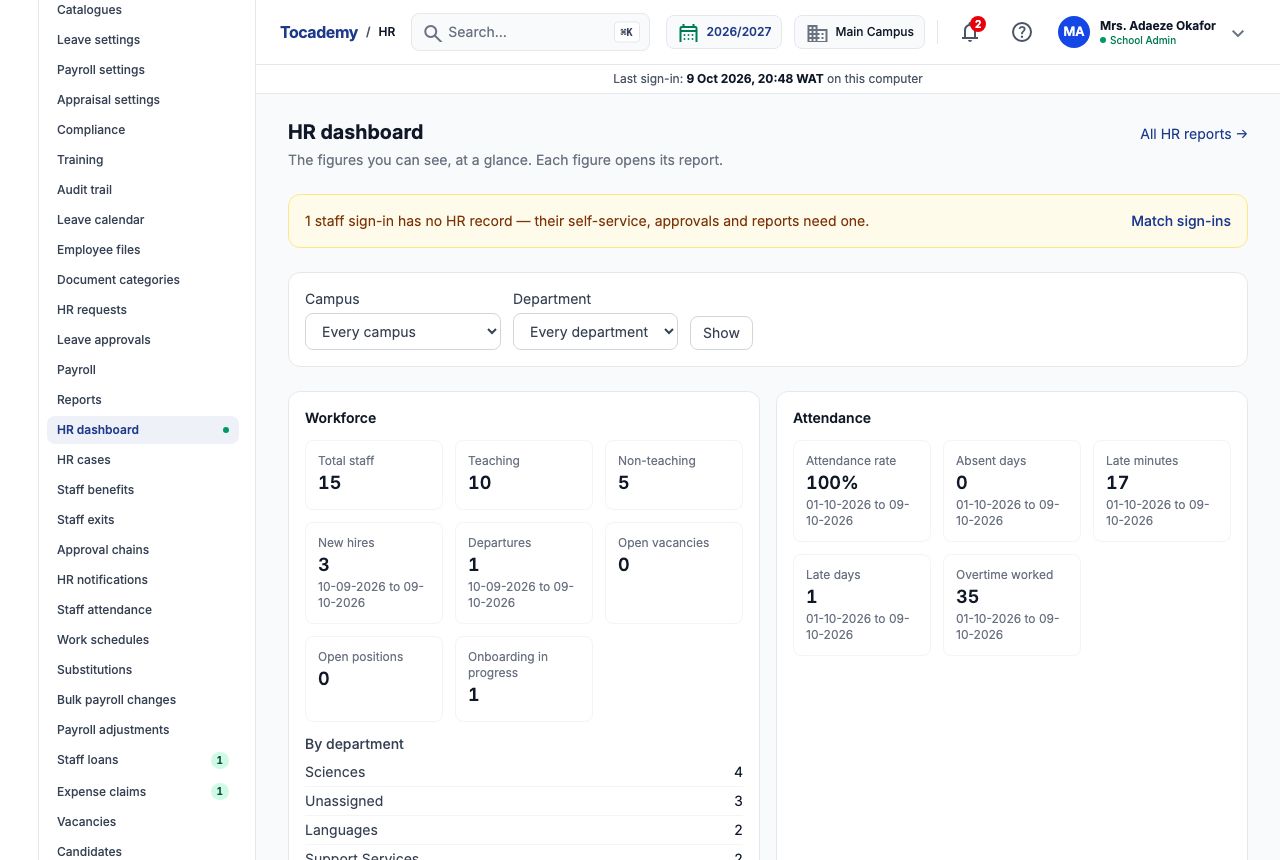
Choose "HR dashboard" in the HR menu. It gathers the school's staff figures into six groups — Workforce, Attendance, Leave, Payroll, Performance and Compliance — and most figures open the report behind them. If a member of staff can sign in but has no HR record, a yellow line at the top says so, with a "Match sign-ins" link: their self-service, approvals and reports need a record, so deal with it before reading the figures. "All HR reports" at the top right opens the full list of reports.
2. Narrowing the dashboard
Above the figures, "Campus" offers "Every campus", "School-wide staff only" (staff not attached to any one campus) and each campus by name, and "Department" offers "Every department" or one department. Choose and press "Show"; every group then counts only those staff. A school with one campus, like Greenfield Model College's Main Campus, can leave "Campus" alone. If you choose a campus whose staff your role may not see, the page says so and produces no figures rather than showing a partial count.
3. Workforce
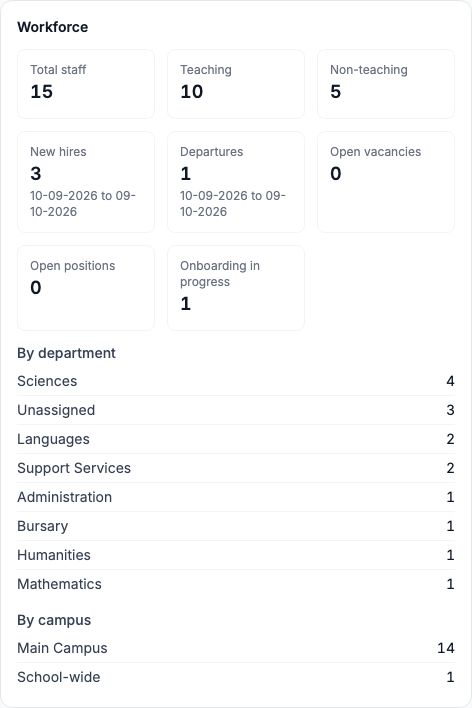
"Total staff", "Teaching" and "Non-teaching" count everyone on the staff records who has not left. "New hires" and "Departures" count people who joined or left in the last 30 days, "Open vacancies" counts the vacancies the school has published and "Open positions" the places in them still to fill, and "Onboarding in progress" counts new staff still working through their onboarding checklist. A figure that counts over a period shows its dates under it — at Greenfield New hires and Departures read 10-09-2026 to 09-10-2026. Below are the counts "By department" and "By campus". At Greenfield the dashboard showed 15 staff: Sciences 4, Unassigned 3, Languages 2, Support Services 2, and one each in Administration, Bursary, Humanities and Mathematics. The three Unassigned are staff sign-ins added on 9 October whose HR records are still awaiting completion — complete them on Staff records and the count moves to the right department. Someone who has left, such as Bassey Etim, is not counted.
4. Attendance, Leave and Payroll
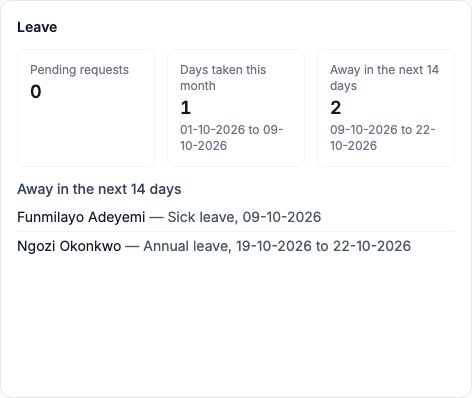
Attendance shows the "Attendance rate", "Absent days", "Late minutes", "Late days" and "Overtime worked" from staff clock-ins. Leave shows "Pending requests" (waiting for a decision), "Days taken this month" and "Away in the next 14 days", with the names of anyone on approved leave in the coming fortnight. Payroll shows "Payroll cost", "Net pay", "Overtime", "Allowances" and "Deductions" for the latest payroll. Where nothing has been recorded yet a figure shows a dash and Nothing has been recorded for this period yet — that means no data, not zero.
5. Performance and Compliance
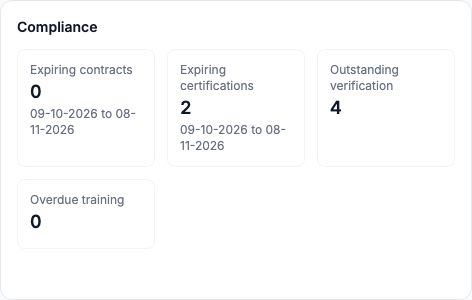
Performance counts the appraisals in open appraisal cycles by stage: "Draft", "In review", "Awaiting approval", "Approved", "Rejected" and "Acknowledged". Compliance counts "Expiring contracts", "Expiring certifications", "Outstanding verification" (vetting checks not yet passed) and "Overdue training". At Greenfield two certifications are close to expiry and four vetting checks are still outstanding; open either figure to see whose.
6. What each person sees
The dashboard and the reports show only what your role may read, and a group or report you may not open is simply not listed. Workforce, Compliance and the staff reports need permission to view staff records; Leave needs permission to manage staff leave; Attendance to view attendance; Payroll to view payroll; Performance to view appraisals; exits and recruitment reports need the matching HR permissions. The school administrator sees everything. The Principal sees all but payroll. The built-in Bursar role sees the Payroll group and the payroll reports only — it can see pay, but not staff records or leave.
7. The HR reports
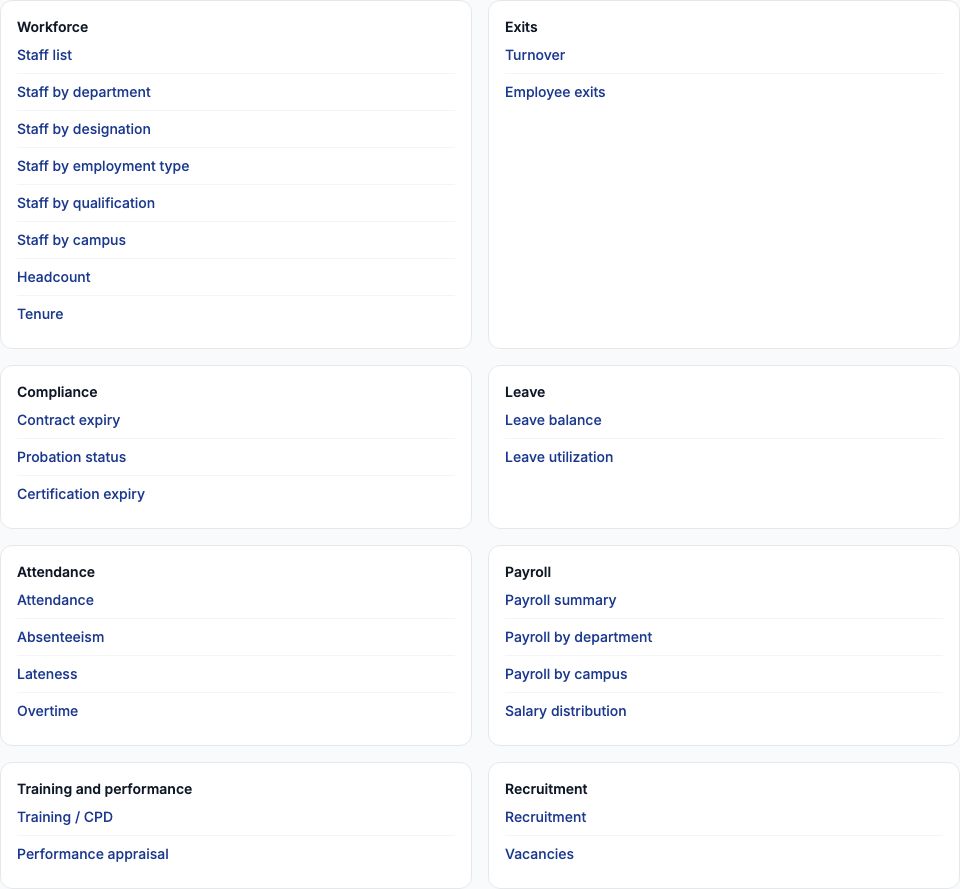
Choose "Reports" in the HR menu. The reports are grouped by area. Workforce: "Staff list" and the same list by department, designation, employment type, qualification or campus, "Headcount" (counts by every grouping at once) and "Tenure" (length of service). Exits: "Turnover" and "Employee exits". Compliance: "Contract expiry", "Probation status" and "Certification expiry". Leave: "Leave balance" (entitlement, taken, pending and remaining for every employee and leave type) and "Leave utilization" (approved days taken). Attendance: "Attendance", "Absenteeism", "Lateness" and "Overtime". Payroll: "Payroll summary", "Payroll by department", "Payroll by campus" and "Salary distribution" (how many staff fall in each pay band). Training and performance: "Training / CPD" and "Performance appraisal". Recruitment: "Recruitment" and "Vacancies".
8. Example: figures for the board meeting
Mr. Tunde Bakare, Greenfield's bursar, is preparing the governors' pack for the end of first term and needs the staff headcount by department and the leave taken this term. When he opens "Reports" he sees only the Payroll area, because his Bursar role cannot read staff records or leave. Rather than give him permission to manage leave — which would also let him approve it — the school administrator, Mrs. Adaeze Okafor, pulls the two reports and prints them for him. (If the bursar should read these every term, give him an extra role on Settings → Users that can view staff records and open HR reports.)
9. Staff by department
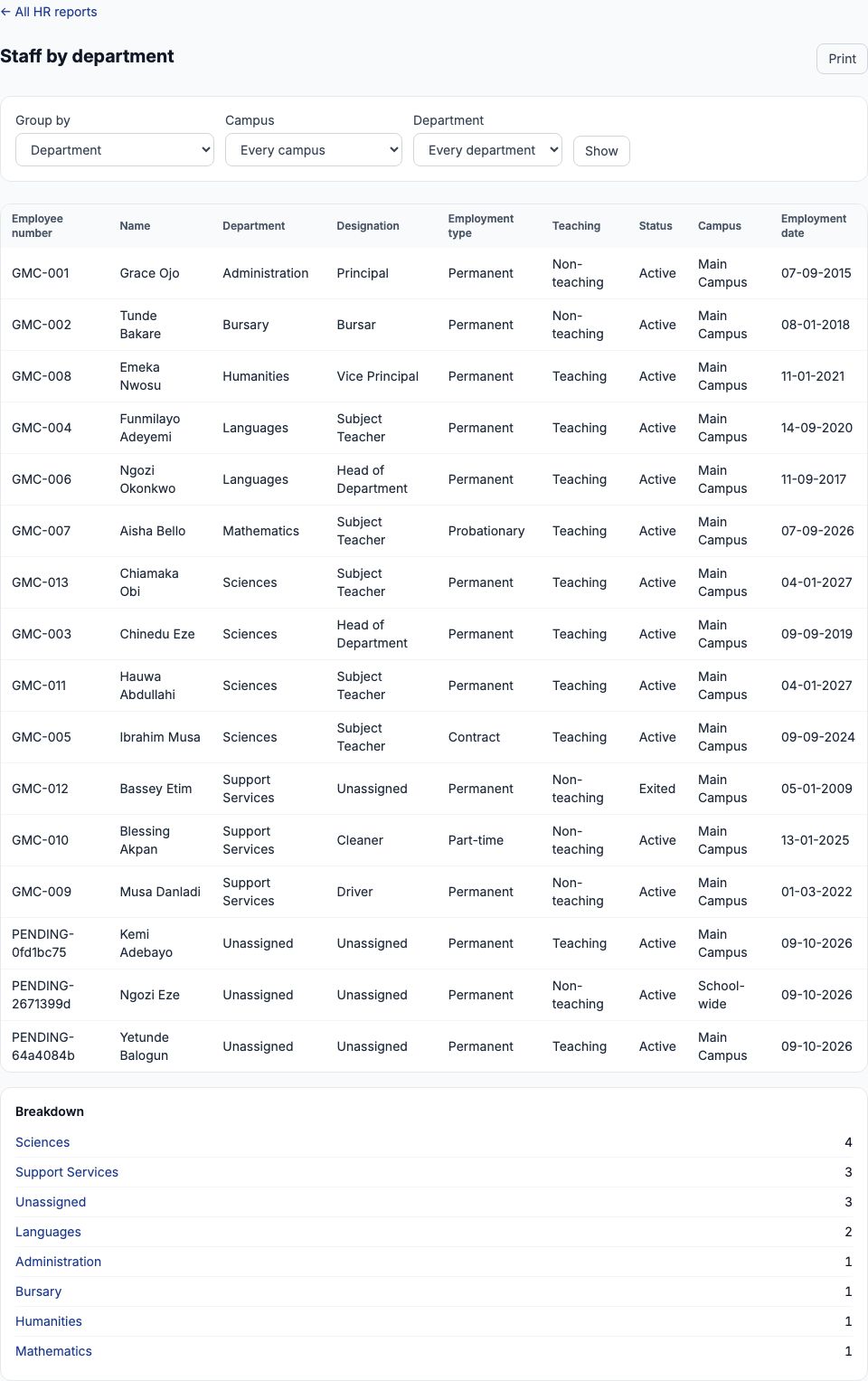
Open "Staff by department". The table lists every staff member department by department, each with their employee number, department, designation, employment type, whether they teach, status, campus and employment date, and the "Breakdown" under it counts them by department. "Group by" switches the same report between "No grouping (the staff list)", "Department", "Designation", "Employment type", "Qualification" and "Campus"; press "Show" after changing it.
10. Headcount
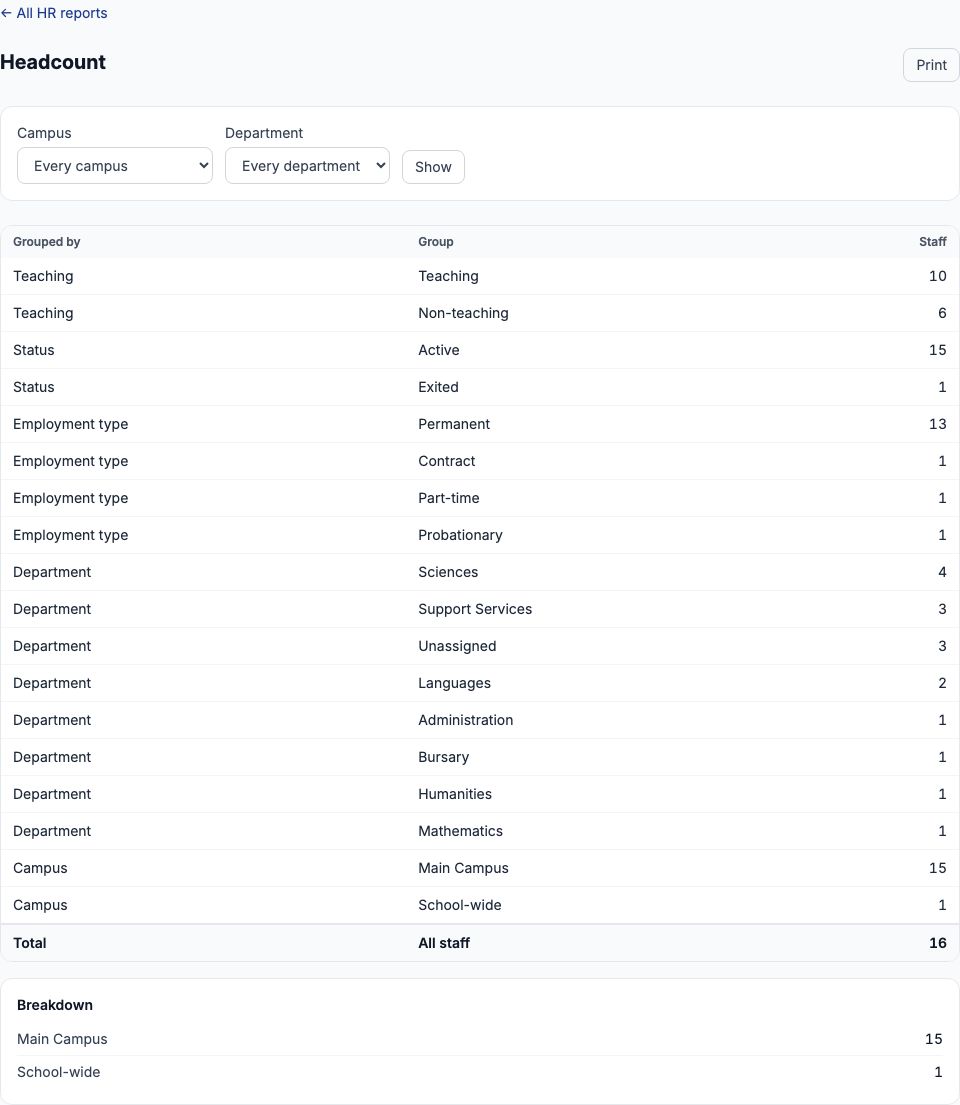
"Headcount" puts every count on one page: teaching and non-teaching, status, employment type, department and campus, with the total. The total counts everyone on file, including staff who have left, so it can be higher than the HR dashboard's count of staff employed now. This is the table that went into Greenfield's board pack: 16 staff on the records — 10 teaching, 6 non-teaching; 15 active and 1 exited; 13 permanent, 1 on contract, 1 part-time, 1 probationary; Sciences 4, Support Services 3, Unassigned 3, Languages 2 and one each in Administration, Bursary, Humanities and Mathematics. Unlike the dashboard, the headcount includes people who have left — Bassey Etim is the one exited — and the two teachers already appointed for January (Hauwa Abdullahi and Chiamaka Obi, both starting 04-01-2027) are counted too, so check the staff list if the board asks for staff in post today.
11. Leave taken this term
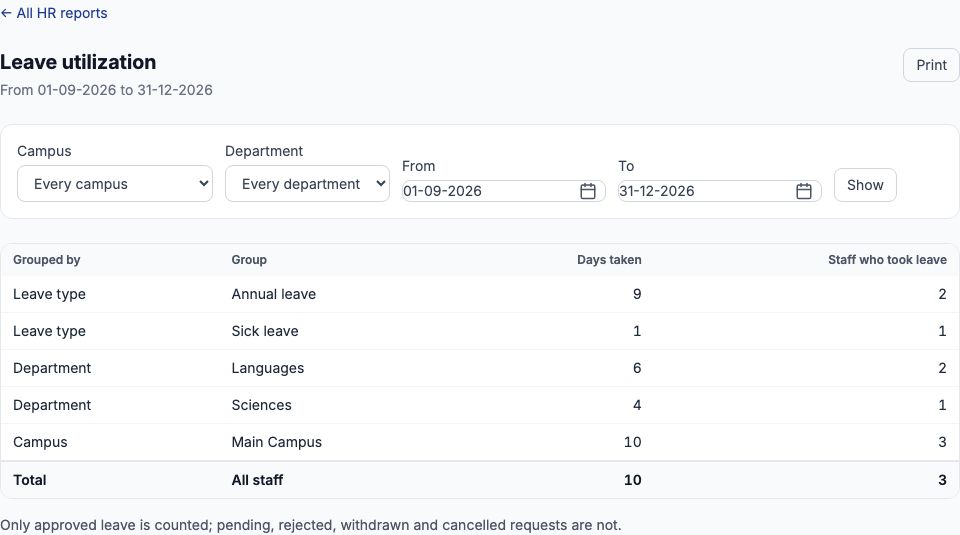
Open "Leave utilization" and set "From" to 01-09-2026 and "To" to 31-12-2026, the first term, then press "Show". It counts approved leave only — pending, rejected, withdrawn and cancelled requests are left out — by leave type, department and campus. For Greenfield's first term: 10 days taken by 3 staff — 9 days of annual leave by 2 staff and 1 day of sick leave — of which 6 in Languages and 4 in Sciences (Ibrahim Musa's two approved requests of two days each). For each employee's entitlement, days taken, pending and remaining, use "Leave balance" with "As of" set to the day of the meeting.
12. Filters on a report
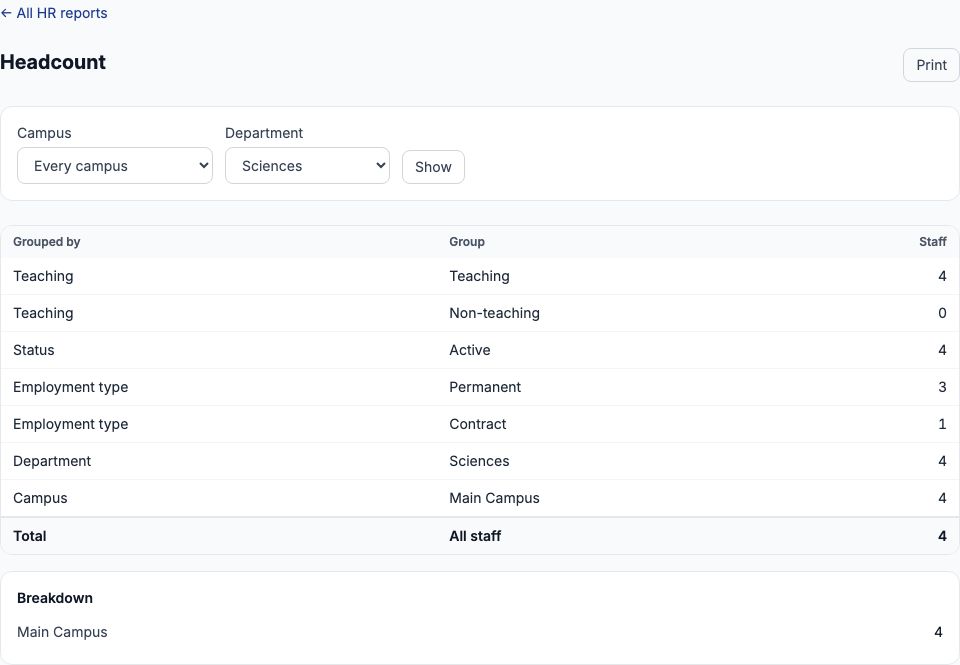
Each report offers the filters that make sense for it: "Campus" and "Department" on most; "From" and "To" for a period; "As of" for a balance on one day; "Days ahead" for what expires soon; "Band width" for the salary bands; and on the attendance reports a "Period" of "One day", "One month", "A term", "The school year to date" or "Custom dates". Press "Show" after changing any of them. A filter that came from clicking a dashboard figure or a breakdown line appears as a line of its own above the table with "Clear" beside it, and "Clear these filters" removes them all. Here the headcount is narrowed to Sciences: 4 staff, all teaching, 3 permanent and 1 on contract.
13. Example: contracts that end soon
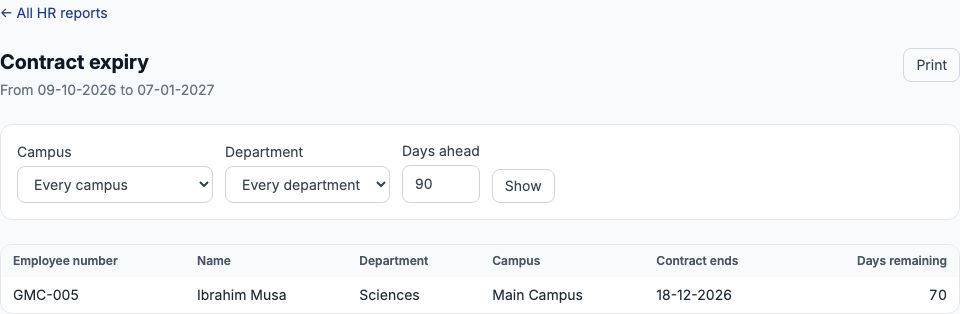
Open "Contract expiry", type 90 in "Days ahead" and press "Show". The heading shows the window — from 09-10-2026 to 07-01-2027 — and the table lists every contract ending in it with the days remaining. At Greenfield that is Ibrahim Musa, whose fixed-term contract ends on 18-12-2026, 70 days away: time to decide whether to renew it before the third-term timetable is set.
14. Printing and sharing
To put a report in a board pack, set the filters and press "Print" beside the report's title, then choose a printer or Save as PDF. Only the report goes on the paper — its title and dates, the filters applied, the table, the breakdown and the notes — without the menus or the filter boxes. Long reports are split into pages with "Next" and "Previous" links; print each page. Because the address of a report includes its filters, you can also copy the address and send it to a colleague — they see the same report if their role allows it.
15. School analytics and staff figures
The school-wide Analytics page (the term at a glance, with "Export Excel" and "Export PDF") covers pupils, attendance registers, fees and results; it does not show staff figures. For staff numbers, leave, payroll and compliance, use the HR dashboard and the HR reports described here.
Still stuck?
Email info@tocel.ng and tell us which guide you were following.