Website Enquiries
Messages parents send from your website's Contact page: who can read them, replying, marking read, deleting, and the email the school receives.
How enquiries work
The Contact page of your website has a form, "Send an admissions or general enquiry". A parent gives their name, a phone or WhatsApp number, an email address, what the enquiry is about ("Admissions", "School fees", "A visit to the school" or "Something else"), optionally their child's current class or the class they would join (a school that has not set up its classes yet lists its stages instead, such as Primary or JSS), and their message. It arrives in the Enquiries tab of School › Website, and is emailed to the school's website contact email. This guide follows one message to Greenfield College from start to finish.
Example: Mrs Ada Obi asks about JSS 1
Mrs Ada Obi's daughter is in Primary 6 and the family is thinking of Greenfield for JSS 1. On her phone she opens Greenfield's Contact page, fills in her name, phone and email, chooses "A visit to the school" and JSS 1, asks whether she can visit on a weekday morning, and presses "Send enquiry".
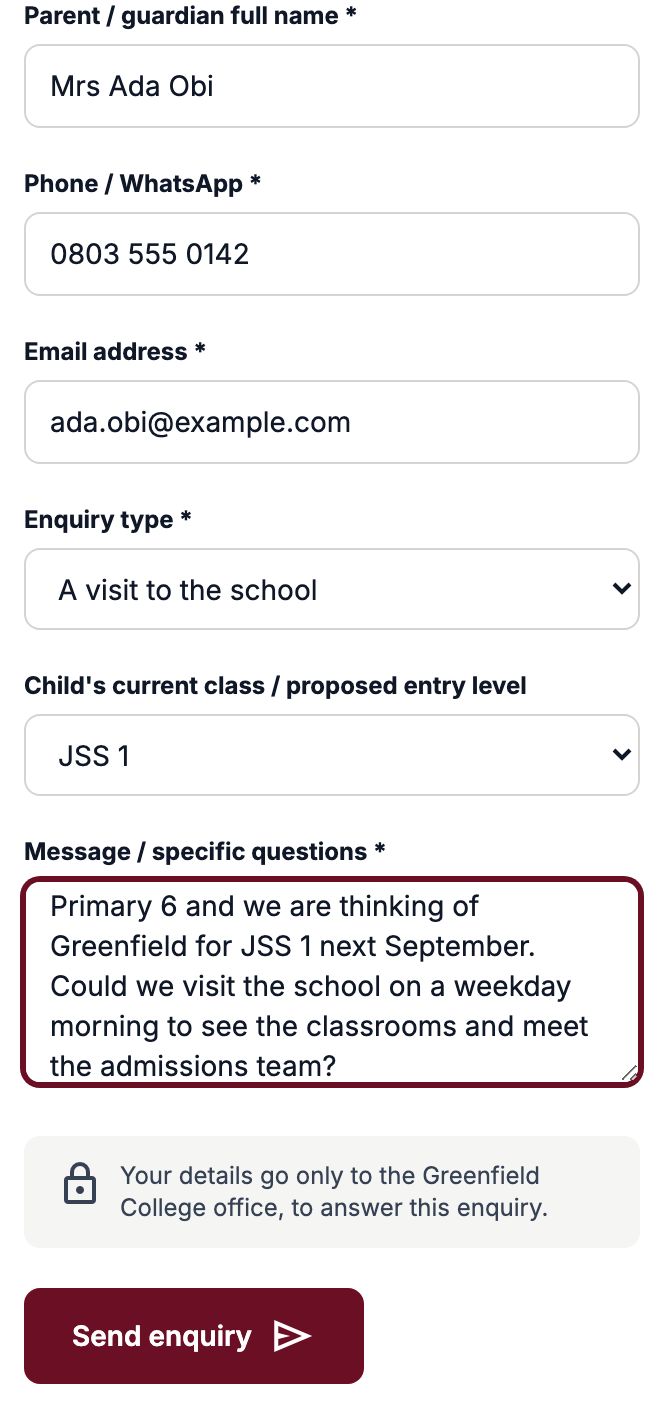
What the parent sees
The form is replaced by a thank-you saying her message is with the Greenfield College office, and that they will reply to the email address or phone number she gave. Under it, the visit panel invites her to see the school in person.
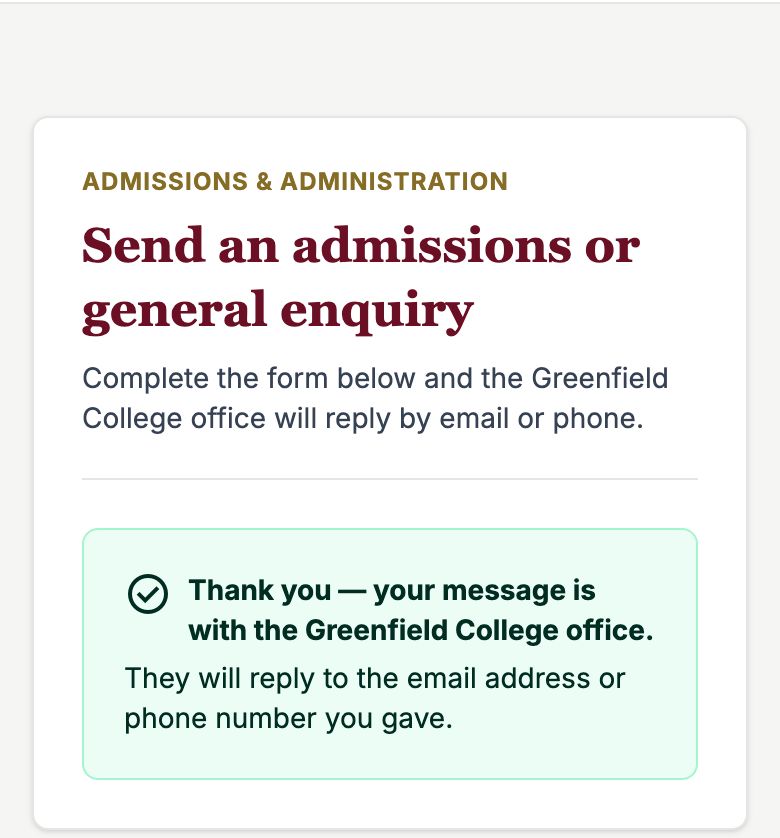
1. Who can read enquiries
Reading, marking read and deleting enquiries all need one permission, "Read website enquiries". The School Admin, Campus Admin and IT Admin roles have it from the start. To give it to another role — the Principal, or an admissions officer role your school has made — open Administration › Roles & Permissions, choose the role, turn on Read website enquiries in the Admissions group and press "Save permissions". Enquiries belong to the whole school, so anyone with the permission sees all of them, whichever campus they work on. Someone who has only this permission goes straight to the Enquiries tab when they open School › Website.
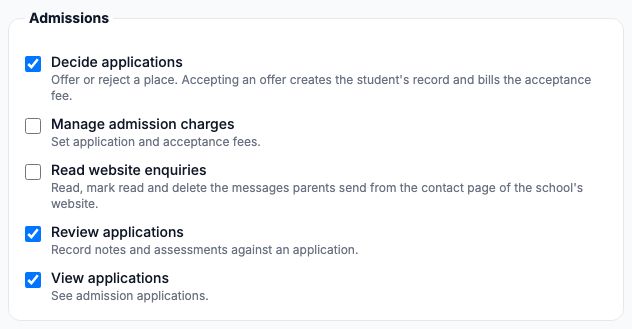
2. The Enquiries tab
Open School › Website › "Enquiries". The newest message is at the top, and a blue "New" marks one nobody has read yet; the line at the top counts the unread ones. Each shows the parent's name, what it is about and the child's level, when it was sent, the message, and the parent's email and phone — click either to write or call.
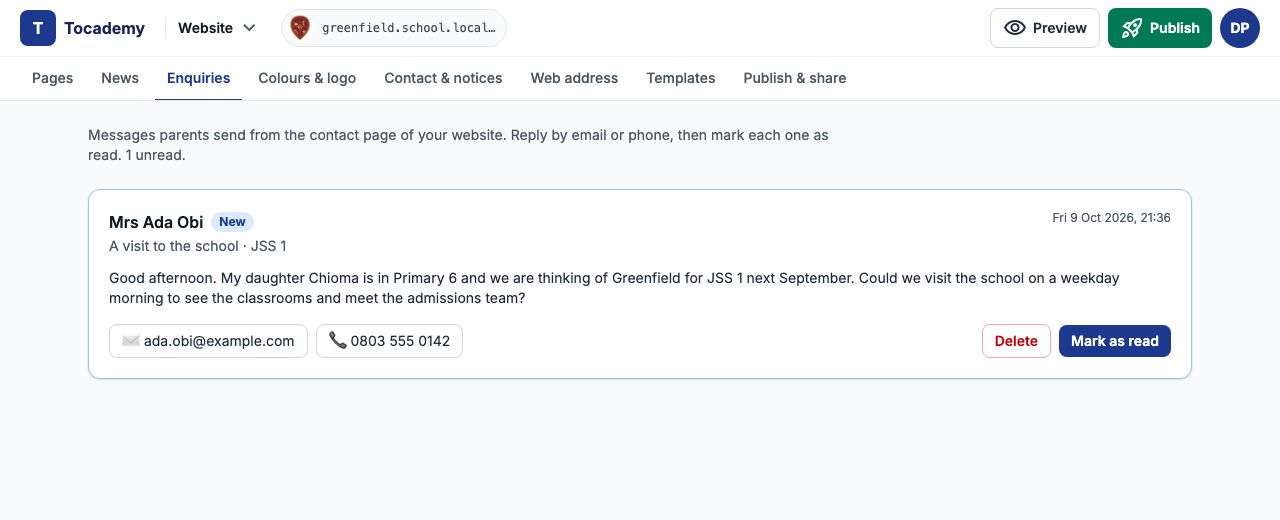
Example: the office replies by phone
The admissions officer calls Mrs Obi on 0803 555 0142 and books her visit for Tuesday morning. Replies are made by your own phone or email — Tocademy does not send them. Then she presses "Mark as read": the New mark goes and the button disappears, so colleagues can see it has been dealt with.

Example: delete it later
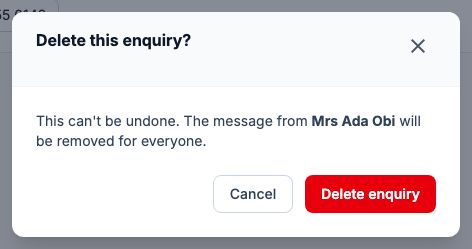
After the visit the office no longer needs the message. Press "Delete": the box asks "Delete this enquiry?" and warns that it cannot be undone and is removed for everyone. Press "Delete enquiry" to remove it, or "Cancel" to keep it.
Example: an empty inbox
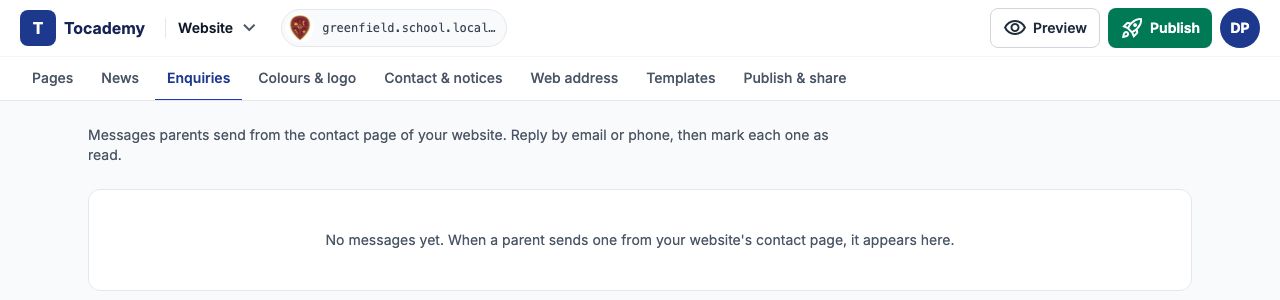
With nothing left, the tab says there are no messages yet, and that new ones appear here when a parent writes from your website's contact page.
3. The email the school receives
Each new enquiry is also emailed, with the subject New enquiry from your school website. It lists the parent's name, email, phone, what it is about, the class level and when it was sent, then the message, and has a button that opens the Enquiries tab. It goes to the email address under Contact & notices › "Public Contact Details" — the one on your website's contact page — so put the office address there. If that box is empty, nobody is emailed, though the message still arrives in the Enquiries tab. Do not reply to the email itself; nobody reads replies to it. Write to or call the parent instead.
4. Kept for six years
Enquiries are deleted automatically six years after they were sent. You can delete any one sooner, as in the example, once the school no longer needs it.
Still stuck?
Email info@tocel.ng and tell us which guide you were following.